If your services fall under a VAT exemption, for example for education or healthcare, there are two things to arrange in your shop: selling the product without VAT, and stating the exemption visibly on the invoice. The second part is a legal requirement, but it does not happen by itself: an exempt product without the right settings shows nothing at all about VAT on the invoice. In this article you configure it correctly in three steps, so that the invoice neatly shows “VAT exempt (0%)”.
The shop in Autorespond is based on WooCommerce, included in your package. Read the WooCommerce documentation
Step 1: create a 0% rate in the “exempt” tax class #
Go to Shop → Shop settings → Tax tab and click the “exempt rates” sub-tab. The exempt tax class is ready for you in the platform by default; all you have to do is add a rate line to it.
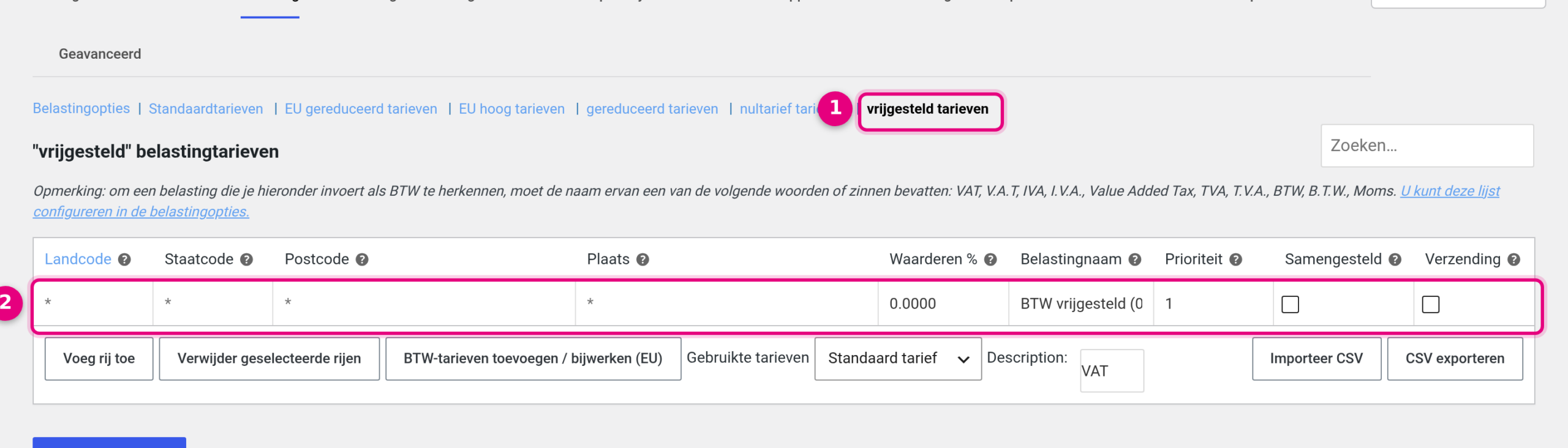
- The exempt rates sub-tab: this is where you manage the rates of the exempt class.
- The rate line: leave the country code, state code, postcode and city set to * (applies everywhere), set Rate % to 0.0000 and enter a Tax name such as “VAT exempt (0%)”. This name appears on the invoice word for word, so choose it carefully.
No line there yet? Click “Insert row”, fill in the line as above and click Save changes. If you cannot see the “exempt rates” sub-tab at all, first add the class through Tax options → Additional tax classes field (put “exempt” on its own line there) and save.
Step 2: set the product to the exempt class #
Open the product through Shop → Products and scroll to the Product data block.
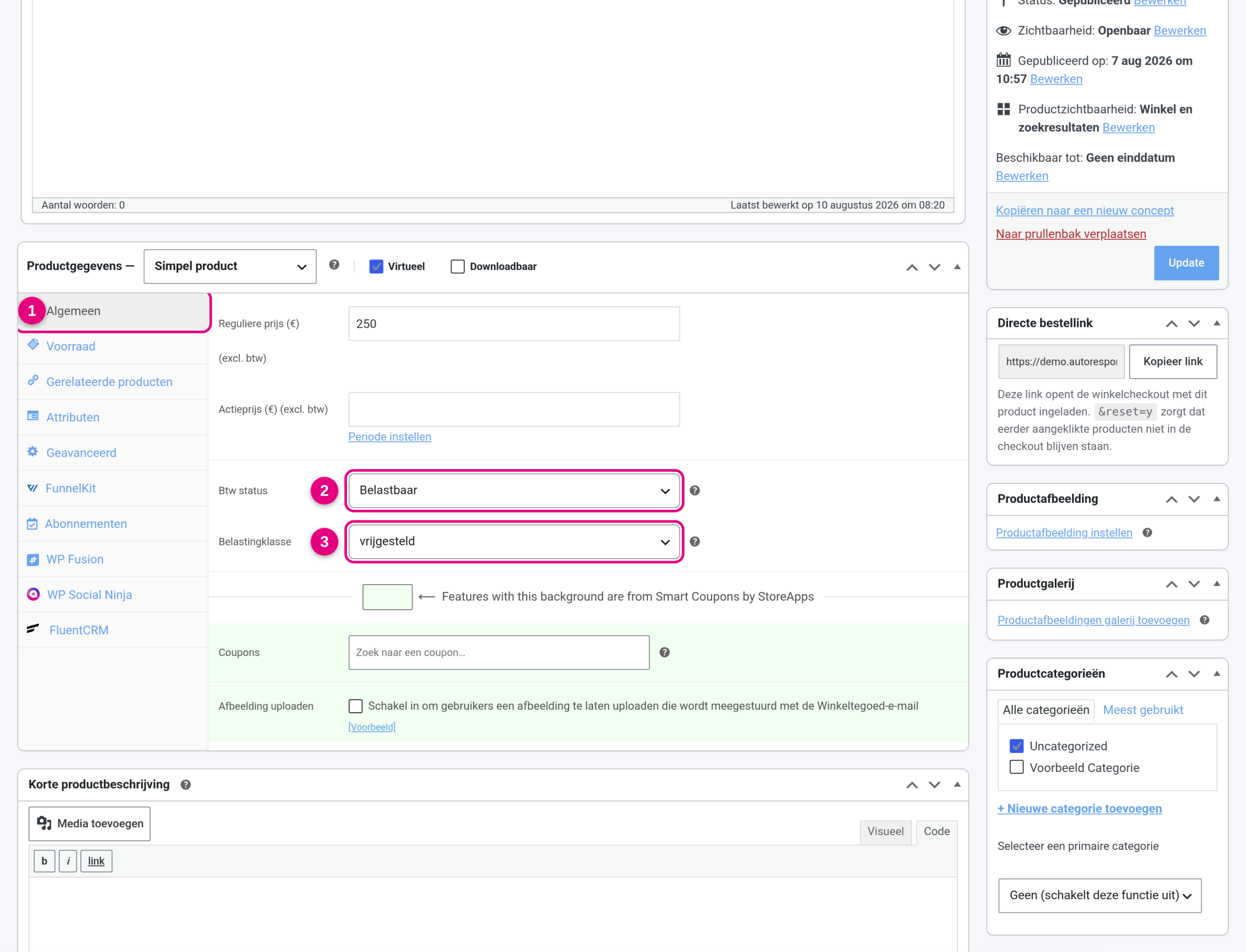
- Click the General tab.
- Leave Tax status set to Taxable. Do not set it to “None”: the product would indeed be VAT-free, but the invoice would then show no VAT information at all, which is exactly what you want to avoid.
- At Tax class, choose the exempt class and click Update to save the product.
Step 3: make the invoice show 0% VAT as well #
Invoices hide VAT lines of 0 euros by default. You switch that display on through Shop → Invoice management → Documents tab. Under “Choose document” select the Invoice, expand the Document details section and scroll to the “Show zero taxes” setting.
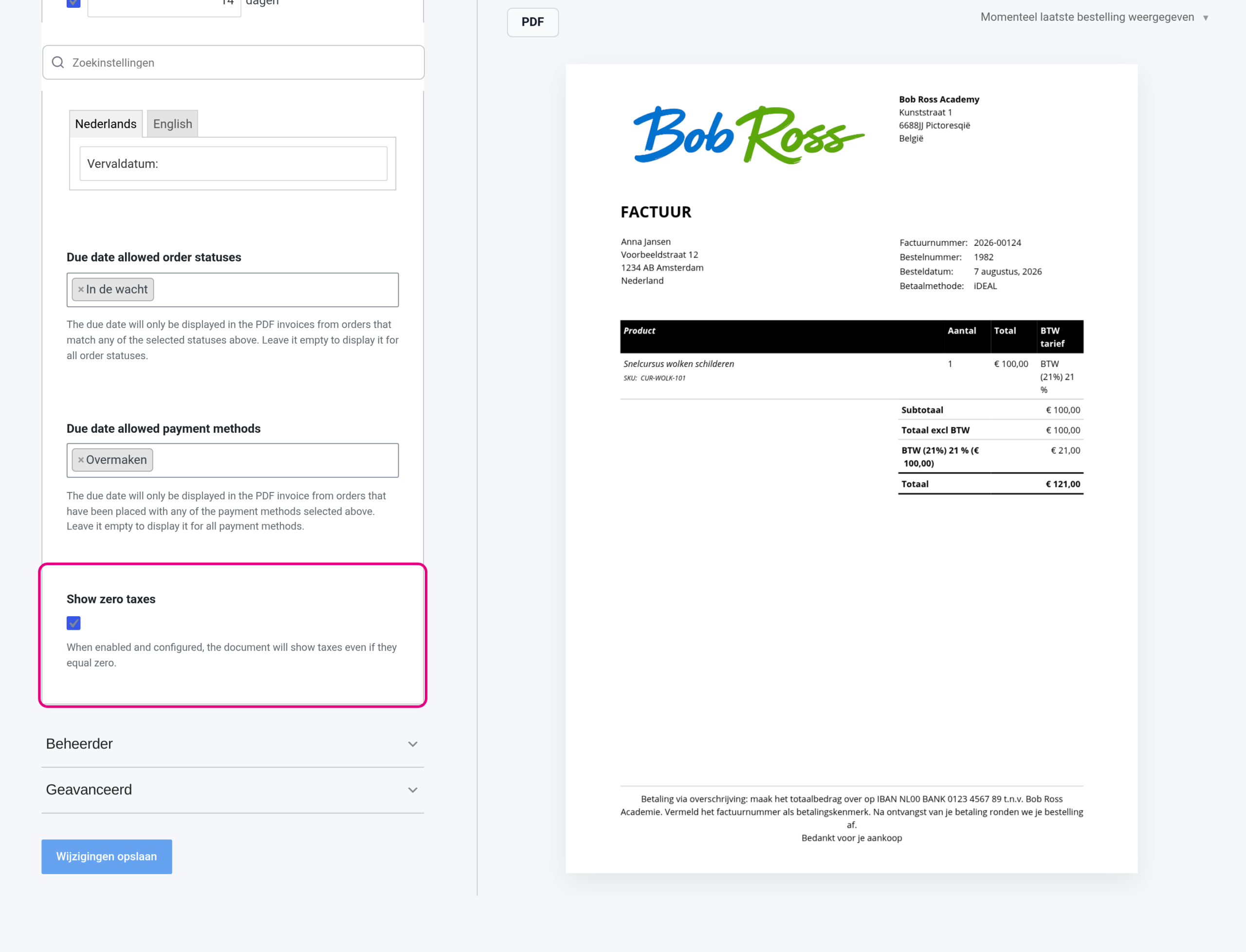
- Tick Show zero taxes (pink frame) and click Save changes at the bottom. The preview on the right shows the effect on the invoice immediately.
The result on the invoice #
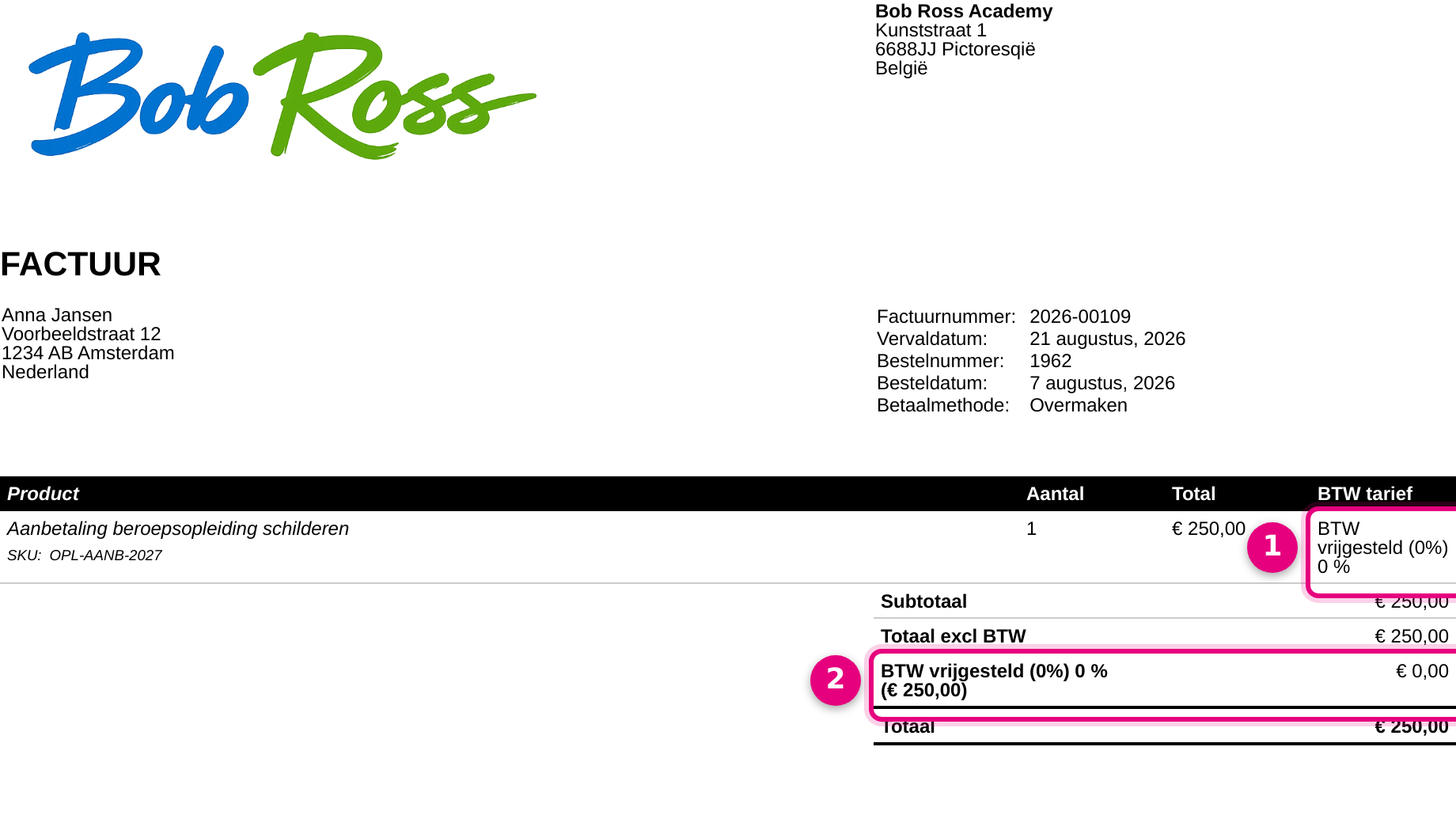
- Optional: the VAT rate per product line. You add this column through the Customizer tab → Invoice document tab → Item columns → “Add a new column” → VAT rate. In the column settings, also tick the checkbox directly below the column selection (labelled “Display meta data”); that shows the name of the rate alongside the percentage.
- The totals line “VAT exempt (0%)” with 0.00 euros. It appears automatically once steps 1 to 3 are configured.
Point of attention: e-invoicing (Peppol) and the legal basis #
For e-invoicing through Peppol, “exempt” is a VAT category of its own and something different from a 0% rate in the standard category: a 0% line in your Standard rates can lead to rejected invoices there. So always keep exempt products in the separate exempt tax class, as described in this article. In addition, state the legal basis for your exemption on the invoice; the easiest way is a fixed text in the invoice footer (Shop → Invoice management → General tab) or an extra text block through the Customizer.


