Do you want to stay up to date with what happens in your environment without logging in every week? Your environment can email you summaries automatically: a weekly summary of your form submissions and a weekly and/or monthly summary of your sales. You decide yourself who receives the summaries and how often. This article explains which report emails there are, where you switch them on and what they contain.
The forms and sales funnels in Autorespond are based on Fluent Forms and FunnelKit, included in your package.
The weekly forms summary #
The forms summary is a weekly email with a table of all your forms and the number of submissions over the past 7 days. That way you see at a glance which forms are doing well. You switch the summary on through Forms → Form settings. On the Settings tab, scroll to the Email summaries section.
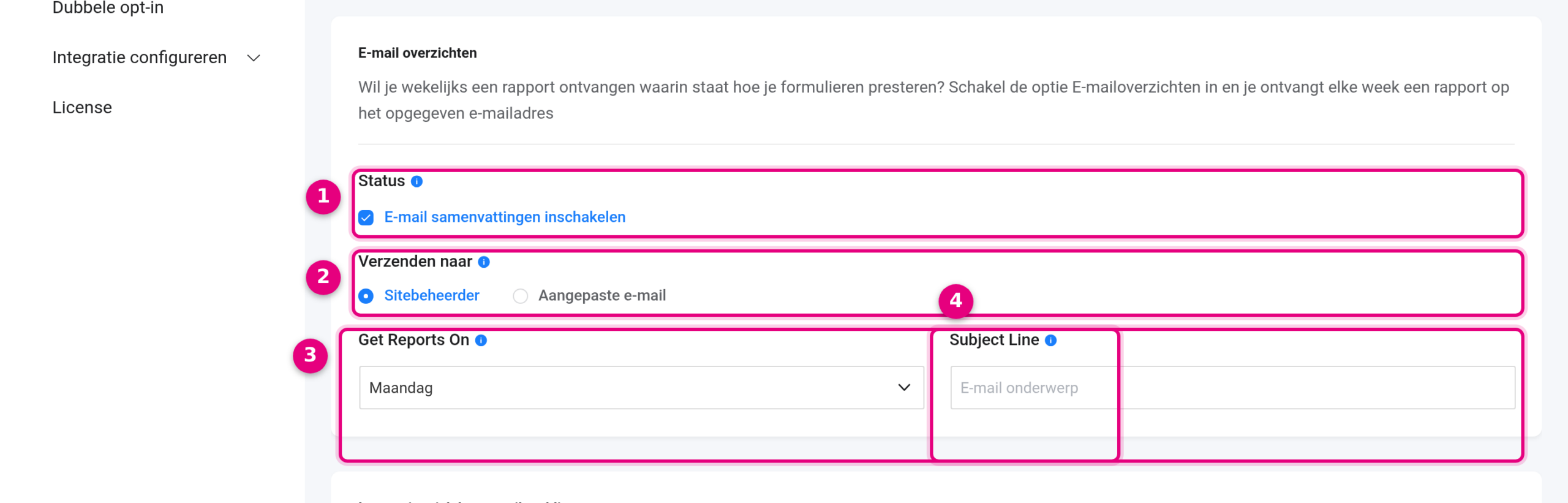
- Status: tick “Enable email summaries” to activate the weekly summary.
- Send to: choose Site administrator (the email address of your environment) or Custom email to enter one or more recipients yourself.
- Get Reports On: the day on which the summary is sent, Monday by default. Handy: on Monday you look back on exactly the past week.
- Subject Line: here you can enter your own subject line for the email. If you leave this empty, the standard subject line is used.
Click Save settings at the bottom of the page. The email looks like this:
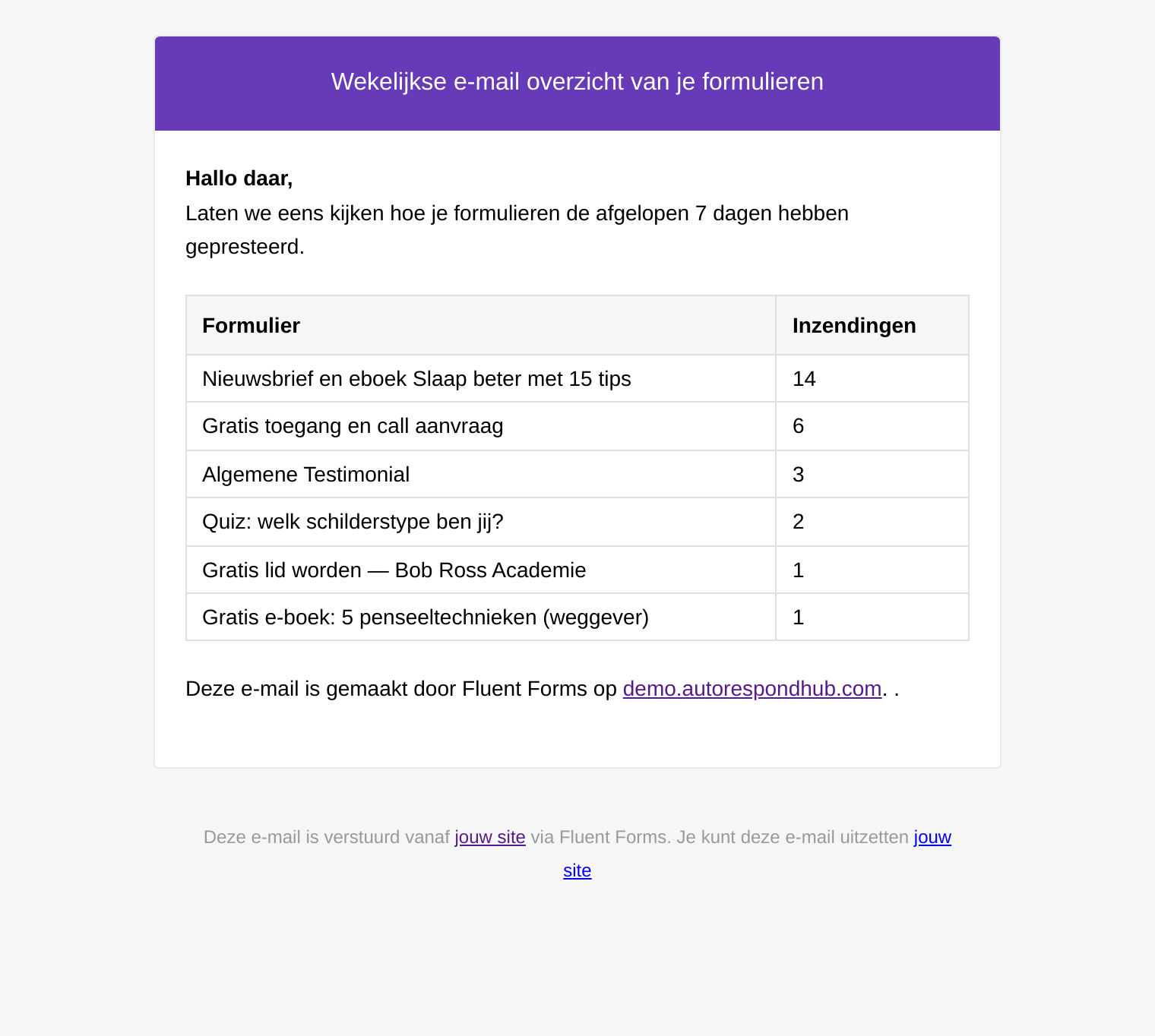
Good to know: if there were no submissions in a week, the email is skipped that week. The summary shows the number of submissions per form; views and conversion rates are not included. You will find those in your environment under Forms.
The sales summary (weekly and/or monthly) #
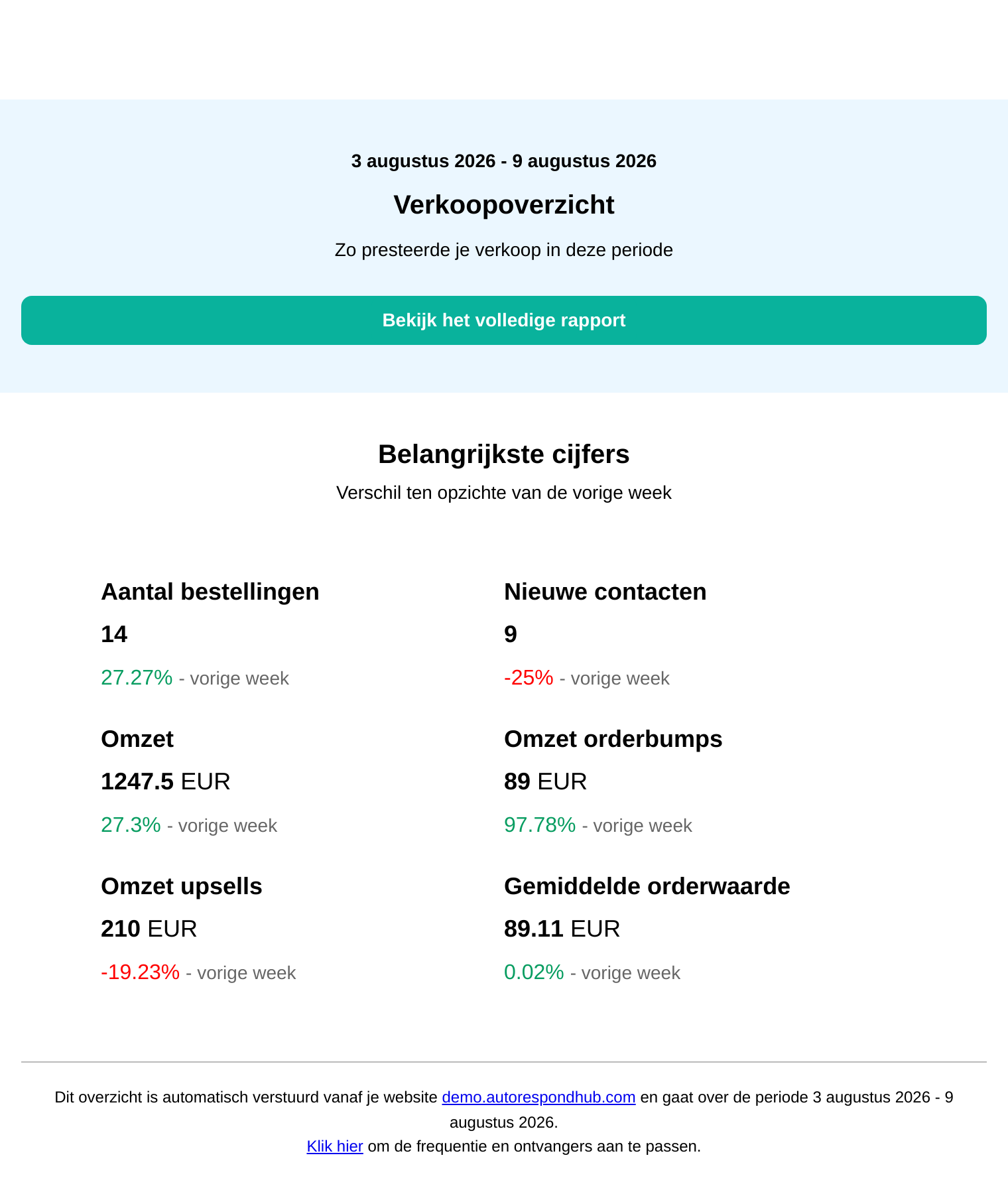
The sales summary is an email with the most important sales figures of the past week or month: the number of orders, new contacts, the revenue (including the revenue from order bumps and upsells) and the average order value. Each figure comes with the difference compared to the previous period, so you see straight away whether you are growing. The button in the email takes you to the full report in your environment.
You switch the sales summary on through Sales funnels → Sales funnel settings. Click Notifications in the left-hand column.
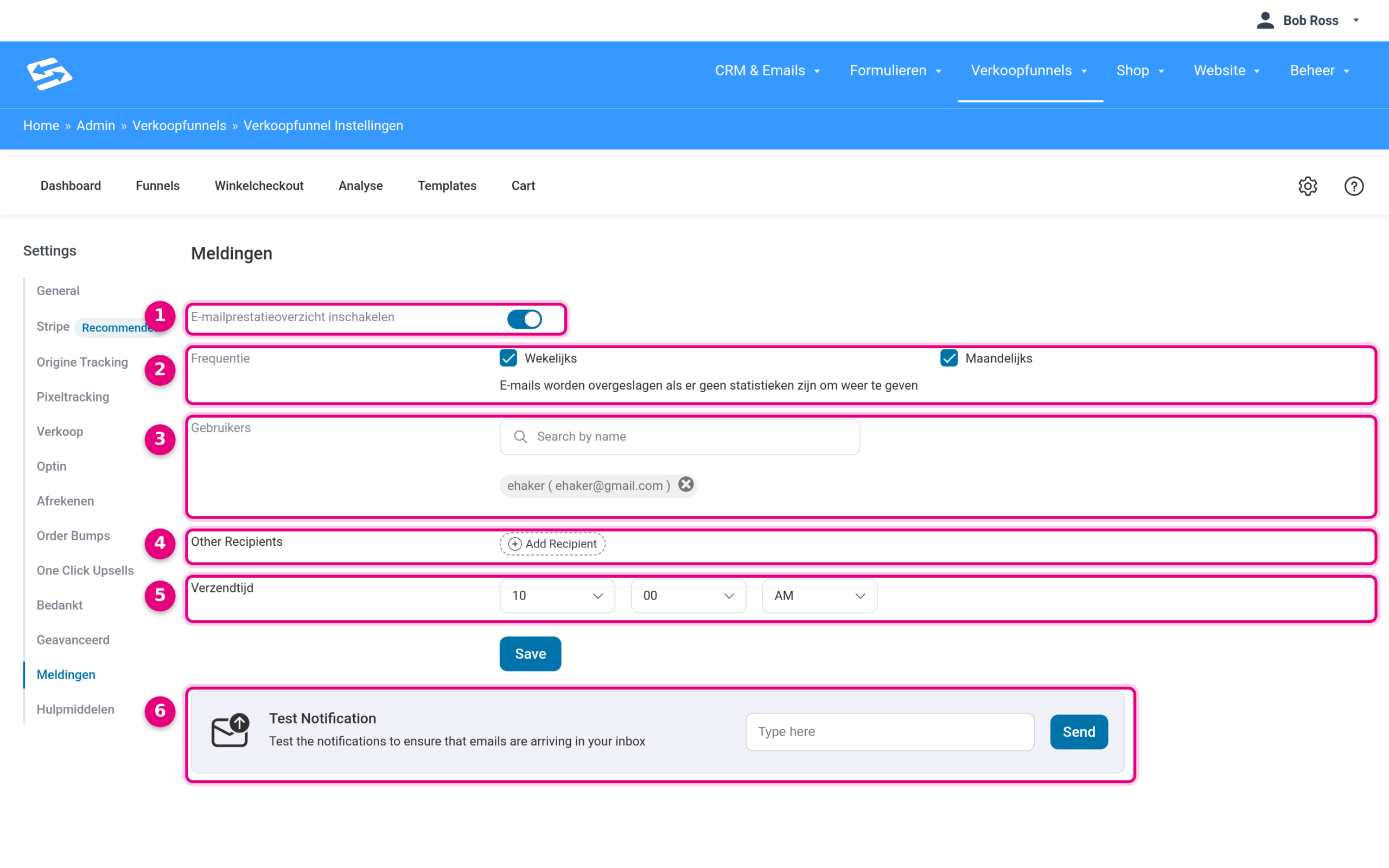
- Enable email performance summary: switch this toggle on to activate the sales summary.
- Frequency: choose Weekly, Monthly or both. Note the message underneath: emails are skipped if there are no statistics to show. Without orders in the period there is therefore no (empty) email.
- Users: choose one or more users of your environment as recipients. Search by name and click the user.
- Other Recipients: use Add Recipient to add individual email addresses that are not users of your environment, for example your bookkeeper.
- Send time: the time at which the summary is sent. The weekly summary arrives at the start of the week and covers the week before; the monthly summary arrives at the start of the month and covers the month before.
- Test Notification: enter your email address and click Send to receive a test copy straight away and check that the email arrives properly.
Click Save to store your settings. The weekly summary looks like this:
And the monthly variant, with the same figures over the full month:
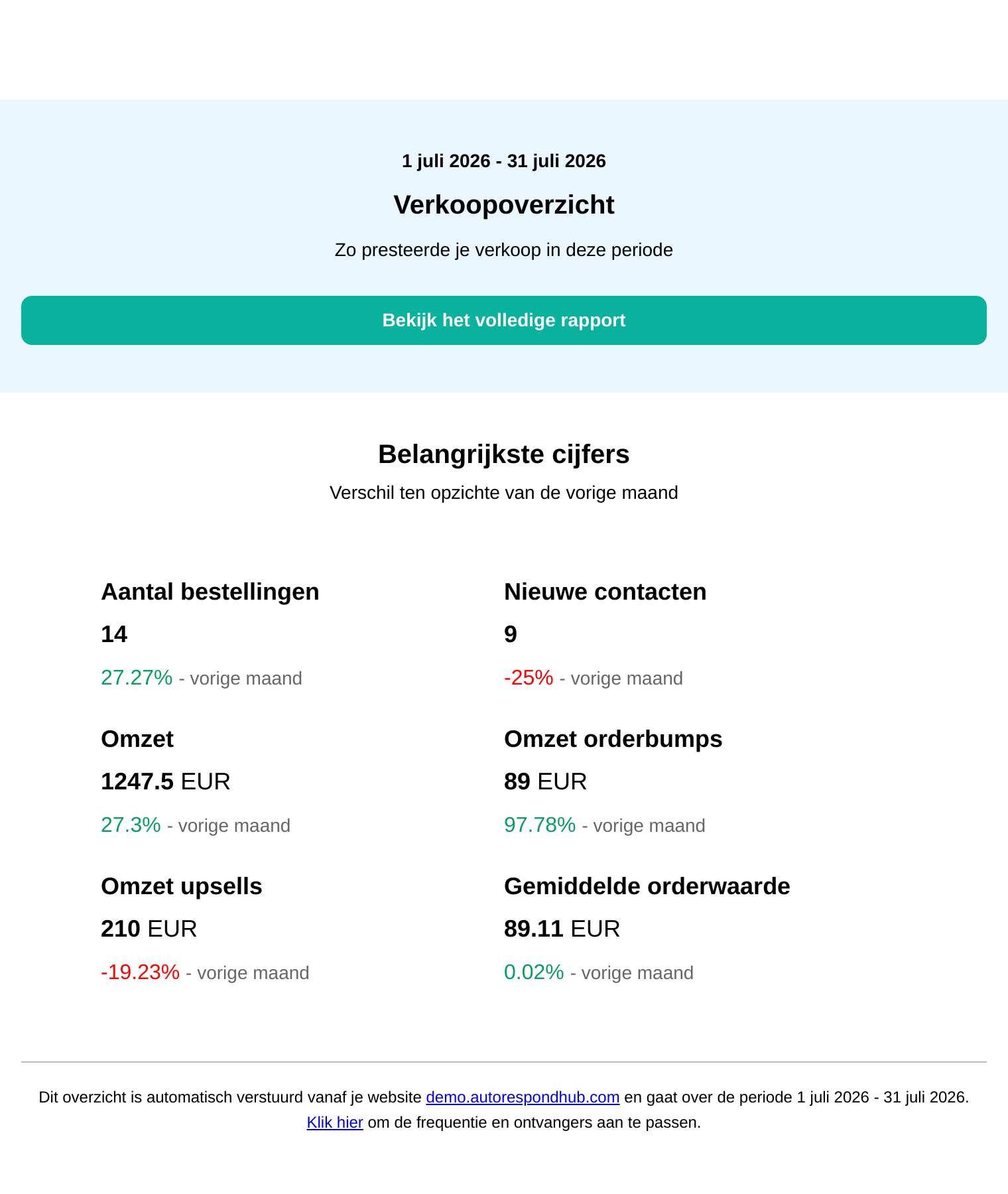
The figures in this summary cover the sales through your shop and sales funnels. If you want to dig deeper, for example per product or per funnel, click “View the full report” in the email or go to Sales funnels → Funnel analytics in your environment.
Also useful: the appointments summary #
If you work with the appointments module, you can also receive a daily or weekly summary of your bookings: the number of new bookings and the number of completed appointments in the period. You will find the option “Enable booking summary notification” in the settings of the Appointments section (Administration → Appointments → Settings). The same applies here: if there were no bookings, the email is skipped.
What these summaries do and do not cover #
Did you use to receive a weekly summary email in e-act? Together, the reports above cover the most important part of that: your new submissions (leads) and your sales figures, each in its own email. A few things are deliberately left out:
- Mailing statistics (newsletters sent, opens and clicks): you view these in your environment through CRM & Emails → CRM statistics, and per campaign at the campaign itself.
- Contact growth over a longer period: the sales summary shows the new contacts of the period; you see the full trend under CRM & Emails → Contacts.
- Subscription forecasts: you view expected recurring income in the subscription reports (see the links below).


