With a one-click upsell you make your customer an extra offer straight after the payment, which is added to the order with a single click. The customer does not have to pay again: the payment for the upsell is processed automatically through the payment that has just been made. You add an upsell to a sales funnel, for example the funnel with its own checkout per product from creating an individual sales funnel. Incidentally, the same is possible on the general Store Checkout.
Sales funnels in Autorespond are based on FunnelKit Funnel Builder, included in your package. Read the FunnelKit documentation
First: which payment methods support one-click upsells? #
Because the upsell is charged automatically, this only works with payment methods that allow a follow-up payment. Via Mollie those are iDEAL, credit card, SOFORT and Bancontact. With iDEAL it works like this: the customer’s first payment counts as a mandate, and the amount of the upsell is then collected automatically by SEPA Direct Debit. For that, the SEPA Direct Debit payment method has to be active on your website profile in your Mollie dashboard (mollie.com) alongside iDEAL. If it is off, Mollie cannot collect the upsell.
Then indicate in Autorespond which payment methods upsells may be active for. Go to Sales funnels → Sales funnel Settings and choose One Click Upsells in the menu on the left.
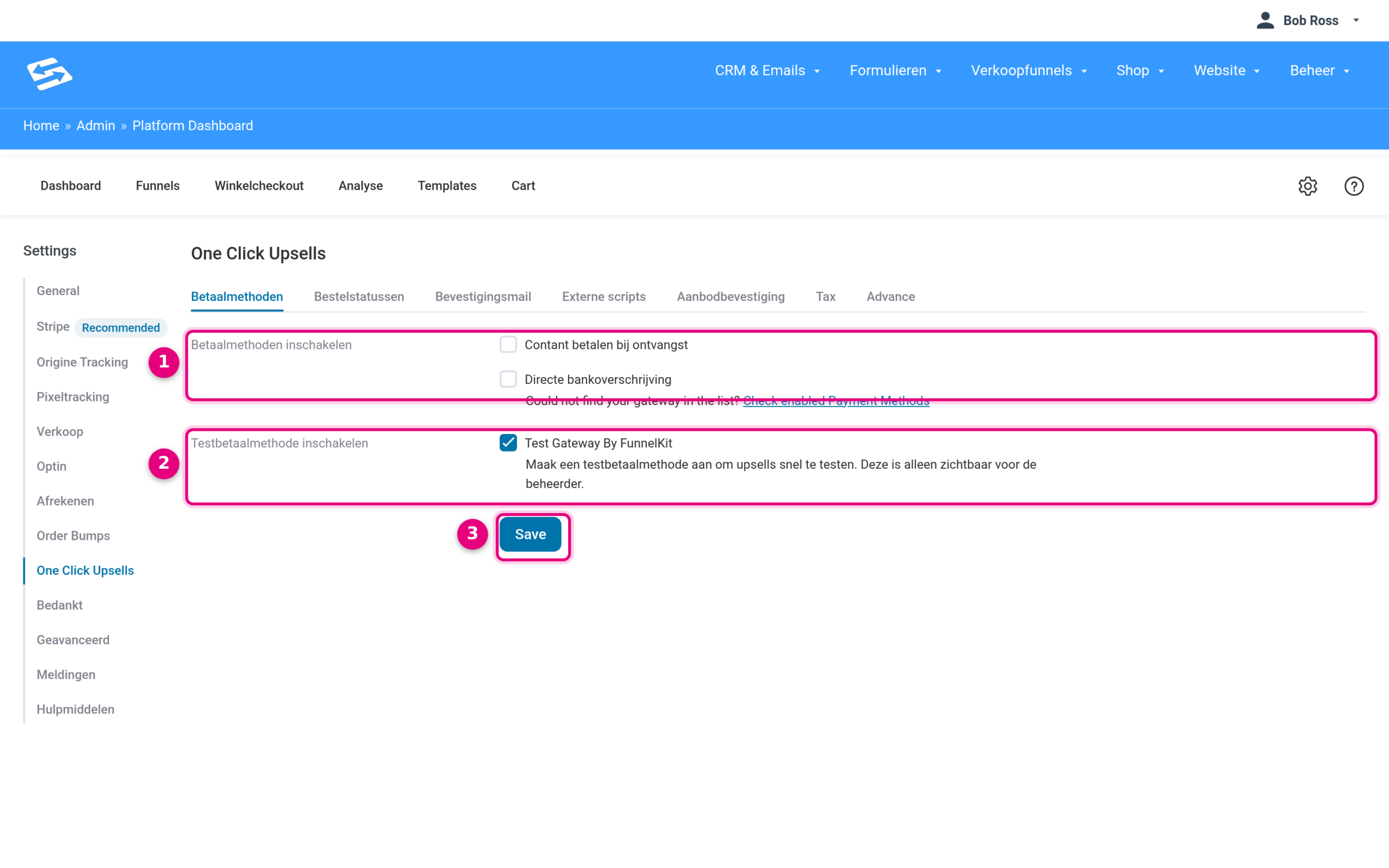
- Tick the payment methods that upsells may be active for here. In this list you see the payment methods that are switched on in your shop; as soon as your Mollie connection is active, your Mollie methods are among them too.
- Handy for testing: the Test Gateway from FunnelKit. With it you run through the whole funnel including the upsell without a real payment. This test method is only visible to admins, customers do not see it.
- Click Save to store the settings.
Step 1: add the upsell step to your funnel #
Open your funnel via Sales funnels → Individual Funnels. Above the step overview is the Add One Click Upsell button. If you do not see that button, use Add New Step and choose the One Click Upsell Offers category at the top.
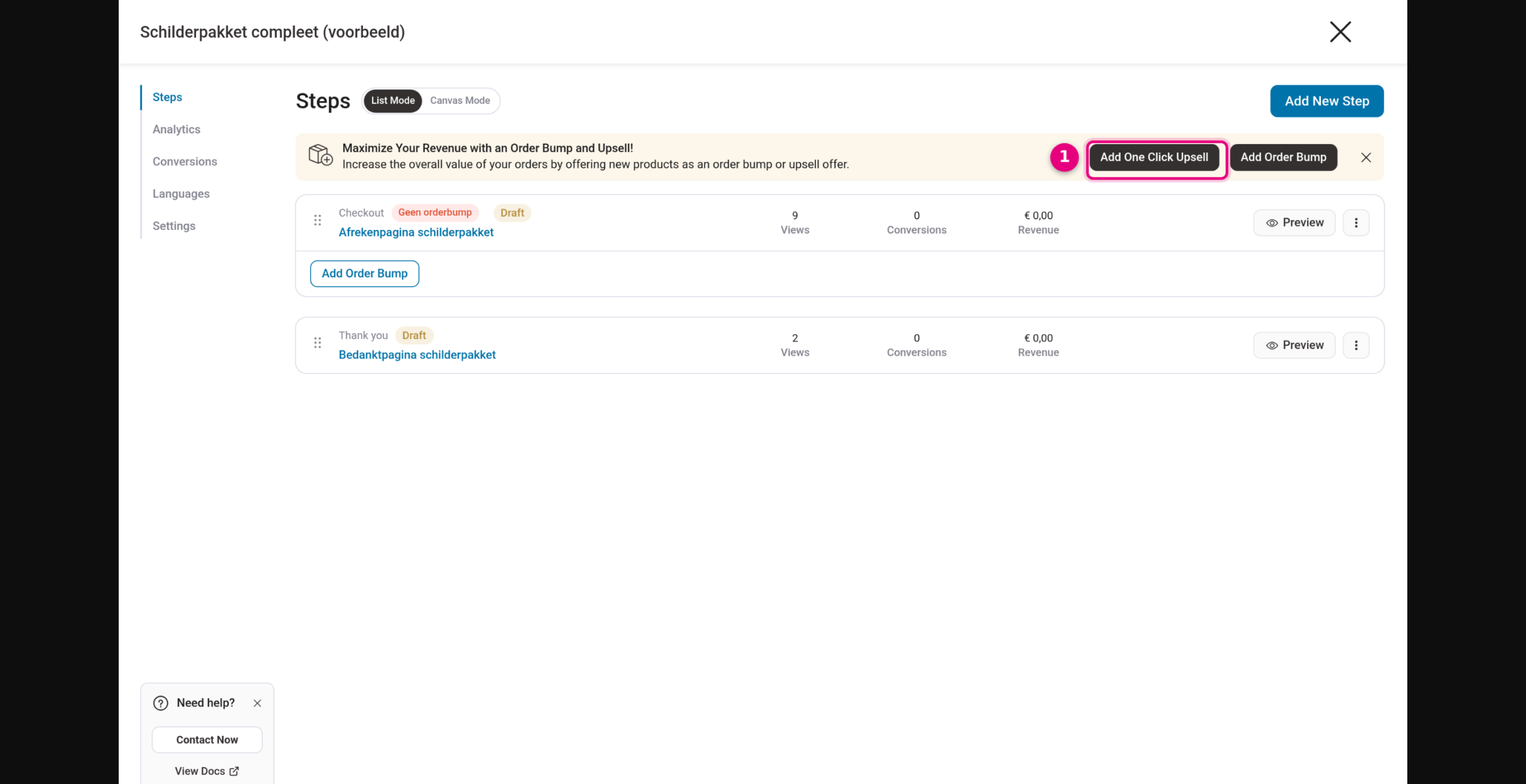
- Click Add One Click Upsell to add an upsell step.
Step 2: choose a template and give the step a name #
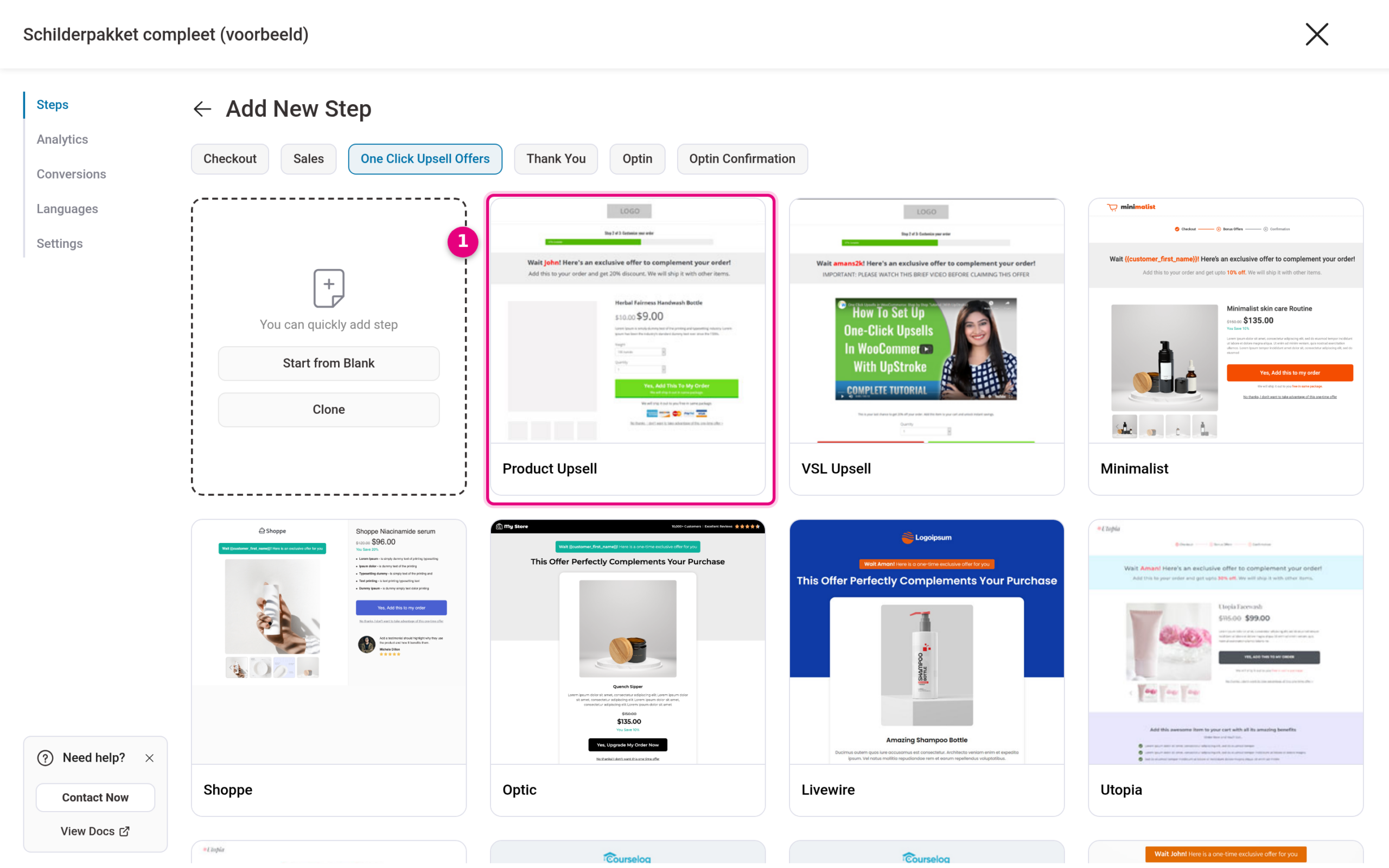
- Choose a template for the upsell page, for example Product Upsell. Hover over the template, click Preview and then Import This Template at the top right.
A window appears in which you fill in two names: the Upsell Name (the name of the step, for example “Upsell brush set”) and the Offer Name (the name of the offer, for example “Brush set offer”). Then click Add. The template is imported and the step appears in your funnel.
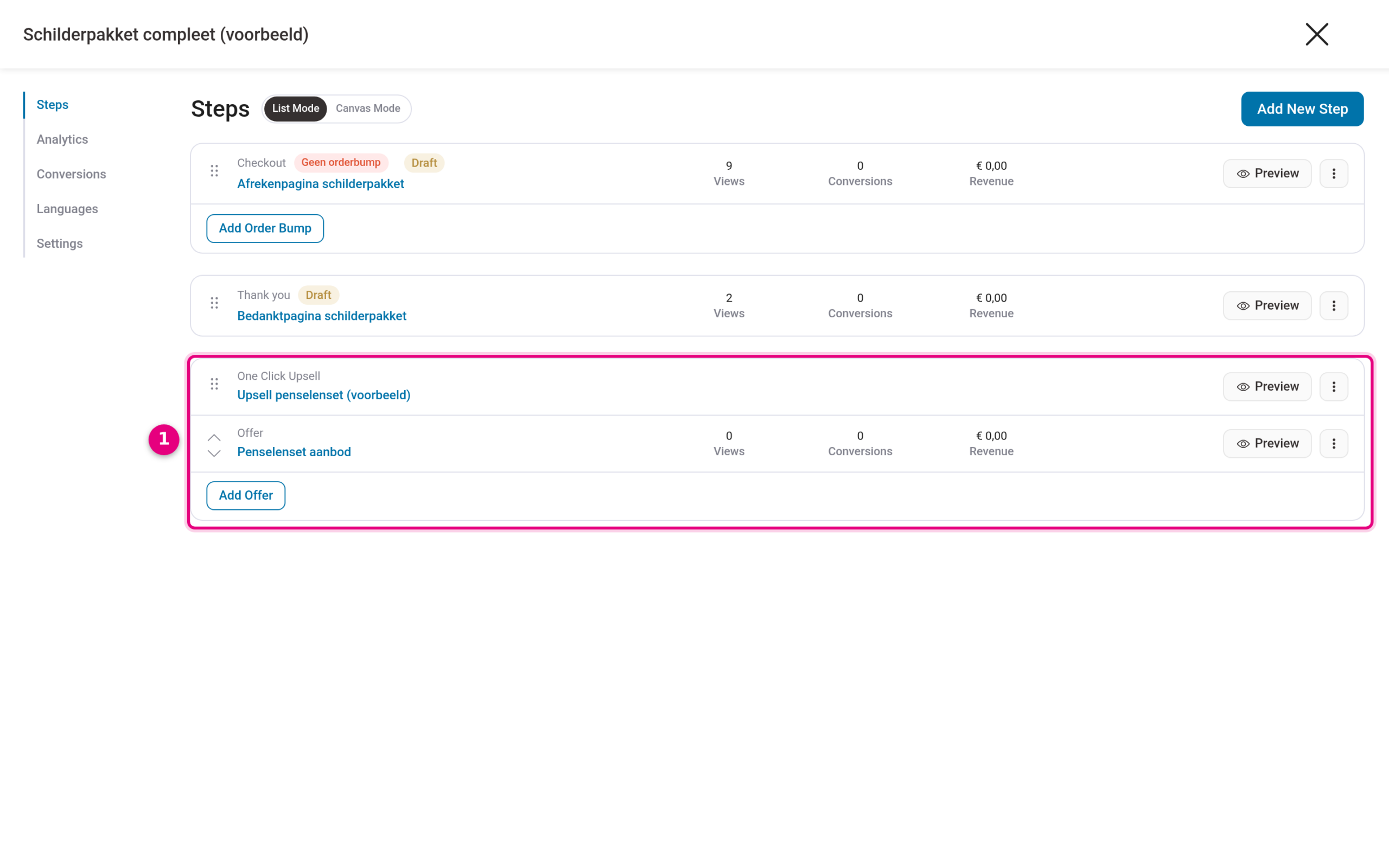
- The new One Click Upsell step sits below your thank-you page, with the offer (Offer) inside it. One upsell step can contain several offers via Add Offer.
Step 3: link the product to the offer #
Click the offer in the step overview and open the Products tab. Click Add Product and search for the product you want to offer.
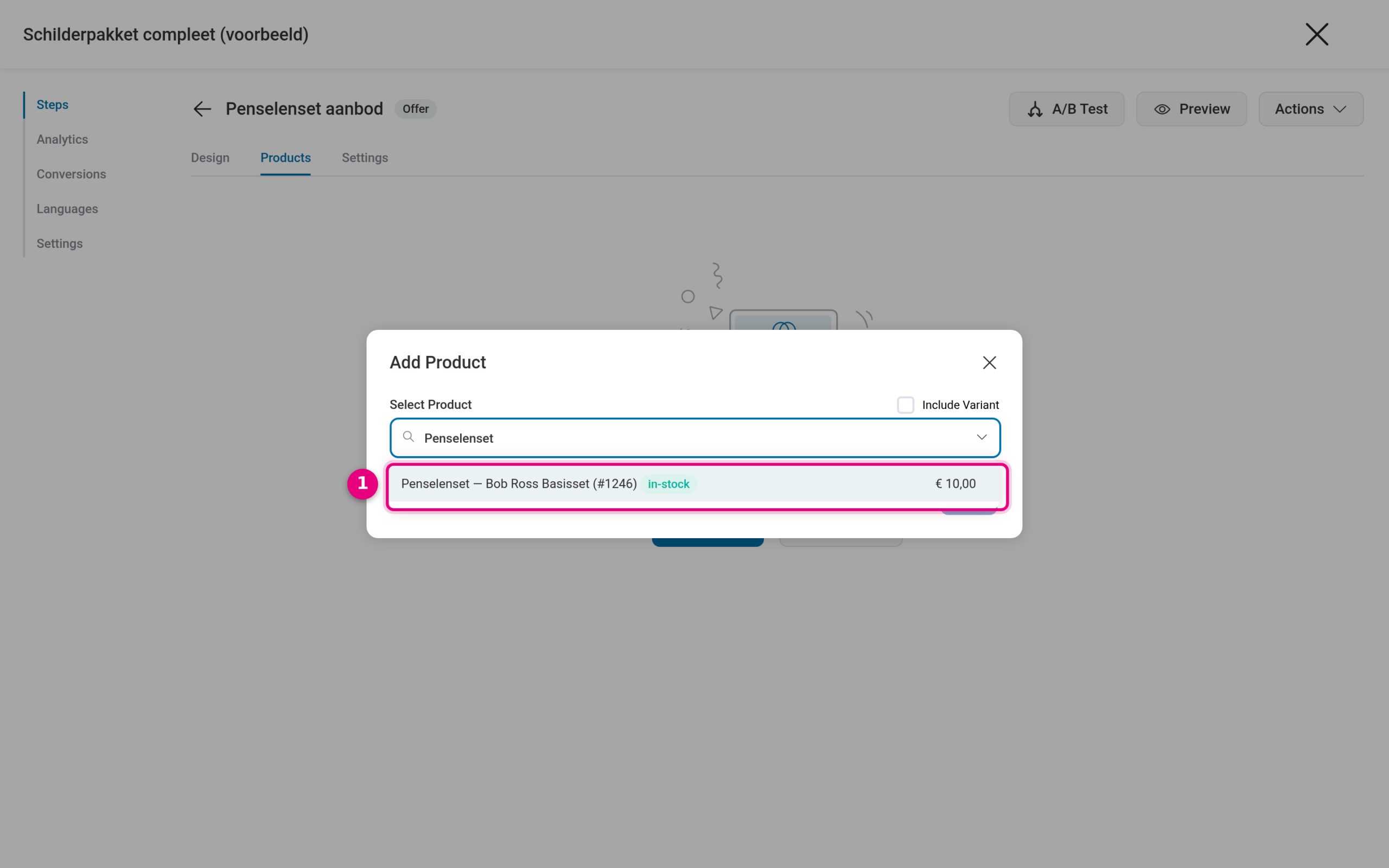
- Click the product you found and confirm with Add.
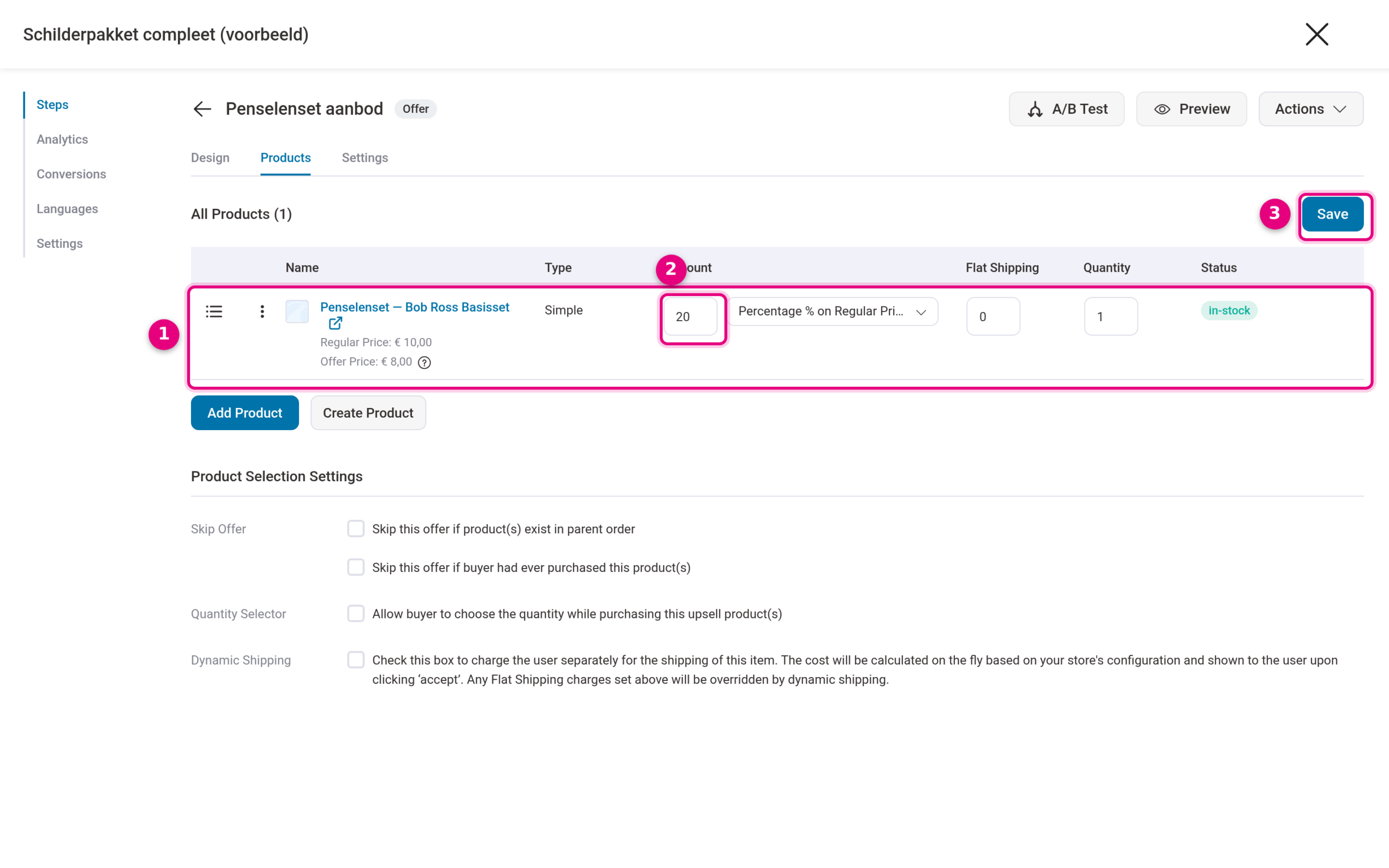
- The product is now in the offer. Below the name you see the regular price and the offer price (Offer Price).
- Enter the discount at Discount, for example 20 with the type Percentage % on Regular Price. An upsell with an attractive discount usually converts best.
- Click Save to store the offer.
Step 4: adjust the design and publish #
On the Design tab of the offer you adjust the texts and the layout of the upsell page (via Edit Template). The buttons on the template are already linked: the accept button adds the product and charges it automatically, the decline link sends the customer on to the thank-you page.
Finally, publish the upsell step: click the three-dot menu behind the step in the step overview and choose Publish, just as with the other funnel steps. A step that is set to Draft is skipped.
How your customer experiences it #
The customer pays on your checkout. Straight after the payment the upsell page appears with your offer. If the customer accepts, the product is added with the discount you set and charged automatically, with iDEAL payments by SEPA Direct Debit on the mandate that was just given. If the customer declines, they simply go on to the thank-you page and nothing extra is debited.
Good to know #
- Test the whole flow yourself with the Test Gateway first (see the settings at the top of this article) before you use the funnel live.
- If a customer pays with a method that upsells are not active for (Direct bank transfer, for example), the upsell page is simply skipped and the customer goes straight to the thank-you page.
- Under Product Selection Settings on the offer you can set the offer to be skipped if the customer already has the product in the order or has bought it before.
- Do you want an extra offer before the payment instead of after it? Then use an order bump, see positioning order bumps.


