Do you want to reward regular customers automatically? In this guide you set things up so that a customer automatically receives a personal discount code by email after every 5th order, for example a code that makes the next event or ticket free. Everything happens by itself: you set it up once, your environment keeps the counter and sends the code.
For this we use a Shop Workflow. Shop Workflows respond to events in your webshop (such as a completed order) and are something different from the automations under CRM & Emails → Automations, which respond to contact events (such as a tag or a form). For everything around orders, Shop Workflows are the right place.
Shop Workflows in Autorespond are based on AutomateWoo, included in your package. Read the AutomateWoo documentation
How it works #
The recipe consists of two parts. First you create one template coupon: a sample coupon that is never handed out itself, but serves as a blueprint. Then you create a workflow that generates a unique personal copy of that coupon after every 5th order and emails it to the customer. Every customer therefore gets their own single-use code, and codes cannot be passed on or reused.
Step 1: Create the template coupon #
Go to Shop → Coupons and click Add new coupon.
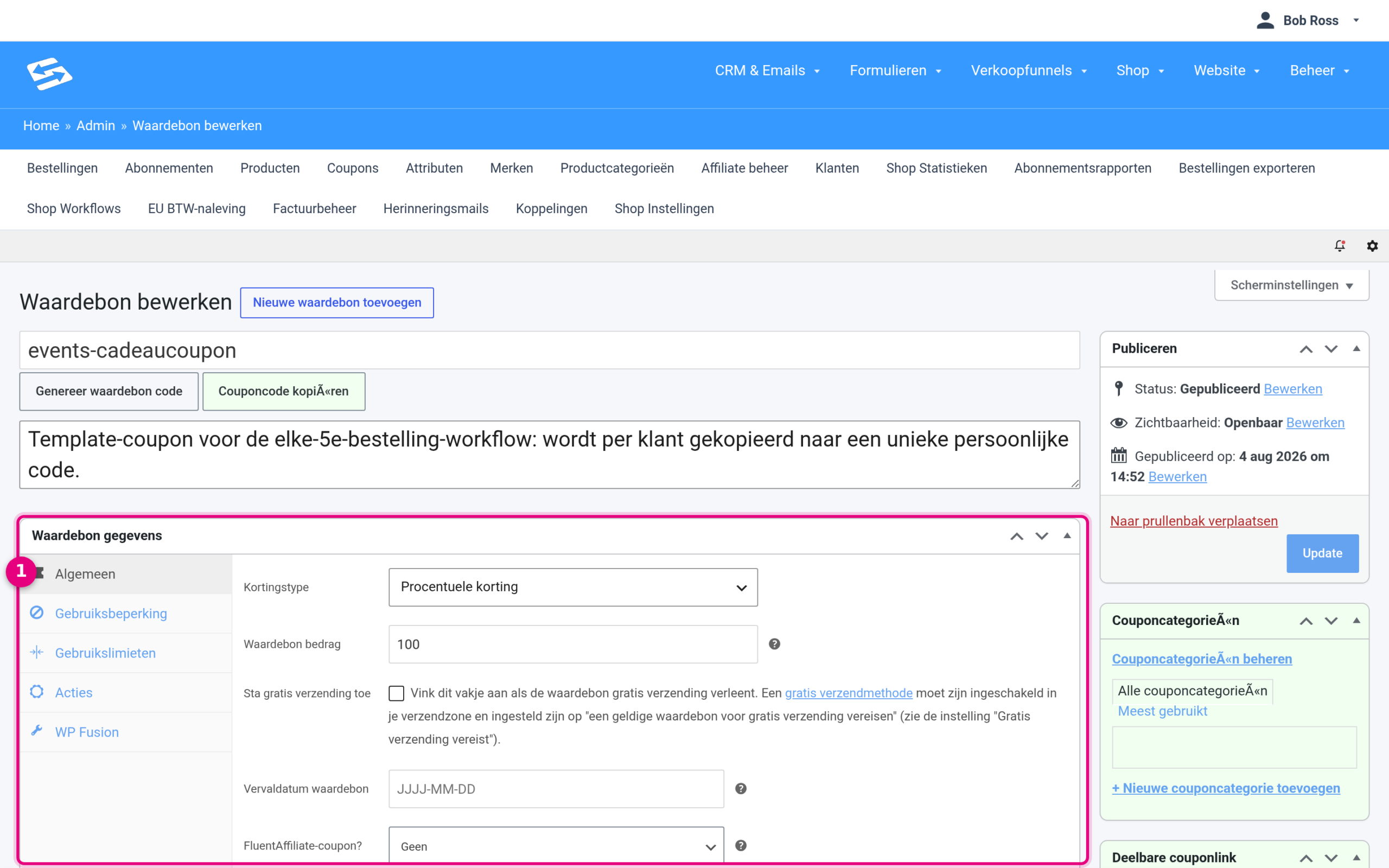
- Coupon data – set here the discount that the generated codes will give. For a free event, choose Percentage discount at Discount type and enter 100 at Coupon amount. Leave Coupon expiry date empty if the code does not need to expire (you can also set an expiry term per generated code from the workflow later on).
Then work through the other tabs of this block:
- Under Usage restriction, enter your event product or products at Products. That way the free code is only valid for an event and not for the rest of your shop. Also tick Individual use only, so that the code cannot be combined with other discounts.
- Under Usage limits, set Usage limit per coupon to 1: each generated code can then be used exactly once.
Give the coupon a recognisable code, for example events-gift-coupon, because you will need that name in step 3. Click Publish. You never have to hand out this template coupon; customers will automatically get their own unique variant.
Step 2: Create the workflow #
Go to Shop → Shop Workflows and click Add new workflow. Give the workflow a clear title, for example Every 5th order: gift coupon.
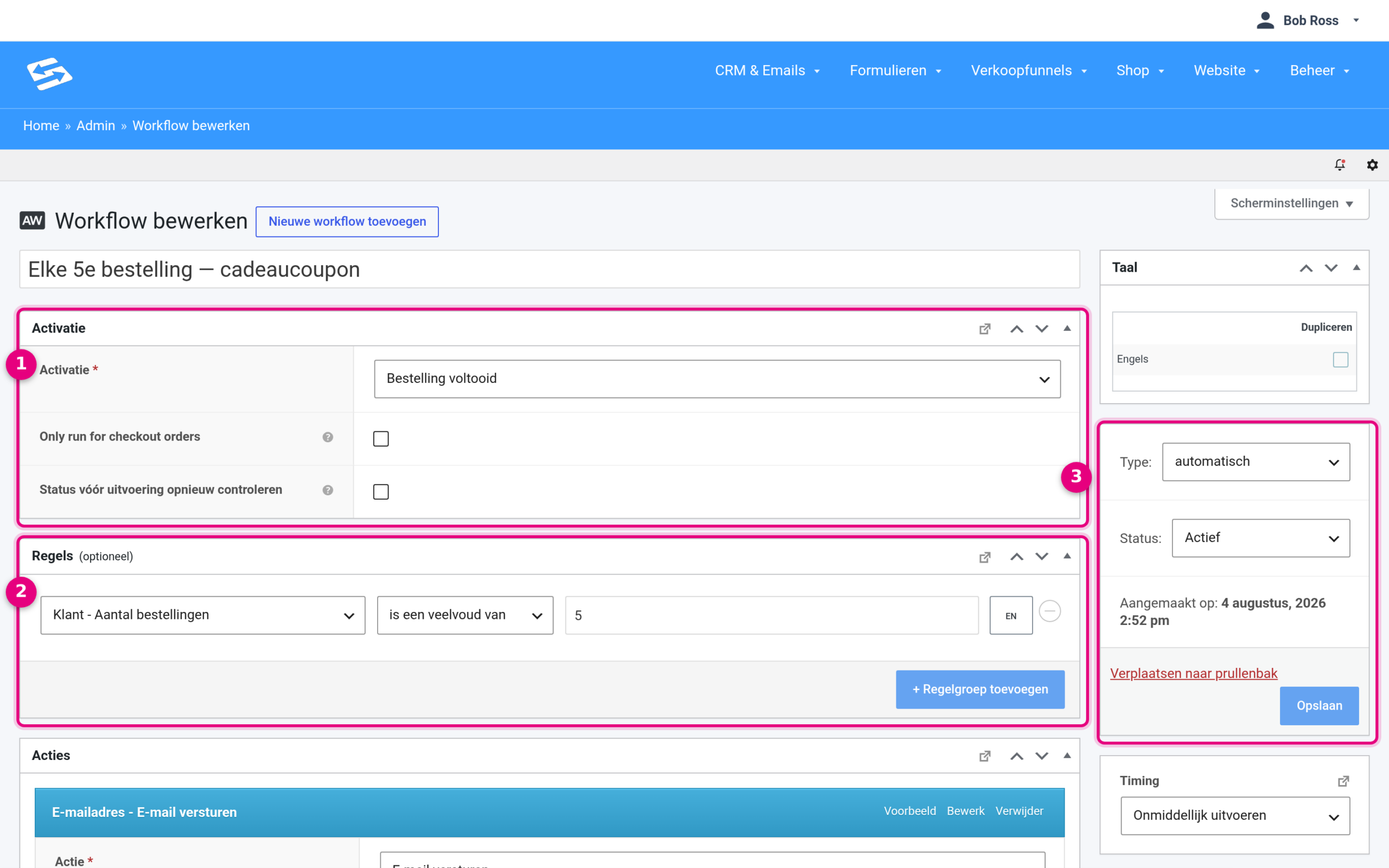
- Trigger – choose Order completed. The workflow then runs as soon as an order reaches the status Completed, so after a successful payment and handling.
- Rules – click + Add rule group and set: Customer – Order count → is a multiple of → 5. This makes the workflow continue only on the 5th, 10th, 15th (and so on) order from the same customer.
- Type and Status – leave Type on automatic. Set Status to Active once you have finished setting up and click Save.
Good to know: the counter looks at the total number of orders the customer has placed in your shop (recognised by the customer account or email address). If you sell other products alongside events, those orders count towards the multiple of 5 as well.
Step 3: Add the email with the gift code #
Scroll to the Actions block, click + Add action and choose Send email. At To, enter the variable {{ customer.email }} and give the email a fitting subject and heading.
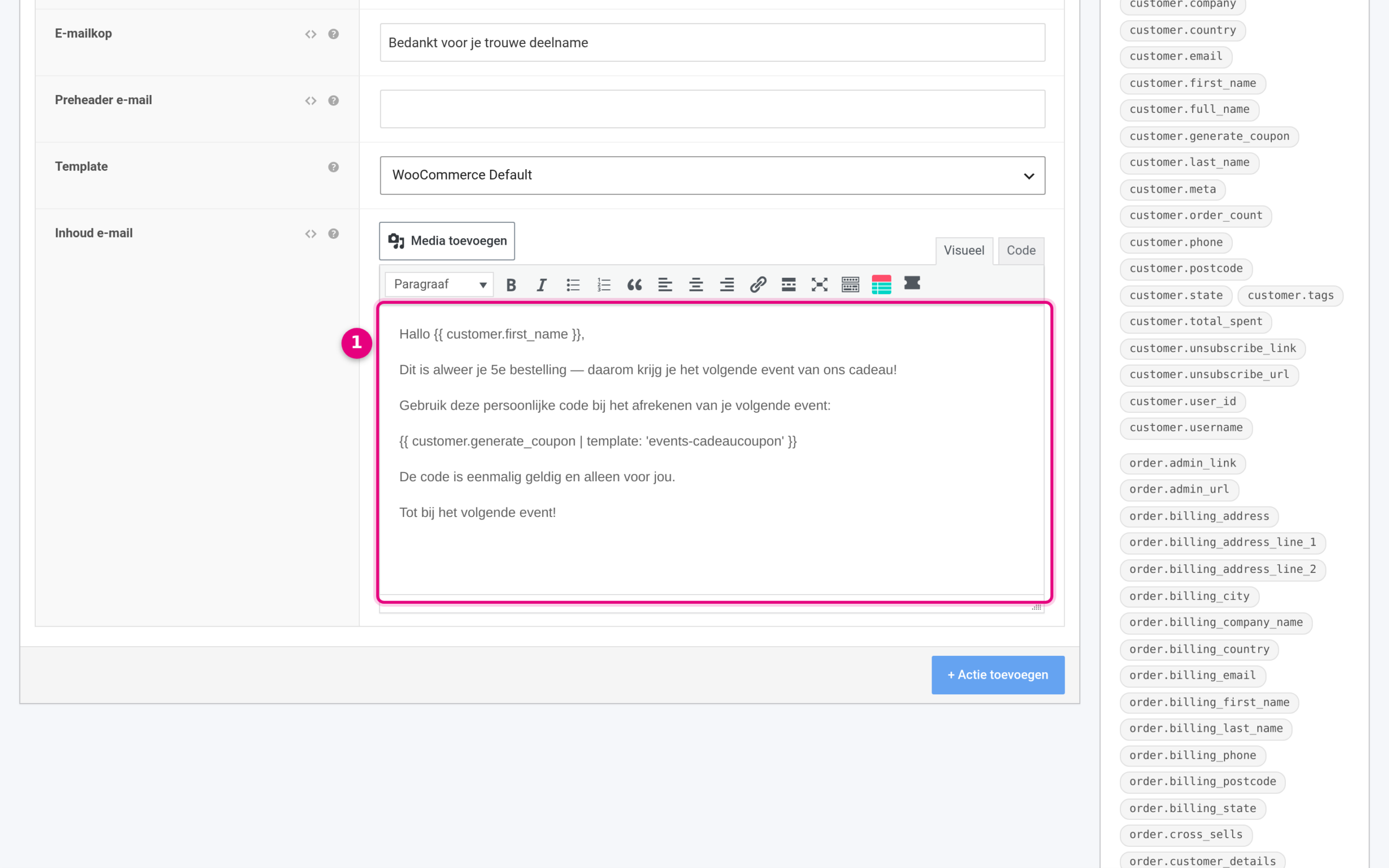
- Email content – write your message here and put this variable in the place where the discount code should appear:
{{ customer.generate_coupon | template: 'events-gift-coupon' }}At the moment the email is sent, your environment automatically creates a unique copy of your template coupon (for example aw-x7k2m9pq4r) and puts that code in the email. Replace events-gift-coupon with the code of your own template coupon from step 1. The list to the right of the content field shows all available variables; customer.generate_coupon is in there too.
The variable has three useful extra options, which you add separated by commas:
expires: '30'– the generated code expires after this number of days.prefix: 'gift-'– the codes then start with gift- instead of the standard aw-.limit: '1'– how often the generated code can be used (1 is the default).
A complete example: {{ customer.generate_coupon | template: 'events-gift-coupon', expires: '60', prefix: 'gift-' }}
Step 4: Activate and test #
- Set the Status of the workflow to Active and click Save.
- Test the workflow with your own test order: place an order as a test customer and set it to Completed in Shop → Orders. If your test account is at 5 orders, you receive the email with a personal code.
- Do you not want to place 5 test orders first? Temporarily set the rule to is a multiple of 1, place one test order, check the email and the code, and then set the rule back to 5.
- You will find the generated codes under Shop → Coupons, each with its own unique code.
Frequently asked questions #
Does every order count, or only orders for events? #
The rule Customer – Order count counts all orders the customer has placed in your shop. If you sell (almost) only events, that comes down to the same thing. If you also sell other products and want only event orders to count, that cannot be set with this counter.
Can a customer use the code for something other than an event? #
No. The generated codes take over the product restriction of your template coupon. If you entered your event product or products there, the code only works on those.
What happens if a customer pays for several dates of the same event in one order? #
One order counts as one order for the counter, regardless of the number of items in it. So the counter rewards how often a customer orders, not the number of tickets bought.


