Conditional sections in emails #
Conditional sections make it possible to show different content to different contacts within the same email campaign. You can have content appear or stay hidden based on tags that are set under the menu CRM & Emails > Tags.
This means you can create one email template that adapts itself automatically to each recipient. A new customer sees different content from an existing customer, or someone in Amsterdam gets different information from someone in Rotterdam.
Conditional sections in Autorespond are based on FluentCRM Pro, included in your package. Read the FluentCRM documentation
When to use conditional sections #
Conditional sections are useful for:
- Personalisation based on location: showing different events per city
- Different content for new versus existing customers: welcome message versus loyalty information
- Product suggestions based on earlier purchases: cross-sell and upsell opportunities
- Different offers per segment: VIP customers receive different discounts
- Language preferences: Dutch versus English content in one template
Instead of creating and sending several emails, you create one smart email that adapts to each recipient.
Adding a conditional section #
In your Autorespond admin area, go to CRM & Emails → Email Templates and open an existing template or create a new one.
In the visual builder (most used by Autorespond customers) #
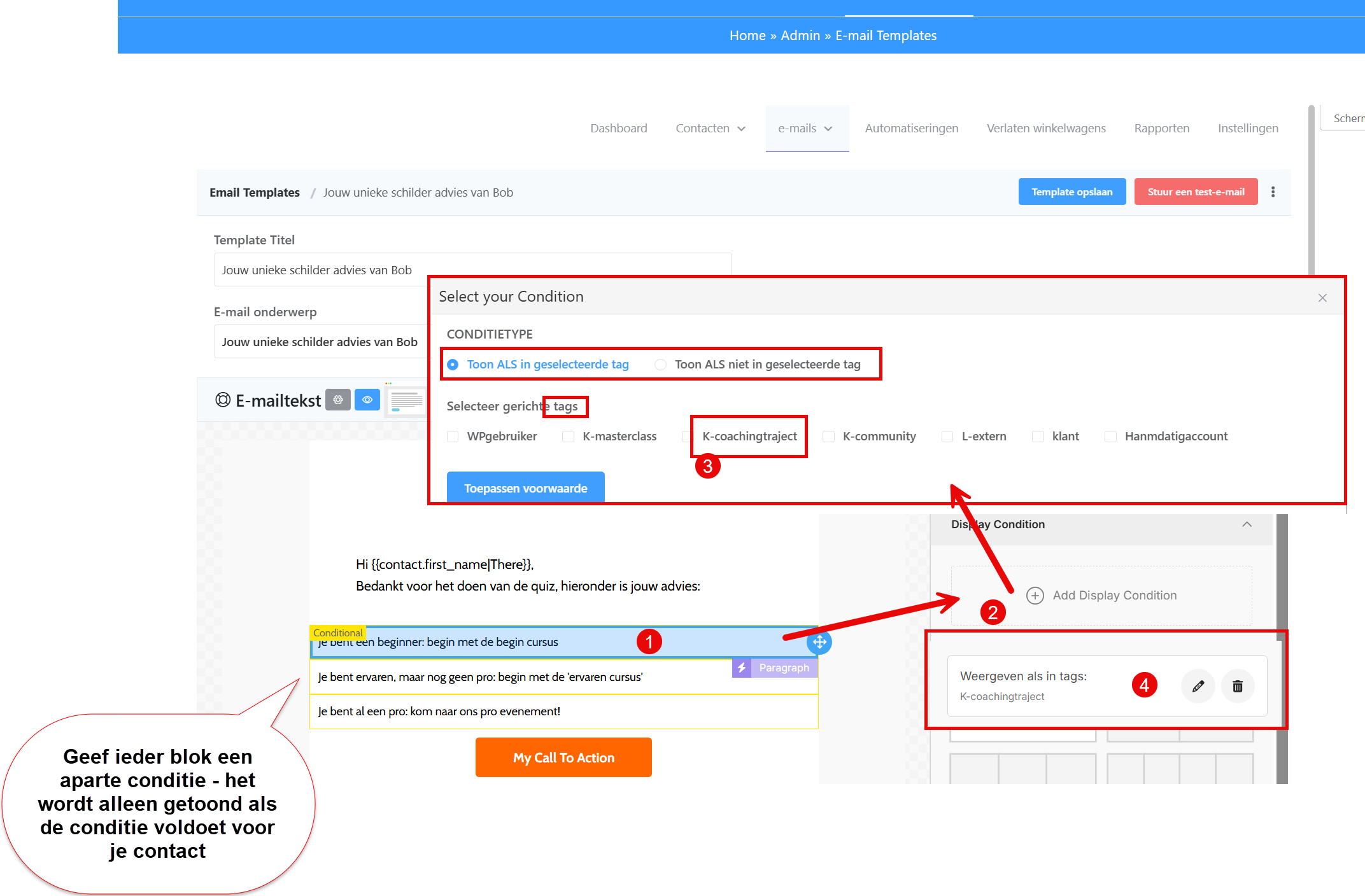
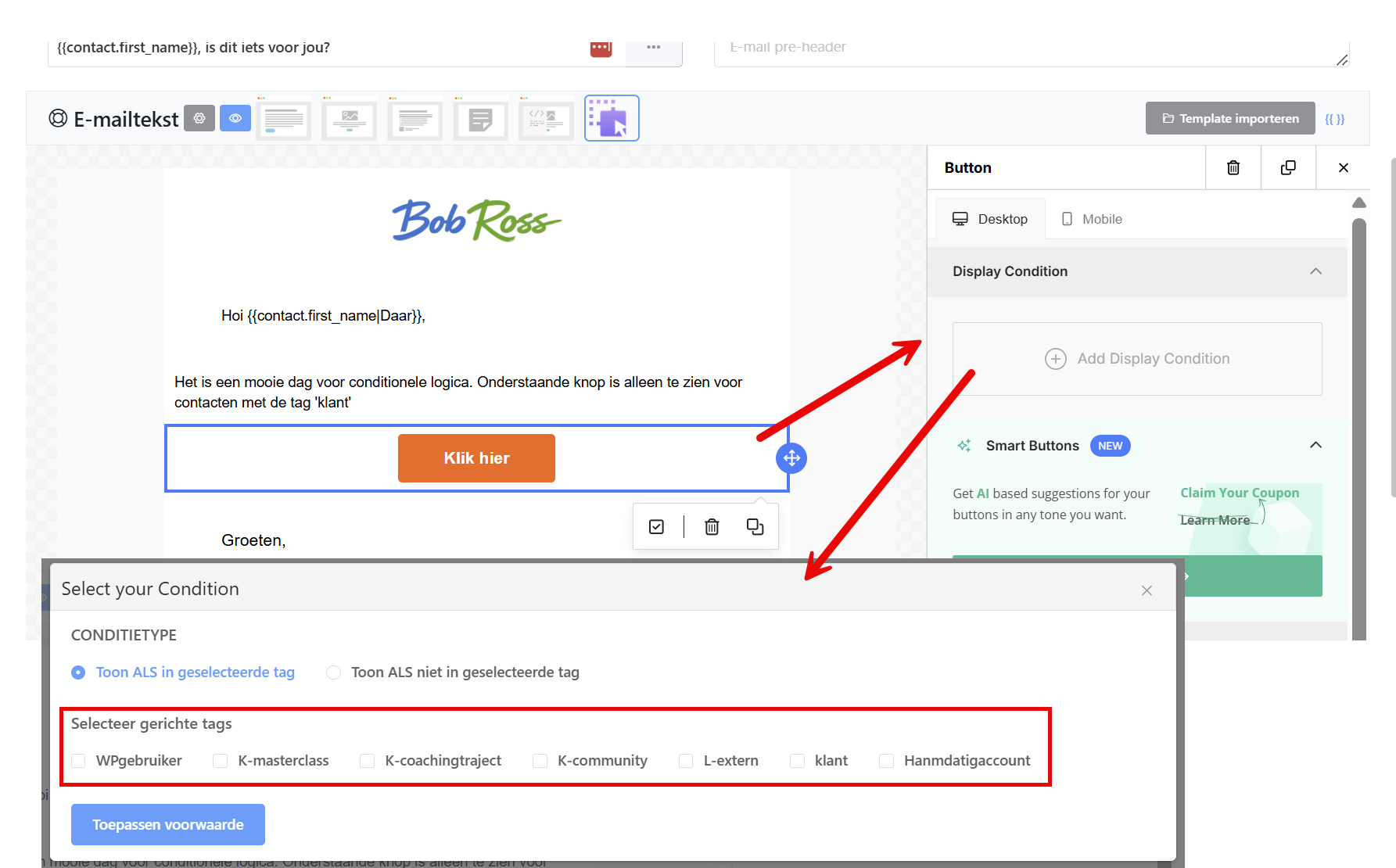
- Click the block you want to show conditionally
- Click ‘add display conditions’ on the right
- Select the required tags a contact must have to see the block
In block editor emails: #
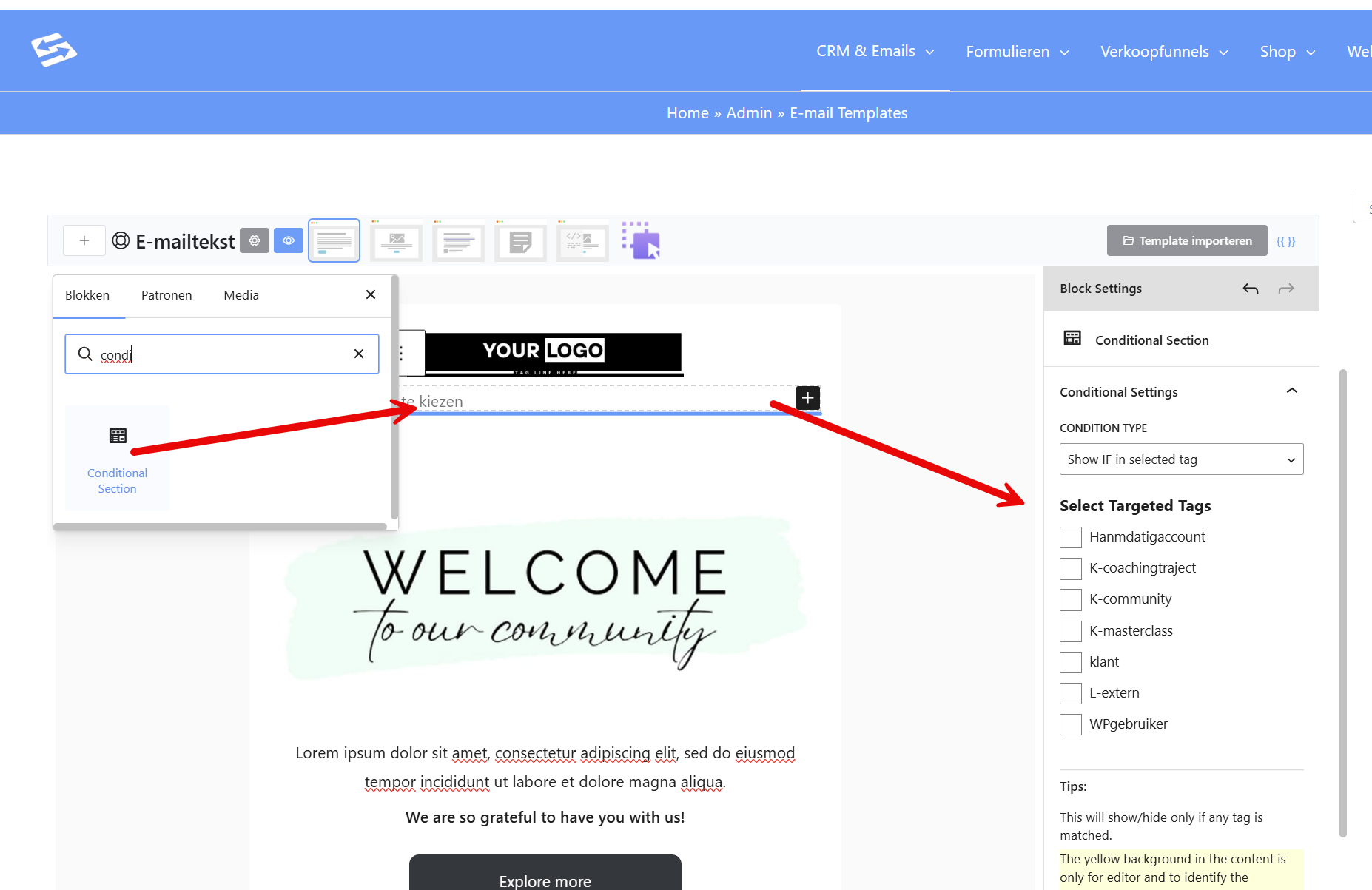
- Choose the ‘conditional section’ block
- Click the block
- Select the conditions on the right-hand side
You now see the configuration screen where you can set the conditions and edit the content.
Setting the conditions #
In the configuration screen you set when this section should appear:
Editing the content of the conditional section #
Once you have set the conditions, click the content area to adjust the text and formatting:
- Add text, images and links just as in any other section
- Use smart codes to personalise the content further
- Adjust the formatting with the available styling options
The content is only shown to contacts who meet the conditions you have set.
Combining several conditional sections #
You can use several conditional sections in one email:
- Create a separate conditional section for each segment
- Make sure the conditions do not overlap (unless that is intended)
- Always test how the email looks for different types of contact
Example structure:
- Section 1: Only for new customers (tag ‘New customer’)
- Section 2: Only for VIP customers (tag ‘VIP’)
- Section 3: Only for customers in Amsterdam (custom field ‘City’ = ‘Amsterdam’)
Editing or deleting a conditional section #
To change an existing conditional section:
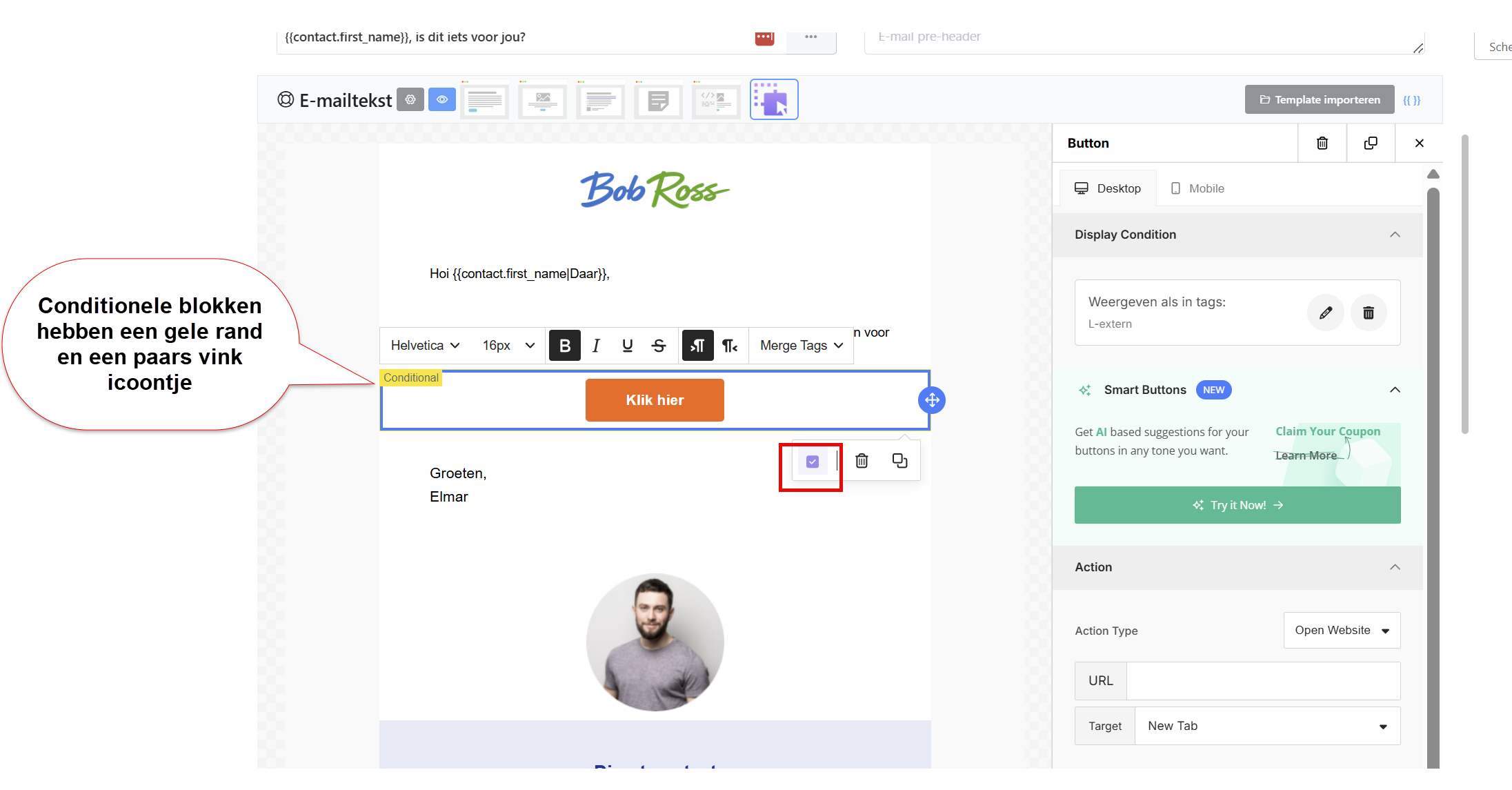
- Click the yellow (outlined) conditional block in your template
- The configuration screen opens, where you can change the conditions and content
- Save your changes
To delete a conditional section, select the whole block and press Delete.
Testing an email with conditional content #
Before you send a campaign, test how the email looks for different contacts:
- Use the ‘Test Email’ function in the template editor
- Select different contacts to see how the conditional sections are displayed for them
- Check that contacts who do not meet the conditions really do not see any conditional content
This prevents you from accidentally sending empty sections or showing content to the wrong people.
Best practices for conditional sections #
Keep your segmentation simple: start with basic conditions such as tags before you build complex combinations.
Provide fallback content: always add content that everyone can see, so your email is not empty for contacts who do not meet any conditions.
Test thoroughly: always send test emails to yourself with different contact profiles to check how the conditional sections behave.
Document your logic: note down for yourself which conditions you use, especially for more complex campaigns with several conditional sections.


