After checkout your buyer lands on the thank-you page of your sales funnel or of the store checkout. If you want to send buyers to your own website after the purchase, there are two routes: a clear button or link on the default thank-you page (our advice), or redirecting the buyer automatically. In this article you read how to add that button, what is and is not possible around automatic redirection, and why the default thank-you page is usually the best choice.
Sales funnels in Autorespond are based on FunnelKit Funnel Builder, included in your package. Read the FunnelKit Funnel Builder documentation
Our advice: the default thank-you page with a button to your own website #
The default thank-you page shows your buyer the order number, the products purchased, the amount paid and any subscription and download information straight away. That confirmation reassures buyers and prevents questions. Put a clear button to your own website underneath it and you combine that confirmation with a next step on your site. This is how you add the button:
- Go to Sales funnels → Individual Funnels and open the funnel for the product.
- Click the thank-you page step.
- On the Design tab, click Edit Template. The page opens in the Elementor editor.
- Drag the Button element from the left-hand panel to the position you want, for example below the order details.
- At Text, enter the button text, for example “Continue to my website”.
- At Link, enter the full address of the page on your own website, including https://.
- Click Publish (or Update) to save the change.
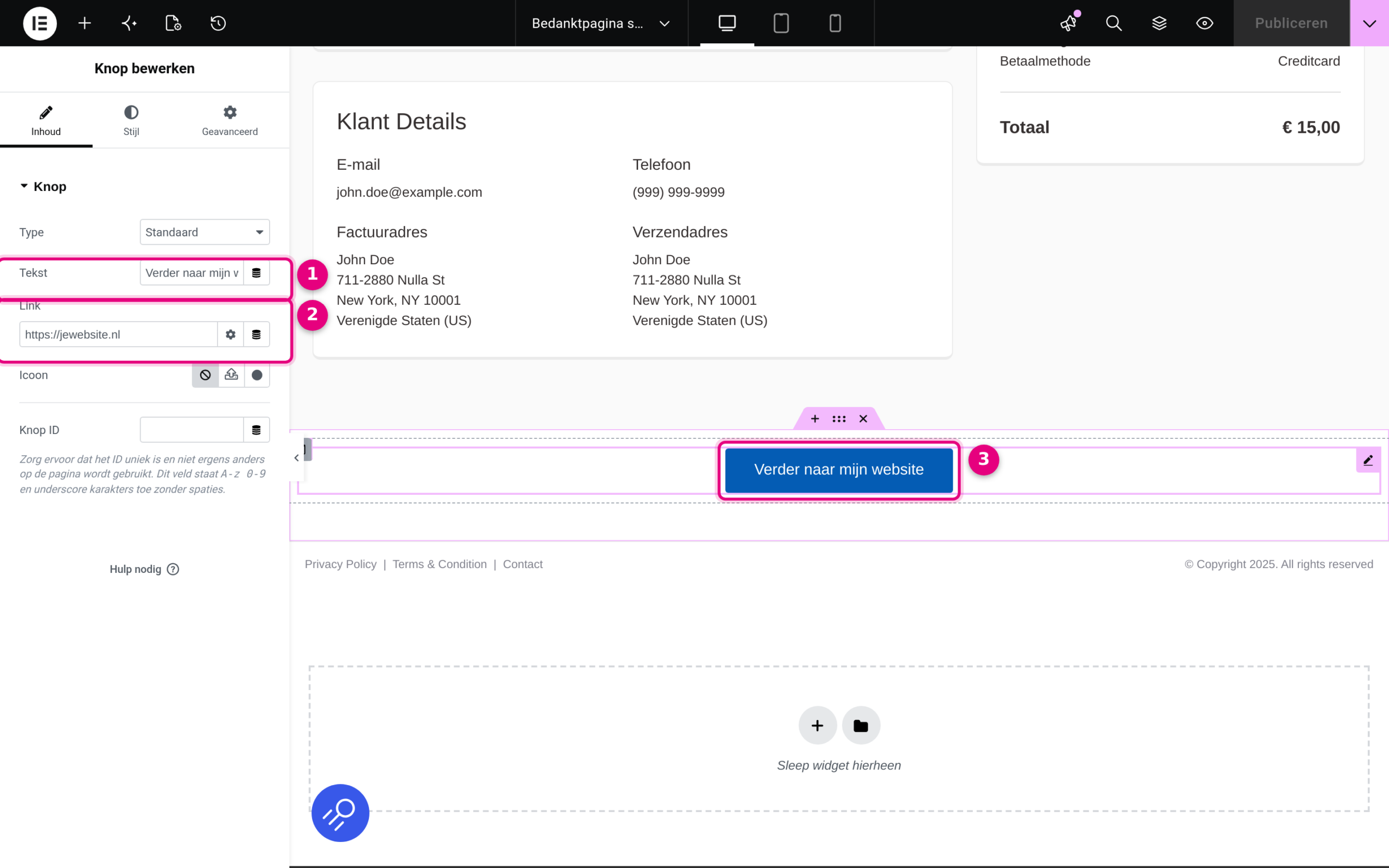
- Text: the text that appears on the button.
- Link: the full address of the page on your own website, including https://.
- The button as it will appear on the thank-you page; on the Style tab you adjust the colour and design.
Is the thank-you page not showing after a (test) purchase? Check whether the thank-you page step has been published: new funnel steps are set as a draft (label Draft) once created, and you publish them per step through the three-dots menu. How to set up the funnel and link it to your product is explained in creating an individual sales funnel.
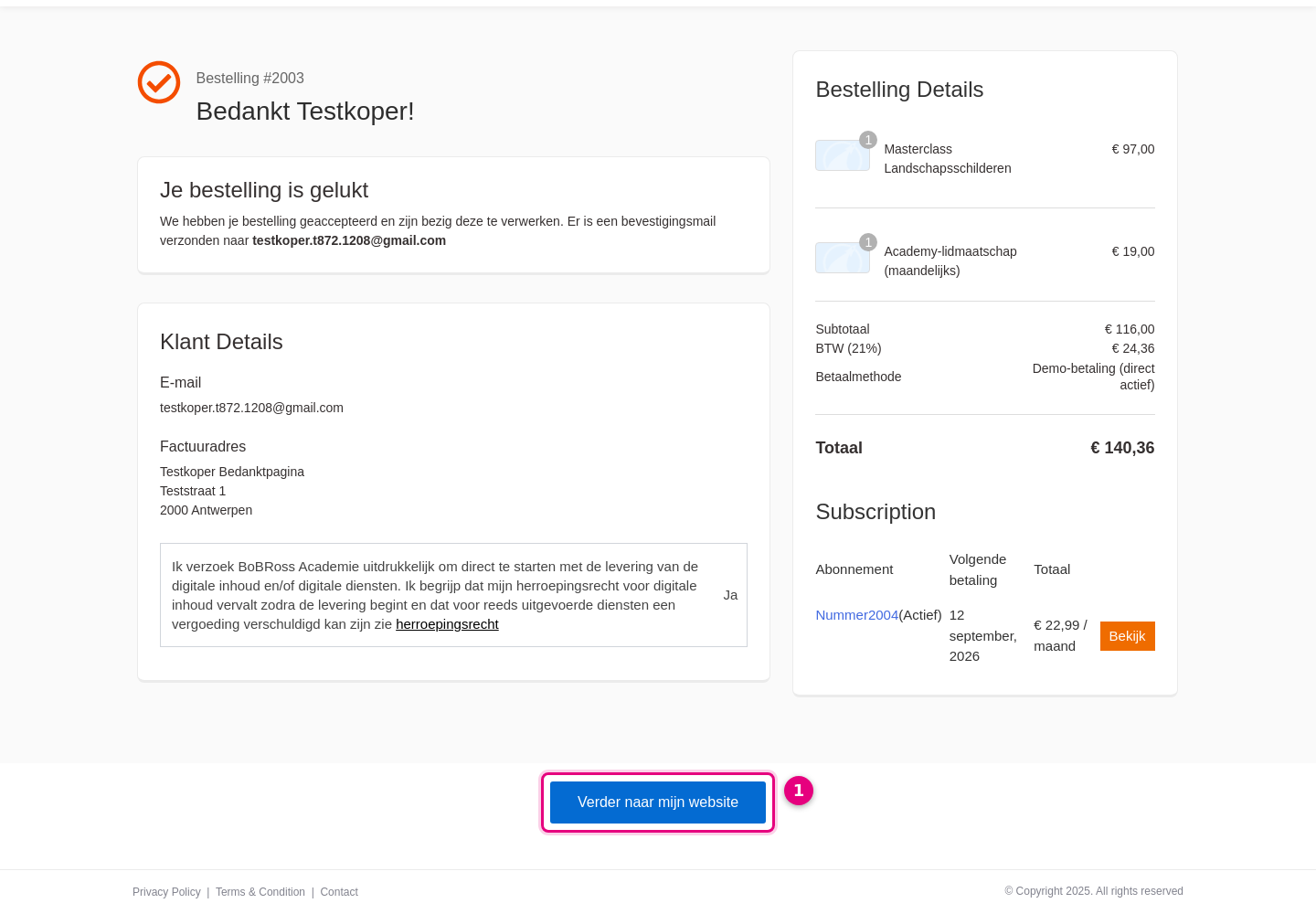
- The button to your own website sits below the order overview, so your buyer sees the confirmation first and clicks through afterwards.
Not using an individual funnel but the general store checkout? That has its own thank-you page step as well: you find it through Sales funnels → Store Checkout. Adding the button works the same way there.
A different thank-you page per product #
Every individual funnel has its own thank-you page. If you link a product to the funnel checkout through the FunnelKit tab on the product screen, buyers of that product check out through that funnel and end up on the thank-you page of that funnel too. Other products keep using the store checkout and the general thank-you page. That way you give every product its own thank-you message and its own button. The full steps for that link are in creating an individual sales funnel.
Automatic redirection: what is and is not possible #
The thank-you page step has a redirection option. Open the step, go to the Settings tab and expand the Custom redirect section. Set the choice to Yes and at Select page you choose another page for the buyer to land on after checkout.
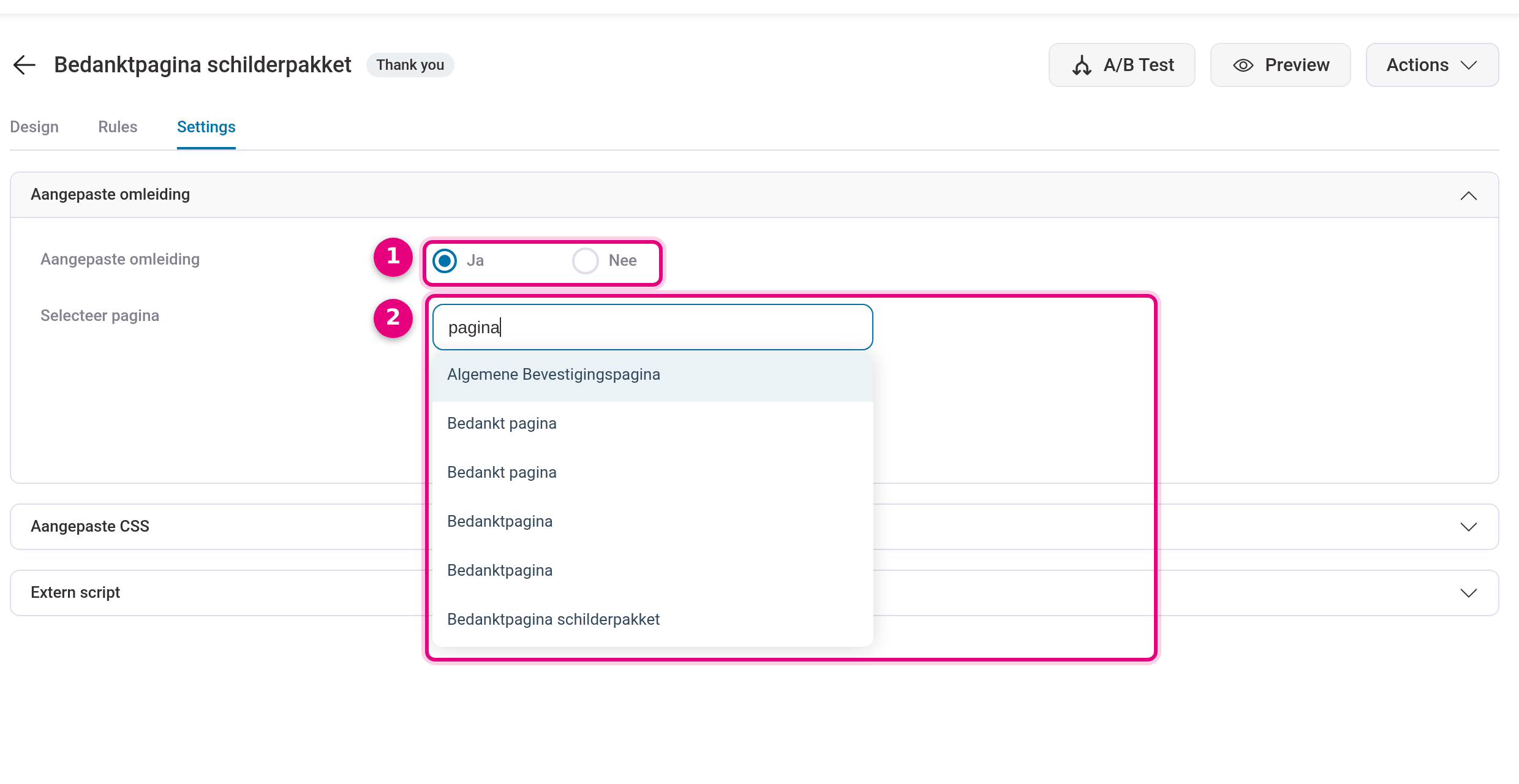
- Custom redirect: set this to Yes to activate the redirection, then click Save.
- Select page: type at least three letters and choose the page. You choose here from pages within your own Autorespond environment.
Note: this field is a page picker. You can only choose a page within your own Autorespond environment here; entering an external web address is not possible in this option. If you do want to redirect buyers automatically to a page on your own website, that is possible, just not through this option: you arrange it through the SEO settings of the thank-you page step. The next section explains exactly how that works, and why we usually advise against it.
Redirecting to a page on your own website anyway #
To be clear: for this route as well, our advice remains the default thank-you page with a clear button, as described above. Your buyer then keeps the order confirmation and can continue with a single click. But if you really want to send buyers automatically to a page on your own website, that is possible without custom work. Every thank-you page step is also an ordinary page in your environment, and through the SEO settings of that page you can set a redirection to any web address. This is how you do it:
- Go to Sales funnels → Individual Funnels and open the funnel for the product.
- Click the thank-you page step.
- On the Design tab, click Switch to WordPress Editor. The thank-you page now opens in the WordPress editor.
- At the top right of the editor, click the round SEO icon, next to the Publish button. The SEO panel opens at the bottom of the screen.
- In the left-hand column of the SEO panel, under Titles and metas, click Redirect.
- Tick Redirection enabled?.
- Leave Select a login status set to All. The redirection then applies to everyone who opens the page.
- At Select a redirection type, choose 302 Found / Moved Temporarily.
- At URL redirection, enter the full address of the page on your own website, including https://, for example https://yourdomain.com/thank-you/.
- Click Save, the button below the redirection fields in the SEO panel. From now on everyone who opens the thank-you page, including your buyers after checkout, is redirected straight to your own page.
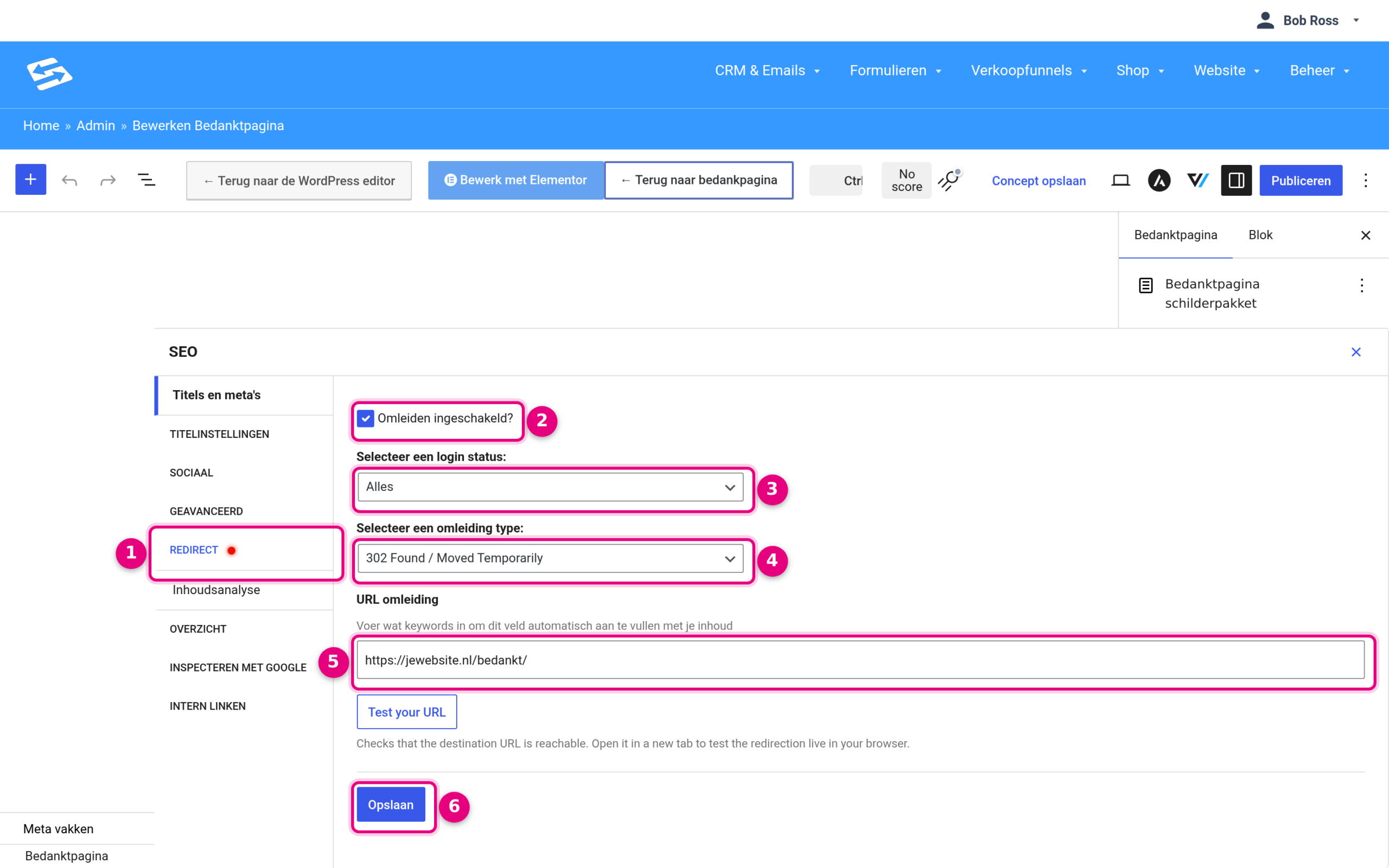
- Redirect: the tab in the SEO panel that holds the redirection. The red dot indicates that a redirection is active on this page.
- Redirection enabled?: the tick box that switches the redirection on or off.
- Select a login status: who the redirection applies to. Leave this set to All.
- Select a redirection type: choose 302 Found / Moved Temporarily.
- URL redirection: the full address of the page on your own website, including https://.
- Save: save the redirection with this button. It is separate from the blue Publish button at the top right, which publishes the page itself.
A few important warnings before you switch this on:
- Only on the thank-you page of an individual funnel. Only set this redirection on the thank-you page of an individual funnel that is linked to a single product. If you set it on the thank-you page of the Store Checkout, you send every order in your shop to the same external page.
- The redirection applies to everyone who opens the page. A buyer who orders by bank transfer and has not paid yet also ends up straight on your external page, while the payment instructions are on the default thank-you page.
- All the drawbacks in the next section apply here in full. Your buyer sees no order number, no download button and no subscription information, and the conversion tracking and measurement scripts of your funnel stop working.
- If you are unsure about the type, choose 302. Browsers remember a 301 redirection stubbornly: visitors can still be redirected long after you have switched the redirection off. You can always convert a 302 into a 301 later if everything works as intended.
Want to remove the redirection later? Untick Redirection enabled? and click Save again. The default thank-you page then simply does its job again.
Why we advise against redirecting to an external page #
- Your buyer misses the confirmation. The order number, the products purchased, the amount and the customer details are on the default thank-you page. A page on your own website does not know the order and cannot show those details.
- Downloads and subscriptions disappear from view. For downloadable products the download button is on the thank-you page, and for subscriptions the subscription information. Your buyer misses those too with a redirection.
- Not every order has been paid yet. With payment methods such as bank transfer the buyer also reaches the thank-you page while the payment still has to follow; the payment instructions and status emails then run through the platform. An external page always just says “thank you”, whether payment has been made or not. See also the order statuses of your shop explained.
- Your tracking stops. The funnel counts views and conversions per step. Send buyers straight to an external page and you lose that view of your conversion, and measurement scripts on the thank-you page no longer work.
With the button from this article you keep the best of both worlds: your buyer gets the full confirmation first and then continues to your website with a single click.


