You have a customer with a running subscription and you want to do something for them once: a discount on the next term only, and the normal amount again afterwards. Perhaps because you want to make something right, or because you want to surprise a loyal subscriber. You arrange this with a recurring coupon that you limit to 1 payment and then apply directly to the running subscription. The system removes the coupon automatically after that one renewal, so there is nothing left for you to keep an eye on. Giving a discount for several terms works with the same setting; you can read how at the bottom of this article. This requires the Shop & Sales Funnels extension.
Subscriptions and coupons in Autorespond are based on WooCommerce Subscriptions, part of the Shop & Sales Funnels extension, included in your package. Read the WooCommerce Subscriptions documentation
How it works #
The discount works with a counter that only starts running the moment the coupon is on the subscription. The system counts only paid orders in which this coupon actually gave a discount. Any terms your customer paid earlier therefore do not count. If you set the limit to 1, the discount applies to the next renewal only. As soon as that renewal has been paid, the system removes the coupon from the subscription automatically and from the term after that the customer pays the full amount again.
Step 1: create the coupon #
- Go to Shop and open Coupons.
- Click Add new coupon.
- Enter a coupon code at the top, for example a short recognisable code.
- Under Discount type choose Recurring product % discount (or Recurring product discount for a fixed amount).
- Under Coupon amount enter the percentage or amount.
- Under Active for x payments enter the number 1.
- Click Publish to save the coupon.
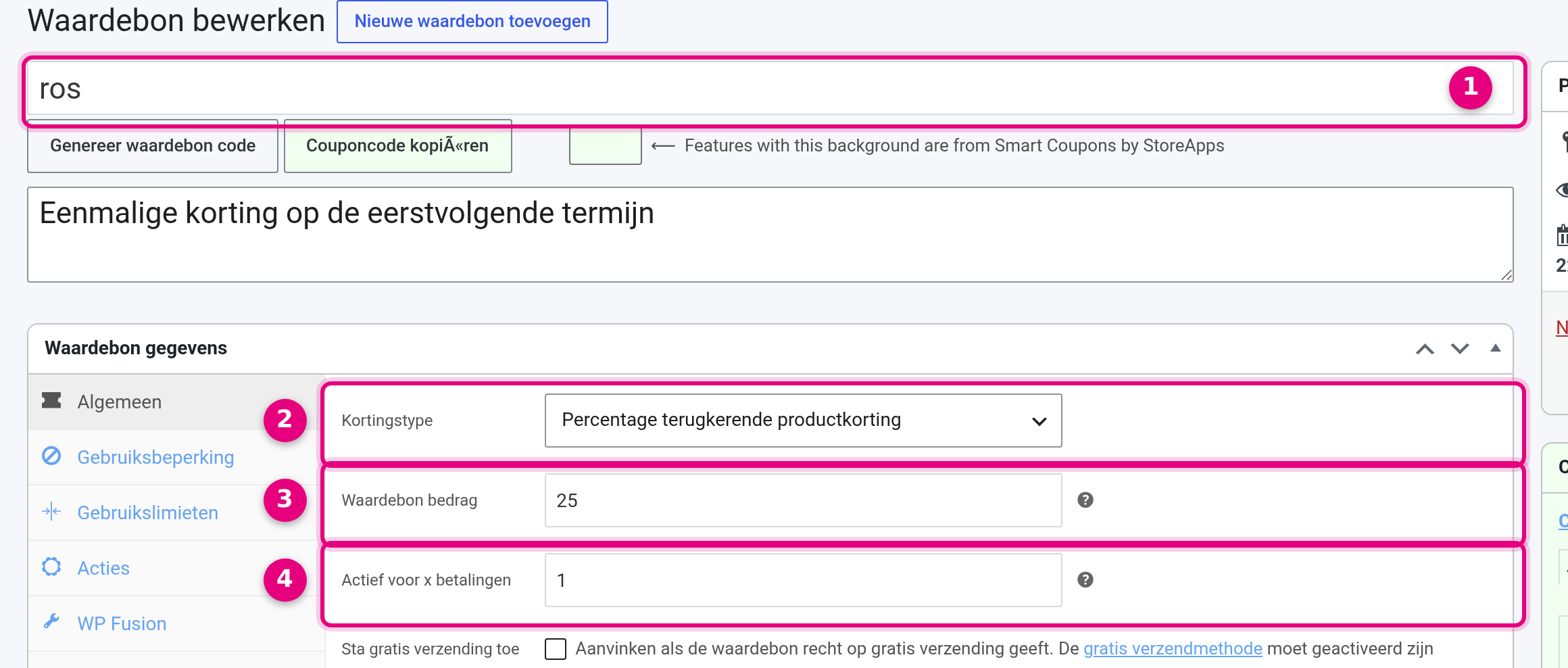
- The coupon code. You choose this code yourself and you will use it shortly when applying it to the subscription.
- Discount type: choose one of the two recurring types. Only recurring coupons can be applied to a subscription. In this example Recurring product % discount is selected for a percentage discount.
- Coupon amount: the discount percentage or discount amount. Here 25, which with the percentage type comes down to 25% off the term price (calculated excluding VAT, the VAT adjusts automatically).
- Active for x payments: this field makes the discount one-off. With the number 1 the coupon applies to exactly one payment and is then removed from the subscription automatically. If you leave this field empty, the discount keeps applying every term.
Step 2: apply the coupon to the running subscription #
- Go to Shop and open Subscriptions.
- Open the customer’s subscription.
- Below the subscription lines, click Apply coupon.
- Enter the coupon code and confirm.
- Check that the discount line and the new total are visible in the totals straight away.
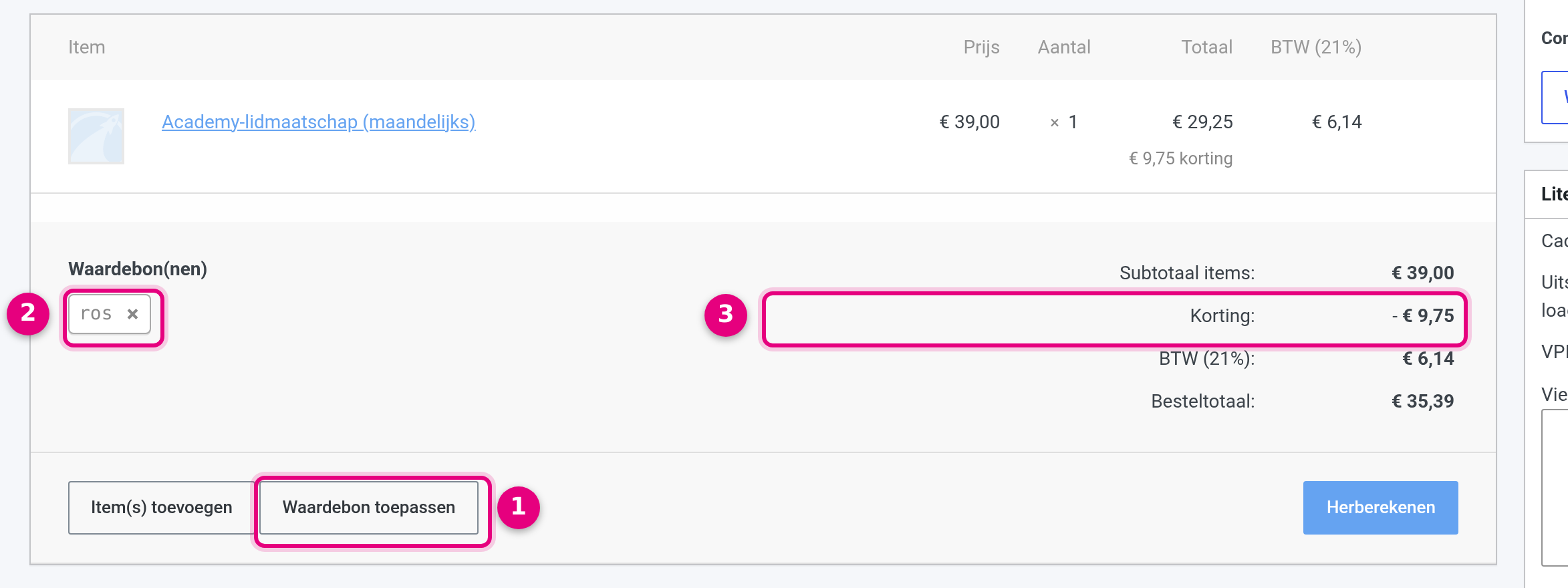
- Apply coupon: you enter the coupon code through this button. An input window appears in which you type the code.
- The applied coupon appears under Coupon(s). Using the cross you can remove the coupon manually again if needed.
- The discount line in the totals. Check that the correct amount is shown here: in this example 25% of the term price of €39.00, so €9.75 discount. The order total is then the amount the customer pays at the next renewal.
If you accidentally use an ordinary (non-recurring) coupon here, you will see the message “Sorry, only recurring coupons can be applied to subscriptions.” In that case create a new coupon with one of the recurring discount types from step 1.
What the customer sees on the next invoice #
At the next renewal the system automatically includes the coupon in the renewal order. The customer therefore pays the reduced amount for that term, and the discount appears as a separate line on the order and the invoice.
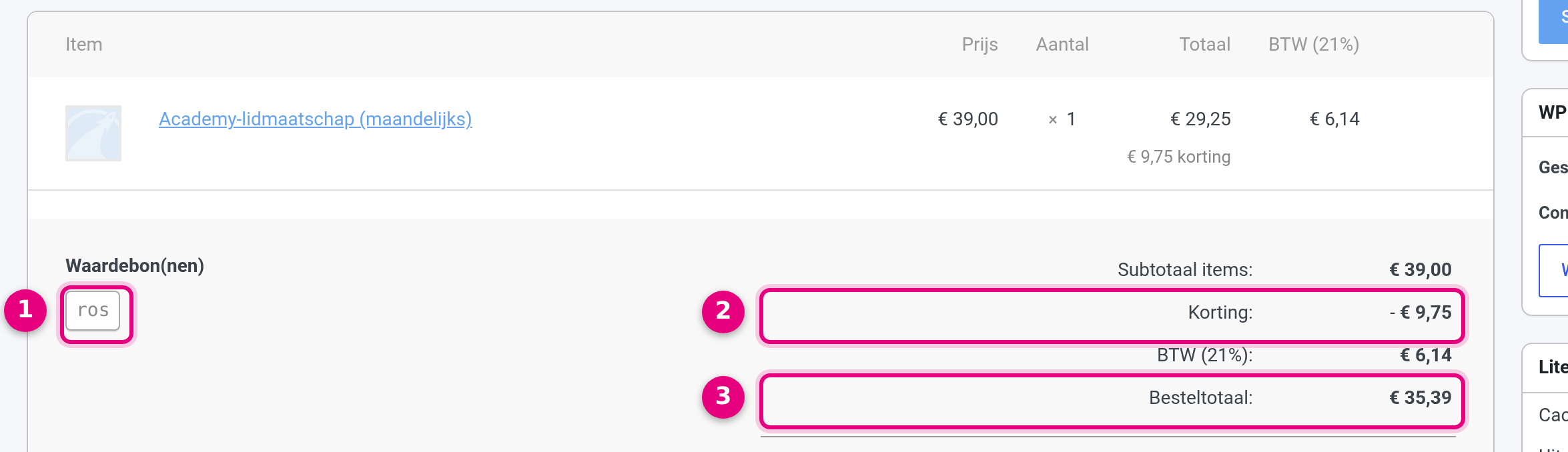
- The coupon has been carried over to the renewal order automatically.
- The discount line: €9.75 off the term price.
- The order total for this single term: €35.39 instead of the normal amount of €47.19 (including VAT).
After that, automatically back to the normal amount #
As soon as the discounted renewal has been paid, the system removes the coupon from the subscription automatically. You can see this as a note on the subscription.
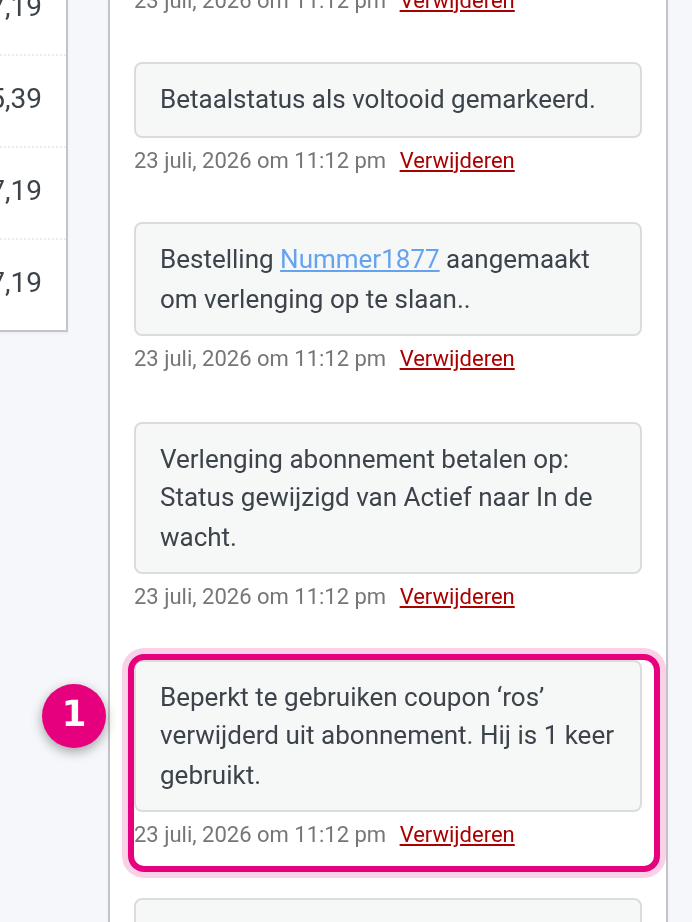
- The automatic note “Limited use coupon removed from subscription. It has been used 1 time.” This is the confirmation that the limit of 1 payment has been reached and the discount has run its course.
The renewal after that is back at the full amount, without a coupon and without a discount line:
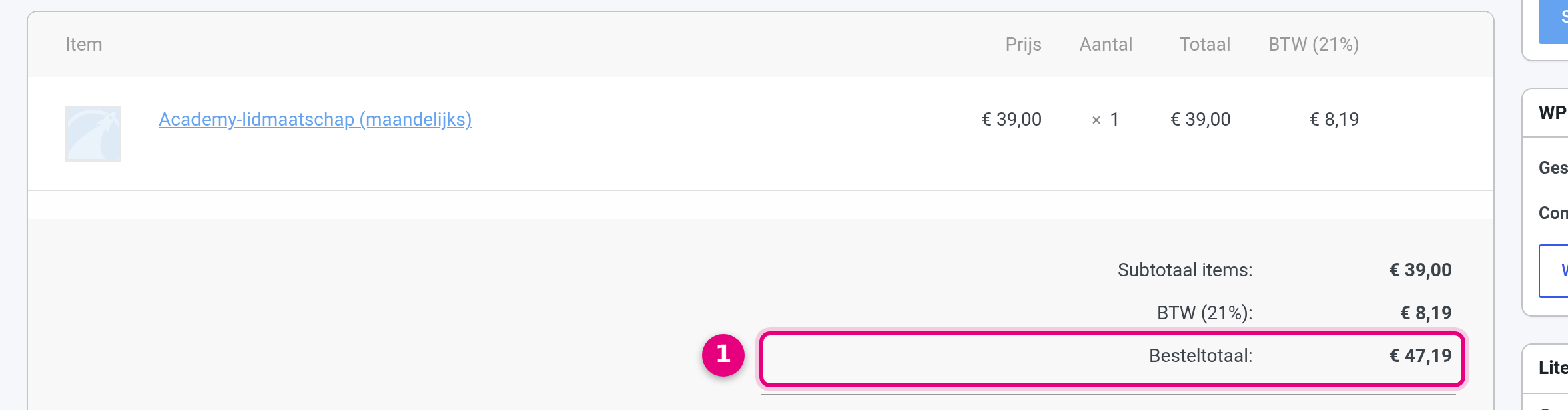
- The order total is back at the normal amount of €47.19. There is no discount line and no coupon visible on this order any more.
Worth knowing: the counter only counts paid renewals in which the coupon gave a discount. Terms the customer paid before you applied the coupon never count. If a renewal remains unpaid, the discount has not been used up and the coupon stays on the subscription until a payment with a discount has been completed. This works the same way for direct debit and for manual renewals.
Also possible: a discount for several terms #
Do you want to help your customer for a little longer, for example half price for three months on a monthly subscription? That works in exactly the same way. The only difference is in the coupon setting from step 1:
- Under Active for x payments enter not 1 but the number of terms you want, for example 3.
- Then simply apply the coupon to the running subscription, as described in step 2.
- The next three paid renewals now each get the discount. After the third paid discounted term the system removes the coupon from the subscription automatically and the note “Limited use coupon removed from subscription. It has been used 3 times.” appears.
- The renewal after that is back at the normal amount by itself. So even with several terms there is nothing left for you to keep an eye on.
Here too the system only counts paid renewals in which the coupon actually gave a discount; unpaid terms do not use up the limit. Do you want to stop the discount earlier after all? Then remove the coupon from the subscription manually using the cross next to Coupon(s).


