Organising automations with labels #
Labels help you categorise automations and keep an overview in your Autorespond account. With labels you can group related automations together, such as ‘Webshop’, ‘Lead nurturing’ or ‘Onboarding’. That makes it easier to find specific automations and to keep your marketing strategy organised.
Labels are particularly useful if you have a lot of automations for different purposes. Instead of scrolling through a long list, you filter on the label you want and only see the relevant automations.
An automation can carry several labels, and each label can be assigned to several automations. That gives you the flexibility to organise automations from different angles.
Automations in Autorespond are based on FluentCRM Pro, which is included in your package. Read the English documentation
Creating new automation labels #
You can create labels while editing an automation, or as a separate step in label management and assign them to an automation later.
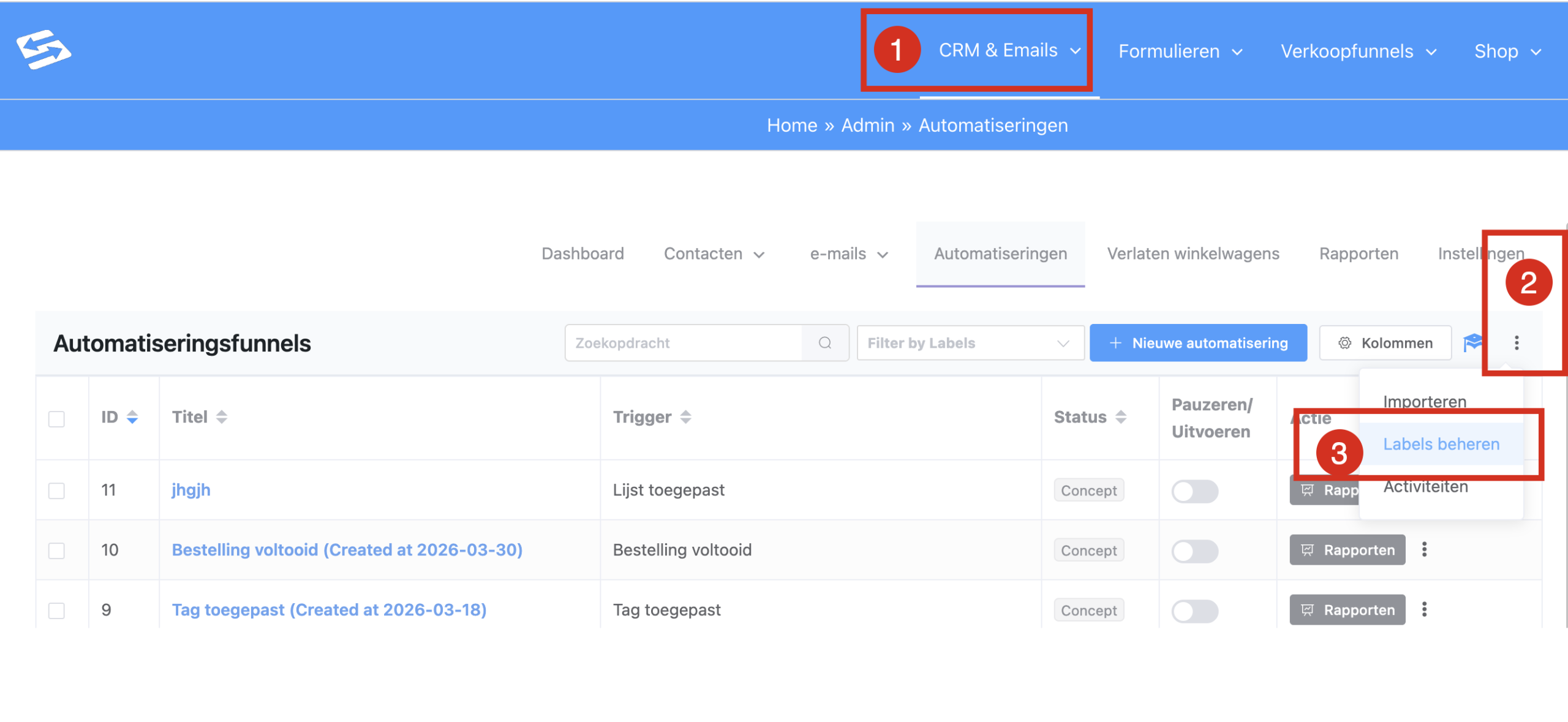
- In your Autorespond account, go to CRM & Emails → Automations
- Click the three dots in the top right, a dropdown appears. Click ‘Manage labels’
- Click ‘Create new label’
- Enter a descriptive name for the label.
- Pick a colour if you want to tell the label apart visually.
- Click ‘Create’ to add the label.
The new label is now available to assign to automations. It can only be assigned afterwards, to an existing automation.
Assigning labels to an automation #
- Go to CRM & Emails →Automations
- Select an automation by ticking the box in front of it.
- On the row of that automation, go to the Action column and click the three dots, choose Apply Label, click a label and click Add. You can add several labels.
Assigning labels to several automations at once #
You can assign labels in the following way:
With a bulk edit #
- Go to CRM & Emails → Automations.
- Tick the checkboxes of the automations you want to label.
- Choose ‘Bulk Actions’ → ‘Add Labels’.
- Select the label you want and click ‘Apply’.
Filtering automations by label #
Once you have assigned labels, you can filter the overview:
- Go to CRM & Emails → Automations.
- Click ‘Filter by Labels’ above the list of automations.
- Select the label you want to filter on.
- The list now shows only automations with that label.
You can select several labels at once to see automations that carry any of those labels. Use ‘Clear Filters’ to show all automations again.
Examples of useful label categories #
By function:
- Lead nurturing – for automations that guide potential customers
- Onboarding – for welcome sequences for new customers
- Re-engagement – for automations that reactivate inactive contacts
- Upselling – for automations that promote additional products
By product or service:
- Course A – all automations related to a specific course
- Webshop – automations for e-commerce workflows
- Coaching – automations for coaching programmes
By status:
- Active – automations that are currently live
- Test – automations that are still being tested
- Archive – older automations you want to keep but not use actively
Managing and editing labels #
You can edit existing labels through label management:
- Go to CRM & Emails → Automations → Manage Labels
- Click the pencil icon next to the label you want to edit
- Change the name or the colour
- Click ‘Update Label’ to save the changes
If you delete a label, it is automatically removed from every automation it was attached to. The automations themselves stay in place and keep running.
For setting up advanced automation workflows that respond to specific triggers, see also an automation for new customers on their first purchase only.
Frequently asked questions #
Can an automation have more than one label? #
Yes, you can assign as many labels as you like to a single automation. That is useful for finding and organising automations from different angles.
Are labels included when I export an automation? #
Labels are currently not included in the JSON export files. After importing an automation you need to assign the labels again by hand.
Can automations be labelled automatically based on their trigger? #
No, labels have to be assigned by hand. There is no automatic labelling based on triggers or other properties of the automation.


