Setting up stock control for products #
At its core, WooCommerce (the basis of our Shop module) was built with the idea of selling mainly physical products. At Autorespond we have extended and configured the functionality so it can also be used primarily for virtual products, and for selling courses, services and events.
In some cases, though, you may have a product with a certain stock level. Usually these are physical products. For example, you have ten books you want to sell.
For a product like that you want to avoid selling it when no stock is available. For those products there is the option to switch on and use the WooCommerce stock control function.
Stock control in Autorespond is based on WooCommerce, included in your package.
Switching on stock control for products #
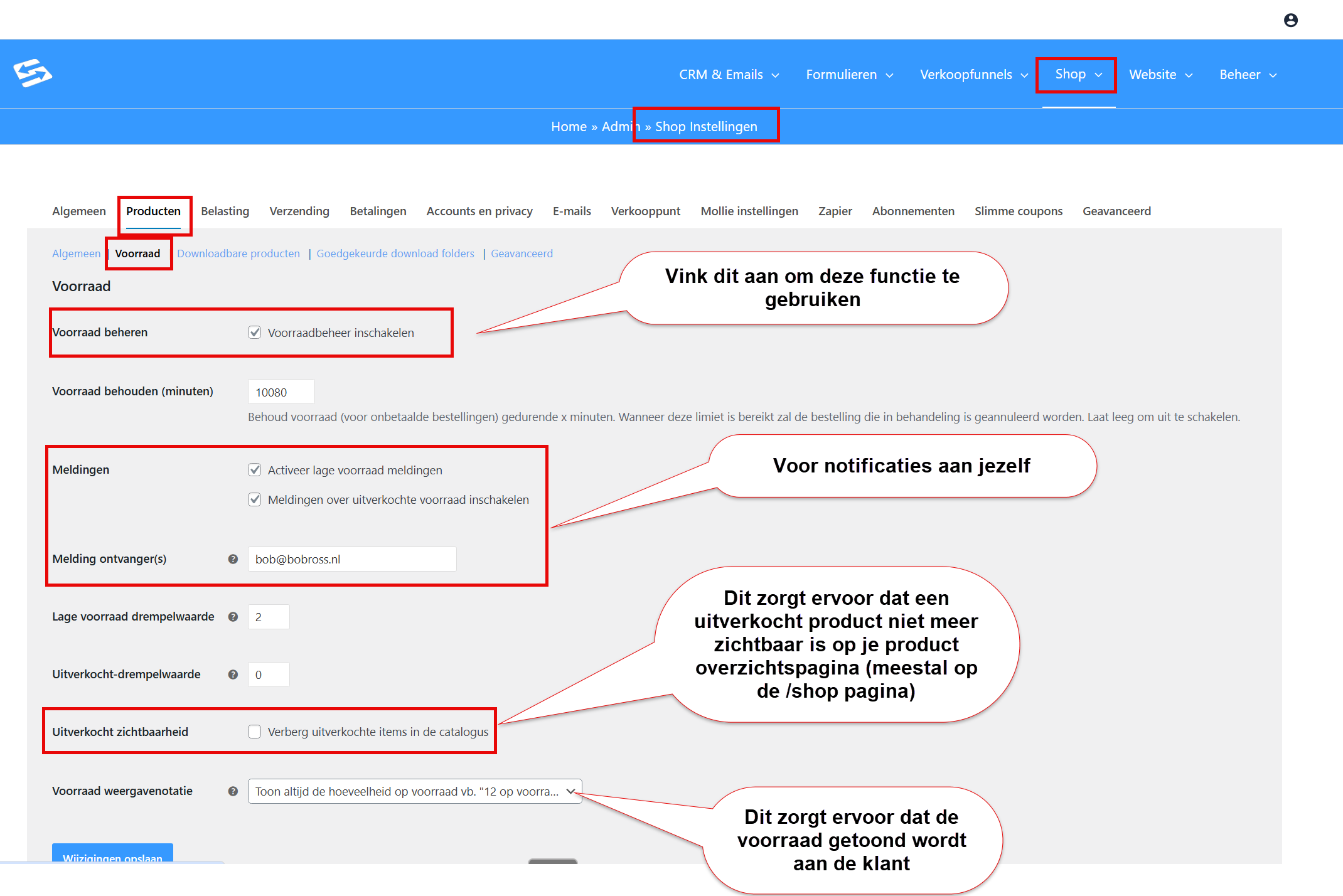
- In your Autorespond administration, go to Shop → Shop settings
- Choose Products and then Inventory
- Make sure the ‘Enable stock management’ checkbox is ticked
- Configure the stock settings as required
- Click ‘Save changes’ at the bottom
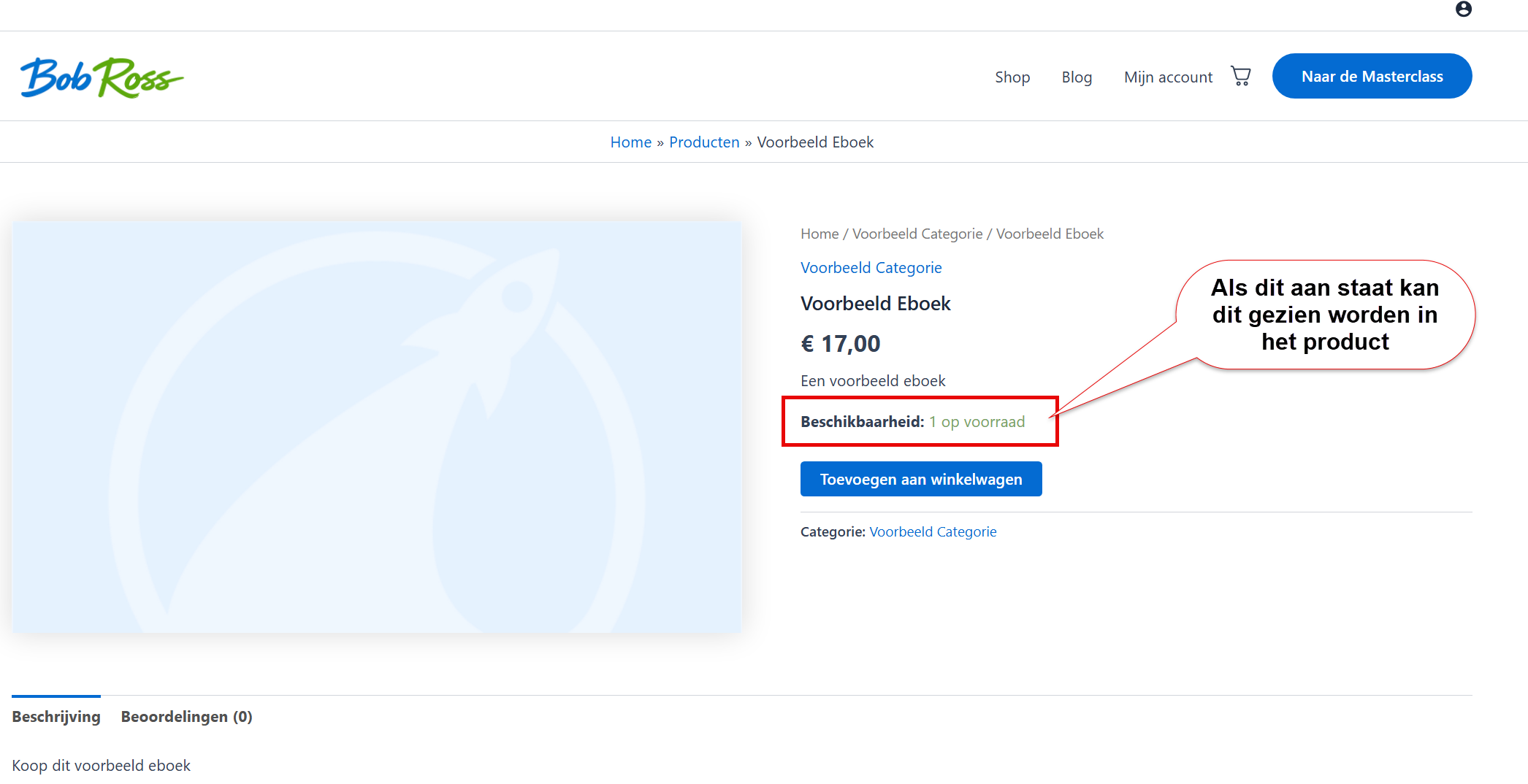
When this is switched on, your customers can see the remaining stock in the shop:
Setting up stock control on a product #
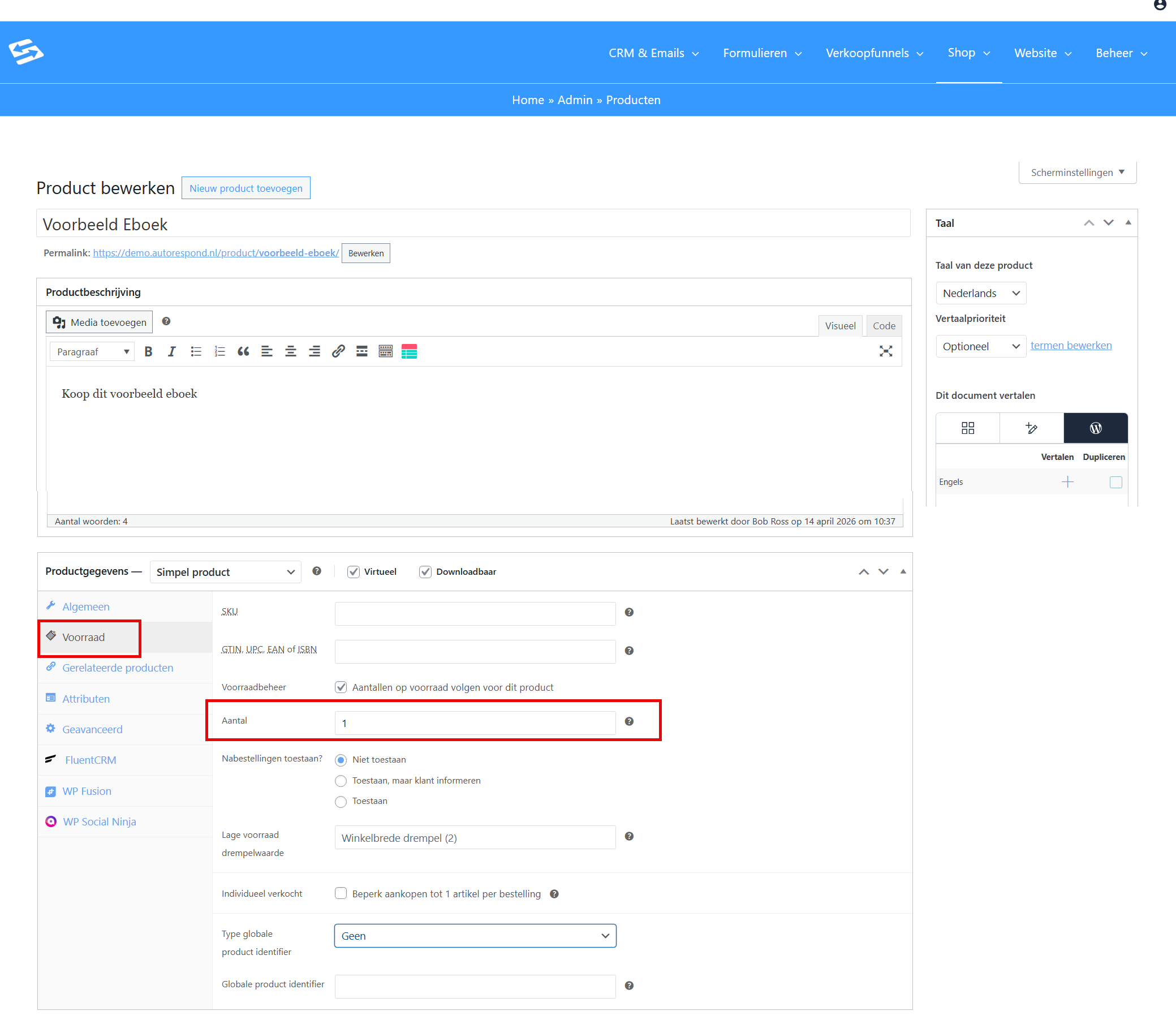
- In your Autorespond administration, go to Shop → Products
- Open the product you want to manage stock for
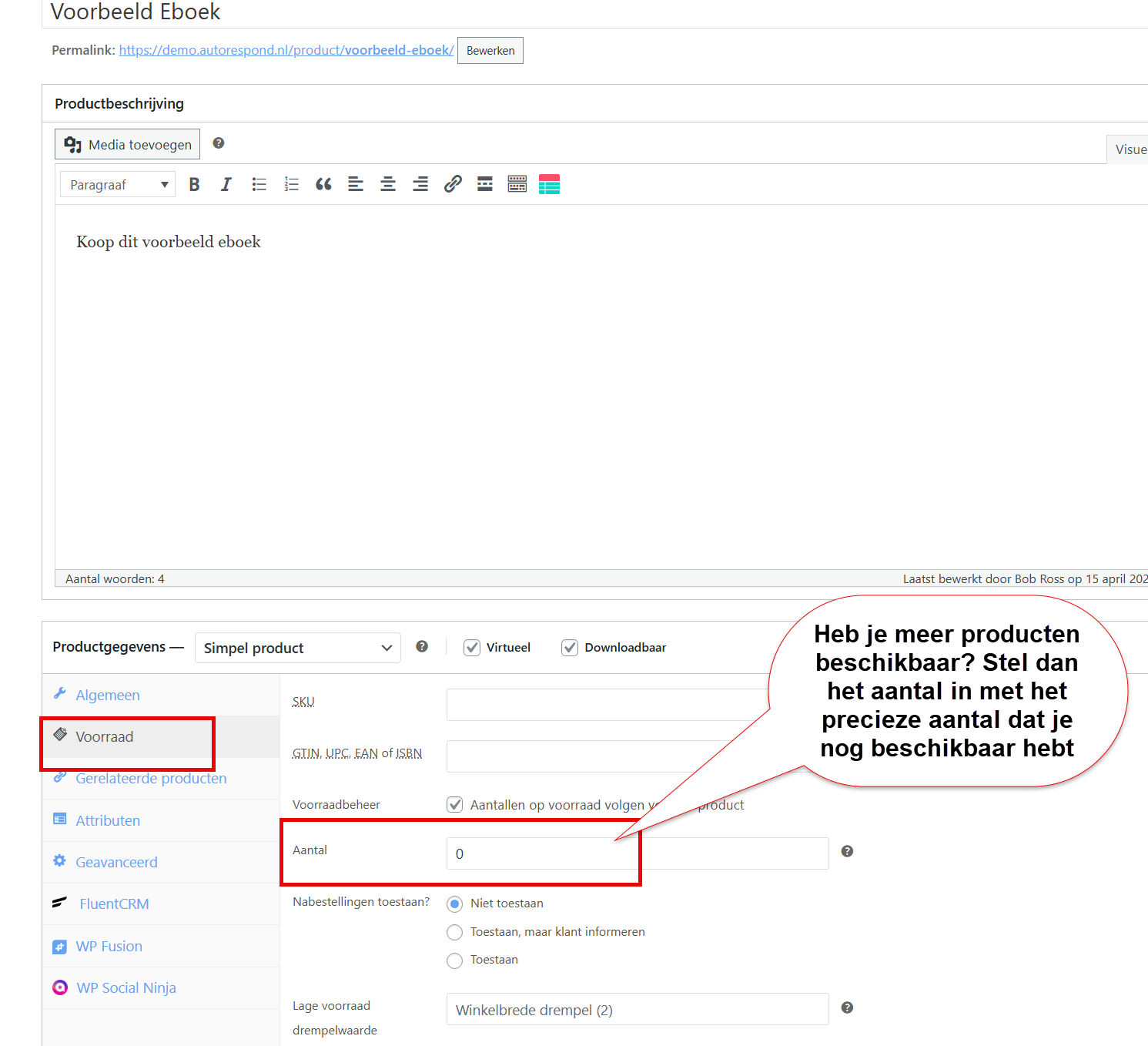
- Go to the ‘Inventory’ tab in the product data
- Tick ‘Track stock quantity for this product’
- Enter the number of available items at ‘Quantity’
- Set a low stock threshold if you like
- Save the product
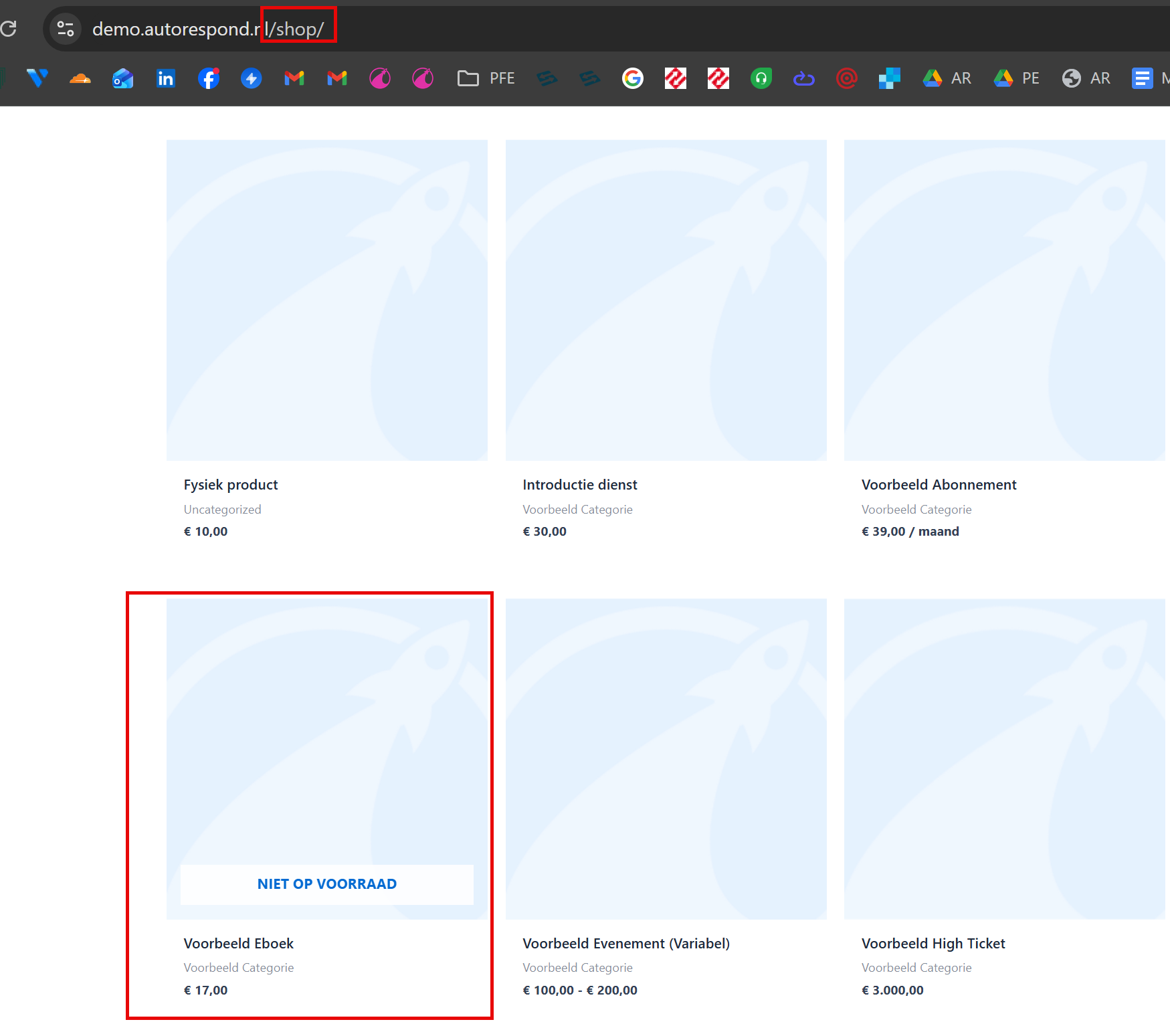
Once the last item has been sold, the product automatically shows as ‘out of stock’ in your shop. This does depend on the general stock settings (see above). You could also hide the product completely:
Updating stock when you have sold out #
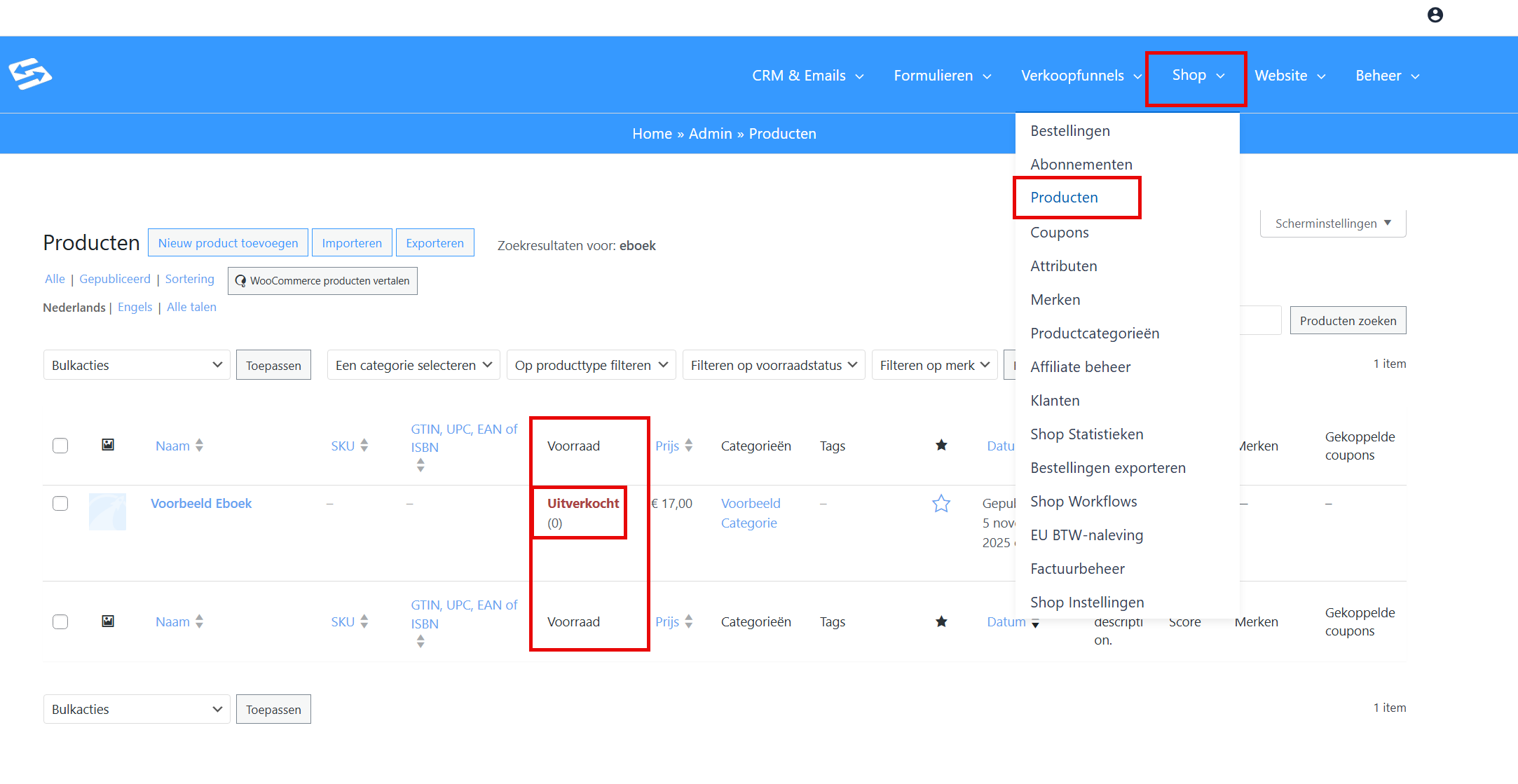
When your stock has run out, you can see this straight away in the overview under the Shop > Products menu. You can then increase the stock yourself by editing the product and changing the current quantity that may still be sold:
What if customers order by bank transfer #
If customers choose direct bank transfer as the payment method (assuming you have set up that payment option), the stock is adjusted after the order as if the order had already been completed. This prevents several customers from ordering by bank transfer while there are too few items available.
General stock control overview #
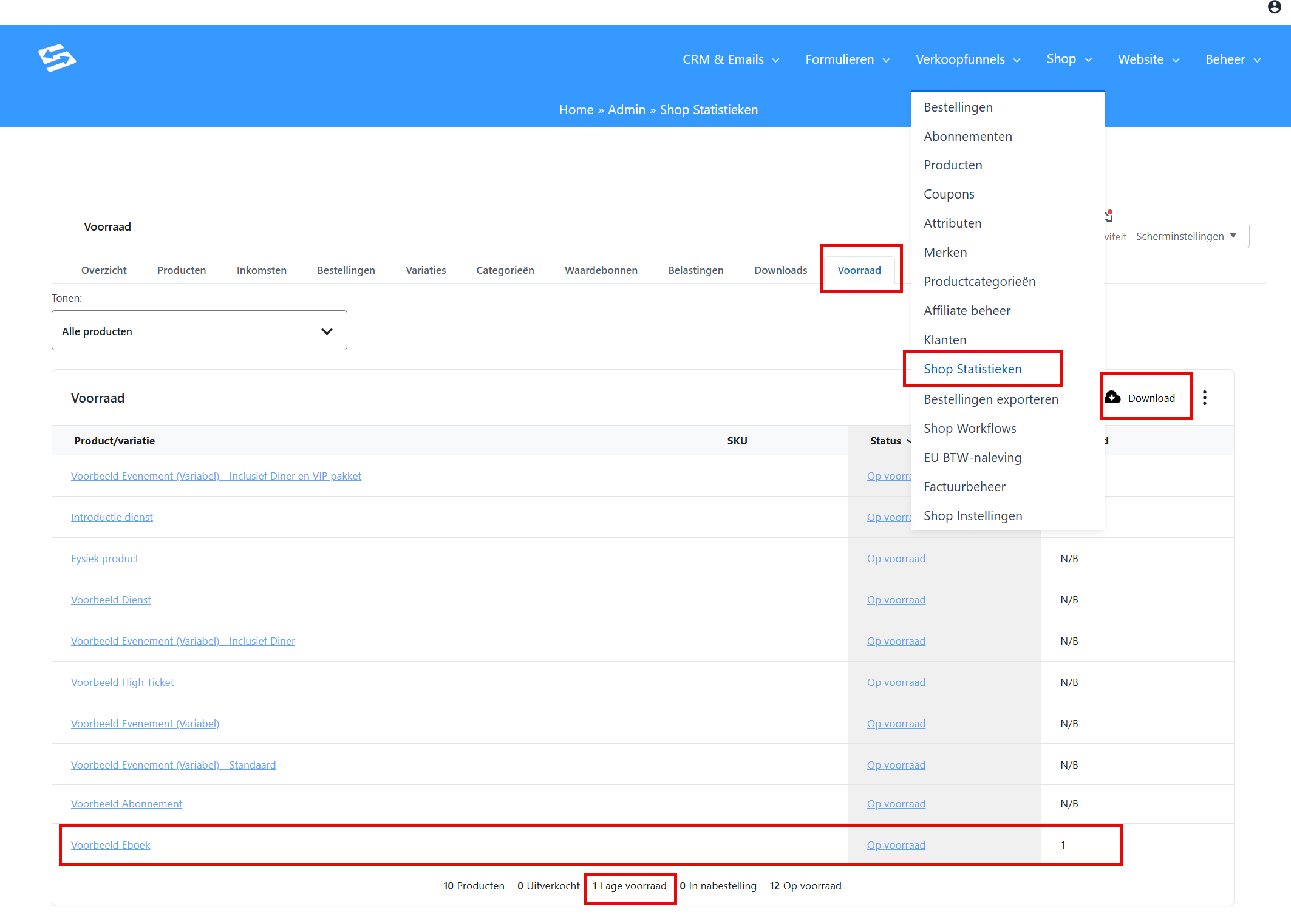
If you have several products with a specific stock level and want to view and export this in a single overview, you can do so through the Shop > Shop statistics menu and then the ‘stock’ tab:
Frequently asked questions #
What happens if a product is out of stock? #
The product is automatically marked as ‘Out of stock’ and can no longer be ordered until you increase the stock again.
Can I set different stock levels per product variation? #
Yes, for products with variations you can set a stock level of its own per variation in the variation settings.


