Writing good SEO titles and meta descriptions takes time, certainly if you have many pages, posts or products. Since SEOPress 10.2 you have an AI assistant for this directly in your Autorespond environment: it writes a suggestion for your title and meta description, generates alt texts for images, and can think along about your text as a chat assistant in the editor. In this article you read how to switch the assistant on, how to use it and what to watch out for.
The SEO functions in Autorespond are based on SEOPress PRO, included in your package. Read the SEOPress documentation
What do you need? #
The AI functions in SEOPress work with an AI provider of your choice. For that you need one of these two things:
- Your own API key from OpenAI, Anthropic (Claude), Google Gemini, Mistral or DeepSeek. You create it in your business account with that provider and pay there per use (for writing titles and meta descriptions this comes down to a few cents per month).
- Or SEOPress AI Credits: a balance you buy from SEOPress itself, so that you do not have to create an account with an AI provider.
Please note (GDPR): everything the assistant writes for you is sent as text to the servers of the chosen AI provider. For SEO titles and page content that is usually no problem, but use a business account or API key for this (not a free private account) and do not include any personal data of customers in your prompts. You can read more about choosing an AI account that complies with the GDPR in Connecting your Autorespond to your AI assistant (steps 1 and 2).
Step 1: Switch AI on and choose your provider #
- Go to Website → SEO and click PRO in the bar at the top.
- On the left, choose AI from the list.
- Set the toggle at the top to Enabled.
- At AI provider, click the provider you have an API key for (or SEOPress if you use AI Credits).
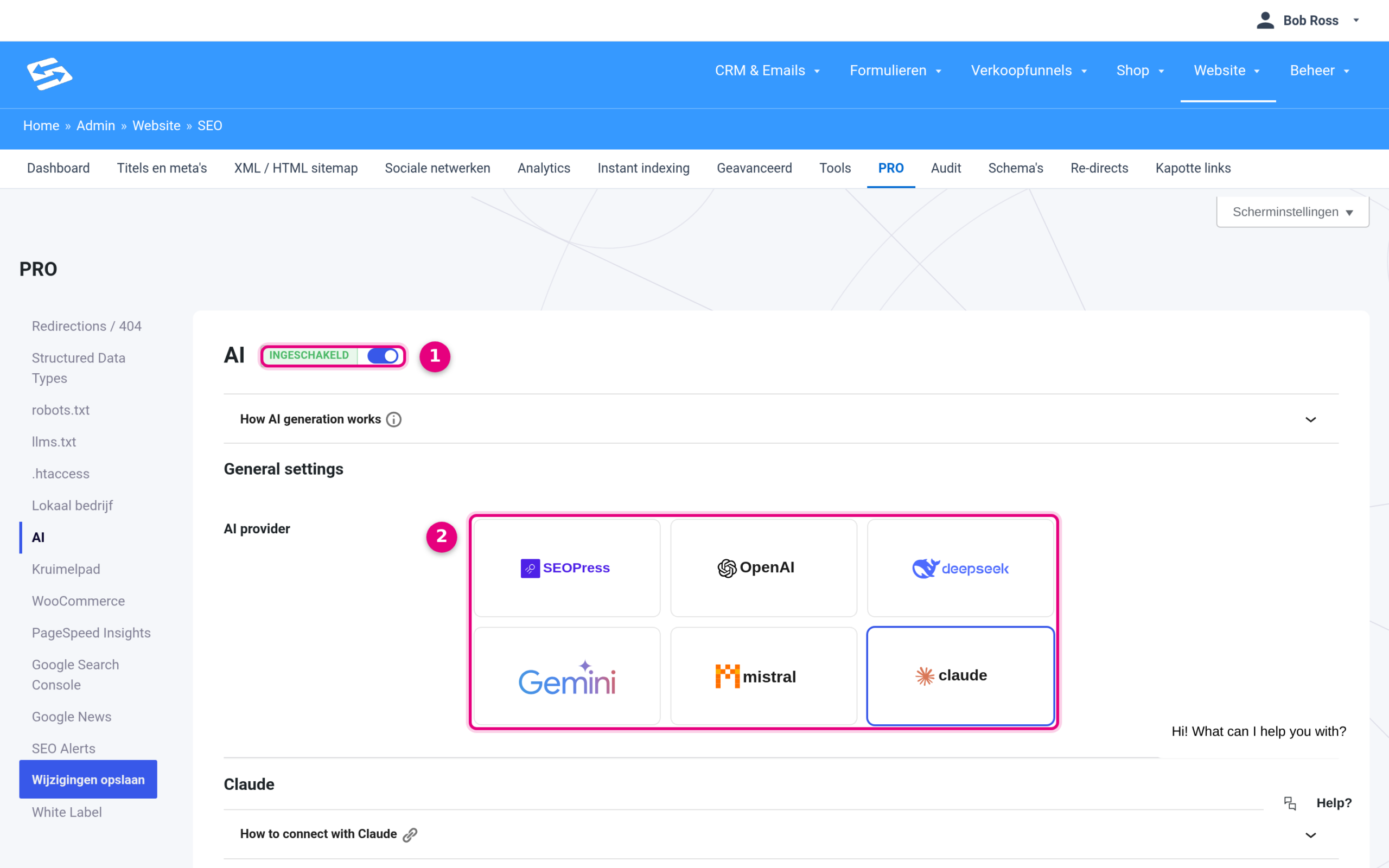
- AI toggle: with this you switch all AI functions in SEOPress on or off.
- AI provider: choose your provider. Each provider has its own block underneath with an expandable explanation (“How to connect with …”) telling you where to create the API key.
Step 2: Enter the API key and switch the assistant on #
- Scroll down a little to the block of your chosen provider and paste your API key into the field.
- Choose a model if you wish. The default model is fine for SEO texts; a “mini” or “haiku” model is cheaper and fast enough.
- A little further down, switch AI Assistant on if you also want to use the chat assistant in the editor (see step 4).
- Click Save changes on the left.
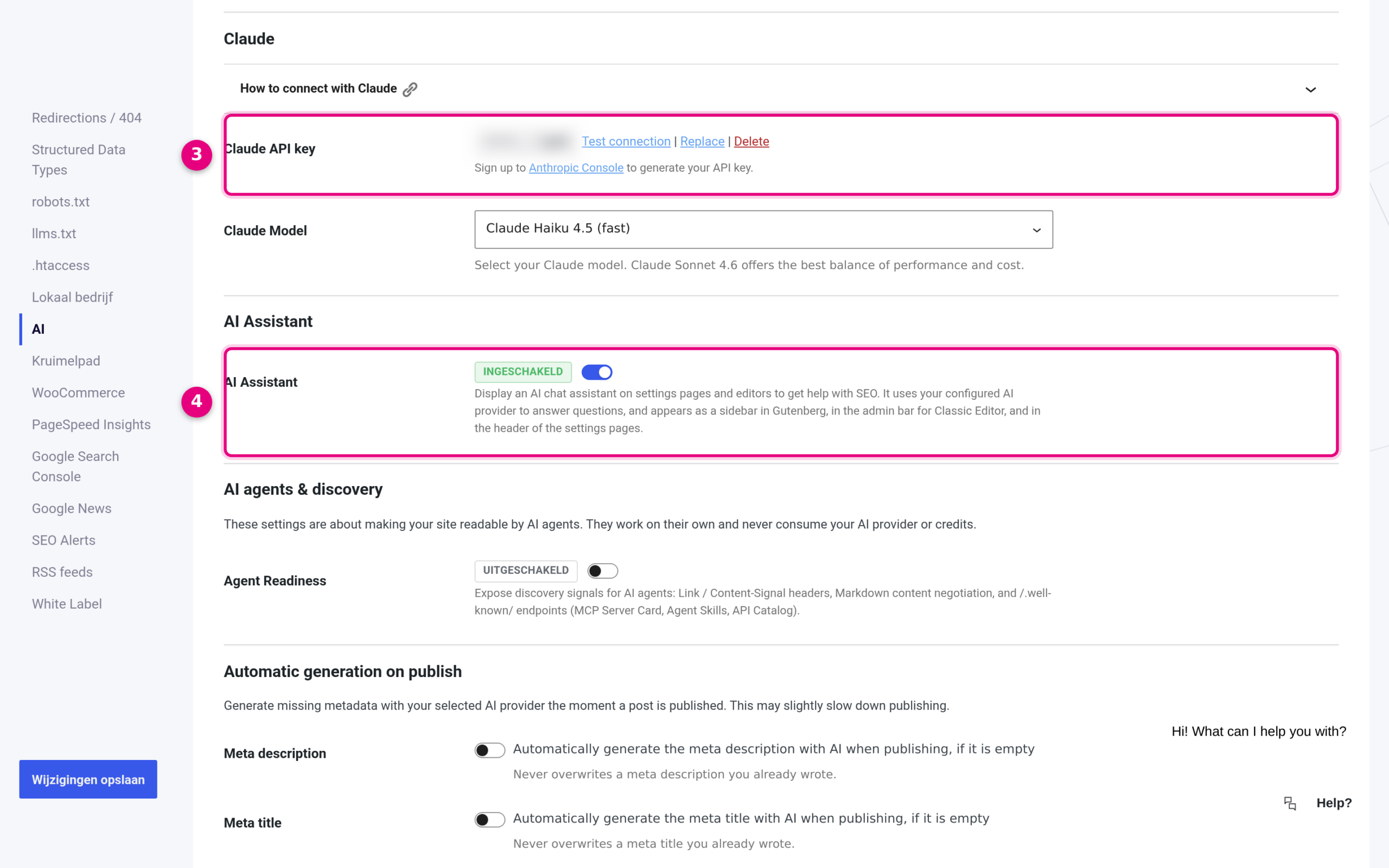
- API key: paste the key from your account with the AI provider here and click Test connection to check that it works. Treat the key like a password. Directly underneath you choose the model.
- AI Assistant: the chat assistant in the editor and on the SEO settings pages. If this is switched off, the separate “generate with AI” buttons next to the title and meta description still work as normal.
On the same page you find a few more useful options. Under Automatic generation on publish you have a missing meta description or title written automatically at the moment you publish (existing texts are never overwritten). Auto Alt Text creates an alt text right away when you upload an image. And at AI Logs you see the latest error message from the AI provider, handy if something does not work. The section AI agents & discovery is about something else: it makes your site readable for AI agents and AI search engines and does not use any credit.
Step 3: Have an SEO title or meta description written #
- Open a page, post or product in the editor.
- Click the SEO score in the top right (for example “No score”) to open the SEO panel.
- Click the magic wand next to Title or next to Meta description. After a few seconds a suggestion appears in the field, based on the content of your page.
- Read the suggestion, adjust it where needed and click Save. Would you like something different? Click the wand again for a new suggestion.
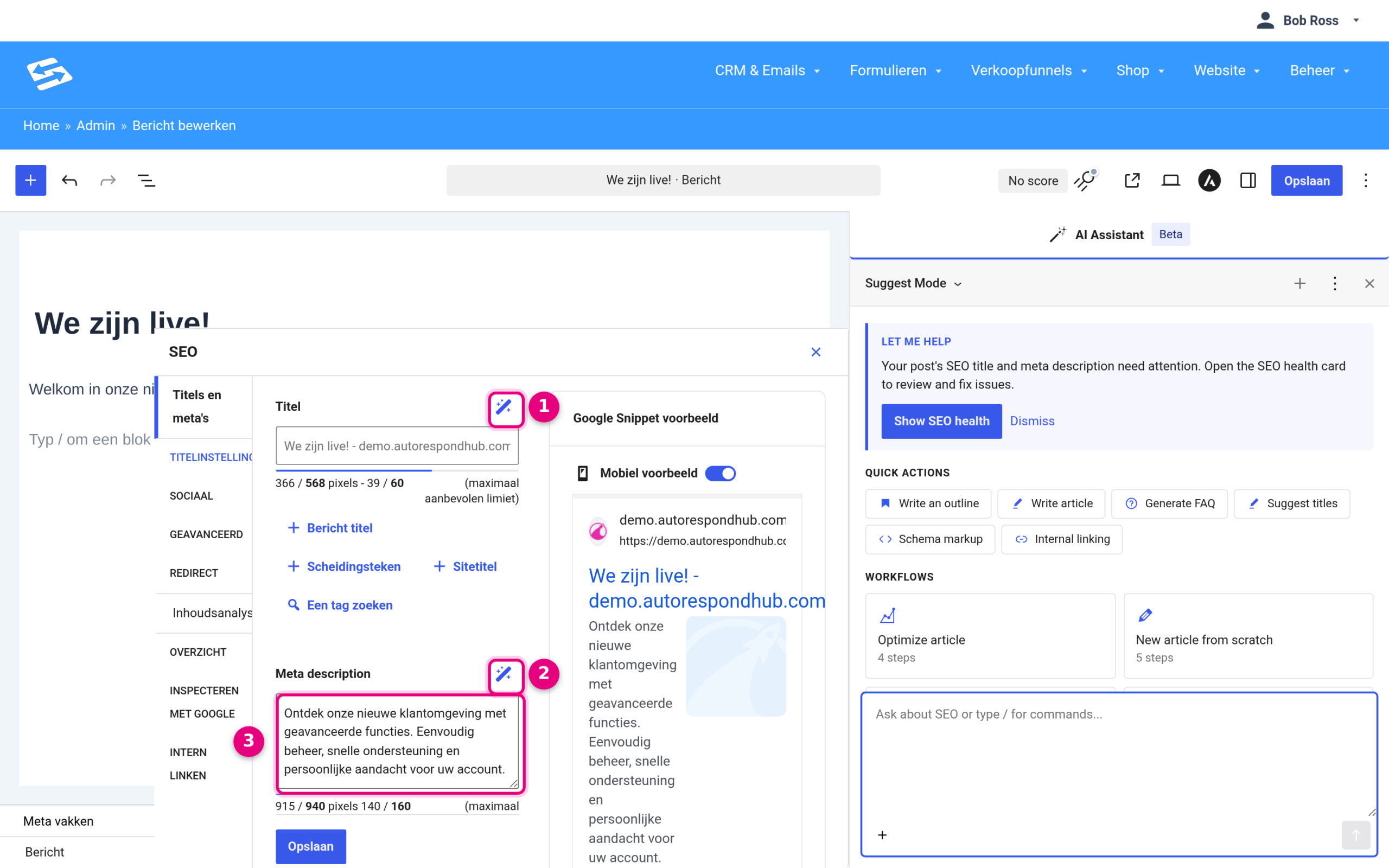
- Generate meta title with AI: writes a suggestion for the page title as it appears in Google. The bar underneath shows whether the length is right.
- Generate meta description with AI: writes a suggestion for the short description below your title in the search results.
- The result: the suggestion is placed directly in the field. On the right you immediately see in the Google Snippet preview how it will look.
Do you have many pages without a meta description? In the list of posts, pages or products you can tick several items and have titles and meta descriptions generated in one go through Bulk actions.
Step 4: Using the AI Assistant in the editor #
The AI Assistant is a chat panel next to your text. It knows the content of the page you are working on, so you can simply ask it questions or give it instructions, such as “rewrite the introduction more briefly” or “suggest five frequently asked questions for this article”. The assistant is still in beta: it works well, but always check its suggestions before you publish.
- In the editor, click the magic wand icon AI Assistant in the top right (next to the SEO score). The panel opens to the right of your text.
- Choose a Quick action or Workflow, or type your question in the chat field at the bottom.
- Assess the suggestion. In Suggest Mode the assistant changes nothing without your approval.
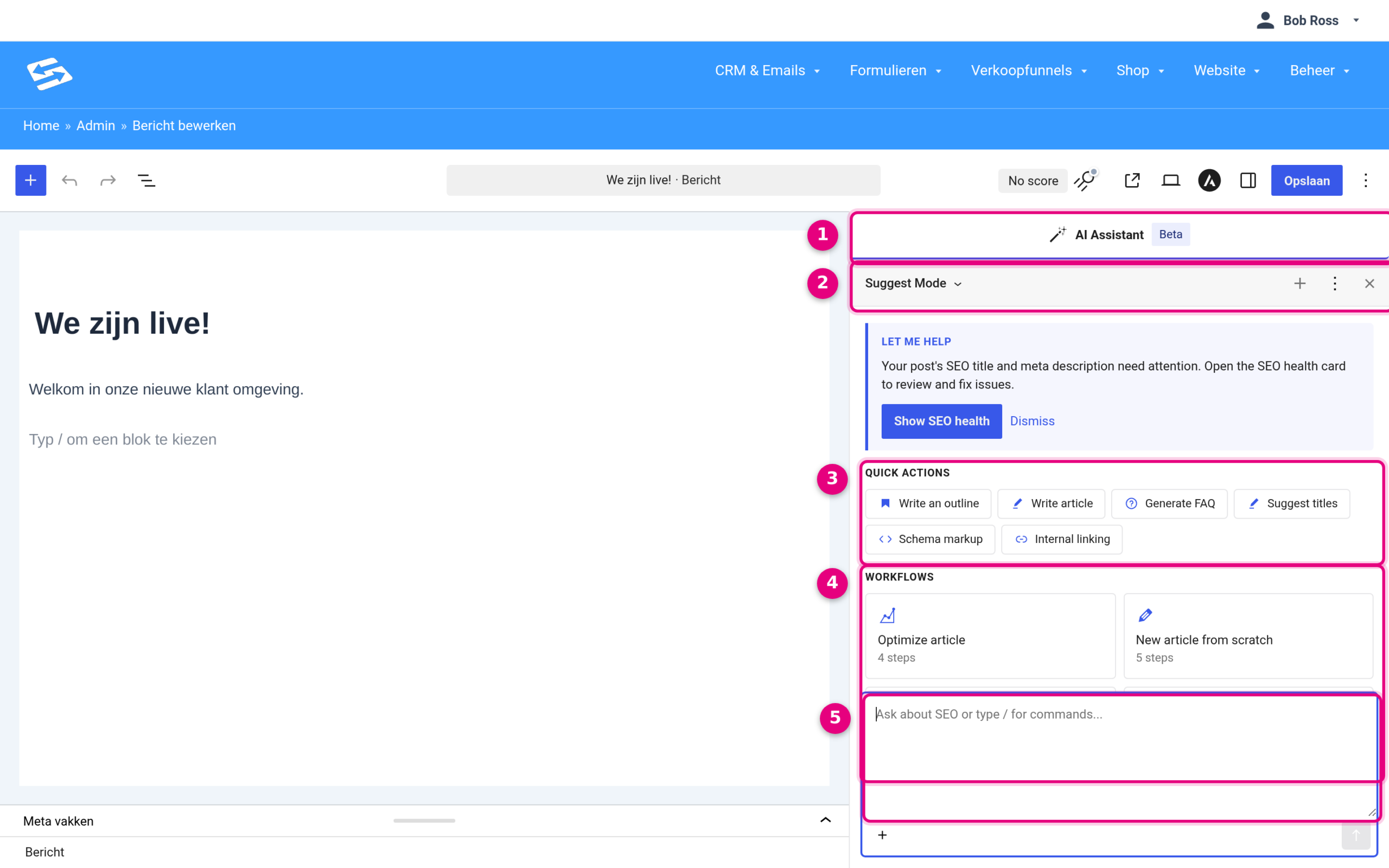
- AI Assistant panel: the assistant is still in beta (hence the label). You close it with the cross; the button in the top right of the editor opens it again.
- Mode: Ask (answers only), Suggest (suggestions you approve, recommended) or Auto (changes applied straight away).
- Quick actions: ready-made instructions, such as writing an outline, writing an article, generating an FAQ, suggesting titles, schema markup or internal links.
- Workflows: series of steps the assistant carries out one after another, for example “Optimize article”, “Content audit” or “Product page”.
- Chat field: type your own question or instruction here. With the plus sign you add context, such as selected blocks or the SEO analysis.
Tips #
- Work in Suggest Mode: that way you always see first what the assistant wants to change.
- Fill in your keyword in the SEO panel first. The assistant uses it when writing titles and descriptions.
- Getting no result? Look under SEO → PRO → AI at AI Logs: the latest error message is there, for example an expired key or an empty balance.
- Do you share your site with a team? Everyone with access to the editor can use the assistant, and that uses up your balance. Agree on who uses it.


