LyraWMS (formerly Pakjesfabriek) is a warehouse management system you can connect to your Autorespond webshop for automatic stock management. Because the Autorespond webshop is based on WooCommerce, you can use the existing WooCommerce integration that LyraWMS has developed.
Stock management in Autorespond is based on WooCommerce, included in your package with the Shop & Sales funnels extension.
What the LyraWMS integration does #
The integration keeps stock levels synchronised automatically between LyraWMS and your Autorespond webshop. When products are sold or delivered, the stock is updated in both systems. That stops you selling products that are no longer in stock.
Creating an API key in Autorespond #
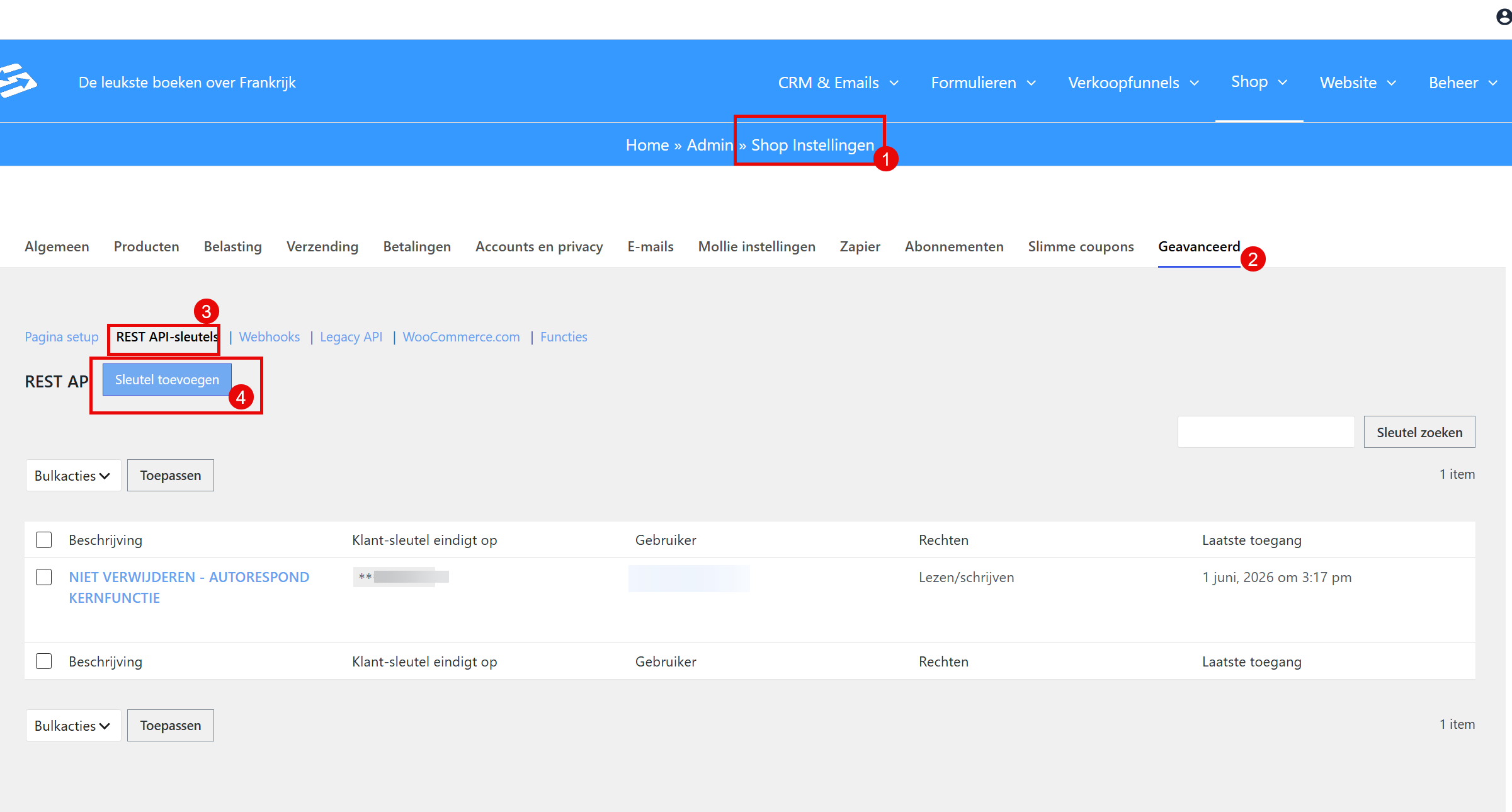
You need a WooCommerce API key for the integration. You create it in your Autorespond administration:
- Go to Shop → Shop settings
- Open the ‘Advanced’ tab
- Click the ‘REST API keys’ sub-tab
- Click ‘Add key’
- Enter a description (‘LyraWMS integration’, for example)
- Under ‘User’, select your own user account
- Under ‘Permissions’, choose ‘Read/write’
- Click ‘Generate API key’
- Copy the generated Consumer Key and Consumer Secret, you need both for the integration
Important: do not delete existing API keys that are already there. Always add a new key for LyraWMS.
Setting the integration up in LyraWMS #
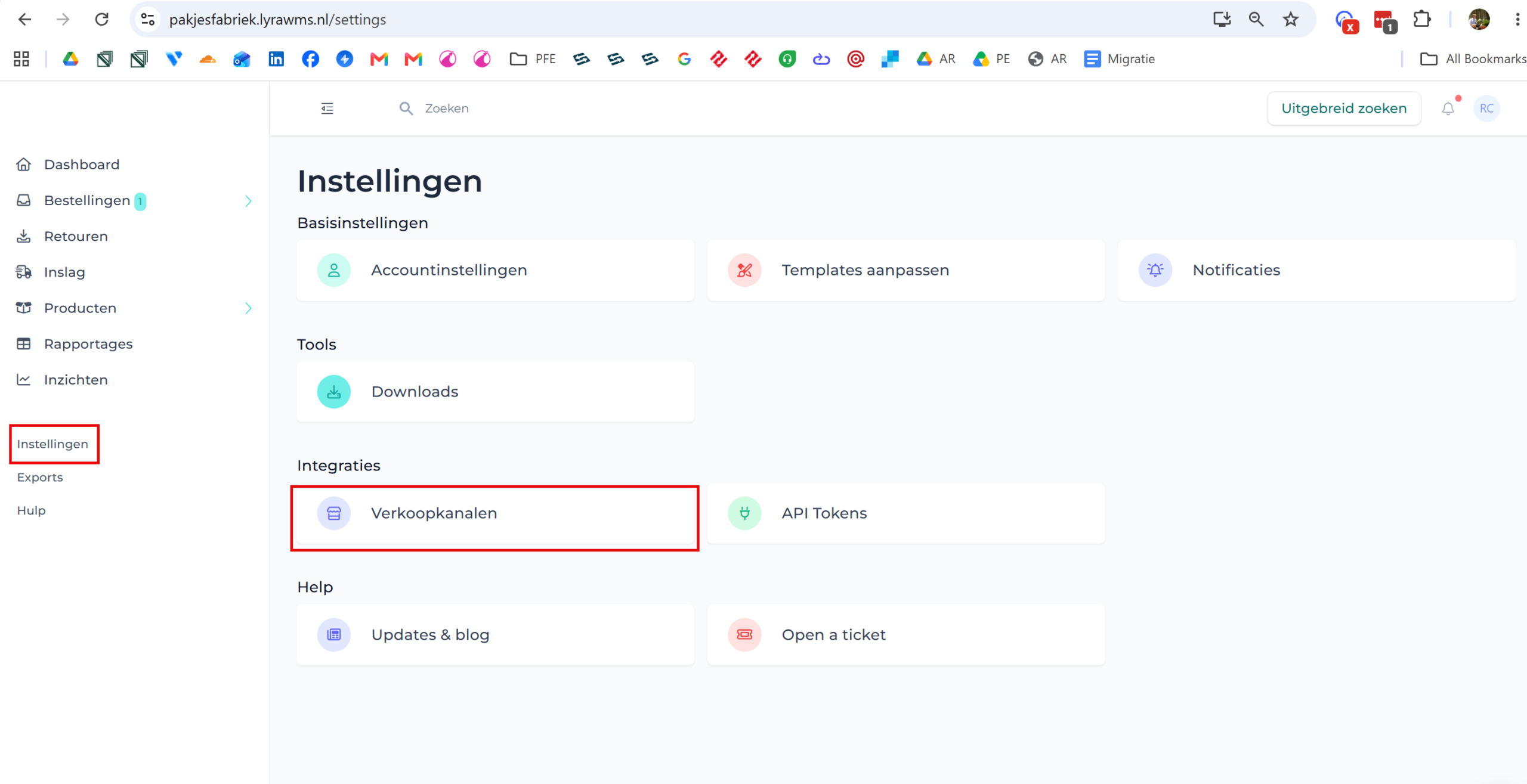
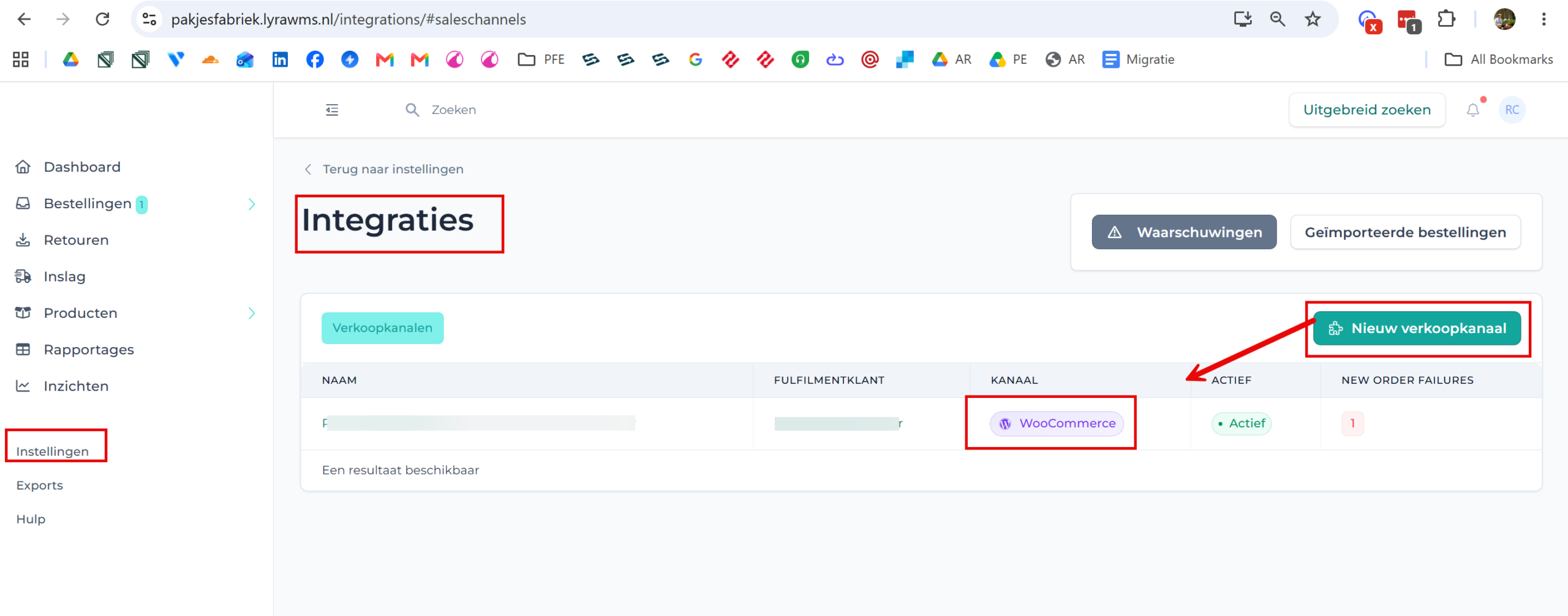
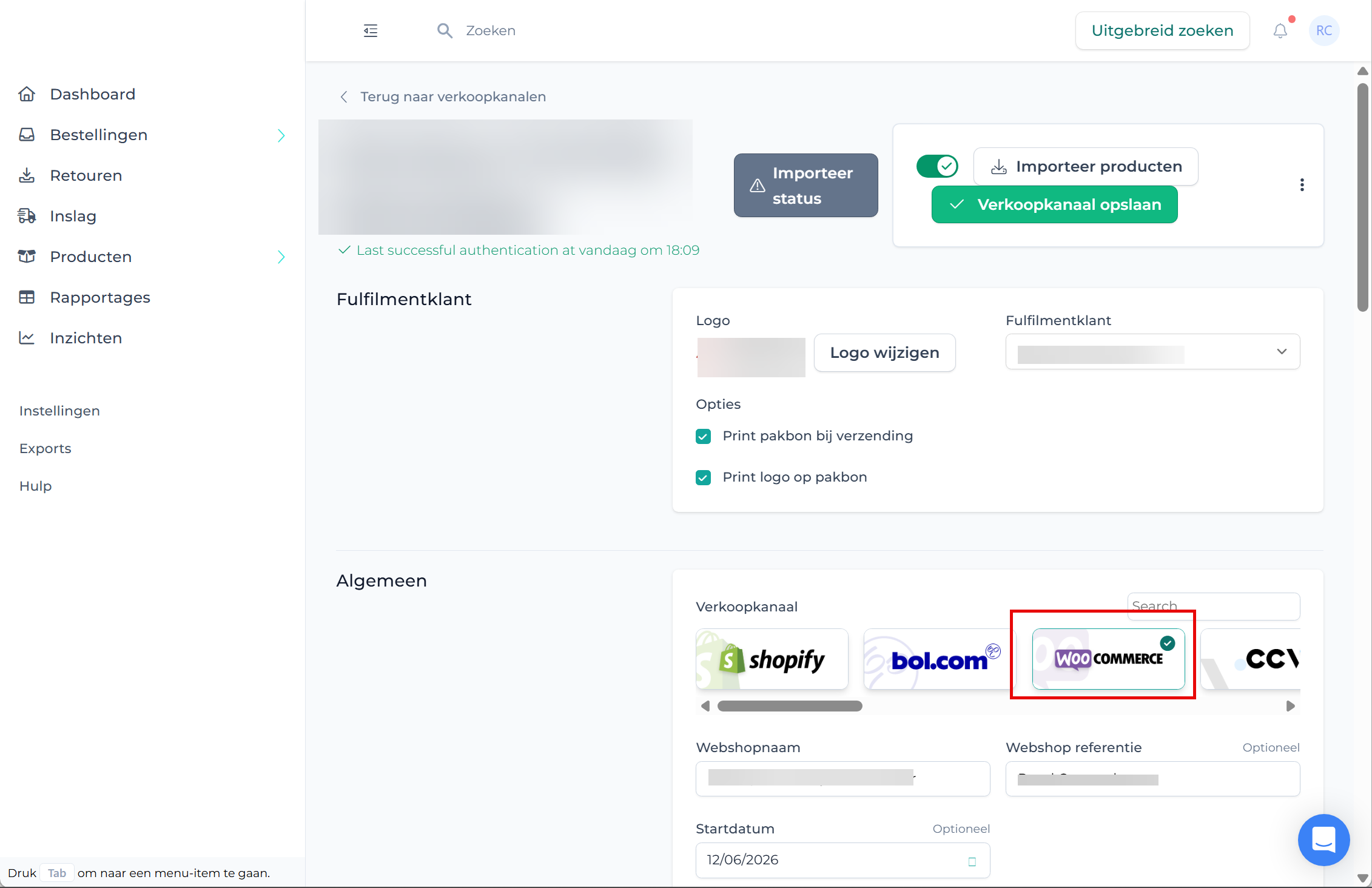
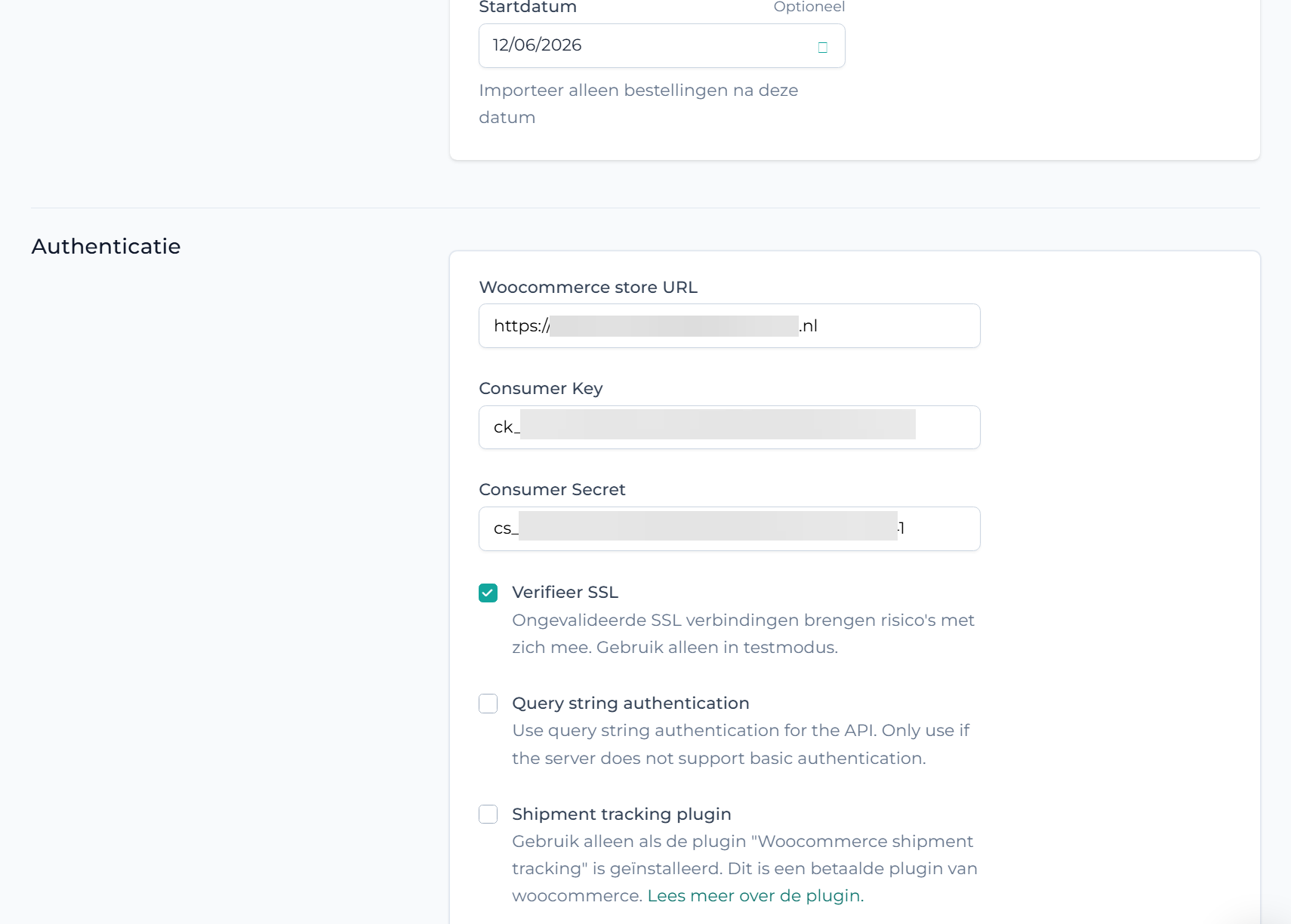
With the API details you can set the integration up in LyraWMS. Follow the step-by-step guide in the LyraWMS documentation for this:
Setting up the LyraWMS WooCommerce integration
That guide contains all the steps you need to connect your Autorespond webshop to LyraWMS, including configuring product synchronisation and stock management.
Below are the screenshots as things worked at the time this article was written (but the LyraWMS guide always takes precedence).
Important for combined orders – exclude the SKU ‘GEEN-VERZENDING’ #
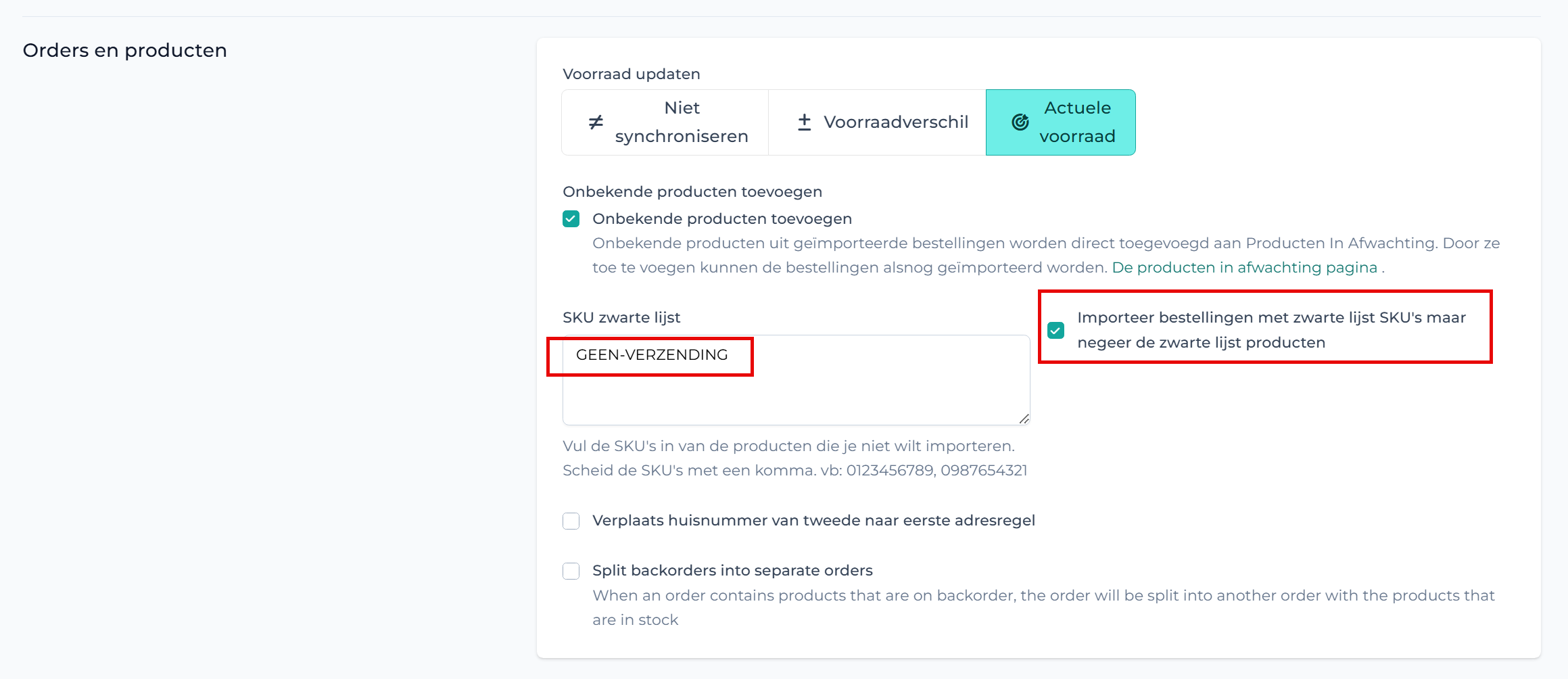
LyraWMS does not import orders if the order also contains a product without an SKU, or with an SKU that does not exist in Lyra. The order is then not imported at all.
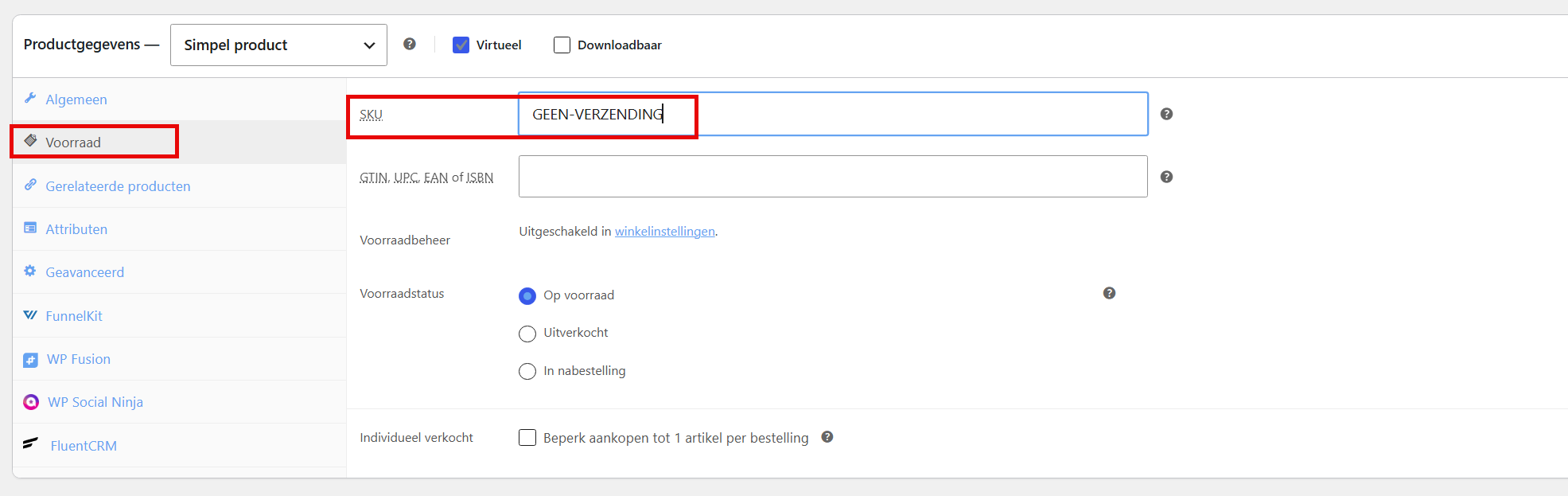
To prevent this, we have set Autorespond up so that virtual products are given the SKU ‘GEEN-VERZENDING’ by default. So if you exclude that SKU in the WooCommerce connection settings under the field ‘SKU blacklist’ in Lyra and also tick ‘Import orders with blacklisted SKUs but ignore the blacklisted products’ (see the screenshots above), an order with several products that includes a product with a valid SKU is processed as normal, while the products with the SKU ‘GEEN-VERZENDING’ within that same order are ignored. That way you can sell a combination of physical and virtual products and the physical product is still processed in Lyra.
So every product that could be bought at the same time as a physical product that has to be processed in Lyra needs to have the SKU ‘GEEN-VERZENDING’. In the product that happens automatically if it is marked as a virtual product:
Which order status does LyraWMS collect? #
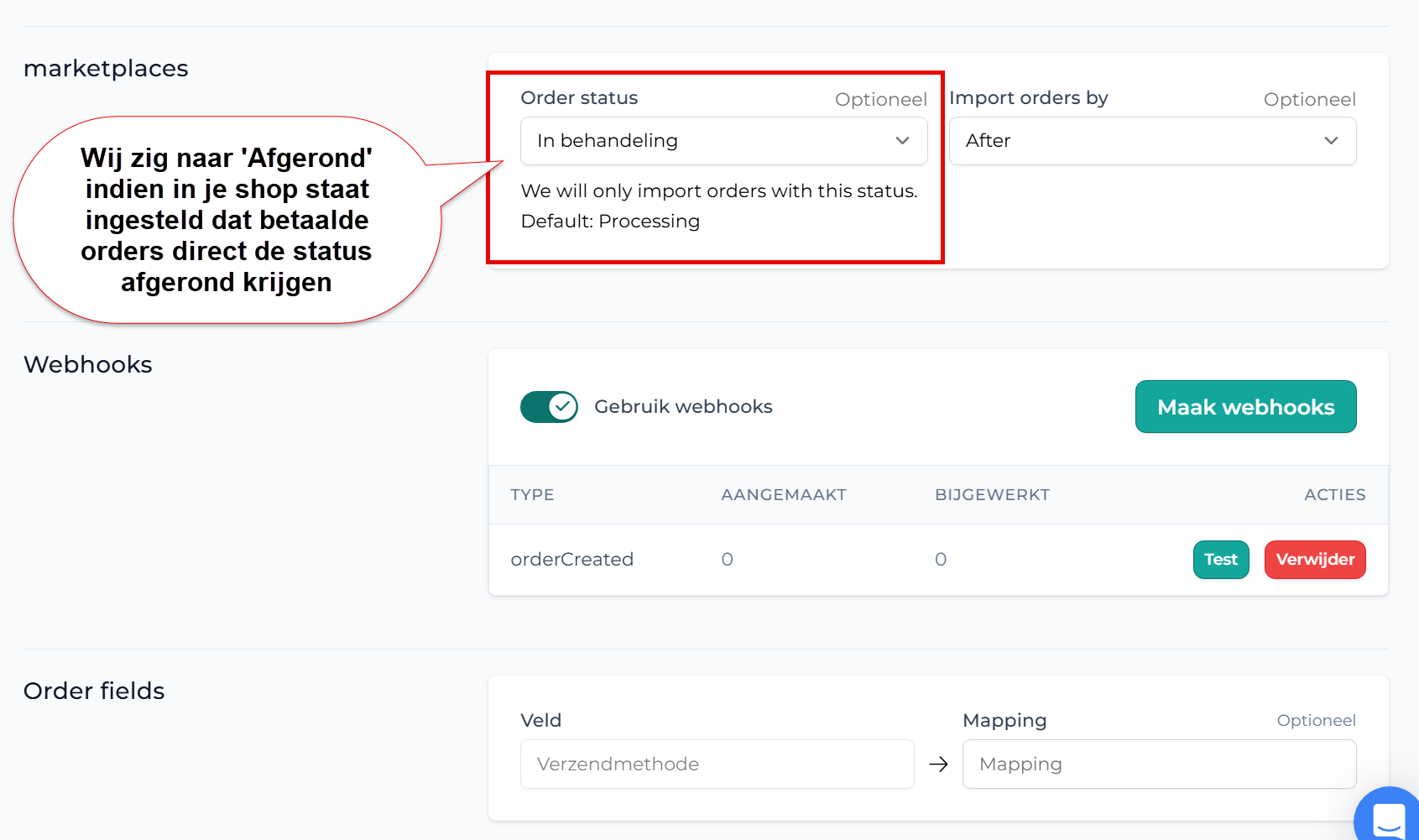
LyraWMS collects your orders from your webshop itself. Roughly every ten to twenty minutes, LyraWMS checks whether new orders are ready. Your webshop does not actively push the orders, LyraWMS comes and collects them periodically. In the integration settings in LyraWMS you decide which status an order has to have before it is collected.
There is an important point to watch here. By default a paid order in WooCommerce (our underlying shop software) first gets the status Processing. That is mainly useful when you ship physical products: the order has been paid, but still has to be processed and dispatched.
Because most Autorespond entrepreneurs sell digital products or knowledge products, where nothing has to be shipped physically, Autorespond comes with a shop workflow (AutomateWoo) that moves paid orders straight from the status ‘Processing’ to ‘Completed’. As a result the order passes the Processing status very quickly.
This has consequences for your integration. If you keep this default setting, set LyraWMS to check for completed orders. If you do not, and you let LyraWMS look for Processing, LyraWMS will never see your orders, because they pass that status too quickly.
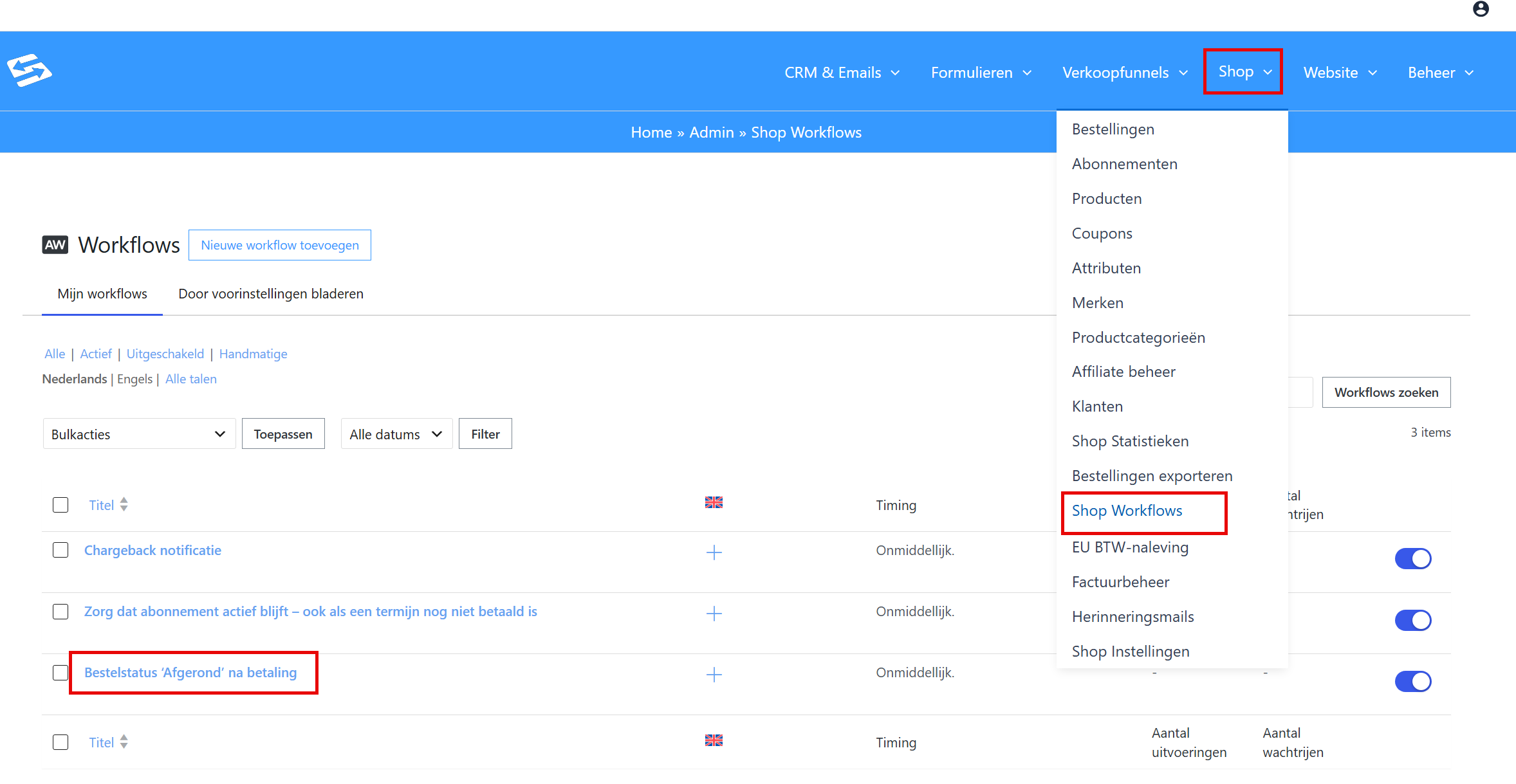
You decide for yourself whether you want to keep it this way. Do you sell physical products and do you want orders to stay on Processing until you have handled them? Then you can change the workflow via the menu Shop → Shop workflows and set the workflow “Order status ‘Completed’ after payment” to inactive. If you do that, paid orders will get the status Processing by default. After shipping you can then set the order status to completed by hand.
You can change the default shop workflow we have set up via the menu Shop > Shop workflows:
What to do if something goes wrong #
If you cannot create the API key in Autorespond, contact us through the support portal. For questions about the integration itself, the configuration in LyraWMS or synchronisation problems, it is best to contact LyraWMS support. They know their system best and can help you directly.
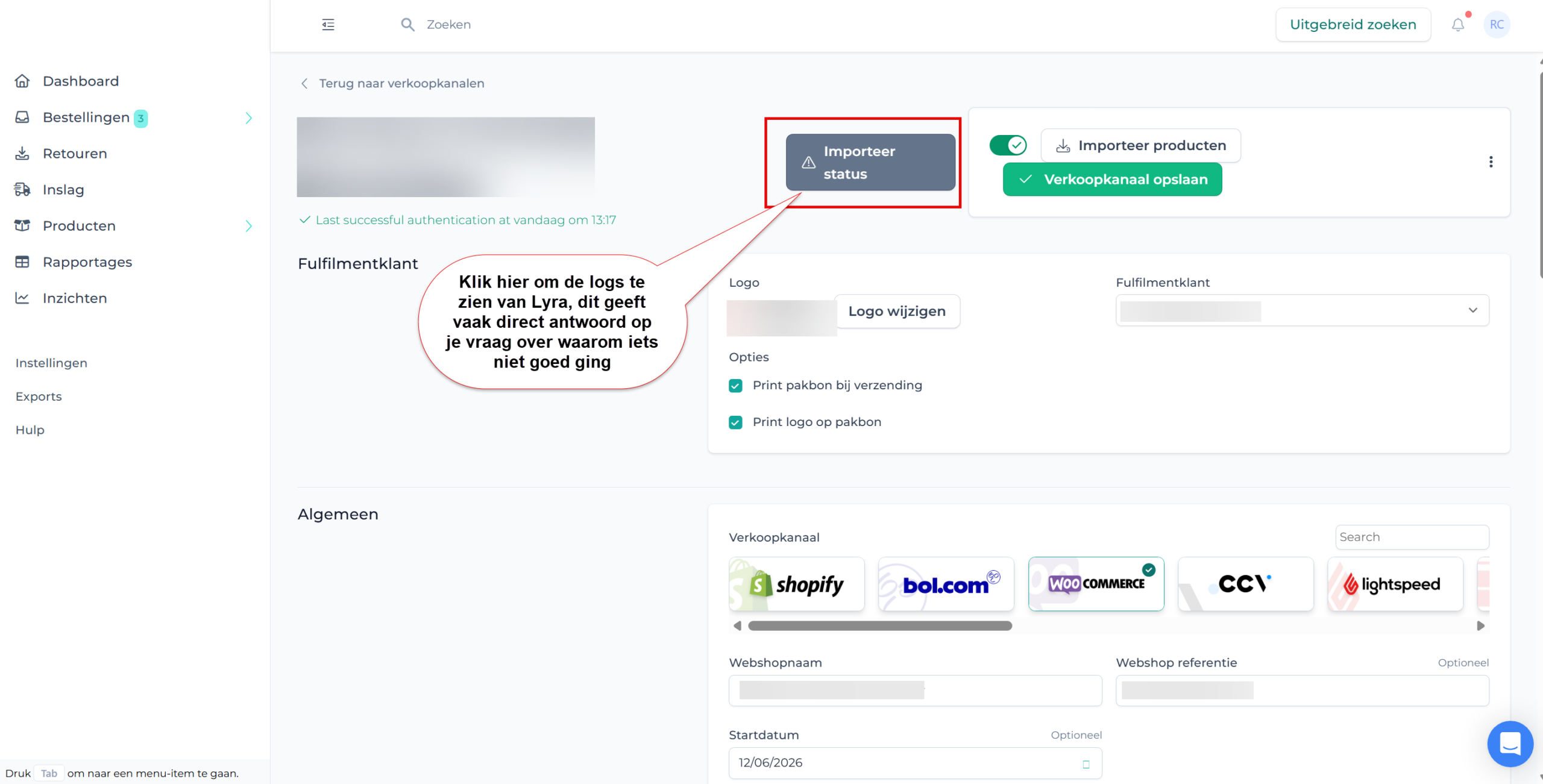
Always check the logs in the Lyra integration settings yourself first. They often hold more information when something has gone wrong:
For more information about stock management in the Autorespond webshop, see also: Setting up stock management for products
Frequently asked questions #
Can I create several API keys?
Yes, you can create several API keys for different integrations. Give each key a clear description so you know what it is used for.
Do I have to delete existing API keys?
No, never delete existing API keys unless you are certain they are no longer in use. Doing so can disrupt other integrations.
Are all products synchronised automatically?
That depends on how you configure the integration in LyraWMS. Consult their documentation for the options around product selection and synchronisation settings.


