With the appointment scheduler in Autorespond you can set up paid events where customers first choose a time slot and are then sent automatically to the checkout to pay. The appointment is only confirmed once the payment has succeeded.
Creating a paid event #
In your Autorespond administration, go to Manage → Appointments and click ‘Add new event’. Give the event a name and a description.
In the event settings, on the ‘Payment settings’ tab, set the option to ‘Paid event’ and then select ‘Checkout via WooCommerce’. You can now link a product from your webshop to this event. If you have not created a product yet, first go to Shop → Products to create the product you need.
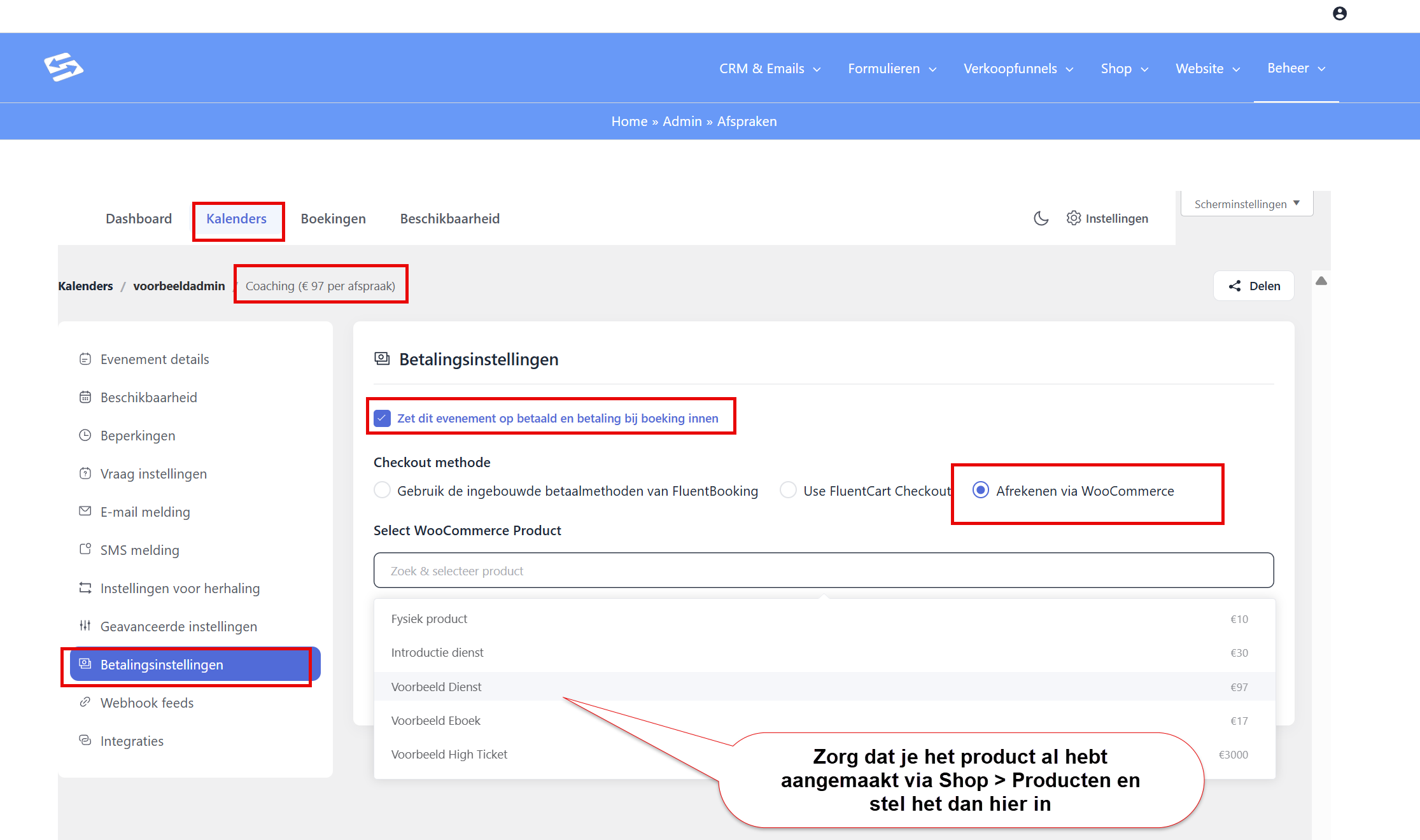
The appointment scheduler in Autorespond is an optional module that can be added to your Autorespond package.
Workflow of a paid event #
The workflow runs automatically as follows:
- The customer visits your appointment scheduler and chooses an available time slot
- After filling in their contact details, the customer is taken to the checkout
- The customer completes the payment through the normal webshop checkout
- Only after a successful payment is the appointment confirmed and blocked in your calendar
If the payment fails or is cancelled, the time slot stays available for other customers.
Setting up calendar integration #
To have confirmed appointments appear automatically in your own calendar, open the event and go to the ‘Calendar integration’ tab. Here you can connect your Google Calendar, Outlook or another supported calendar.
Once connected, all paid and confirmed appointments are added automatically to your linked calendar. Your calendar is also checked for availability so that double bookings are prevented. For detailed instructions on connecting your calendar, see Connecting your calendar to the appointment scheduler.
Pricing and products #
The linked product determines the price of the event. You can create different variants by setting up several events, each linked to a different product. That way you can offer, for example, different treatments or consultations at different rates.
Frequently asked questions #
Is the appointment booked before payment is made? #
No. The time slot is reserved temporarily during the payment process. Only after a successful payment is the appointment confirmed and blocked in your calendar.
Can I set different rates for different time slots? #
Yes. Create a separate event for each rate and link every event to a different product with the price you want. Customers then see several options in the appointment scheduler.
What happens if a customer cancels the payment? #
The time slot becomes available again and can be booked by other customers. The customer receives no confirmation and the appointment is not placed in your calendar.


