Email is the bridge between your community and the members who are not there at the moment. Good notifications bring people back at the right moment; bad notifications teach members to ignore everything you send. In this article you configure the community emails, from the sender to the digest emails, and you see what members can decide for themselves.
The community and course features in Autorespond are based on FluentCommunity, included in your package. Read the English documentation
1. The basic settings #
- Open the portal and go to Settings → Email settings.
- Check the sender name and the sender address. Use a recognisable name (“Jansen Academy”) and an address on your own domain, which helps both recognition and delivery.
- Decide which events send an email: comments on your post, mentions (@name), new messages in the chat and the periodic community digest.
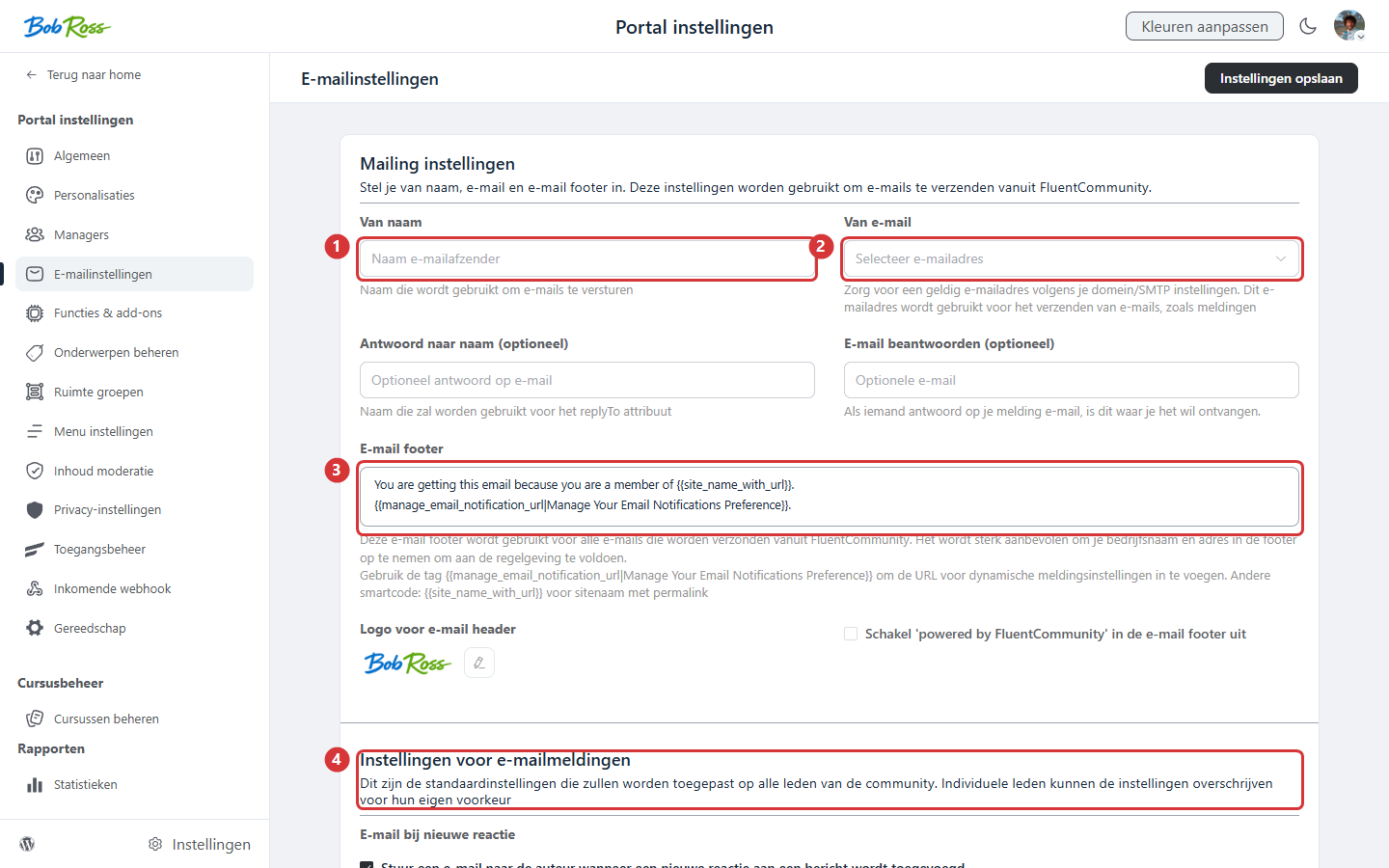
In the screenshot: 1) the sender name · 2) the sender address · 3) the email footer · 4) the default notification settings for all members.
2. The digest email: your quiet engine #
The periodic digest bundles the highlights from the community, popular posts and new activity, into a single email. For most communities this is the most important return trigger: members who have not logged in for a week see what they missed and click through. A few guidelines:
- Choose a frequency that suits your activity: a daily digest for a busy community, weekly for a quiet one. Better weekly and full than daily and empty.
- The digest is only as good as your feed: a fixed weekly post or poll (see the feed article) always gives the digest something worth mentioning.
- If you also send newsletters from your CRM, align the timing so members do not receive two emails on the same morning.
3. What members set themselves #
Members manage their own notification preferences through their profile settings in the portal: which events they want to receive and how often. Point new members to that in your welcome message, as a member who has set their own preferences rarely unsubscribes. The unsubscribe option at the bottom of community emails is simply part of that; see also the article on email preferences in your CRM.
4. Community emails versus CRM emails: what do you use for what? #
- Community notifications (this article), automatic system emails about activity: comments, mentions, chat and the digest. You set the boundaries, the system does the rest.
- CRM campaigns and automations, your own story: newsletters, onboarding series, offers. You create those under CRM & Emails; see the related articles.
- Rule of thumb: if the email is about what happened in the community, it is a notification; if it is about what you have to say, it belongs in your CRM. That keeps every email recognisable and relevant.
Frequently asked questions #
Members are not receiving community emails. Where do I start? #
First check whether the email is being sent at all (the email log), then the spam folder and the member’s notification preferences. A structural delivery problem? See the article on email reputation in the related links.
Can I change the design of the notification emails? #
The system emails follow a fixed, tidy layout with your logo and colours from the portal settings. For fully custom designs, use campaigns from your CRM.
Do these emails count towards my sending volume? #
Yes, notifications are emails too. A healthy digest frequency keeps the volume manageable; see also “Viewing your usage”.


