In the main menu SEO – settings you find the toolbox of your search engine optimisation. Here you determine which specific functions you want to switch on or off for your website.
Navigating to the settings #
To get here you follow the same route as before:
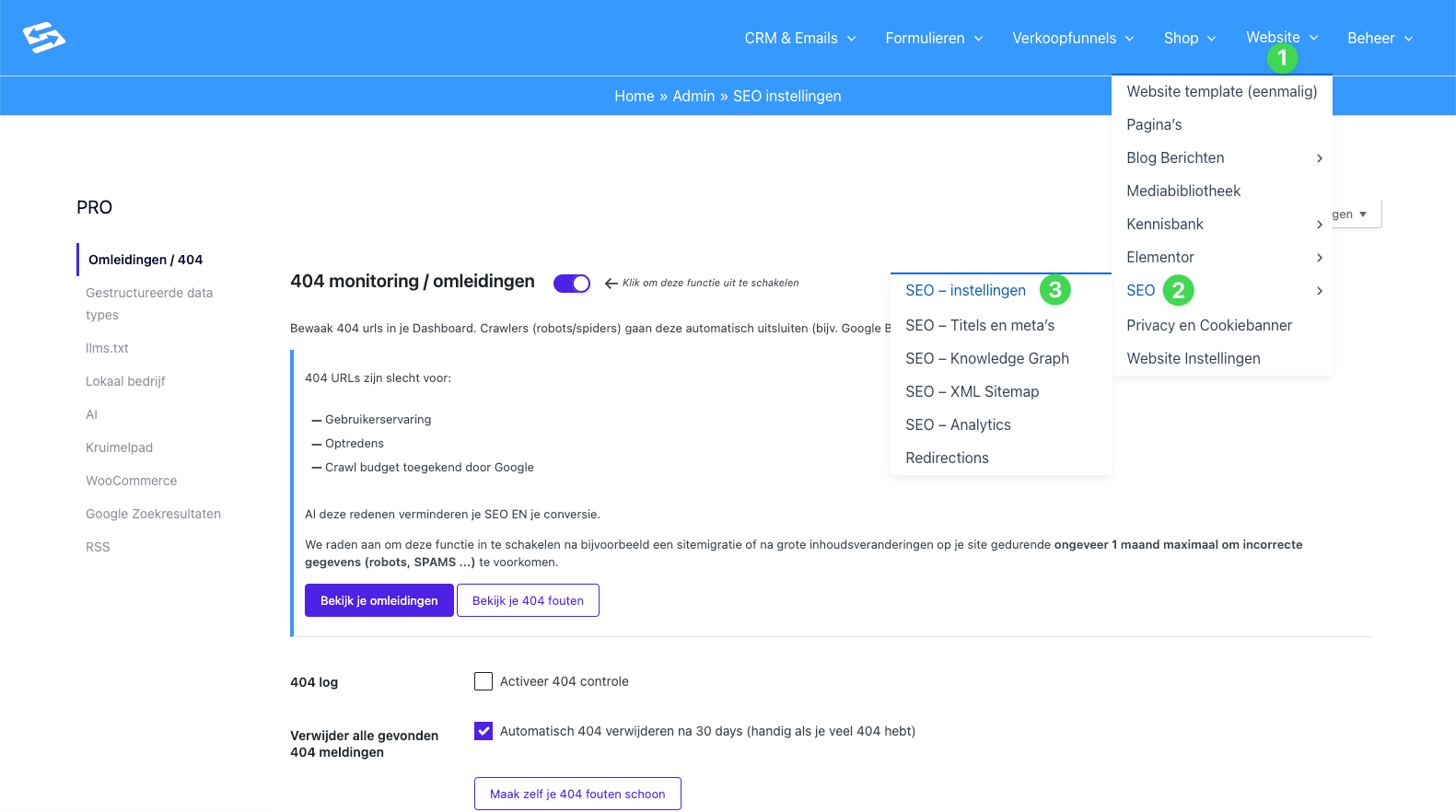
- In the blue bar, click Website (1).
- Go to SEO (2).
- Then click SEO – settings (3).
You now reach the central configuration screen. On the left-hand side of this screen you see a vertical menu with various tabs. Each tab manages a specific part of your SEO strategy.
The various SEO modules #
Below we go through the tabs you see on the left. Use the numbers in the image as a reference.
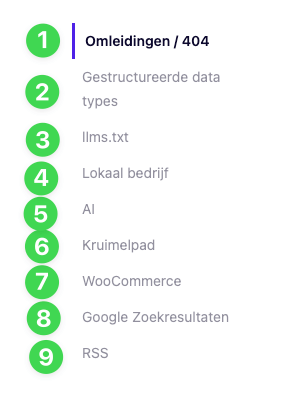
1. Redirects / 404 This is the default screen that opens (as shown in the first image).
- 404 monitoring: Here you can switch on a “monitor”. This system keeps an eye on whether visitors land on pages that no longer exist (the so-called ‘404 errors’).
- Redirects: Have you moved a page? Here you create rules to send visitors on to the right place automatically.
Tip: Switch on the toggle at ‘404 monitoring’ to get insight into broken links on your site.
2. Structured data types Here you can add ‘Schema.org’ data. This is code that helps search engines understand what kind of content you have (for example a recipe, an event, a course or a product). This increases the chance of ‘rich snippets’ (extended results) in Google.
3. llms.txt A modern function for the future. With it you give instructions to AI models (such as ChatGPT) about which content on your site they may read and use.
4. Local business Do you have a physical location or do you provide services in a specific region? Here you fill in your address details, opening hours and contact information. This is crucial for being found properly in Google Maps and local searches.
5. AI Here you find settings to do with the automatic generation of metadata (such as titles and descriptions) using artificial intelligence, if available in your package.
6. Breadcrumbs A breadcrumb trail helps visitors navigate (for example Home > Blog > Article). Here you set how this trail looks and whether search engines should show it in the search results as well.
7. WooCommerce Do you use the webshop module (WooCommerce)? Then you find specific SEO settings for your products here, such as removing ‘/product/’ from the URL or setting specific product schemas.
8. Google search results Here you can fine-tune how your site appears in the search results further, for example by adding a search box to your Google listing (Sitelinks Search Box).
9. RSS Here you manage the settings for your RSS feed. You can, for example, add extra content at the beginning or end of every article in your feed to counter scraping (copying of content) or to add extra links to your site.
Frequently asked questions (FAQ) #
What is the point of switching on ‘404 monitoring’?
404 errors (page not found) are bad for your visitor experience and for your score in Google. By switching on the monitoring, you see exactly which URLs cause problems, so that you can repair them with a redirect.
Can I undo settings?
Yes, most settings work with ‘on/off’ toggles or text fields that you can clear again. Do not forget to click ‘Save changes’ at the bottom of the page after every change.


