With the Appointments module you can let customers choose from different booking durations themselves. This is useful for entrepreneurs who rent out meeting rooms, coaches who offer different session lengths, or consultants who want to offer flexible conversation durations. Instead of creating a separate event for each duration, you set up one event with several options.
Please note: if you have connected the calendar to a product (so payment has to be made first), it is not possible to adjust the price on the basis of the chosen duration as well. One price therefore always applies per calendar. If you do want to charge different prices, it is better to create one calendar per duration and connect those to the same host (and therefore the same calendar).
The Appointments module is an optional extension you can add to your Autorespond package. The module offers a complete appointment scheduler comparable to Calendly. More information about this module
Switching on the setting for multiple durations #
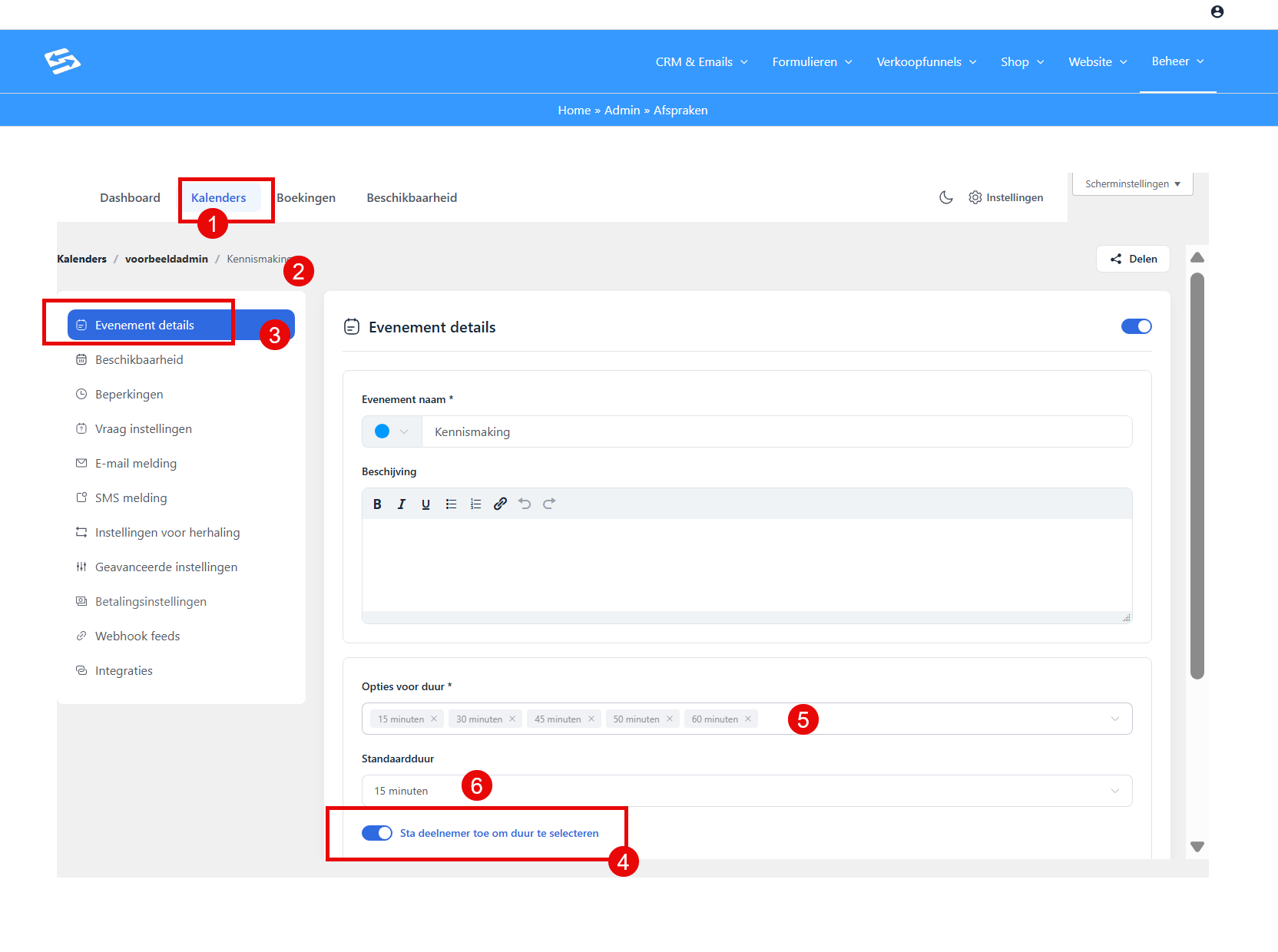
You will find the option to let customers choose the duration in the event settings.
Please note: this option is only available for one-to-one booking types, not for group events
- Go to Manage → Appointments
- Open the calendar in which you want to change the event
- Click Edit on the event concerned
- Select Event details in the left-hand menu
- Scroll down to the Meeting duration section
- Switch on the option ‘Let attendee choose duration’
As soon as you switch this setting on, the fixed duration field disappears and the options for multiple durations appear.
Setting the available durations #
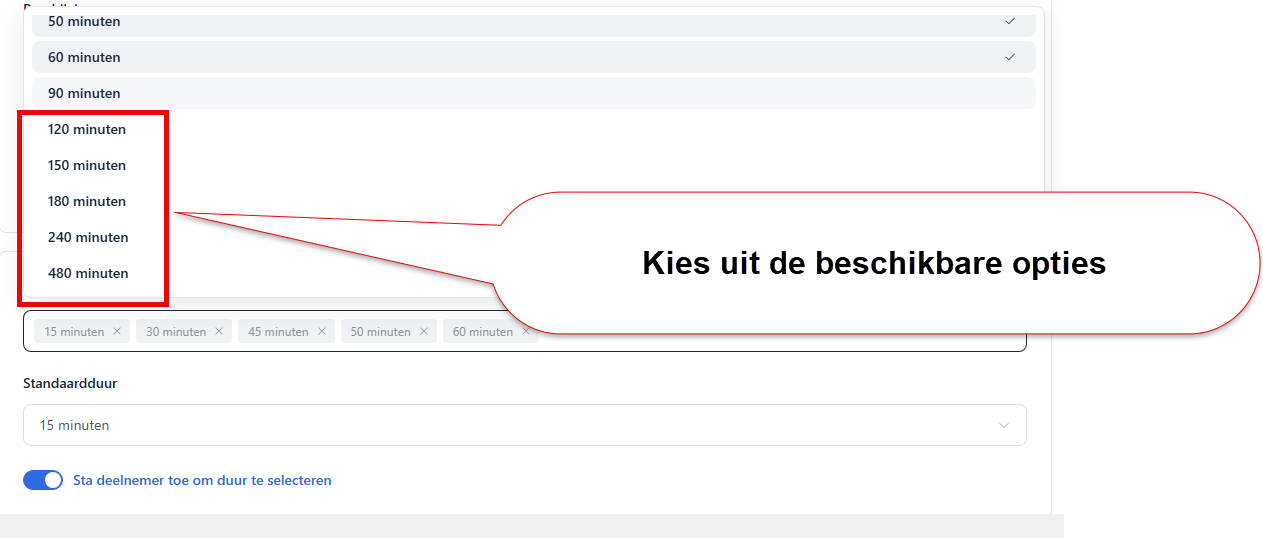
After switching the setting on you can configure the different booking durations:
- The field ‘Available durations’ now becomes visible
- Enter the durations you want in minutes, separated by commas
- Example for meeting room rental: 60, 120, 240 (for 1 hour, 2 hours and 4 hours)
- Or for coaching sessions: 30, 60, 90 (for half an hour, 1 hour and 1.5 hours)
You can add as many durations as you like. The system automatically shows them as options on the booking page.
Setting a default duration #
To help customers make their choice you can set a default duration that is already preselected:
- Find the field ‘Default duration’ below the available durations
- Choose one of the durations you set under ‘Available durations’
- This duration is selected automatically when customers open the booking page
- Customers can still choose a different duration before they book
Preferably choose the most popular duration as the default, for example 60 minutes for meeting rooms or 90 minutes for coaching sessions.
Automatic calendar blocking #
The system automatically blocks the right time slots in your calendar on the basis of the chosen duration. This prevents double bookings and keeps the availability display accurate.
This is how it works:
- Customer books from 10:00-12:00 (120 minutes) → the whole time block is blocked
- The next customer sees no available times between 10:00-12:00
- At 12:00 new time slots are available again
- If you have connected an external calendar, the block is applied there too
Practical example: meeting room rental #
An entrepreneur who rents out meeting rooms can use the following settings:
- Available durations: 60, 120, 240, 480
- Default duration: 120 (2 hours is booked most often)
- On the booking page customers see: 1 hour, 2 hours, 4 hours, 8 hours
- 2 hours is already preselected
Customers can easily select a different duration and immediately see the matching time slots in the calendar. After booking, the correct time block is reserved automatically.
Saving the settings #
Do not forget to save your changes:
- Scroll down in the Event details screen
- Click Save
- Test the booking page to check that the duration options are displayed correctly
The changes are visible immediately for new bookings. Existing bookings keep their original duration.
Frequently asked questions #
Can I set different prices per duration?
No, the event has one fixed price regardless of the chosen duration. For different prices per duration you have to create separate events or adjust the payment settings via advanced options.
Do customers see availability correctly with different durations?
Yes, the calendar automatically shows only the time slots that are available for the selected duration. If there is a 2-hour appointment at 14:00, customers cannot book a new 3-hour session at 13:00.
Can I change the available durations afterwards?
Yes, you can always add or remove durations or change the default selection via Event details → Meeting duration. Existing bookings are not affected by changes.


