During the migration from the old Autorespond (e-Act), most emails end up in the visual builder: the drag and drop editor where you move blocks around. That applies to everyone who laid out their emails in e-Act with the visual editor.
A smaller group of emails was laid out differently in e-Act. Those come across as HTML. You recognise them immediately: click edit and a window opens with plain HTML code instead of a visual editor. That is not a fault and nothing has gone wrong, it is simply the form in which that email was stored.
You can carry on using and editing such an email. If you would rather work visually, you can convert it into separate blocks. This article shows how that works, what happens to your layout, and how to test it safely.
Emails in Autorespond are based on FluentCRM, which is included in your package. Read the English documentation
How to recognise an HTML email #
Open the email as usual: for a template through CRM & Emails → emails → Templates, for an automation by clicking the email step in the automation. Then click once in the email itself. A small toolbar appears below the email.
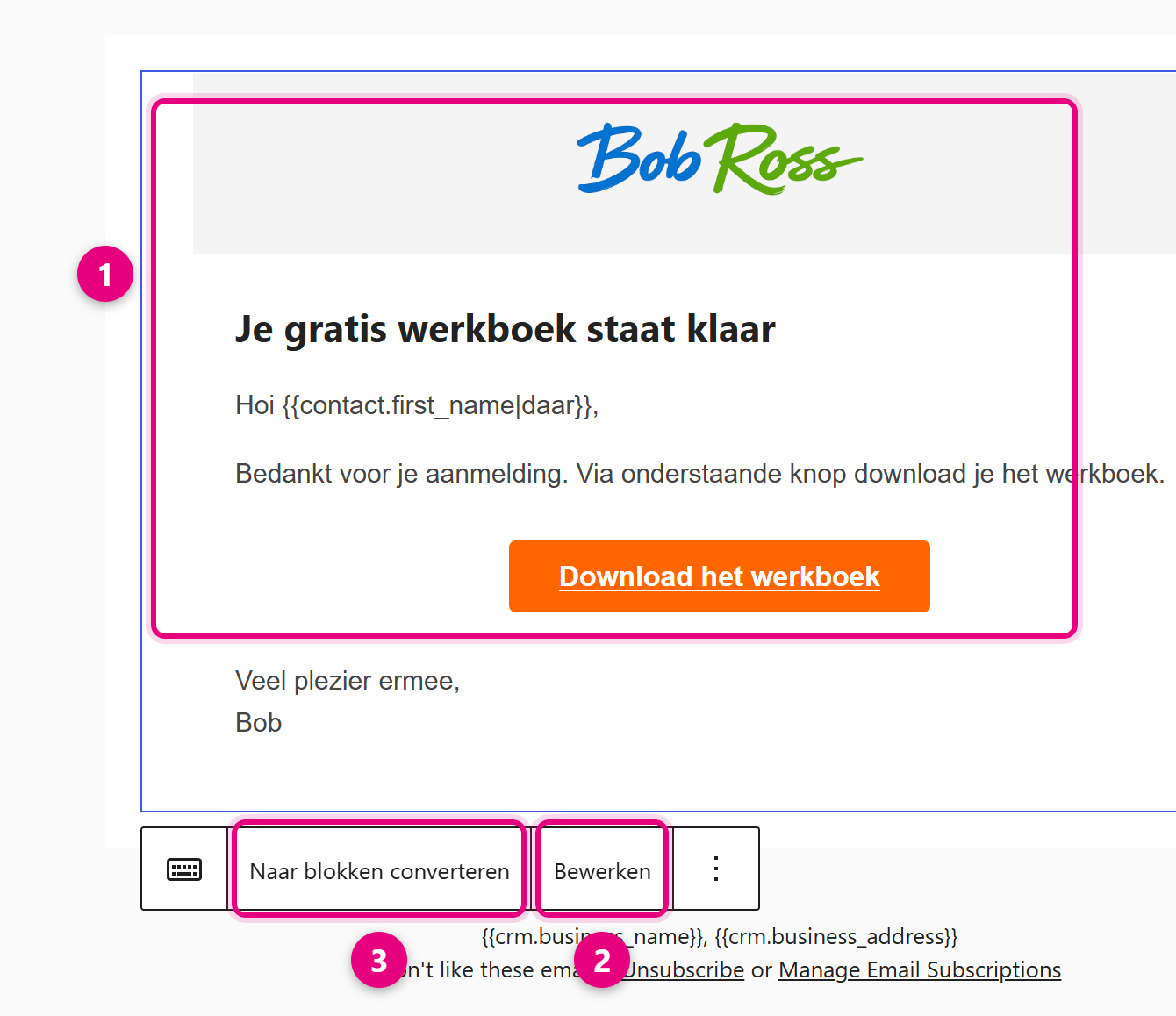
- The whole email sits in one block. You cannot simply click individual sentences or buttons the way you can in an ordinary block email. In the side panel on the right, the block is named Classic.
- Edit opens a window with the HTML code plus a preview. Here you adjust the email without anything changing in the layout.
- Convert to blocks turns the HTML into separate blocks. Read the rest of this article before you click it.
Editing the email without converting it #
If you only want to change a piece of text or replace a link, you do not need to convert anything. Click Edit.
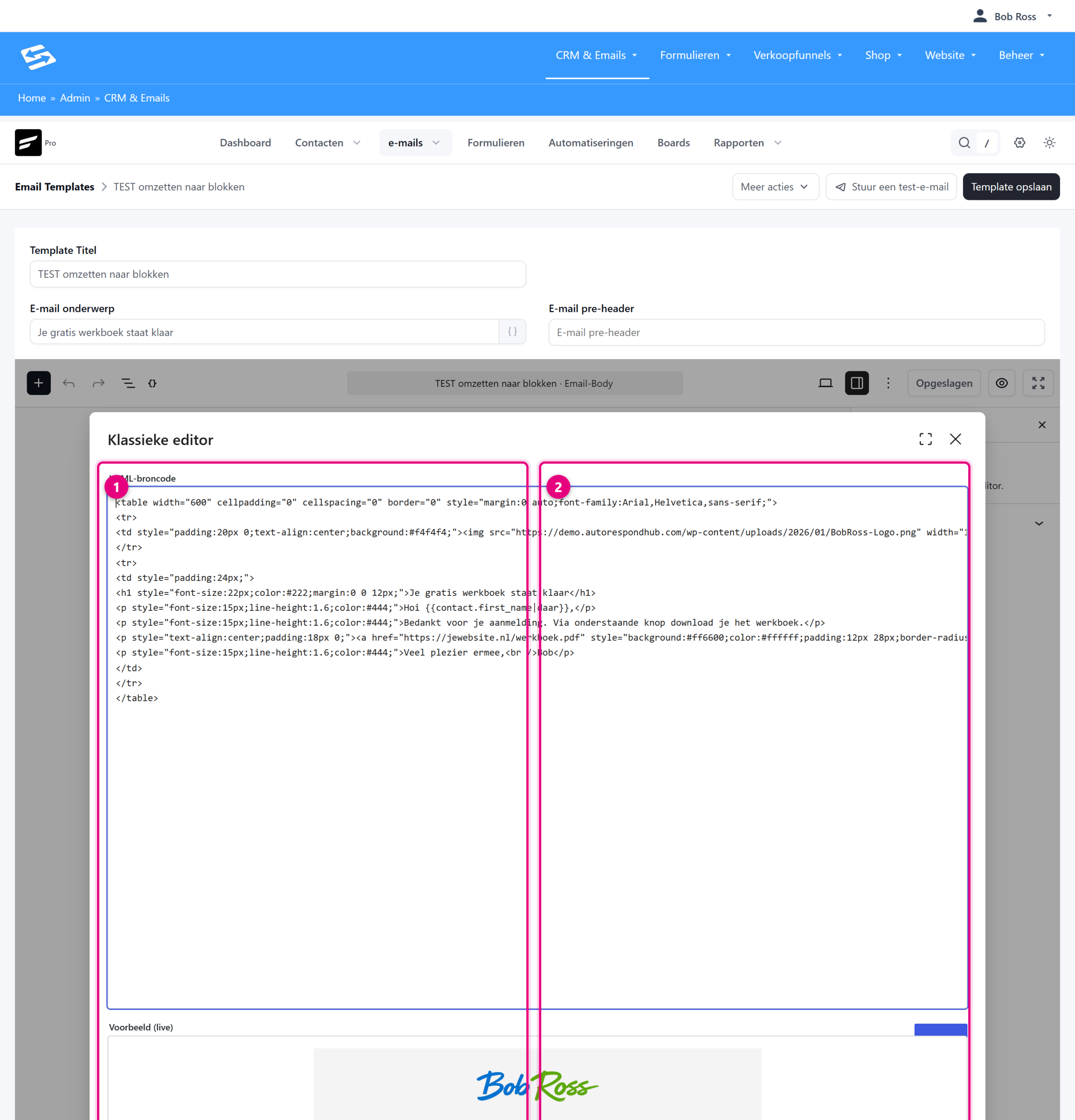
- On the left is the HTML source code. The text your recipient reads sits between the code. If you type a new sentence between <p> and </p>, for example, only that sentence changes. Leave the characters in angle brackets alone, they determine the layout.
- On the right you see the result straight away. That lets you check your change without sending the email.
If you only want to replace a download link or a button URL, search the code for href=”…” and replace the address between the quotation marks. Then close the window.
Note: your changes are saved automatically #
The email editor saves your work automatically, within a few seconds of any change. You can tell by the Saved message at the top. That is convenient while you are writing, but it also means two things:
- Closing the screen without clicking save is not a way to undo a change. The automatic save has usually already happened.
- There is no version history for emails, so you cannot restore an older version.
If you notice straight away that a change is not working out, click the Undo arrow at the top left of the editor immediately. Do that within a few seconds and the original version is saved again.
Make a copy first #
Because converting cannot be reversed once it has been saved, test it on a copy. That way you know what the result looks like before you touch your real email.
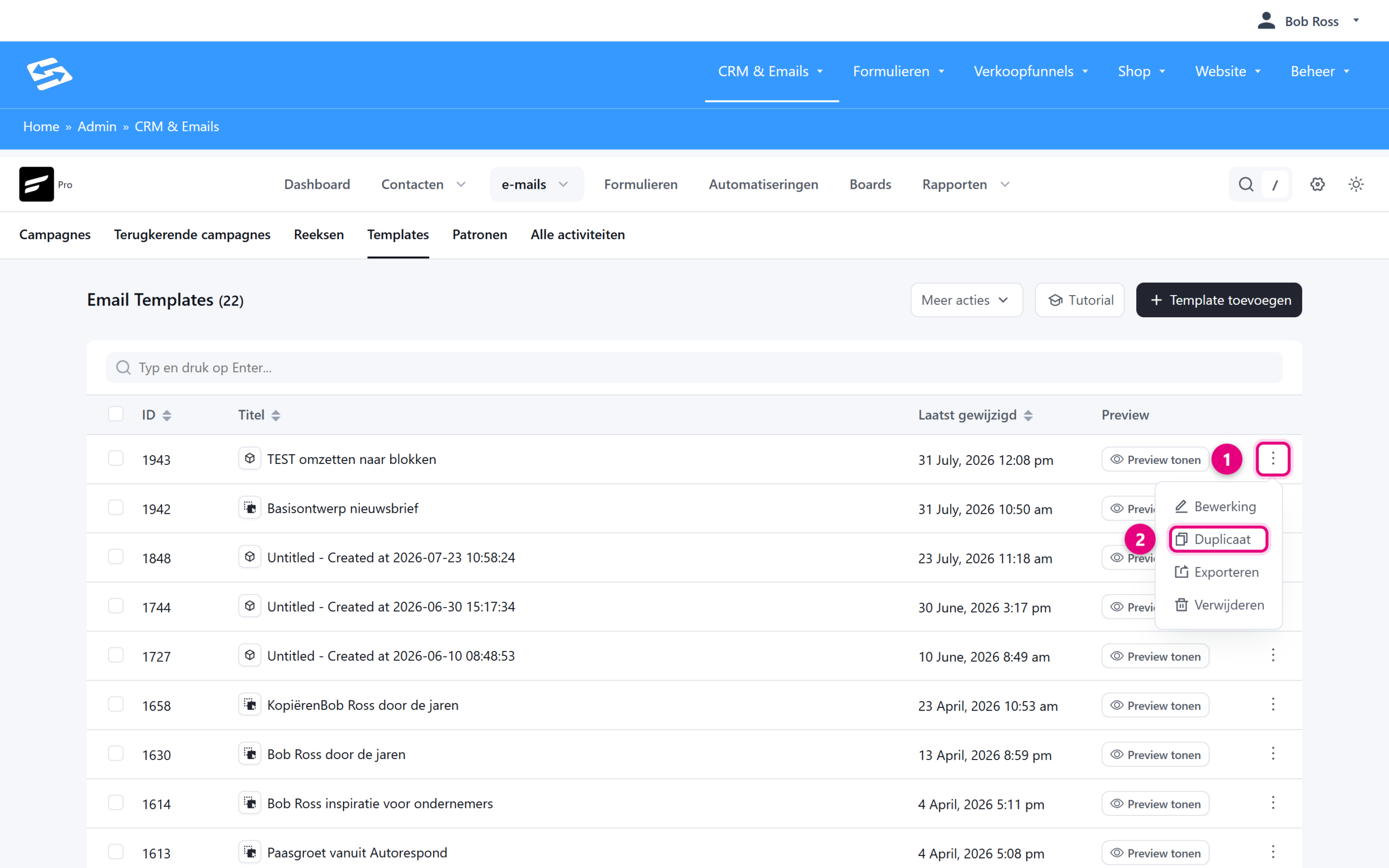
- Go to CRM & Emails → emails → Templates and click the three dots on the far right of the email.
- Choose Duplicate. You now have a second copy where you can experiment freely.
If it is an email inside an automation, you cannot make a separate copy of it. In that case, save the code first: click Edit, click into the code window, select everything with Ctrl+A (Cmd+A on a Mac), copy it with Ctrl+C and paste it into an empty text file on your computer. If the conversion goes wrong, you simply paste the code back into the code window.
Converting to blocks #
- Open your copy and click once in the email so that the toolbar appears.
- Click Convert to blocks.
- Look through the result carefully from top to bottom.
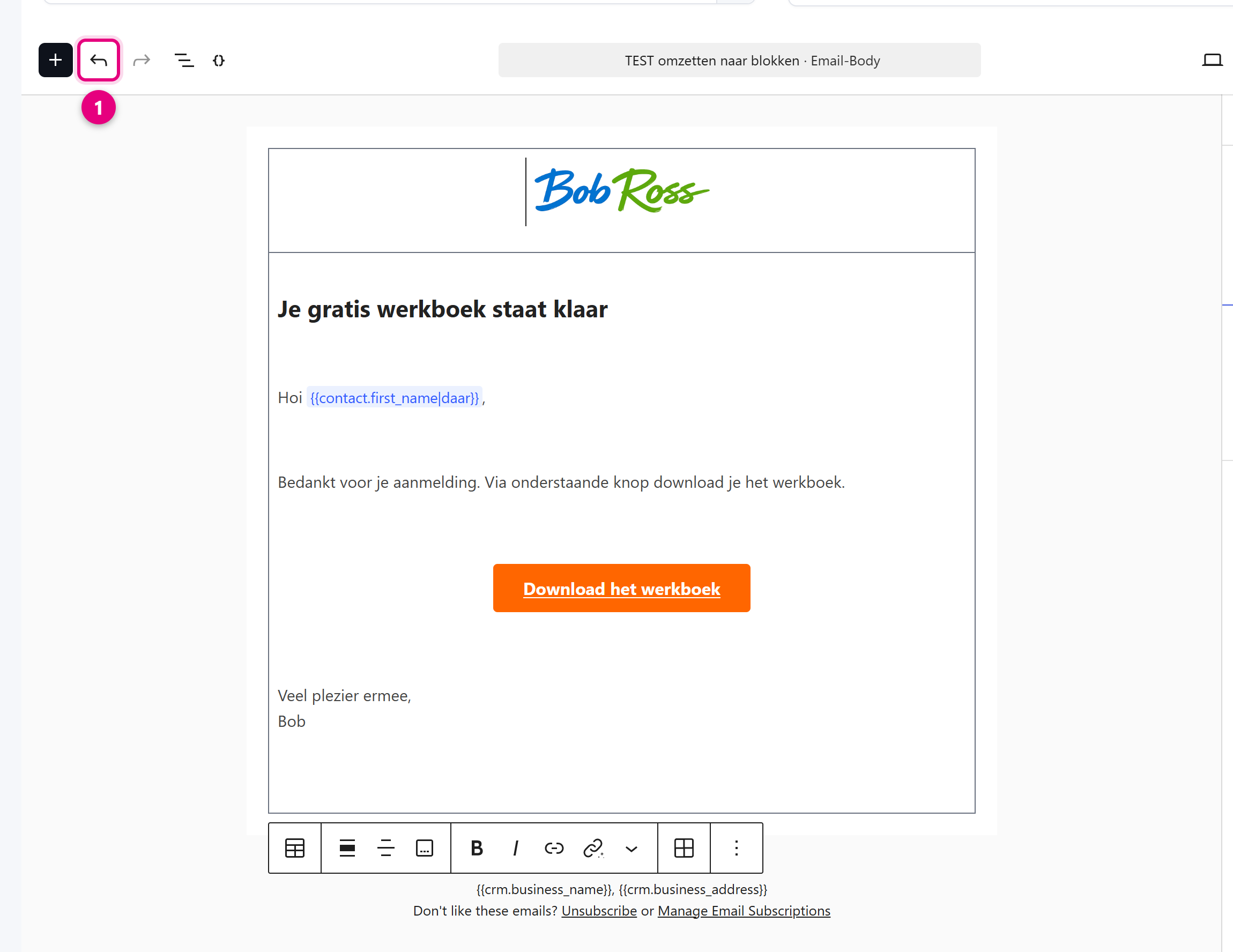
- If you are not happy with it, click Undo immediately. Do not wait, because the automatic save follows within a few seconds.
Expect the layout to change. Old emails are often built with tables and with formatting written into each line of code, and that does not translate one to one into blocks. What we see in practice:
- An email built as one large table often becomes a single table block instead of separate text and button blocks. You then see borders and different line spacing.
- Colours, font sizes, margins and background areas that were in the code can drop out or turn out differently.
- A button usually keeps working, but sometimes becomes an ordinary link.
- Images remain in place, but can end up at a different width.
Does the result look good? Then you can use the copy from now on, or do the same in your original email. Does it look messy? There are two good alternatives: leave the email as it is and edit it through the code window, or rebuild it in the email editor. The second option takes a little more time, but gives you an email that is easy to maintain afterwards.
What the block editor gives you #
This is what makes converting or rebuilding worth the effort:
- You edit text by clicking into it and typing. No more code.
- You add elements with the plus button: a heading, an image, a button, a divider or a column. You can drag them to change the order.
- You set colours and fonts centrally, so your whole email matches in one go.
- Block emails scale automatically on a phone. With old table emails that has to be sorted out by hand.
- You can save the layout with Save as template and reuse it later in any campaign with Import / Use templates. See Managing email templates.
- You add personal fields such as the first name with the smart codes button, instead of hunting for them in the code.
Which editor is an email in? #
To see which editor belongs to an email, click the three dots at the top right in the editor and choose Switch Editor.
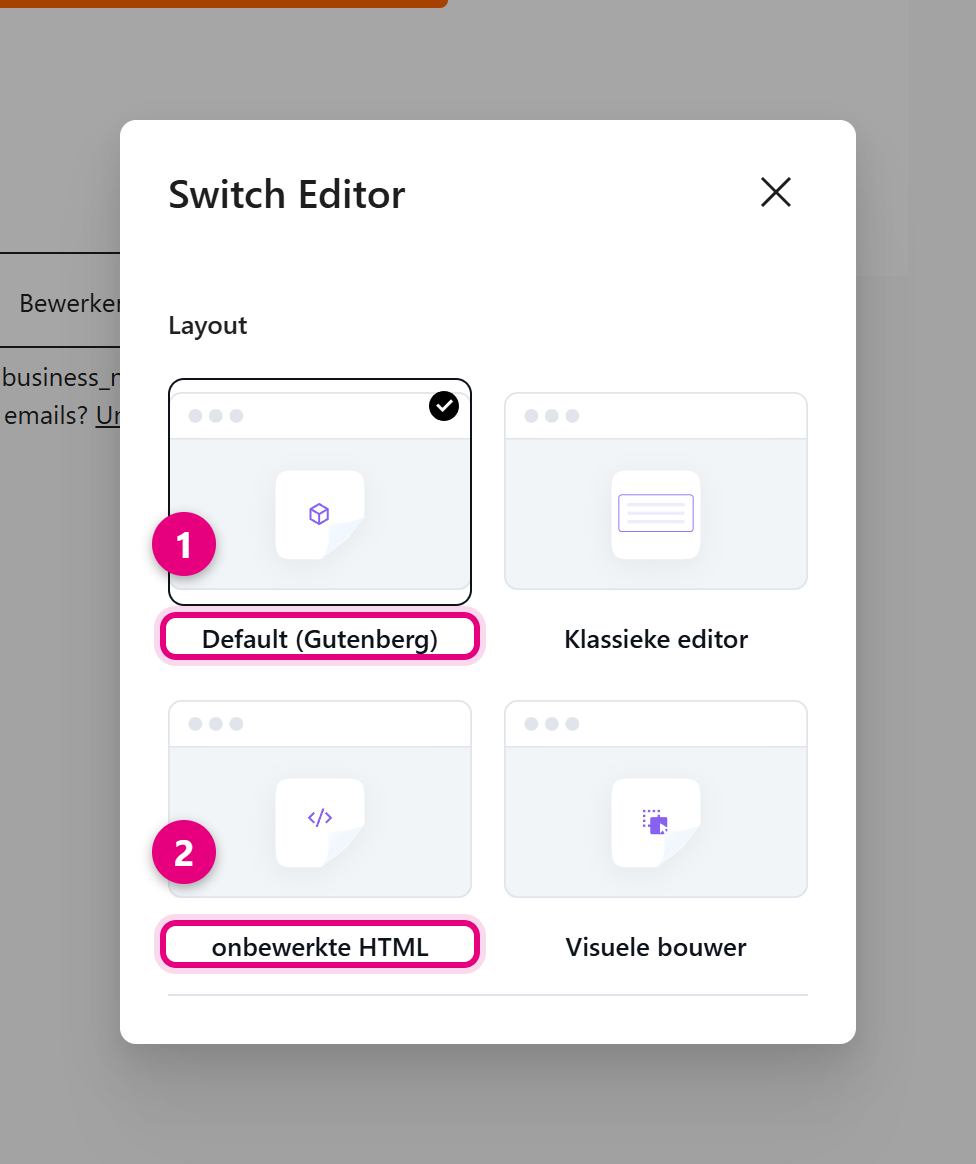
- The tick sits on the editor currently in use. For a migrated HTML email that is usually Default (Gutenberg), with the old HTML inside it as one block. That is exactly why the Convert to blocks button is there.
- If you choose a different editor here, for example raw HTML or the visual builder, your email is converted into that form. The same applies there: test it on a copy first.
Key points #
- An HTML email does not have to be converted. It sends and works perfectly well.
- Always test the conversion on a copy, or save the code in a text file first.
- The editor saves automatically. Only clicking Undo straight away still helps.
- After every change, send a test email to yourself and view it on your computer and on your phone.
Frequently asked questions #
Why is my email in HTML and someone else’s is not? #
That depends on how the email was laid out in the old system. Emails created there in the visual editor come across in the visual builder. Emails that were built another way come across as HTML.
Can I reverse the conversion? #
Only straight afterwards, with the Undo button at the top left of the editor. After that the change has been saved automatically and there is no older version to go back to. Work in a copy for that reason.
Do I have to convert in order to edit my email? #
No. The Edit button opens a window with the code and a preview. Changing text or replacing a link works perfectly well there, without the layout changing.
My email looks different after converting. What now? #
Click Undo immediately. If you are working in a copy, you can simply discard it. If you still want blocks, rebuild the email in the email editor. That gives the best result.


