If you advertise through Google Ads or Facebook (Meta), or you track statistics in Google Analytics, you want to know which visitors actually buy something. In Autorespond you set up that conversion tracking in one central place: the Sales Funnel Settings. The system then places the tracking code automatically on your funnel pages and on the thank you page after a purchase. So you do not have to paste any code yourself.
Important to know: the purchase conversion is measured on the standard thank you page of the system. If you send buyers straight to your own thank you page on your website, the measurement does not work. Read more about that in Your own thank you page after a purchase (and why the standard page is usually better).
This article is about measuring purchases through your sales funnels and shop. If you want to measure sign-ups through forms (a newsletter subscription or a free download, for example), see Measuring conversions for form sign-ups. And if you want to track general visitor statistics across your whole platform (Google Analytics on all your pages, for example), you arrange that through the SEO settings. See Connecting Google Analytics and tracking tools to your Autorespond platform.
Sales funnels in Autorespond are based on FunnelKit, included in your package. Read the FunnelKit documentation
Where to find the settings #
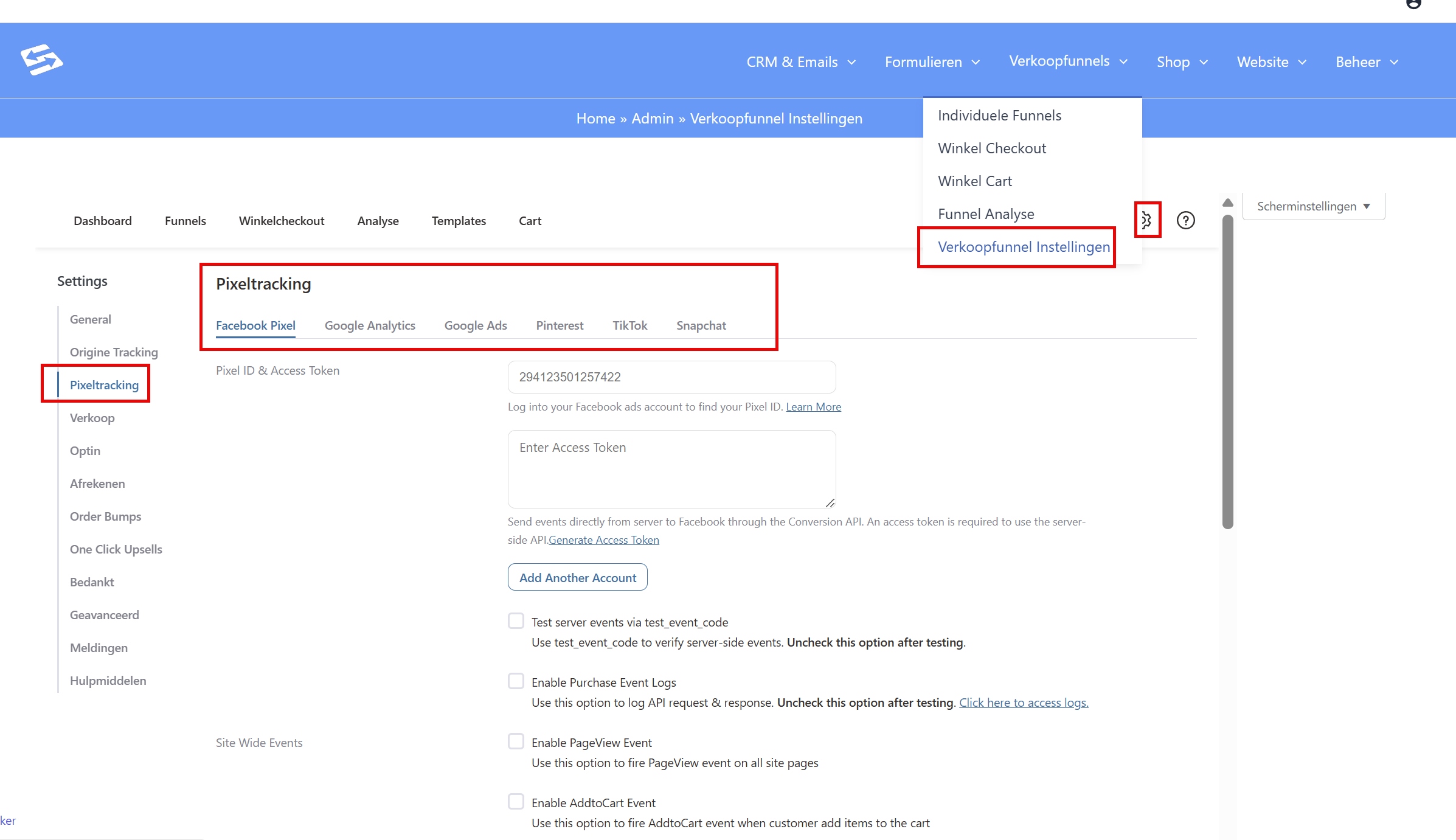
- In the menu of your admin environment, go to Sales Funnels → Sales Funnel Settings.
- Click Pixel tracking in the left-hand column.
- At the top you see a tab per platform: Facebook Pixel, Google Analytics, Google Ads, Pinterest, TikTok and Snapchat. Click the tab of the platform you use.
Setting up Google Ads #
For Google Ads you need two details from your Google Ads account: the Conversion ID (starts with AW-) and the Conversion Label. Both belong to a conversion action in Google Ads.
- In Google Ads, create a conversion action of the type Website, with a purchase as the goal. Google explains how to do that in Set up conversion tracking for your website.
- In the tag installation instructions, choose the option to install the tag yourself. You do not have to place the code anywhere; you only use this screen to read off the two details. The code snippet of the conversion action (the “event snippet”) contains a line such as
'send_to': 'AW-123456789/AbCdEfGhIjk'. The part before the slash (AW-123456789) is your Conversion ID, the part after it (AbCdEfGhIjk) is your Conversion Label. - In Autorespond, fill in the Conversion ID field on the Google Ads tab.
- Under Purchase Events, tick Enable Conversion Event and enter the label you read off in step 2 under Conversion Label.
- Optionally you can switch on extra events, such as Enable PageView Event (page views of your funnel pages) and Enable InitiateCheckout Event (someone starts the checkout). These are not required for measuring purchases.
- Save the settings.
With every purchase the system automatically passes on the order amount and the order number. That way you see the conversion value in Google Ads, and double counting (for instance when someone reloads the thank you page) is prevented.
Setting up Google Analytics (GA4) #
- Look up your measurement ID in Google Analytics. It starts with G- and you find it under Admin → Data streams, by clicking your web stream. Google explains it in Find your measurement ID.
- In Autorespond, fill in the Analytics ID field on the Google Analytics tab with this G- number.
- Under Purchase Events, tick the purchase event, and any other events you want to see in Analytics.
- Save the settings.
Setting up the Facebook (Meta) pixel #
- Look up your pixel ID in the Events Manager of Meta, under Data sources. Meta explains it in Find your Meta pixel ID.
- In Autorespond, fill in the Pixel ID field on the Facebook Pixel tab.
- Optional but recommended: also enter an Access Token for the Conversions API. Purchases are then passed to Meta directly from the server as well, which is more reliable with ad blockers and stricter browser settings. The Generate Access Token link in the screen takes you to the right place in your Meta account to create such a token.
- Tick the events you want to measure, in any case the purchase event under Purchase Events.
- Save the settings.
Checking that the measurement works #
- Place a (test) order through your own funnel yourself and complete the checkout, so that you end up on the thank you page.
- Use Google Tag Assistant to check which Google tags fire on your funnel pages and thank you page. Enter the URL of your funnel page there and walk through the order.
- In Google Analytics you see your own visit almost straight away under Reports → Realtime. In the Events Manager of Meta you can follow along under Test events.
- In Google Ads it takes longer: the status of your conversion action often only changes to “Recent conversions” after several hours to a day. So there is no need to worry if you do not see anything there immediately.
Do you use a cookie banner on your funnel pages? Visitors who refuse marketing cookies are not measured. It is normal then for the number of measured conversions to be slightly lower than the actual number of orders. How to set up a cookie banner is explained in Guide: setting up a cookie banner with Google Tag Manager (GTM).
Frequently asked questions #
I do not see any conversions coming in to Google Ads, what now? #
Check these points: do the Conversion ID and the Conversion Label match the conversion action in Google Ads exactly? Is Enable Conversion Event ticked? Do your buyers end up on the standard thank you page of the system (and are they not redirected to a page of your own)? And bear in mind the delay in Google Ads: conversions often only appear there after several hours to a day.
Do I also need to place the tracking code on my own website? #
For measuring purchases through your sales funnels that is not necessary: the system places the code on the funnel pages and the thank you page automatically. If you also want to track general visitor statistics across all your pages, you set that up separately under Website → SEO. See Connecting Google Analytics and tracking tools to your Autorespond platform. Take care not to set up the same measurement twice.
Does the measurement also work if I redirect buyers to a thank you page on my own website? #
No. The purchase conversion is measured on the standard thank you page of the system. If you send buyers straight to an external page, that measurement is lost. This is one of the reasons why we recommend the standard page, see Your own thank you page after a purchase.
Related articles #
- Your own thank you page after a purchase (and why the standard page is usually better)
- Creating an individual sales funnel: your own checkout for a specific product
- A/B testing in your sales funnel: testing two versions of a page against each other
- Measuring conversions for form sign-ups (Google Ads and Facebook)
- Connecting Google Analytics and tracking tools to your Autorespond platform
- Guide: setting up a cookie banner with Google Tag Manager (GTM)


