Importing form submissions from files #
You can import existing form submissions into Autorespond in bulk through CSV or JSON files. This is useful when you want to take over data from another system, or when you want to add form data collected offline to your existing form.
Forms in Autorespond is based on FluentForms Pro, included in your package. Read the English documentation
When to use the import of form submissions #
You use this function when, for example:
- You are moving from another form system and want to bring the existing submissions with you
- You have collected offline surveys or registrations (during an event, for instance) and want to add them
- You want to link manually collected data to an existing form
- You want to take over form data from an external database or spreadsheet
Requirements for the import file #
For a successful import, your input file has to meet certain conditions:
File format and structure #
- There are currently two supported formats: CSV (.csv) or JSON (.json)
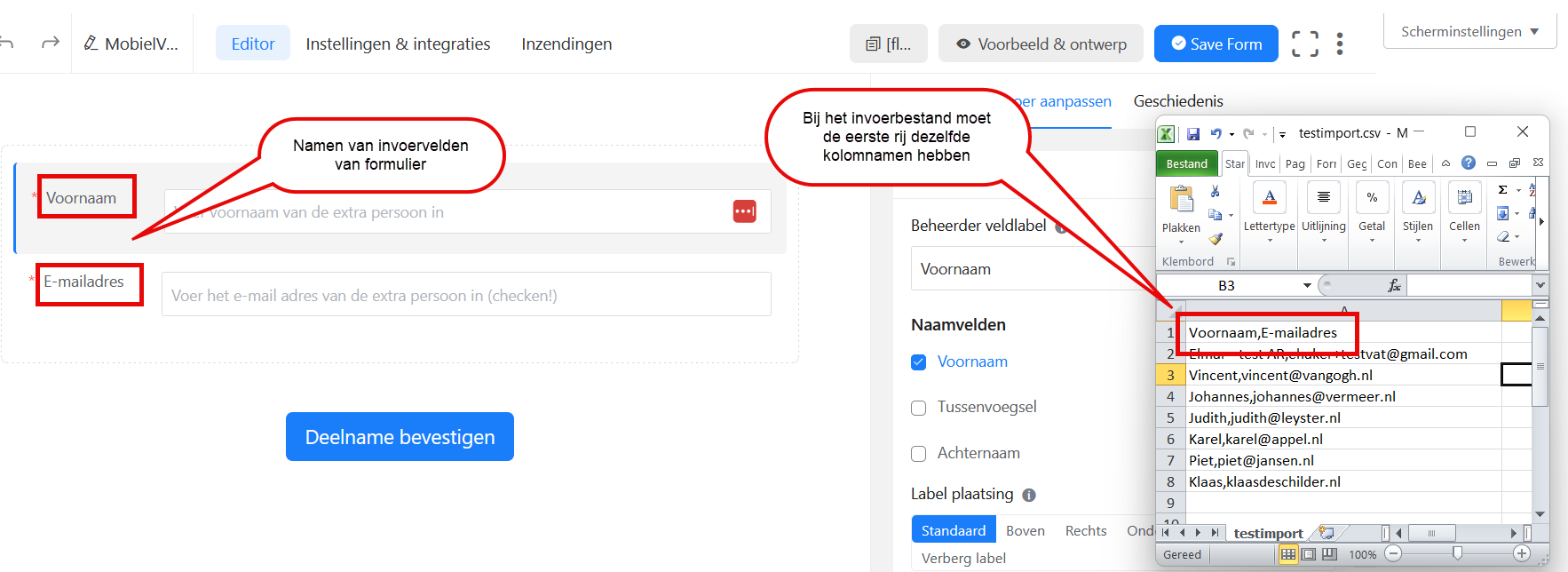
- The first row contains column names that match your form fields exactly. You find the correct field names by going to your form and looking at the fields.
- Every row underneath contains one form submission
- Use UTF-8 encoding for special characters
Importing form submissions #
Follow these steps to import your data:
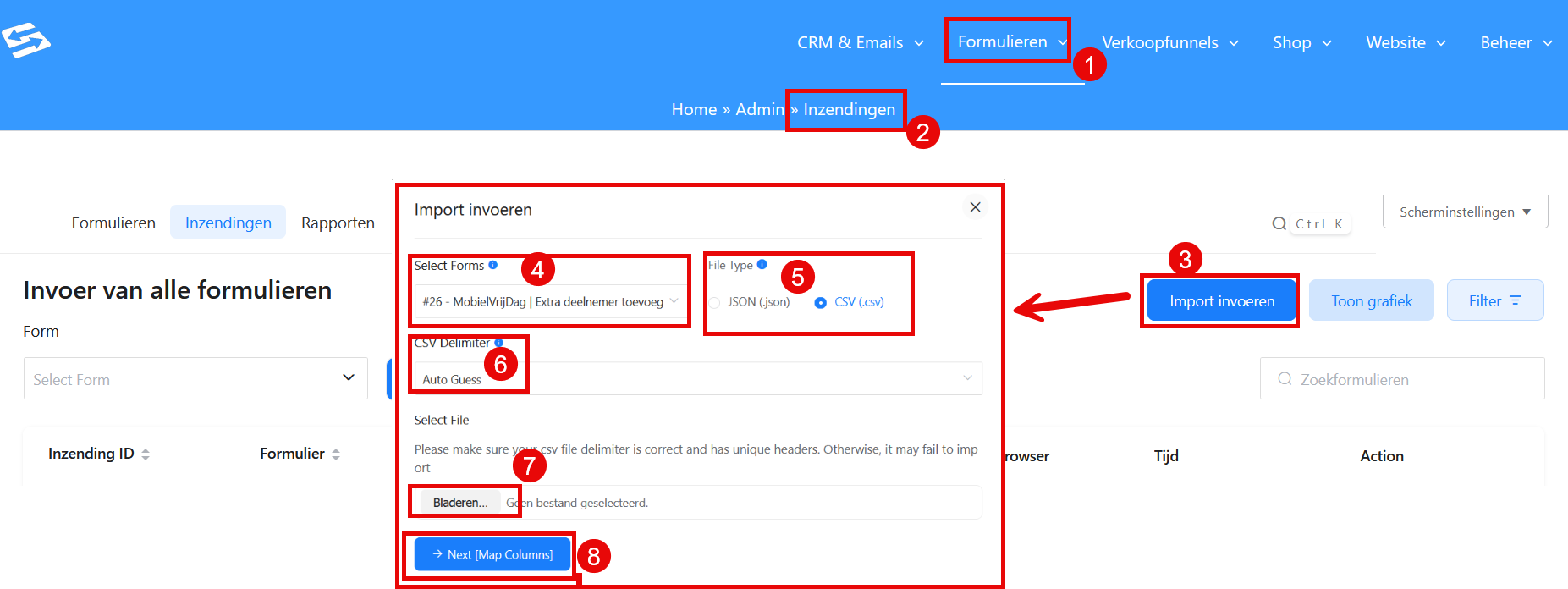
- In your Autorespond administration, go to Forms (1) → Form Submissions (2)
- Click ‘Import entries’ at the top right (3)
- Select the form you want to import submissions for (4)
- Select the type of file you want to import (CSV or JSON) (5). If you choose CSV, you still need to indicate whether it is a ‘comma separated (,)’ file or a ‘semicolon separated (;)’ file (6)
- Select the CSV or JSON file to import through the ‘Browse’ button (7)
- Click ‘Next [Map Columns]’ (8)
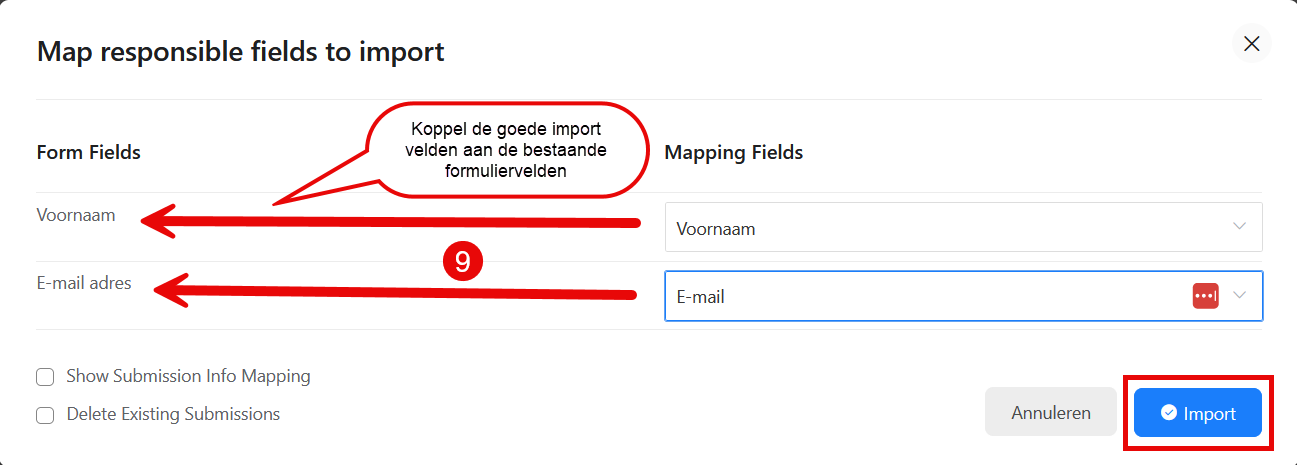
- Link each column to the right form field by adjusting the dropdown menus (9)
- Click ‘Import’ to start the import
Result of the import #
After a successful import you see:
- The new submissions appear in your form submissions overview
Imported submissions are treated as though they were submitted through the form. This means connected automations and email notifications are not triggered automatically for imported data.
Please note: no error message is given yet when certain input data is not in the correct format. A non-existent email address is therefore taken over as though it does exist. So check the input data carefully.
Integration with the CRM #
If your form is connected to the CRM, imported contact details are added to your contact list automatically. You can then use these contacts in campaigns and automations.
For more information about the CRM connection, see connecting form sign-ups to the CRM.
Common problems #
Import fails or data is missing #
If the import does not work, check:
- Whether your file has the right structure (first row = column names)
- Whether the column names match the form field names exactly
- Whether required fields are filled in on all rows
- Whether your file contains any invalid characters
Contacts do not appear in the CRM #
If imported contacts do not appear in the CRM:
- Check whether your form is connected to the CRM correctly
- Make sure the email address field is mapped correctly
- Check whether there are duplicate email addresses that are being overwritten
Frequently asked questions #
Which file formats can I use for the import? #
You can import CSV (.csv) and Excel (.xlsx) files. Make sure the first row contains column names that match your form fields.
Are automations triggered for imported submissions? #
No, imported submissions do not trigger automations or email notifications. They are added as historical data without starting any triggers.
Can I overwrite existing submissions with an import? #
Imported data is always added as new submissions. No existing submissions are overwritten or updated.
How do I know which field names to use? #
Go to your form and look at the fields. The field names are usually in brackets after the labels, or you can find them in the form editor under each field setting.


