Putting a public web version link in an email #
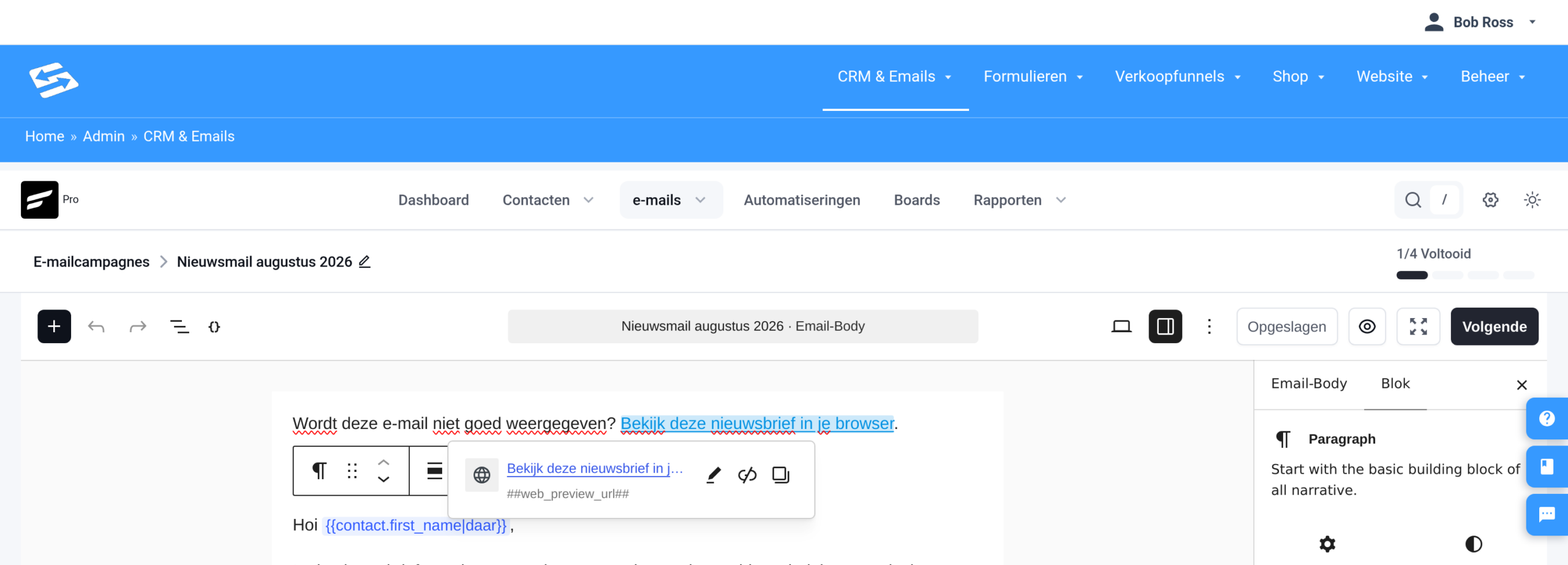
Want to put a link in your email to the web version of that same email, so recipients can view it in their browser and share it? Use this shortcode as the link address:
##web_preview_url##This is how you do it in the email editor: select the text you want to use as the link (for example “View this newsletter in your browser”), click the link icon and paste ##web_preview_url## as the address. When the email is sent, the shortcode is replaced for each recipient with the real link to the web version.
Getting the public web version link of a sent campaign #
Every sent campaign has its own web version with a unique link. This is how you copy that link:
- Go to CRM & Emails → Emails → Campaigns and click the sent campaign.
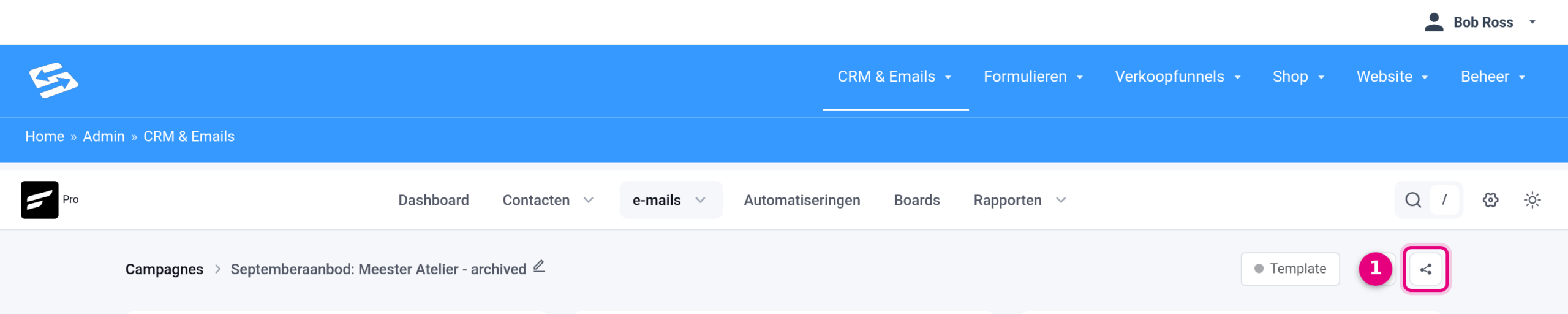
- Click the share icon at the top right (next to the Template button).
- The link is shown in the “Share Newsletter via URL” window. Copy it with the copy icon, or open it with the icon next to it.
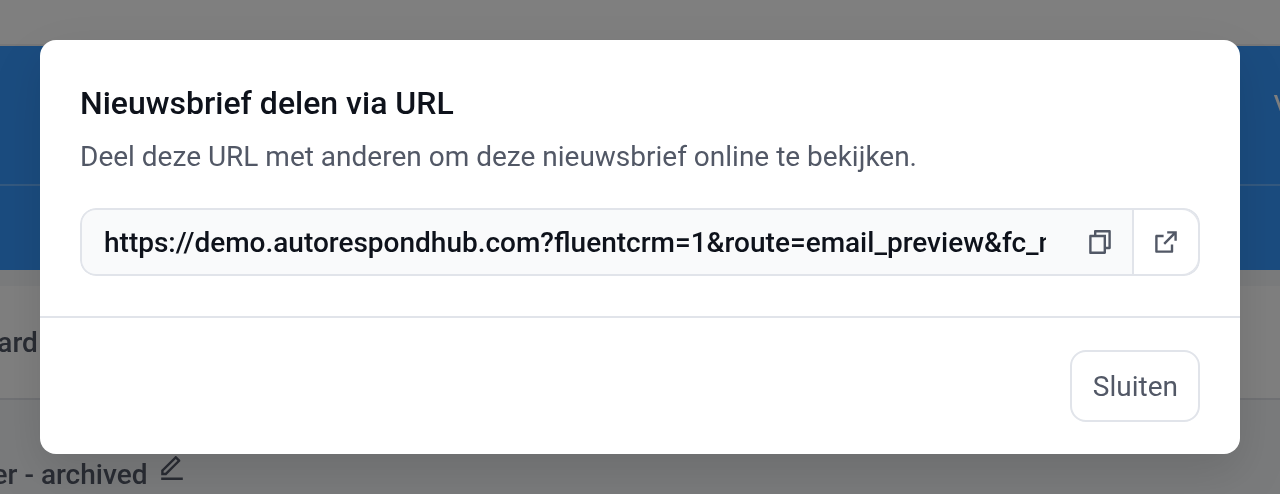
You can share this link on social media or in any other channel. In the web version, smartcodes (such as the first name) are left out automatically, so the text is readable for everyone.
The web version is only created once the campaign has been sent completely and has the status Archived. If you want to include the link in the campaign itself, use the shortcode from the previous step.
An archive page with all your newsletters #
You can also create a page on your website that lists your sent newsletters in one overview, a bit like a blog. Visitors click a newsletter and read it on your site. This takes two steps: first you switch on the archive feature and decide which campaigns go into it, then you create the page.
Please note: everything you put in the archive can be read by anyone, including people who are not subscribers. Have you sent campaigns that are not meant for everyone, for example to a closed group? Then choose carefully below which campaigns you show.
Step 1: switch on the archive feature and choose campaigns #
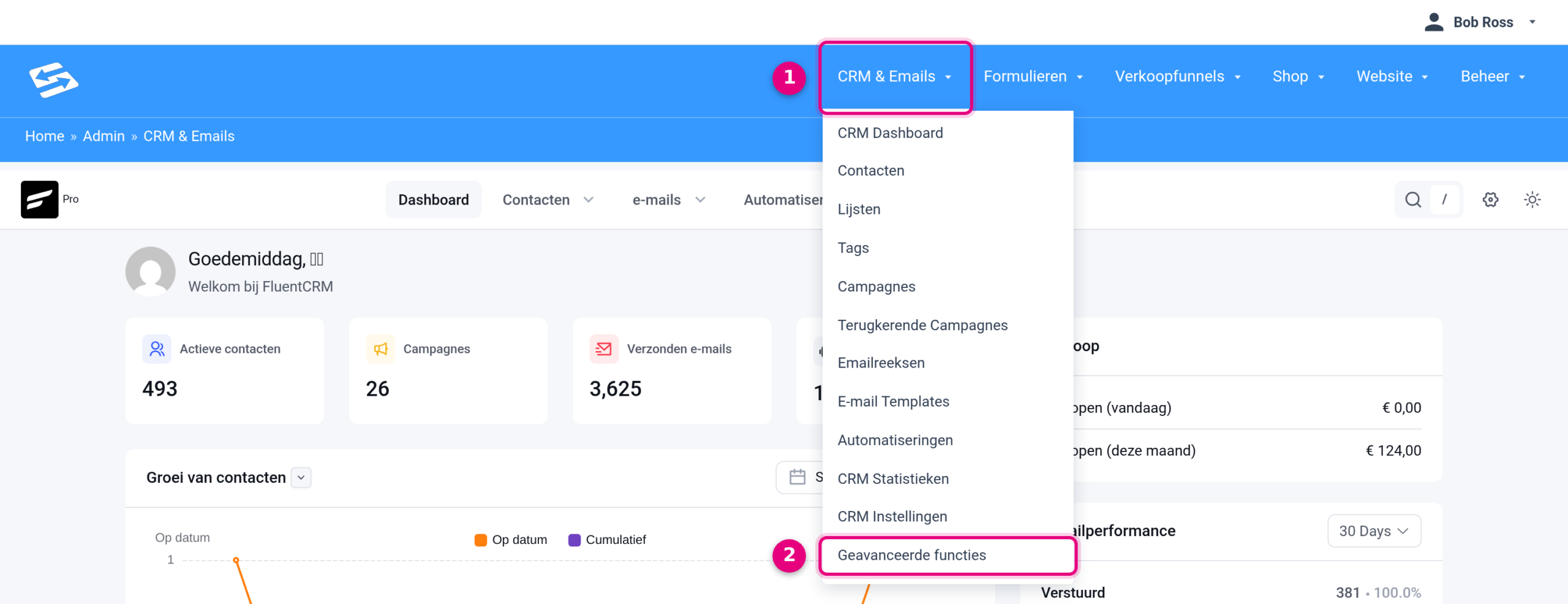
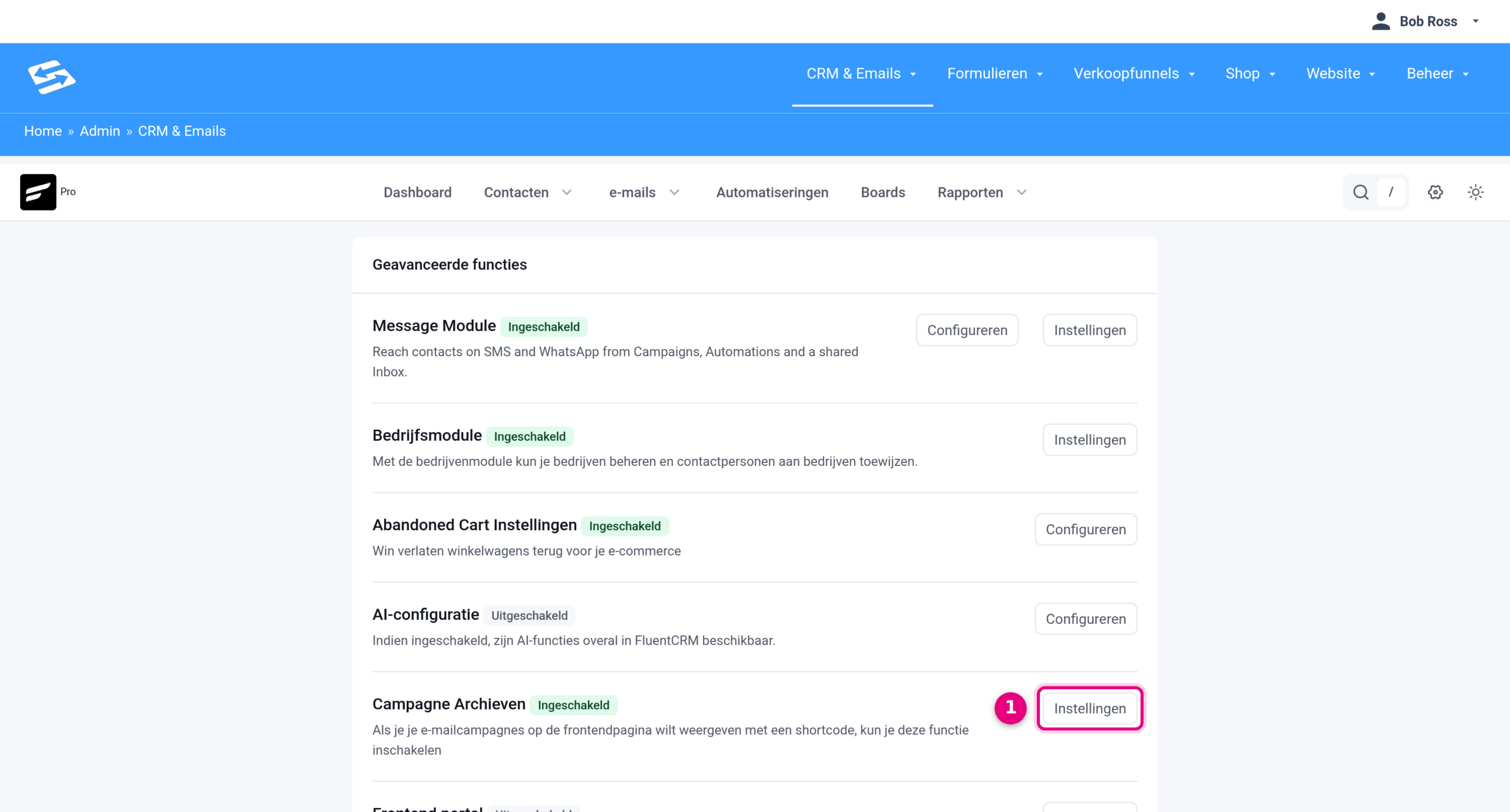
- Go to CRM & Emails → Advanced features.
- Under Campaign Archives, click Settings.
- Tick Enable Campaign Archive Frontend Feature.
- Decide which campaigns go into the archive: with a keyword in the title (for example “Newsletter”), by selecting campaigns, or by leaving everything empty for all campaigns. Below that, choose the status (Archived by default, which means the campaigns that have been sent completely) and the maximum number.
- Click Save Settings.
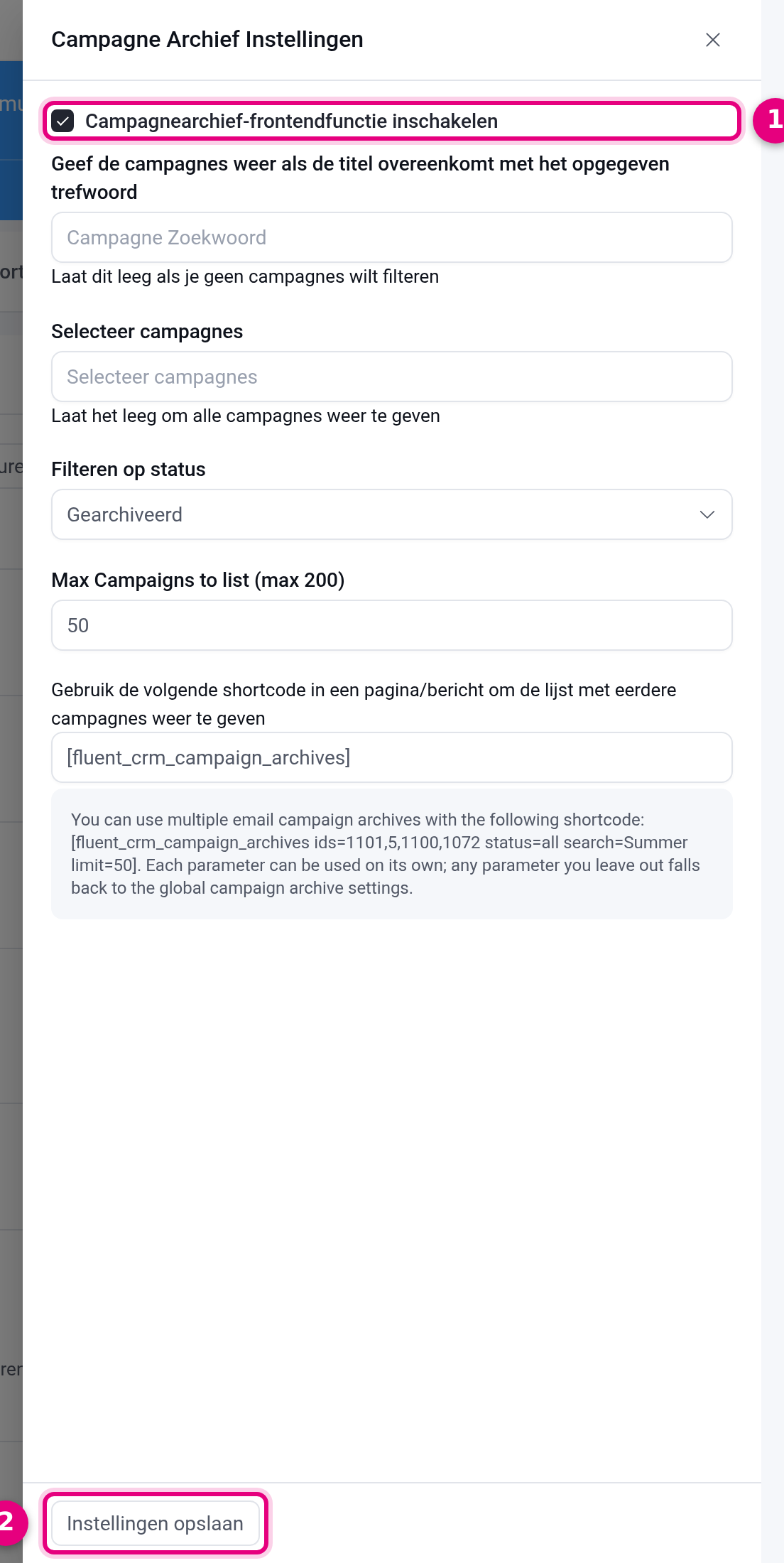
A tip that keeps things easy to manage: give all your newsletters a fixed word in the title and enter that word as the keyword. Promotional emails and emails to a closed group then stay out of the archive automatically.
Step 2: create the archive page #
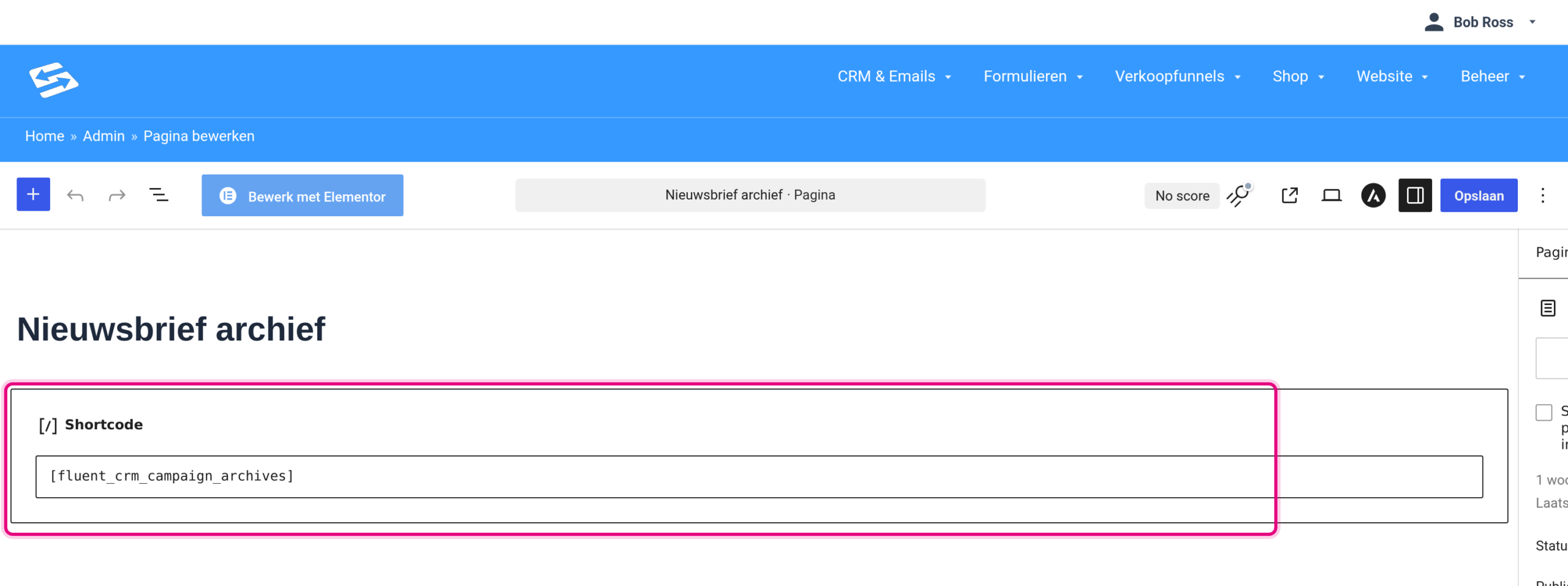
- Go to Website → Pages and click Add new page.
- Give the page a title, for example “Newsletter archive”.
- Add a Shortcode block and put this in it:
The email newsletter archive feature is not enabled
- Click Publish.
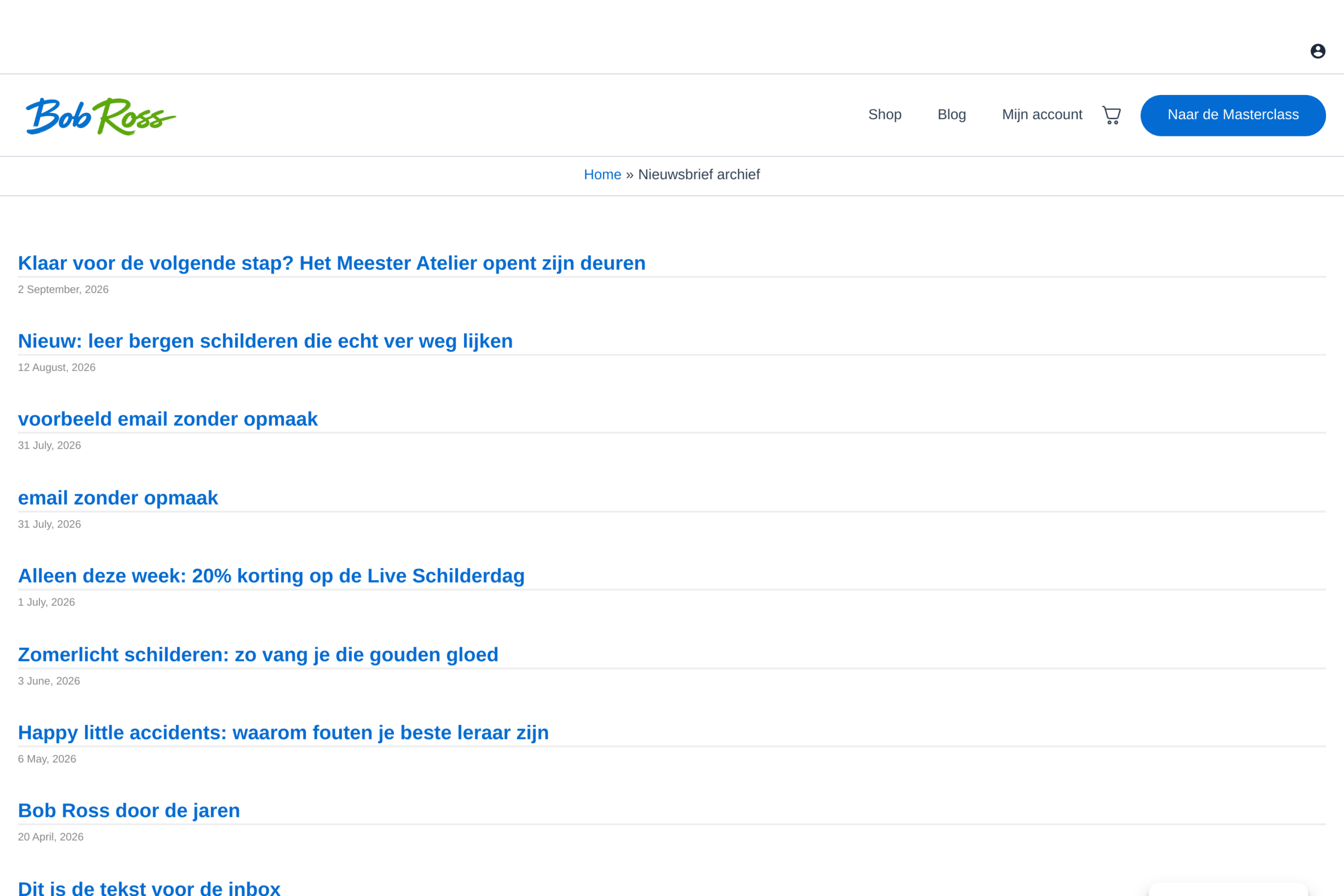
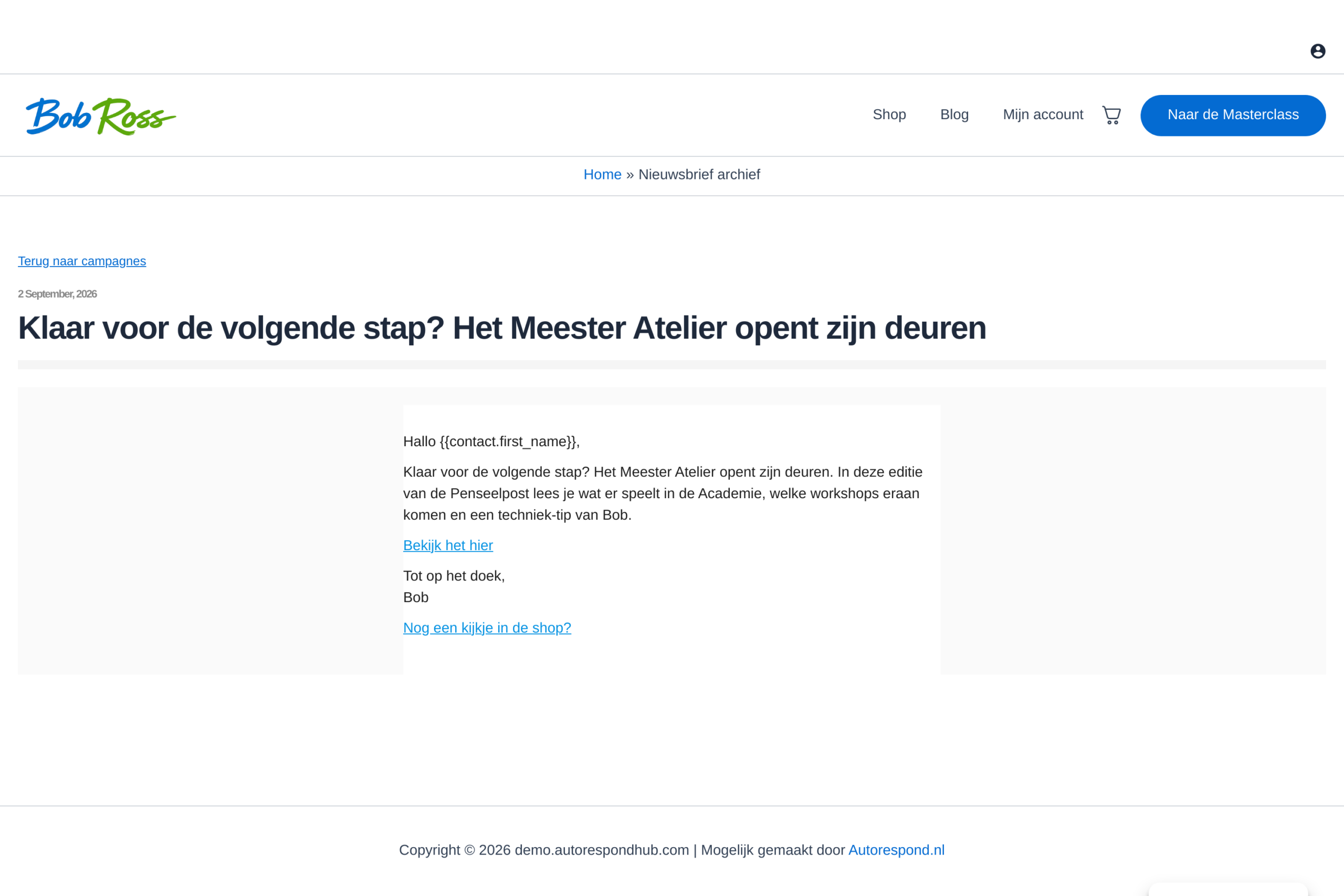
The page now shows the list of your newsletters, newest first, with the date they were sent. When a visitor clicks a title, the newsletter opens on your site, with a “Back to campaigns” link.
Several archive pages or a different selection #
If you want to show a different selection on a particular page than the one in the settings, add it to the shortcode. Anything you leave out comes from the settings in step 1.
- ids: only these campaigns, for example
The email newsletter archive feature is not enabled
- status:
archivedorall. - search: only campaigns with this word in the title, for example
The email newsletter archive feature is not enabled
- limit: the number of campaigns, for example
The email newsletter archive feature is not enabled
This lets you create one page per type of newsletter, for example.
Smartcodes in public campaigns #
Take care when you use smartcodes (such as {{contact.first_name}}) in campaigns that you share publicly through the archive page:
- Visitors who are not logged in see the raw smartcode, for example “Hi {{contact.first_name}}”.
- Logged-in contacts see their own details, for example “Hi John”.
If you want to share a single newsletter publicly, it is better to use the campaign’s web version link (see above): smartcodes are left out there. The archive page is mainly useful if you have a community or members’ area and want logged-in members to be able to read back all your newsletters on your site.
Frequently asked questions #
Can non-subscribers read the newsletter through the public link? #
Yes, the web version link and the archive page are open to everyone, including people who are not subscribed to your newsletter. Handy for sharing on social media.
How do I keep certain campaigns out of the archive? #
In CRM & Emails → Advanced features → Campaign Archives → Settings, choose a keyword or select the campaigns you want to show. On a separate page you can also pass the selection in the shortcode with ids or search.
The archive page says the archive feature is not enabled. What now? #
Then the “Enable Campaign Archive Frontend Feature” box is still unticked. Switch it on through CRM & Emails → Advanced features → Campaign Archives → Settings and click Save Settings.
What happens to smartcodes in newsletters on the archive page? #
Visitors who are not logged in see the raw smartcode, logged-in contacts see their own details. If you want to share a single newsletter publicly, use the campaign’s web version link (the share icon on the campaign page).


