How many students are really working through your material? Who stalled halfway, and who finished everything? The progress of your students is the most important gauge of your academy, and the basis for smart follow-up. In this article you will read where to find progress and statistics, how to interpret the figures and how to respond to them automatically.
The community and course features in Autorespond are based on FluentCommunity, included in your package. Read the English documentation
1. Viewing progress per course #
- Open your community portal and go to course management (Settings → Course management, or open the course and click the management button).
- Open the course and go to the student overview. For each student you see when they started and the progress percentage: the share of lessons that have been ticked off.
- At the top you see the totals: the number of students and the number of sections and lessons. In the course overview you see those numbers for all your courses side by side, so you can spot at a glance which course is running well and which needs attention.
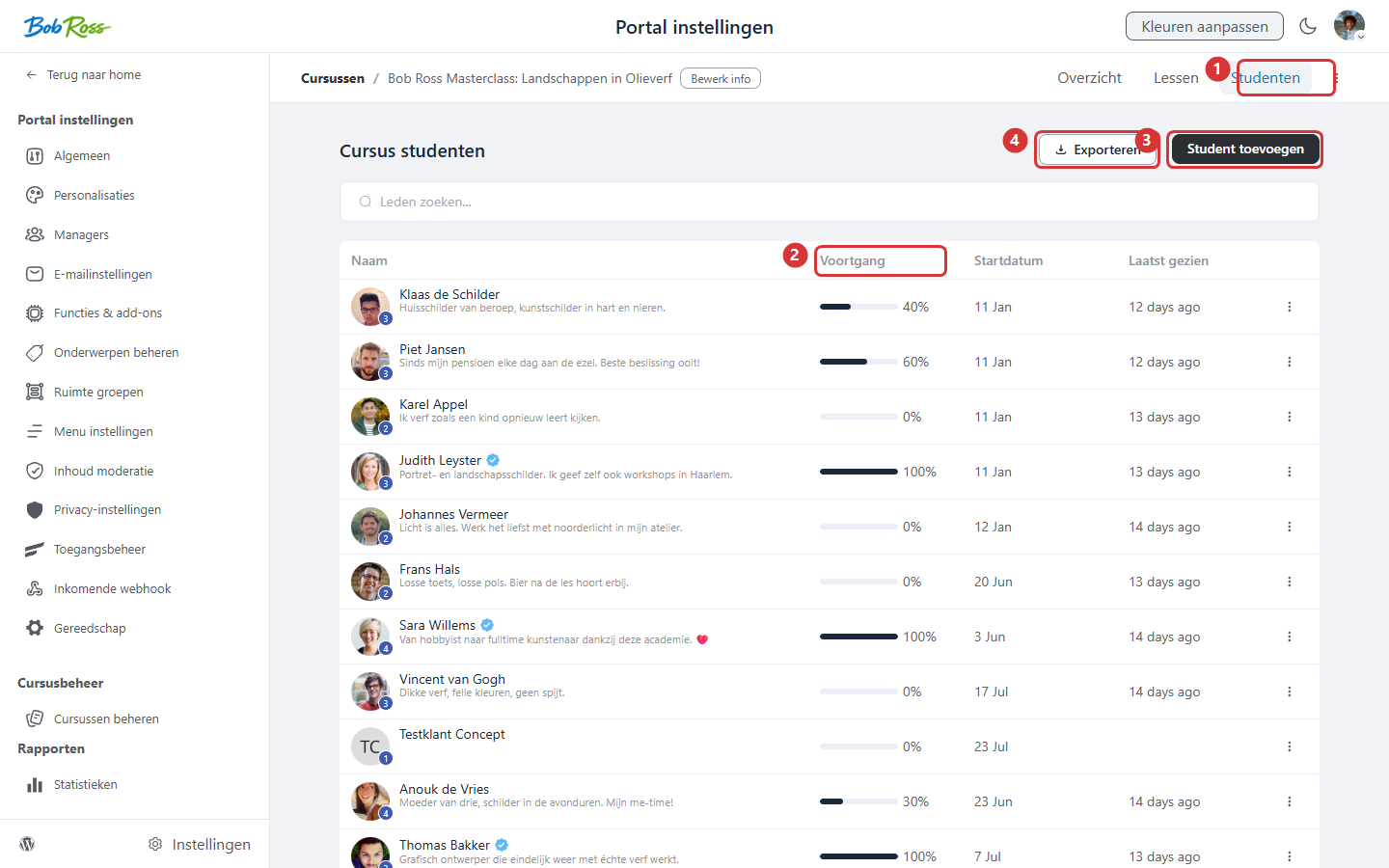
In the screenshot: 1) the Students tab · 2) the Progress column with the percentage per student · 3) adding a student manually · 4) exporting the list.
Worth knowing: a lesson counts as completed when the student ticks it off (“mark as complete”). A course is completed when all lessons have been ticked off, which is also the moment the automation trigger “Completed a course” fires.
2. Reading the figures: what do you look at? #
- Many students at 0%, people enrol but do not start. This is almost always a follow-up problem, not a content problem: send an activation email with a direct link to lesson 1 (see step 3).
- A dip halfway, many students drop out at the same section. Look at that lesson critically: too long, too difficult, or is an exercise missing? Short lessons with a concrete result keep the pace up.
- High completion, you are ready for the next offer. That is exactly why the “course completed” automation with a follow-up offer is so effective.
- Comments under lessons, qualitative feedback. Many questions on one lesson means that lesson deserves an update or an extra example.
3. Responding to progress automatically #
Progress only becomes valuable once you act on it. Under CRM & Emails → Automations, community triggers are ready for this (the Community category):
- Enrolled in a course, start an activation series: day 1 a welcome plus a link to lesson 1, day 4 a reminder for those who have not started yet.
- Lesson Completed or Section/Topic Completed, congratulate on a milestone (“Module 1 is done”) or release bonus material after a specific lesson.
- Completed a course, congratulations, a badge or certificate, and the follow-up offer a few days later.
The worked-out recipes (including stopping a flow as soon as the goal is reached) are in the article on community automations in the related links.
4. Measuring engagement more broadly: leaderboard and member list #
Besides course progress, community activity says a lot about how your academy is doing:
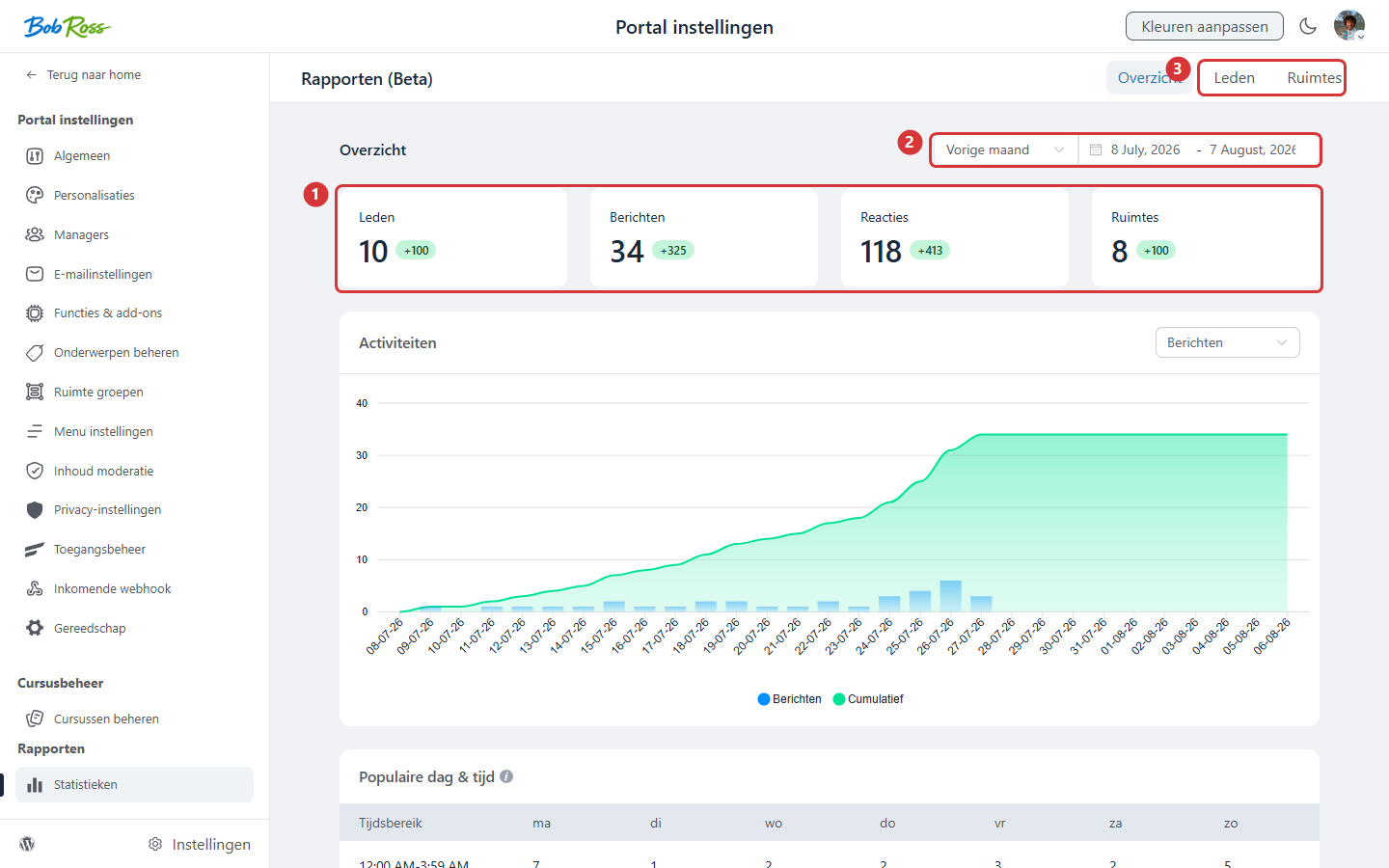
In the screenshot: Settings → Statistics: 1) key figures on members, posts and comments · 2) the period selector · 3) reports per members and spaces.
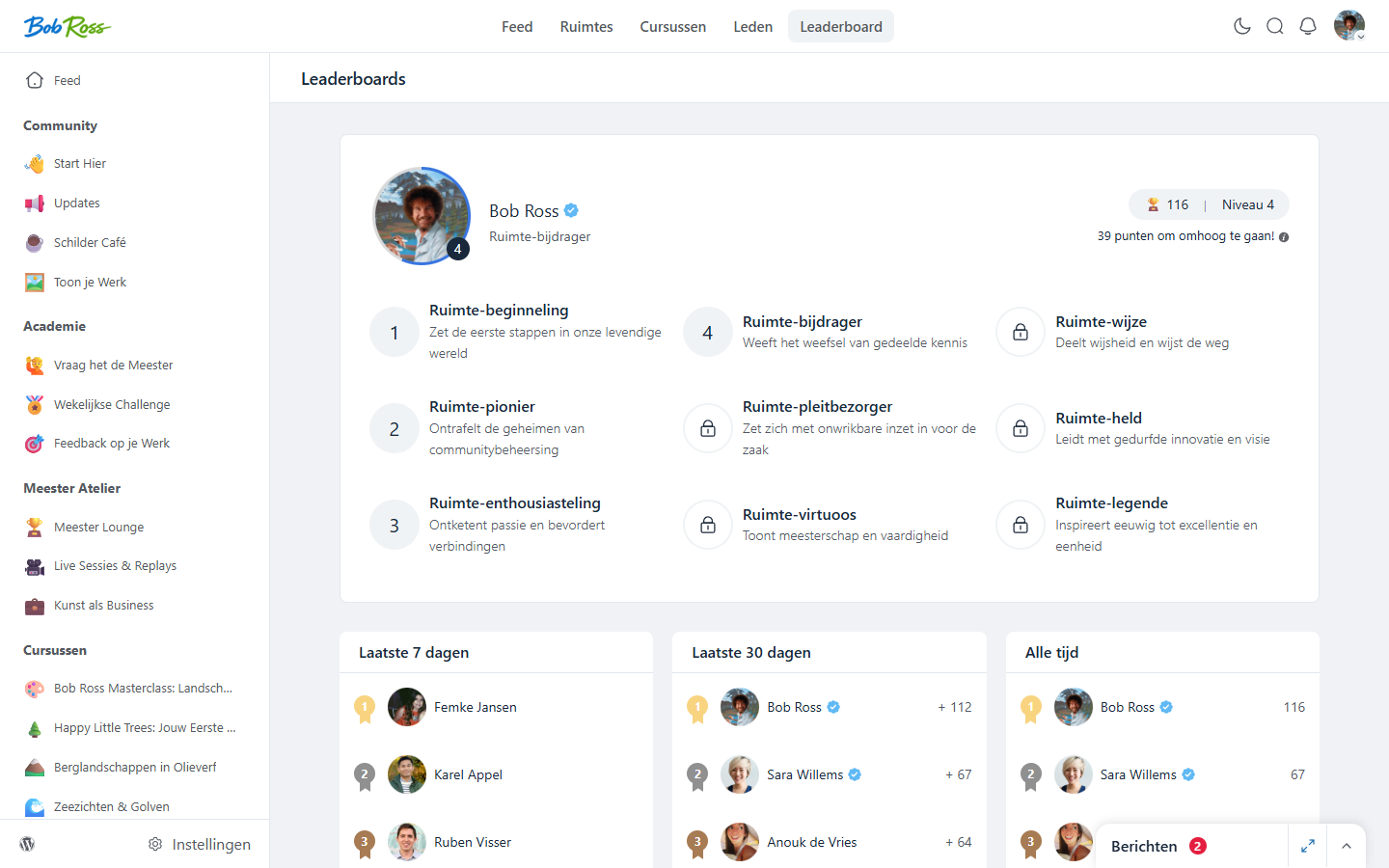
- The Leaderboard (in the portal menu) shows who receives the most appreciation on posts and comments, over 7 days, 30 days and all time. Your most engaged members are at the top: your ambassadors, and often your best candidates for a higher membership or a testimonial.
- The member list shows who was active recently. Members who are drifting away show up here first, and a quiet-member email (“we miss you”) works better the earlier you catch it.
- Because community activity can also set tags (joined space X), you can segment on engagement in your CRM and email those segments specifically.
Frequently asked questions #
Can I reset a student’s progress? #
Progress is personal and normally stays in place, even if access lapses temporarily. If you want to start again for a specific student (for example when a coaching programme restarts), contact support.
Do students see their own progress? #
Yes, every student sees their own progress bar in the course and which lessons have been ticked off. That is motivating, so actively encourage students in your lessons to tick lessons off.
Does viewing a lesson automatically count as completed? #
No, the student ticks a lesson off themselves. That is deliberate: it means you know a completed course really has been worked through, and it keeps your progress figures and the “course completed” automation reliable.
Can I make a list of everyone who has completed a course? #
Yes. Have the “Completed a course” automation apply a tag (for example course-x-completed). In your CRM you then filter on that tag, which is handy for a follow-up offer or a review request.


