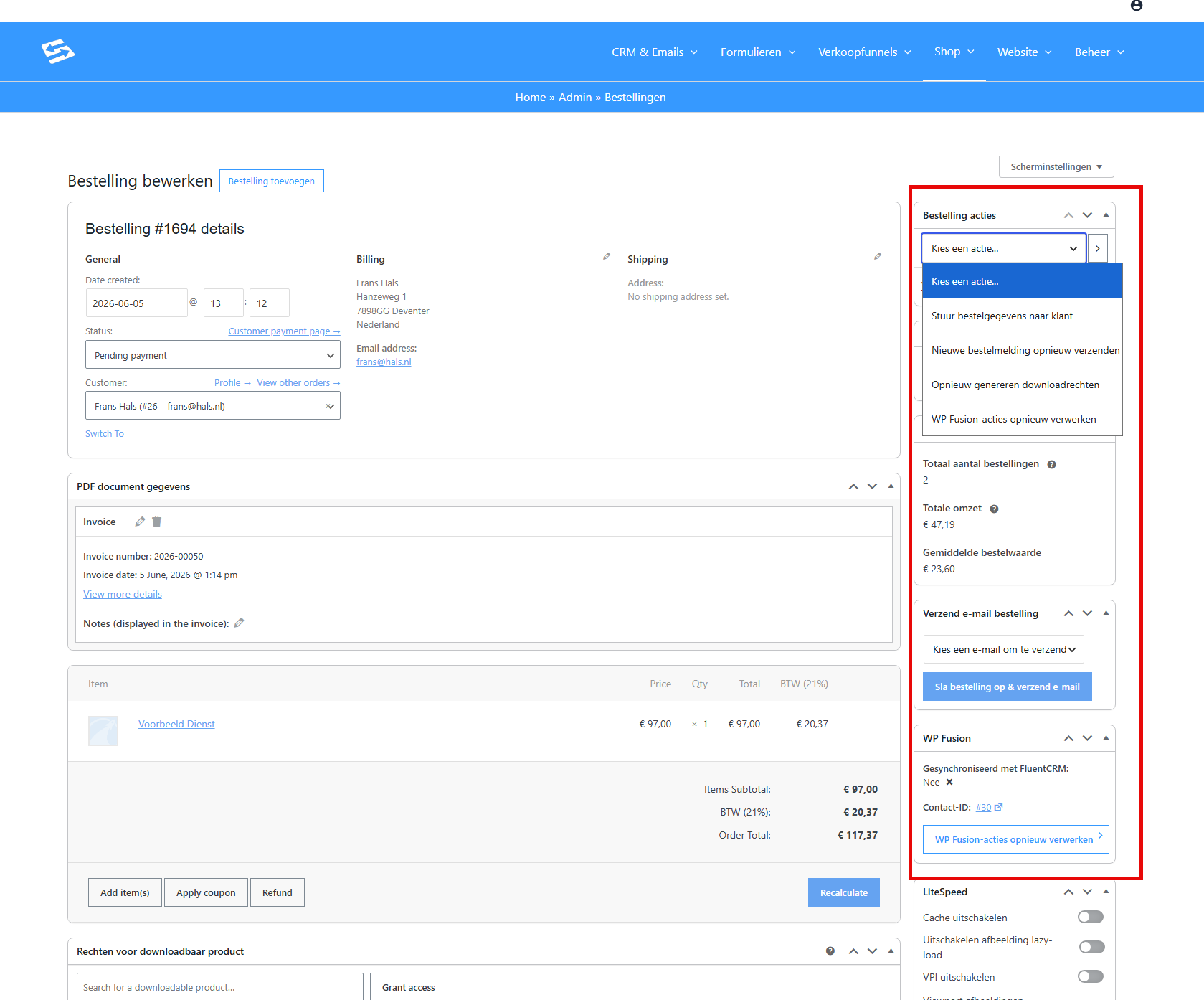
From every order in your webshop you can carry out various actions through the right-hand panel. These actions help you resend emails, repair synchronisations or contact customers manually. Below you will find all the available actions and exactly what they do.
The order actions are part of WooCommerce, included in your package.
Order actions through the dropdown #
Go to Shop → Orders and open an order. In the right-hand panel you will find the ‘Choose an action’ dropdown with four options:
Send order details to customer #
Sends the ‘Order details’ email to the customer with an overview of the order and a payment link. Useful if a customer has not received the original confirmation or needs it again. A note is added to the order automatically once the action has run.
Resend new order notification #
Resends the internal ‘New order’ email to the administrator. This is the notification that is normally sent automatically on every new order. Use this if you missed the original notification or deleted it by accident.
Regenerate download permissions #
Recreates the download access for the digital products in this order. No email is sent. Use this if a customer has bought a digital product but the download link no longer works or has expired. This action has no effect if the order contains no downloadable products.
Reprocess WP Fusion actions #
Triggers WP Fusion to run the automation rules for this order again. WP Fusion links purchases to your CRM: it applies tags to contacts, puts them in lists and starts automations. Use ‘Reprocess’ if the synchronisation with the CRM failed the first time, or if you have changed your WP Fusion rules and want to run them again for this order.
Sending emails with the PDF invoice #
Through the ‘Send order email’ block you can manually send a specific email with the PDF invoice attached. Select the email you want from the dropdown:
- New order — to the administrator
- Cancelled order — to the administrator
- Processing order — to the customer
- Completed and/or shipped order — to the customer
- Order details — to the customer, with the PDF invoice attached
Click ‘Save order & send email’ to send the selected email. Through this block the PDF invoice is always attached, unlike the ‘Send order details to customer’ action, where that depends on your settings.
Checking WP Fusion synchronisation #
The WP Fusion block shows the synchronisation status of the order with the CRM. Here you can see whether the order has been synchronised successfully, the Contact ID that takes you straight to the CRM profile, and a button to run the synchronisation again manually.
Viewing the CRM contact profile #
The CRM profile block shows a summary of the contact linked to this order: name, email address, lifetime value, lists and tags. Click the name or photo to go straight to the full contact profile in the CRM. For actions on the contact, use the CRM itself.
Sending reminder emails #
If you have set up reminder emails, a dropdown appears with all the reminders you have created. Select a reminder and click ‘Send email’ to send it to the customer straight away, without waiting for the automatic schedule. For more information about setting up reminder emails, see our article on payment reminders.
Frequently asked questions #
Are emails always sent when I run an action? #
Only if the email concerned is enabled in your email settings. Check this through Shop → Shop settings → Emails tab. Emails that are disabled are not sent, not even on a manual action.
What is the difference between the two ways of sending order details? #
Both send the ‘Order details’ email to the customer. The difference is that the PDF block always attaches the PDF invoice, whereas through the ‘Send order details to customer’ dropdown this depends on your invoice settings.
The WP Fusion synchronisation says ‘No’, what should I do? #
Use the ‘Reprocess WP Fusion actions’ action in the dropdown or click the button in the WP Fusion block. This runs the link with the CRM after all. If it still does not work afterwards, check the WP Fusion rules for this product.


