Adding appointments manually in the Appointments module #
Alongside online bookings made by customers, you can also enter appointments manually in the appointment scheduler. This is useful for appointments made by phone or for internal blocks in your calendar.
Adding a manual appointment #
You add a manual appointment as follows:
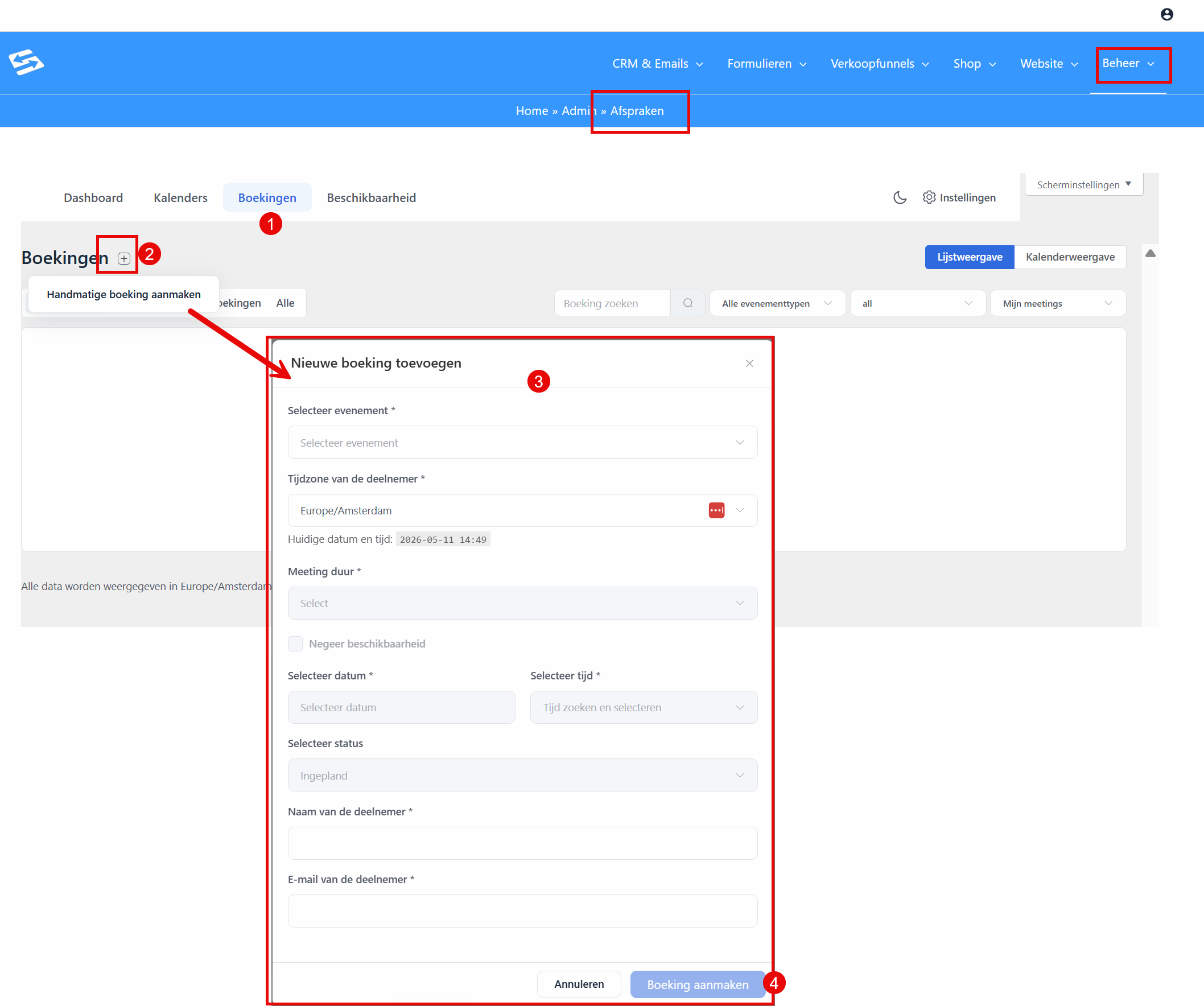
- Go to Manage → Appointments → Bookings
- Click the plus icon at the top left (see screenshot)
- Fill in the customer details (name, email address, phone number)
- Select the correct event type from the dropdown
- Choose the date and start time
- Add any notes in the comments field
- Click ‘Save booking’
The appointment is added to your overview straight away and passed on to any connected external calendars. The customer automatically receives a confirmation email with the appointment details.
Creating an internal event for manual bookings #
If you schedule appointments manually on a regular basis, you can create a dedicated internal event that is not visible for online bookings:
- Go to Manage → Appointments → Calendars
- Open your host calendar
- Click ‘+ New event type’
- Give the event a name such as ‘Phone appointment’
- Under Advanced settings, switch on the option ‘Hide this event from the public booking page’
- Set the duration you want and any other settings
- Save the event
You can then use this internal event when adding appointments manually, while other events remain bookable online.
Connected external calendars #
Appointments added manually are synchronised automatically with connected external calendars such as Google Calendar, Outlook or Apple Calendar. This happens within a few minutes of saving the booking.
The Appointments module is an optional extension that you can add to your Autorespond package. This module offers a complete appointment scheduler comparable to Calendly. More information about this module
Frequently asked questions #
Can I edit manual appointments after creating them? #
Yes, go to Manage → Appointments → Bookings, look up the appointment and click ‘Edit’. You can change every detail, and the changes are passed on automatically to the customer and to external calendars.
Does the customer receive a confirmation email for manual appointments? #
Yes, as soon as you save a manual appointment, a confirmation email with all the appointment details is sent to the customer automatically, just as with online bookings.
Can I hide manual appointments from online visitors? #
Yes, create an internal event type and switch on the option ‘Hide this event from the public booking page’. That event is then available for manual bookings only.


