Do you have a knowledge base (Docs) on your Autorespond site? You can now manage it directly from your own AI assistant. Claude, ChatGPT or Cursor can look up articles for you, write a draft based on a support question, keep categories tidy and add FAQs. All through a secure connection (MCP) that you switch on in a few minutes, without pasting any passwords. This article explains how.
The knowledge base in Autorespond is based on BetterDocs, included in your package. Read the English documentation
Worth knowing: the connection is regularly extended with new functions. So ask your assistant what it can do straight after connecting (see step 4). The general overview of all AI connections in Autorespond is in Connecting your AI assistant to Autorespond: all connections at a glance.
What can your assistant do with your knowledge base? #
- Search and read articles: “Which article is about setting up redirects?” or “Summarise our article about invoices.”
- Write and update articles: create a new draft based on a customer question, rewrite or add to an existing article. New articles come in as a draft, so you review them before they go online.
- Manage the structure: create and tidy up categories, tags and (multiple) knowledge bases.
- Create FAQs: write frequently asked questions, group them and link them to an article.
- Request statistics: which articles are read most, and what visitors search for without any result.
- View and change settings: only if the connected user is entitled to do so.
Important to remember: the assistant does everything on behalf of the person who approves the connection, and can never do more than that person is allowed to do. Every change is also a normal revision that you can undo in the editor.
Step 1: switching on the connection #
- Go to Website → Docs Settings and open the MCP section.
- Switch on Enable MCP access at the top right. The status changes to Active.
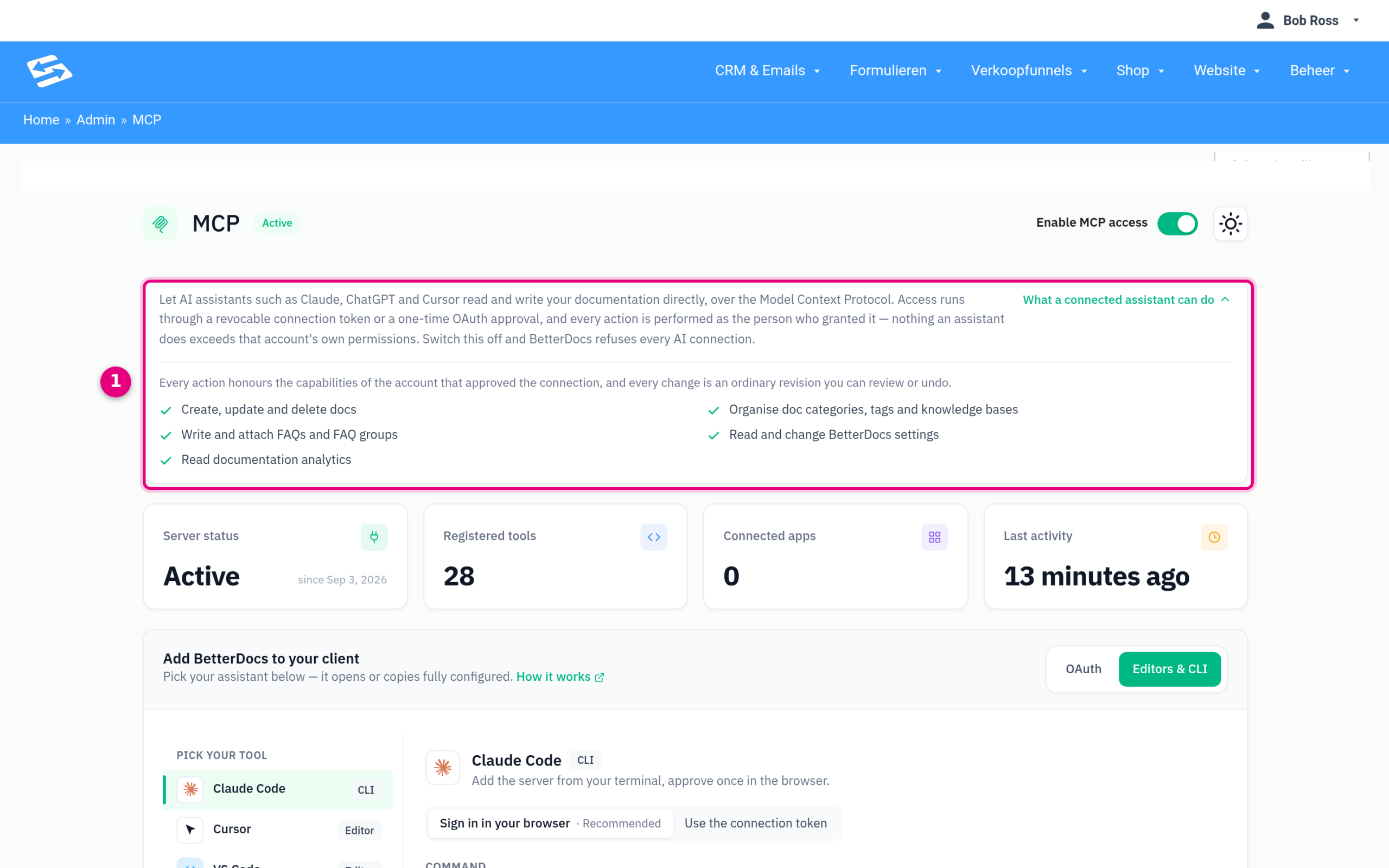
- Click What a connected assistant can do to see everything the connection can currently do.
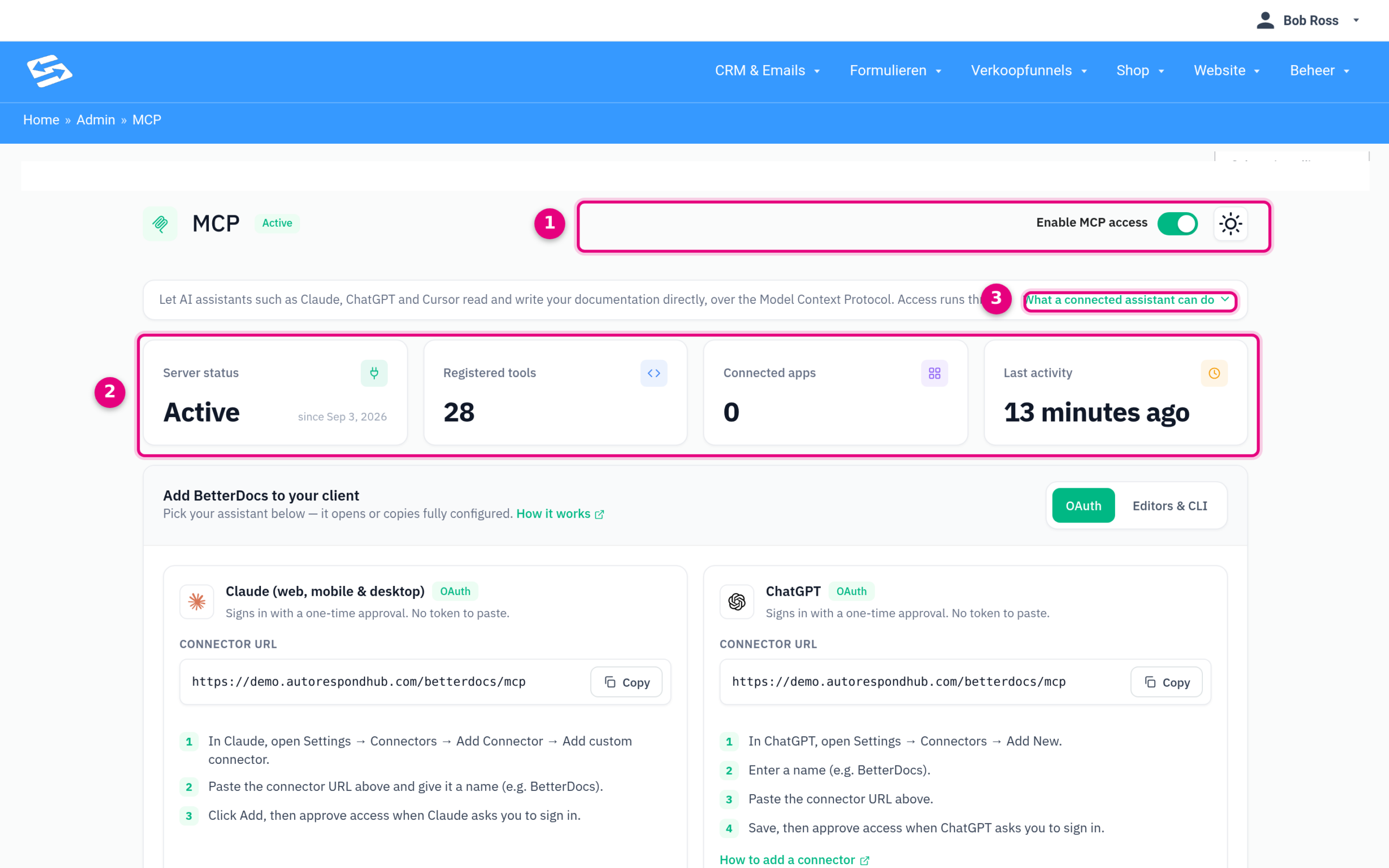
- Enable MCP access: the main switch. Off means no AI can reach your knowledge base at all, not even with a previously approved connection.
- Status: whether the connection is active, how many functions (tools) are available, how many apps are connected and when the connection was last used.
- What a connected assistant can do: an up-to-date overview of the possibilities, straight from the plugin.
Step 2: connecting to Claude or ChatGPT (recommended) #
For Claude (web, app and desktop) and ChatGPT you do not have to paste a password or a code. You only enter an address and log in to your own site once to give approval.
- Under Add BetterDocs to your client, choose the OAuth tab and copy the Connector URL from the Claude or ChatGPT block.
- In Claude: go to Settings → Connectors → Add custom connector, paste the URL and give the connection a name (for example “Knowledge base”). In ChatGPT: Settings → Connectors → Add new, enter a name, paste the URL, save.
- Your AI program now opens a login screen from your own site. Log in with the user the AI is allowed to work as and click Approve. Done.
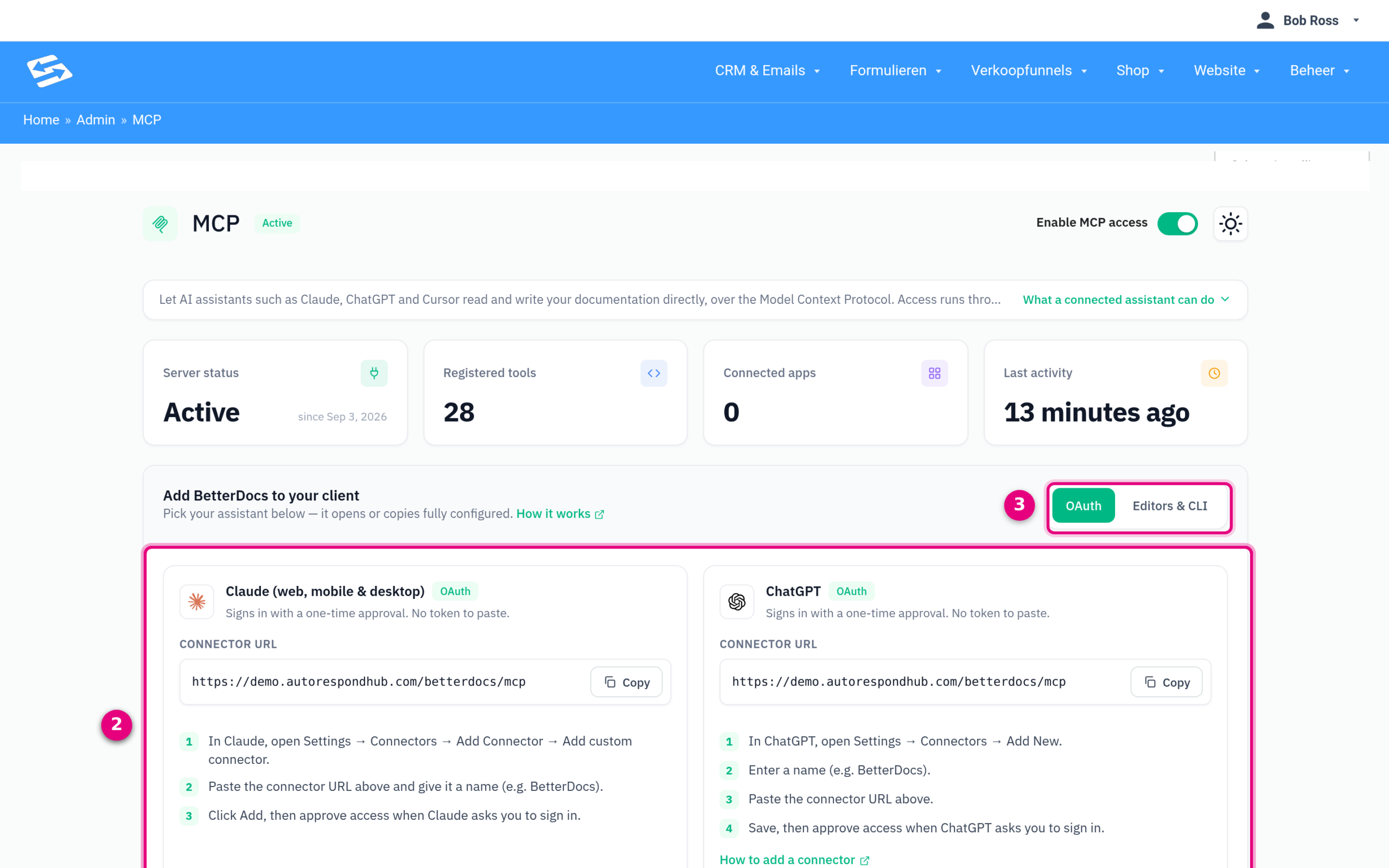
- Claude: the Connector URL and the three steps in Claude.
- ChatGPT: the same URL, with the steps for ChatGPT.
- OAuth / Editors & CLI: switch here to the instructions for programs that do not support browser login (step 3).
Tip for “AI may only create drafts”: when approving, log in with a user who may write articles but may not publish or delete them. Please note: the standard Editor and Author roles may also publish and delete in the knowledge base. If you do not want that, create a separate role for the AI or ask us for help.
Step 3: connecting to Claude Code, Cursor or VS Code #
Do you work with a coding assistant such as Claude Code, Cursor or VS Code? Those connect with a connection token or, in Claude Code, simply through browser login as well. The Ask your AI to set it up option is handy: it gives you a ready-made text that you paste into your AI assistant, after which the assistant adds the connection itself.
- Choose the Editors & CLI tab and click your program.
- Copy the ready-made command or the configuration block and paste it into your program. The connection token is already included.
- Could the token have leaked? Click Rotate token: the old token stops working immediately and you get a new one.
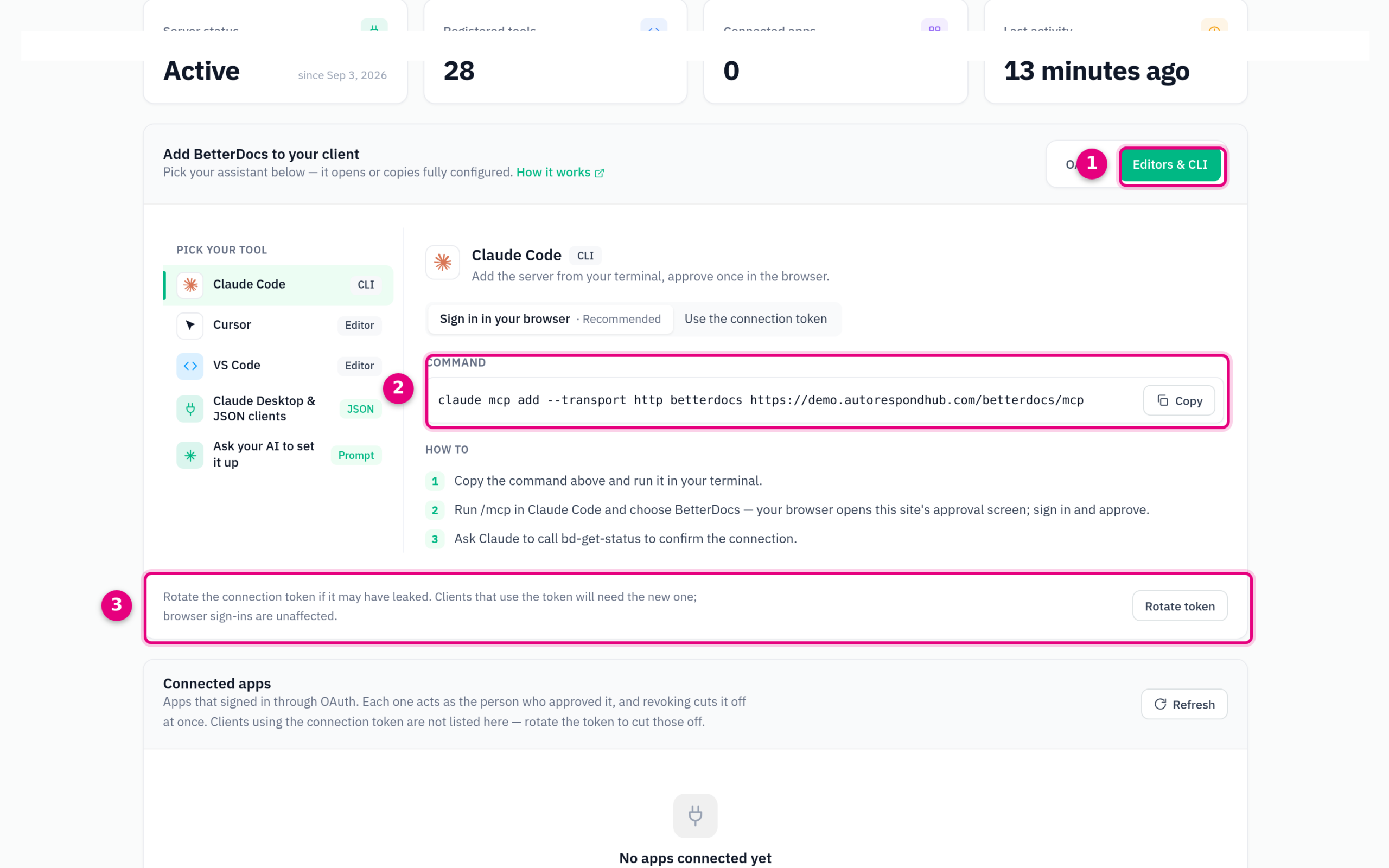
- Editors & CLI: the tab for programs that work with a token.
- Command or configuration: copy and paste. In the Sign in in your browser setting (recommended) no token is included and you approve the connection in your browser; only choose Use the connection token if your program does not support browser login.
- Rotate token: creates a new connection token and blocks the old one.
Please note: the connection token gives the same rights as the administrator who created it and does not expire. Treat it like a password: only use it in your own programs, never share it or put it in a shared document. For Claude and ChatGPT, the browser login from step 2 is therefore the safer route.
Step 4: ask your AI what it can do #
Ask this question straight after connecting, so your assistant fetches the current list of functions itself and remembers it:
“You are connected to the knowledge base of my Autorespond site. First fetch the status, look at which functions you have and summarise what you can do for me. Remember this. Always create new articles as drafts and do not delete or publish anything without my confirmation.”
Examples of what you can ask next: “Find all articles about invoices and give me the links”, “Write a draft article about setting up a thank-you page, in the same style as our other articles”, “Which categories have fewer than three articles?” or “Create three FAQs for the article about redirects and link them.”
Management and security #
- Connected apps: at the bottom of the MCP page you see which apps are connected through browser login, who approved them and when they were last used. You can revoke each app separately here.
- Connection health: a built-in self-test that checks whether the connection can be reached from outside. Handy if an assistant cannot connect.
- GDPR: your knowledge base usually does not contain personal data, but use a business AI account with a data processing agreement here as well. Read Connecting your Autorespond to your AI assistant for the legal basis.
- Switching off: turn off the Enable MCP access switch and all connections stop immediately.


