Sometimes you want to give a discount without customers having to know or type in a code. Think of a promotion that applies to everyone, or a fixed discount on a subscription that you want to grant automatically. In that case you can set up a coupon that applies itself as soon as a customer meets the conditions.
This feature is based on Smart Coupons. Read the Smart Coupons documentation, included in the shop extension with Autorespond
The Shop & Sales funnels extension is an optional extension you can add to your Autorespond package. With this extension you manage products, orders, subscriptions and sales funnels from a single environment. More information about this extension
Switching on the ‘Auto apply?’ option #
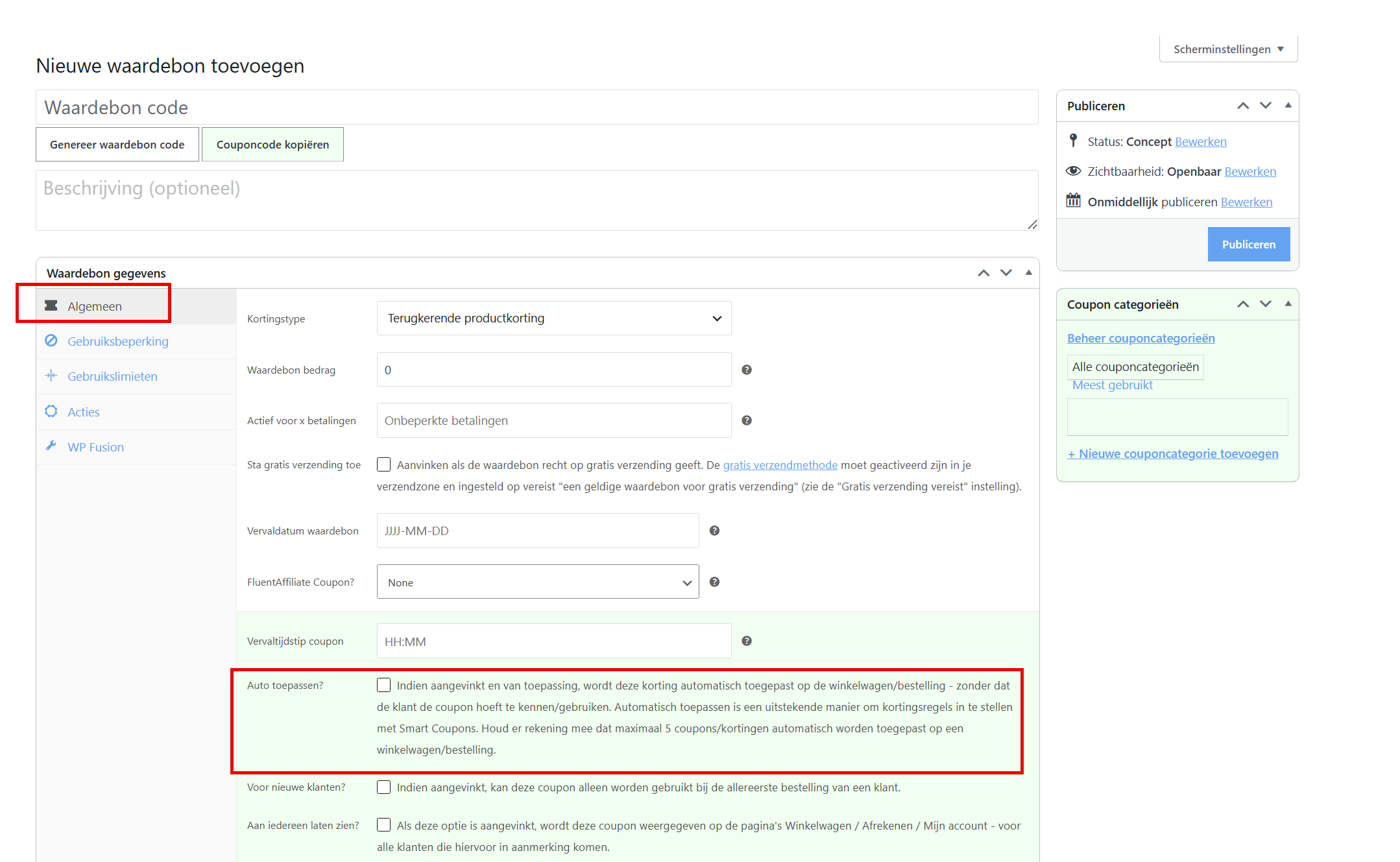
In your Autorespond administration, go to Shop and open Coupons. Create a new coupon or open an existing one. You find the Auto apply? option on the General tab, right next to the other coupon settings.
As soon as you tick this option, the discount is applied automatically to the cart or order of customers who meet the conditions of the coupon. The customer does not need to know the coupon code and does not have to enter anything, the discount appears by itself.
When do you use an automatically applied coupon? #
There are two common situations in which this is useful:
- A general promotional discount for all customers. You want everyone who orders a product to receive a discount automatically, without having to communicate or distribute the coupon code.
- A recurring discount on a subscription. You give customers a fixed discount on every renewal term, without them having to enter a code again at each payment. For more on subscription discounts, read the articles Setting up a recurring discount with a coupon and A discount for only the first terms of a subscription.
Please note: a maximum of 5 automatic discounts per order #
If you have several automatically applied coupons active at the same time, a maximum of 5 automatic discounts are applied per cart or order. Bear this in mind if you run several automatic promotions at the same time. If there are more than 5 active automatic coupons, the remaining ones are not applied.
Combining with usage restrictions #
You can narrow the automatic discount down further on the Usage restriction tab of the coupon. That is how you limit the discount to specific products, categories or a minimum order amount. The coupon is then only applied automatically if the contents of the cart meet those conditions.
This gives you a lot of control: you can set up an automatic discount that only applies to a certain product category, or that only becomes active above a certain amount, without asking the customer to enter a code.
Frequently asked questions #
How do I make sure a discount is applied automatically without a coupon code? #
Go to Shop and open Coupons. Create a coupon or open an existing one and tick the Auto apply? option on the General tab. The discount is then applied automatically as soon as a customer meets the conditions, without them having to enter a code.
How many automatic discounts can be on an order at the same time? #
A maximum of 5 automatically applied coupons or discounts are applied per cart or order. If you have more than 5 automatic coupons active, the remaining ones are not included in the order.
Can I limit an automatic discount to specific products? #
Yes. Open the coupon and go to the Usage restriction tab. Here you set for which products and categories, or above which minimum order amount, the discount applies automatically.


