A customer gets a new email address and asks you to update it. That address appears in several places in your environment: on the contact in your CRM, on the user account the customer logs in with, and on orders and subscriptions. Autorespond keeps those links intact when the address changes, and asks you once to confirm what should happen to them. This article explains how that works and what exactly happens.
Contacts in Autorespond are based on FluentCRM and the shop on WooCommerce. Both are included in your package.
1. Why an email address appears in several places #
The CRM contact is the person in your email marketing. The user account is the login account of that same person, and orders and subscriptions hang from that account. Guest orders (without an account) hang from the email address alone. The CRM shows the purchase history of a contact by linking the email address to the account or to the guest orders on that address. If you change the address in one place and not the other, it looks as though orders have disappeared. That is why you change a customer’s address through the confirmation screen below, which updates everything in one go.
2. How to change a customer’s email address #
If you try to change the email address of a contact with an account or orders in the ordinary contact form, you get a message saying that this contact has a customer account, orders or subscriptions, and that you change the address through the Customer links block. The address stays as it was. Contacts without an account or orders can be changed as usual.
- Open the contact through CRM & Emails → Contacts.
- In the right hand column (Additional information), scroll to the Customer links block. There you see the account, the number of orders and the running subscriptions of this customer.
- Click Change email address (1).
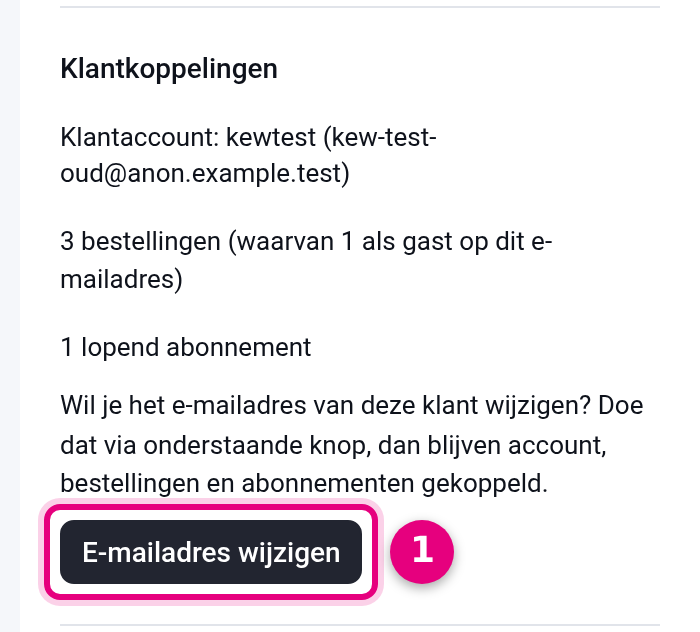
The Customer links block only appears on contacts that have an account, orders or subscriptions.
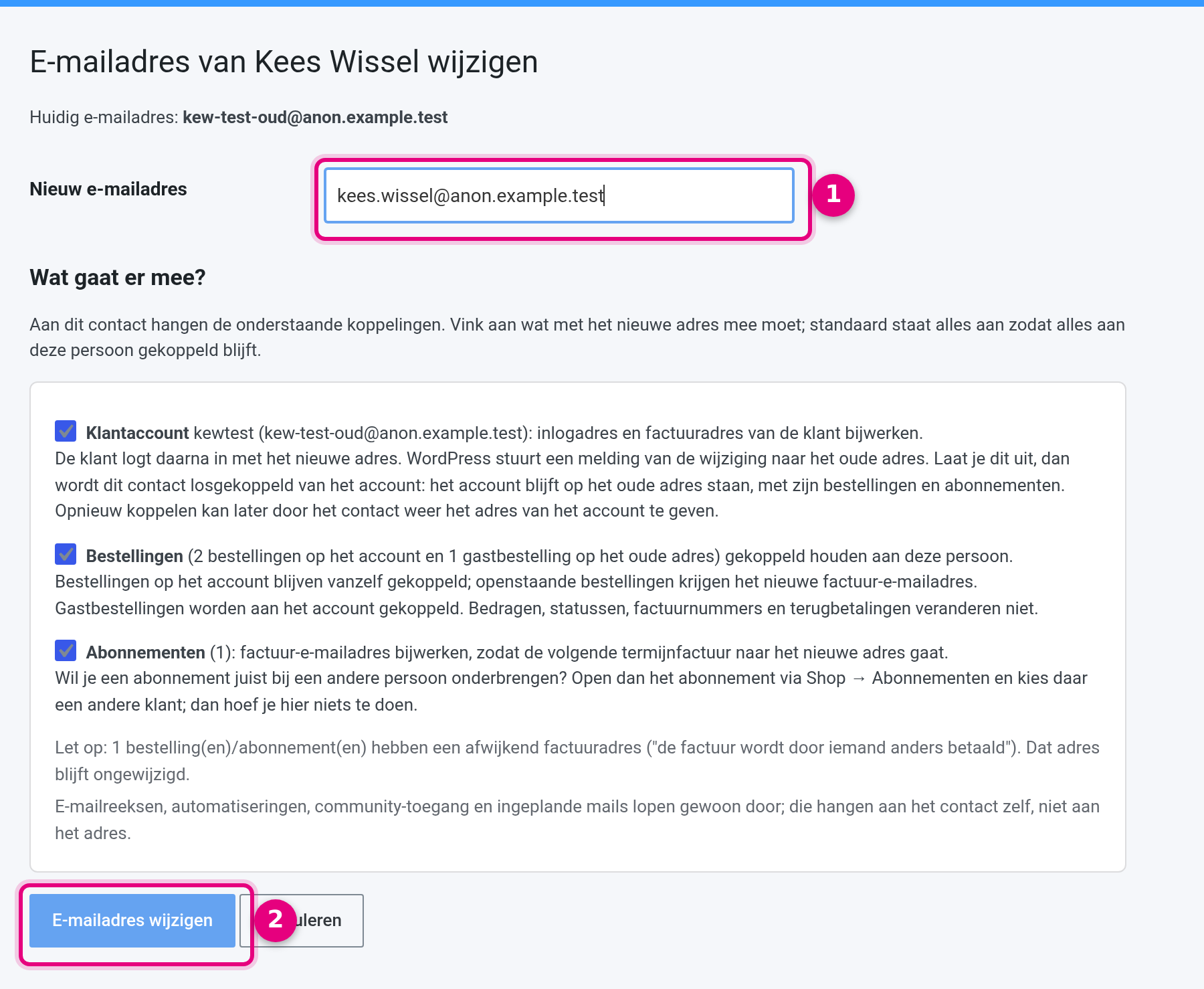
- Enter the new email address (1).
- Check which boxes are ticked. Everything is ticked by default, so that the account, orders and subscriptions stay linked to this person. The text beside each box says exactly what happens.
- Click Change email address (2).
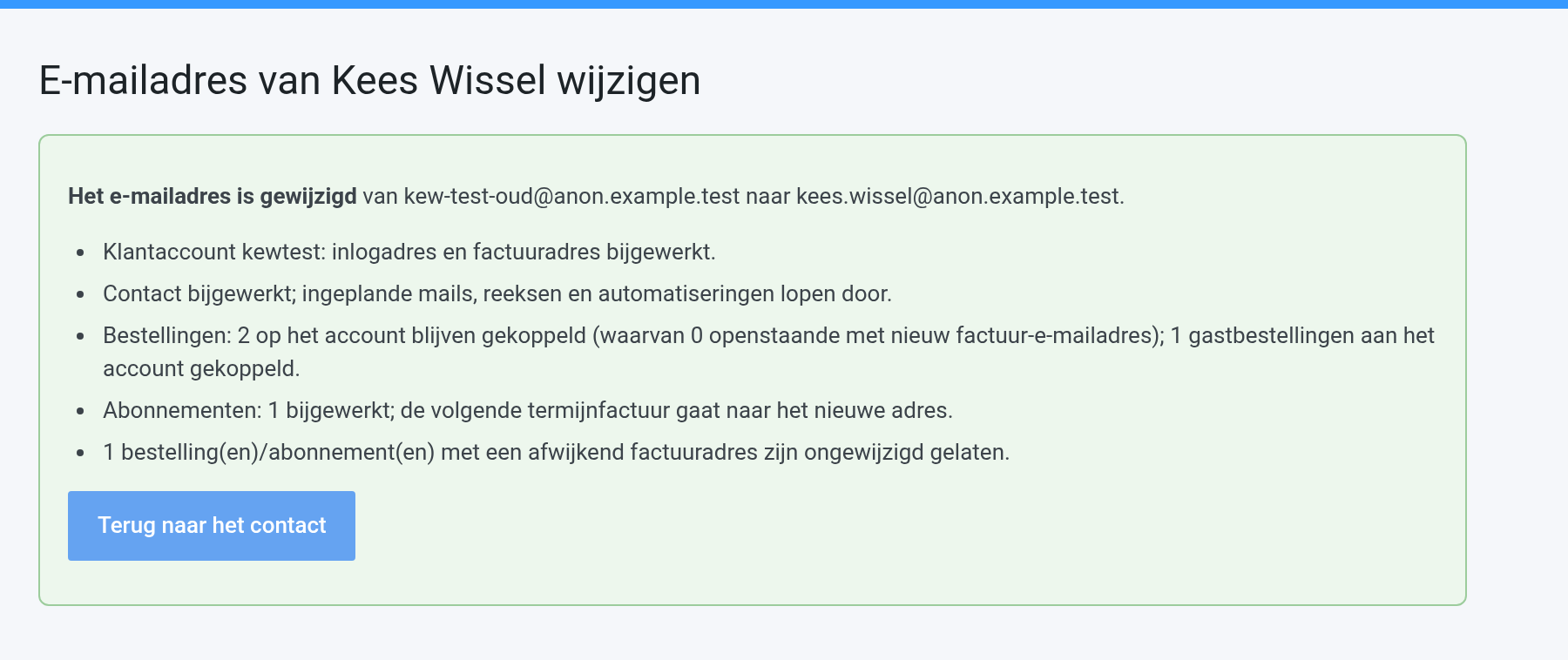
You then see a summary of what was updated. Back to the contact takes you to the contact page again, where the new address is shown and the purchase history is still visible.
3. What comes along, and what deliberately does not #
- Customer account: the login address and the billing address of the customer get the new address. The customer logs in with the new address from now on, and WordPress sends a notification of the change to the old address.
- Contact: gets the new address and stays linked to the account. Email sequences, automations, scheduled emails and community access all continue, because they hang from the contact itself.
- Orders on the account: stay linked. Open orders (on hold, processing) get the new billing email address, completed orders stay as they were.
- Guest orders on the old address: are linked to the account, so they stay with this customer, including at any later change.
- Running subscriptions: the billing email address is updated, so the next instalment invoice goes to the new address.
- Left untouched: amounts, statuses, invoice numbers, refunds, existing invoice PDFs and a different billing address (“the invoice is paid by someone else”) on an order or subscription.
- Notes: a note with the old and the new address is added to the contact, to every changed order and to every changed subscription. The Customer links block shows the most recent change.
4. A contact without an account but with guest orders #
If the customer has only ordered as a guest, no account appears in the Customer links block. The confirmation screen works the same way: the guest orders on the old address get the new address, so they stay visible on the contact. There is no login address to change.
5. Other choices on the confirmation screen #
- Customer account box unticked: the contact is unlinked from the account. The account stays on the old address, with its orders and subscriptions. Only use this if the account belongs to a different person. You can link them again later by giving the contact the address of the account once more.
- Moving a subscription to another person: you do not do that here, but on the subscription itself under Shop → Subscriptions, where you choose a different customer. See Transferring a running subscription to another customer.
- The new address is already in use: if another contact or another account already has that address, the change is not applied and you see why. Merge the contacts first, or delete or rename the other account under Administration → Users.
6. Alternative: changing the address on the user account #
You can also change the email address directly on the user account. The CRM contact then follows automatically and orders and subscriptions stay visible. The billing email address of a running subscription does not come along in that case, so you adjust that yourself on the subscription. Here is how:
- Click Administration in the top bar and choose Users.
- Type the customer’s old email address into the search field at the top right and click Search users. Then click the user name to open the account.
- Under Contact info, change the Email field, and under Customer billing address, change the Email address field.
- Click Update user right at the bottom.
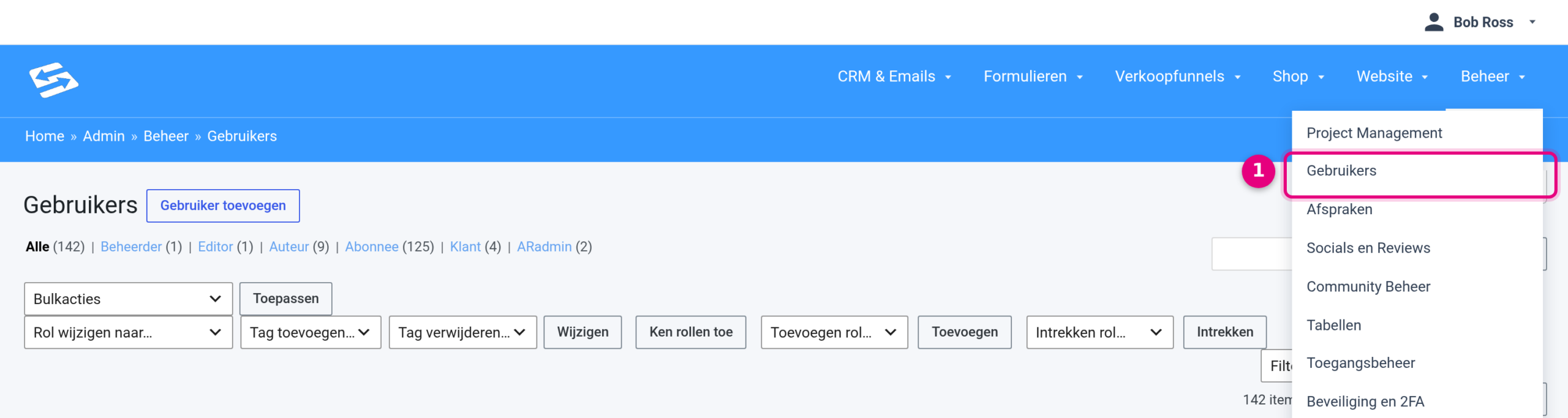
Administration → Users (1) takes you to the overview of all accounts.

Search for the customer on the old email address (2).
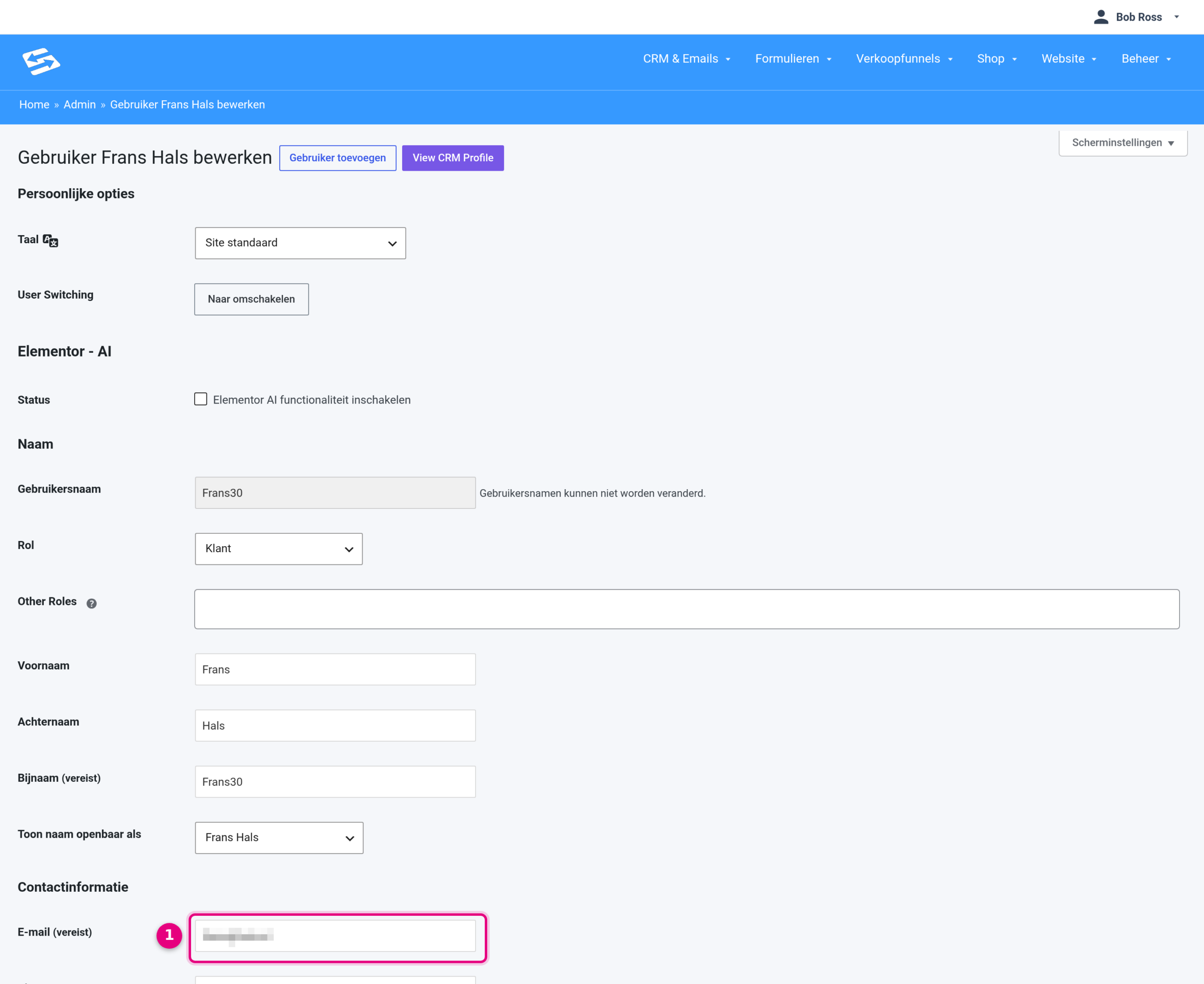
The Email field sits under Contact info (1).
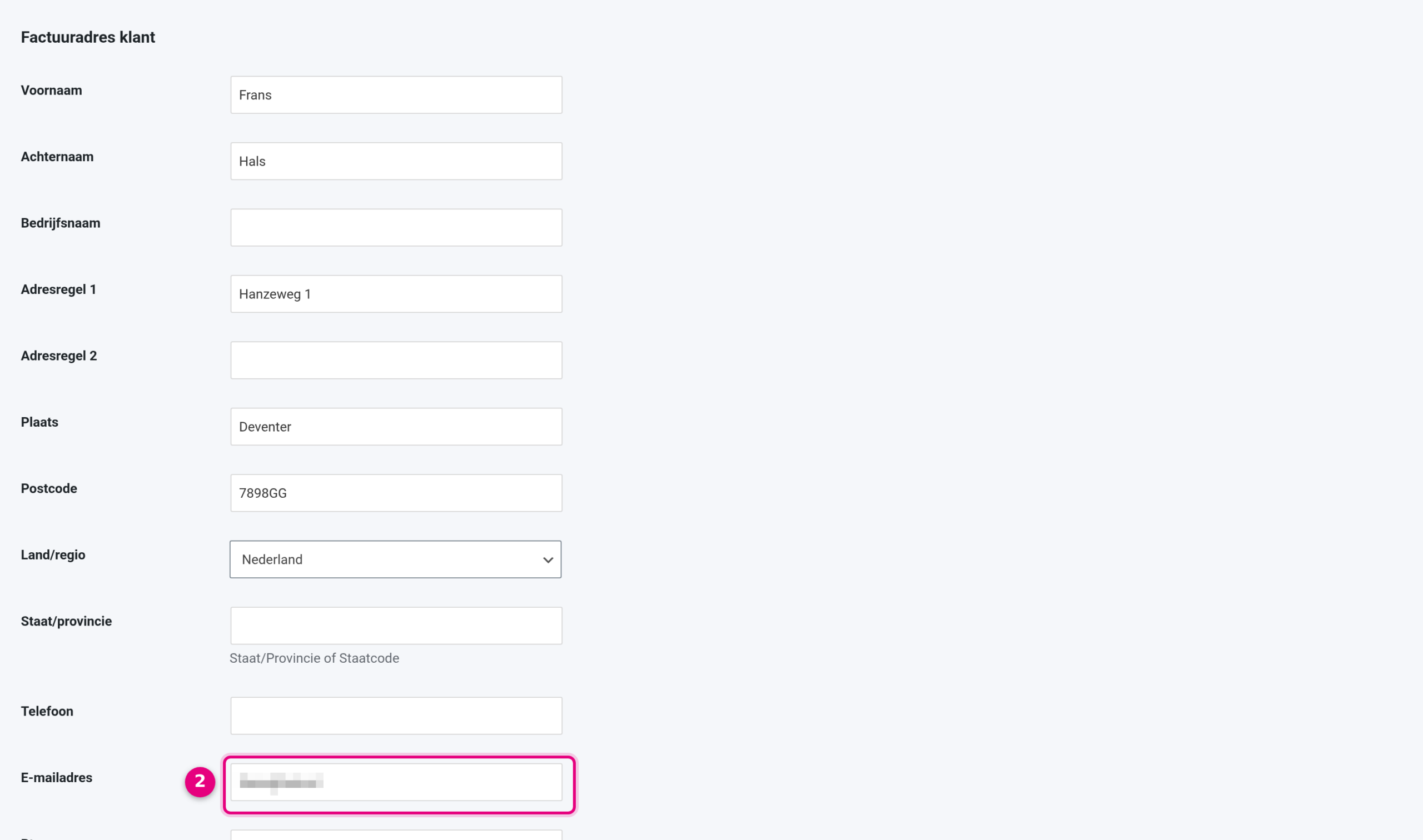
Further down the same screen is Customer billing address with the Email address field (2).

Save with Update user (3).
Related articles #
- Changing a user account, such as the password
- Transferring a running subscription to another customer
- Viewing and editing an individual contact
Frequently asked questions #
Why can I not simply change this contact’s email address in the CRM? #
Because the contact has a customer account, orders or subscriptions. If you changed only the contact, the account would come unlinked and the purchase history would drop out of view. The Change email address button in the Customer links block updates everything in one go.
Does anything change on old orders or invoices? #
No. Amounts, statuses, invoice numbers, refunds and existing invoice PDFs stay as they were. Only open orders and running subscriptions get the new billing email address, so that new emails and instalment invoices arrive correctly. Guest orders are linked to the account.
What happens to a different billing address on an order? #
It stays in place. An order or subscription where the invoice is paid by someone else keeps that separate billing address, and the confirmation screen tells you how many orders that concerns.


