Customers with a subscription can automatically receive a reminder before their subscription is renewed automatically. This prevents surprises when money is debited and gives customers the chance to change or cancel their subscription before the renewal.
Subscription functionality in Autorespond is based on WooCommerce Subscriptions, included in your package with the Shop & Sales funnels extension.
When to use announcement emails #
Announcement emails are especially valuable for subscriptions with automatic collection. Customers then receive a notice a few days in advance that their subscription is being renewed and that the amount will be debited automatically. This increases transparency and gives customers the chance to make any changes.
With subscriptions that are paid manually, customers already receive a payment request by default, so additional announcement emails are less necessary there.
Step 1: Enable reminders #
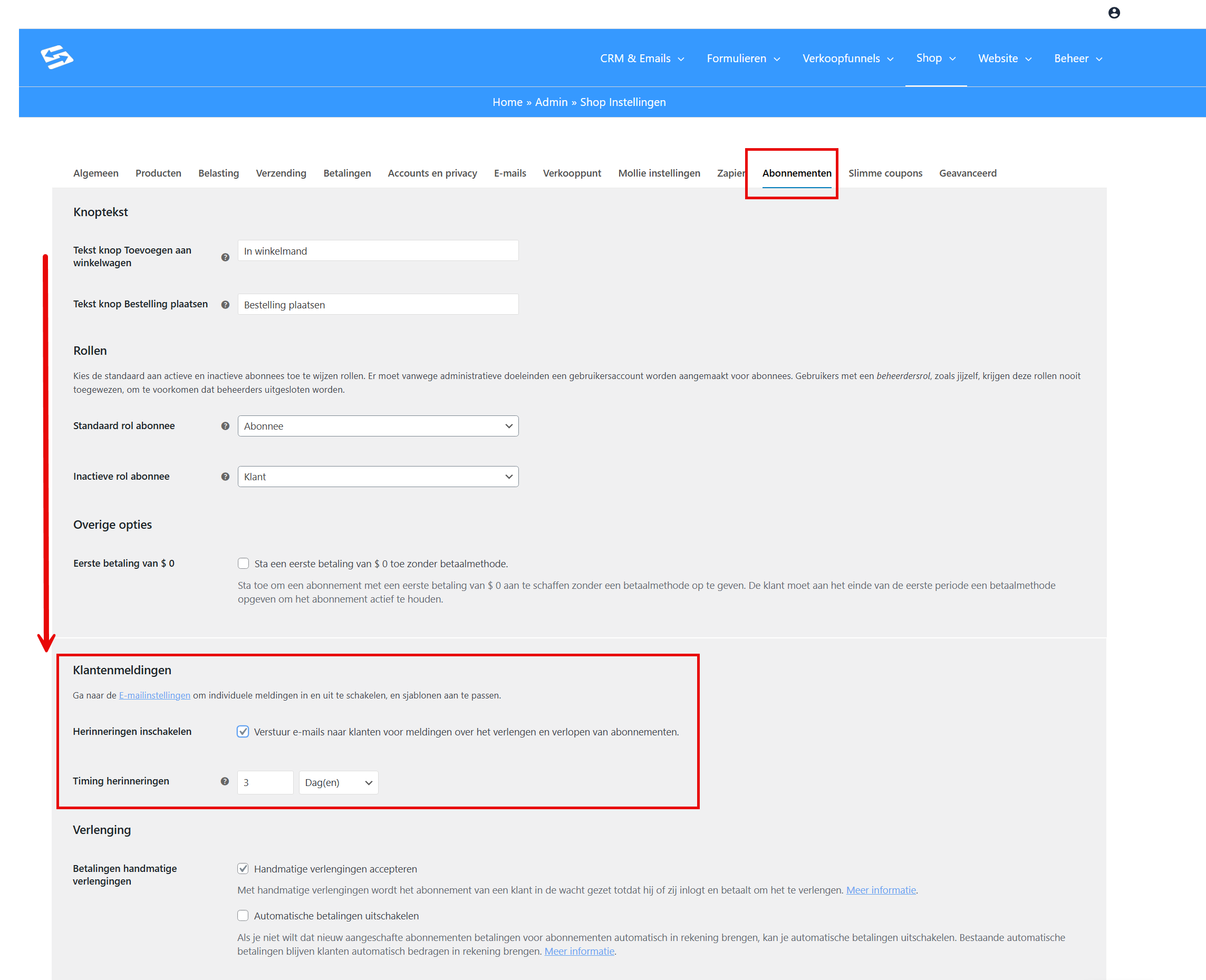
- In your dashboard, go to Shop → Shop settings
- Open the ‘Subscriptions’ tab
- Find the ‘Customer notifications’ section
- Tick the box at ‘Enable reminders’
- Set how many days in advance the reminder should be sent (the default is 3 days)
- Click ‘Save changes’
Step 2: Adjust the email text #
After enabling the reminders you can adjust the content of the announcement email as you wish:
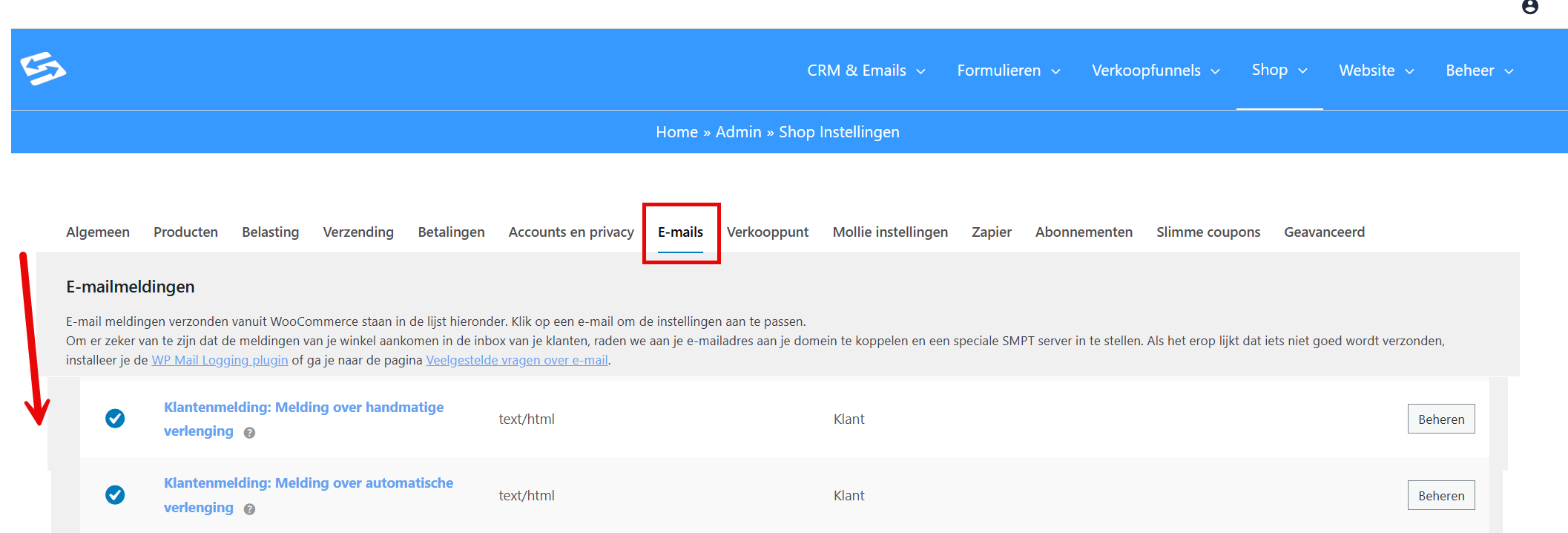
- Go to Shop → Shop settings
- Open the ‘Emails’ tab
- Find the emails ‘Customer notification: Automatic renewal notification’ and ‘Customer notification: Manual renewal notification’
- Click ‘Manage’ to adjust the subject line, salutation and content
- Adjust the text to your wishes and click ‘Save changes’
In the email text you can use variables such as the customer’s name, the subscription amount and the renewal date. These are filled in automatically when the email is sent.
The difference between the emails is which one gets sent:
Manual renewal (bank transfer, BACS) → is sent when the subscription is paid by transfer.
Automatic renewal (iDEAL, credit card) → is sent when payment is made by automatic collection.
Result and timing #
Once set up, customers automatically receive an email the set number of days before their subscription is renewed. That email states which subscription is being renewed, what the amount is and when the payment will be taken.
From the email, customers can go to their account page to change, pause or cancel the subscription if that is still possible within the set terms.
Advanced options through Shop Workflows #
For more control over the timing, content or audience of reminder emails you can also use automated shop workflows. These let you determine more precisely when emails are sent and which customers receive them. You can, for example, set up different emails for different subscription types, or several reminders at different moments.
You will find more information about shop workflows in the article Adjusting WooCommerce emails and the alternatives.
Important points of attention #
- The built-in reminder only works for subscriptions with automatic renewal (automatic collection)
- For subscriptions paid manually, the email ‘Customer notification: Manual renewal notification’ applies, and that one is enabled by default
- Depending on your version of WooCommerce Subscriptions you may be able to set several reminders at different moments (for example 7 days and 1 day in advance)
- Always test first with a test subscription or your own subscription to check that the timing and content are as you want them
Frequently asked questions #
Can I set different reminder times per subscription type? #
Through the standard subscription settings you set one timing for all subscriptions. For more advanced options per subscription type you can use shop workflows, where you can set different triggers and conditions.
What happens if a customer cancels the subscription after the announcement email? #
If a customer cancels the subscription before the renewal date, the automatic collection is stopped and the customer receives a confirmation of the cancellation. No amount is then debited for the next period.


