Connecting appointments to the CRM: creating contacts automatically on a booking #
When someone schedules an appointment through the Appointments module, a contact is not created in the CRM automatically. You have to set up this connection yourself. There are two ways to do that: through the integration settings of the event itself, or through an automation.
The Appointments module is an optional extension you can add to your Autorespond package. With this module, customers can schedule appointments themselves through an online booking page. More information about this module
Option 1: Setting up the connection through the integration settings #
This is the direct way to create or update a contact in the CRM automatically on every new booking.
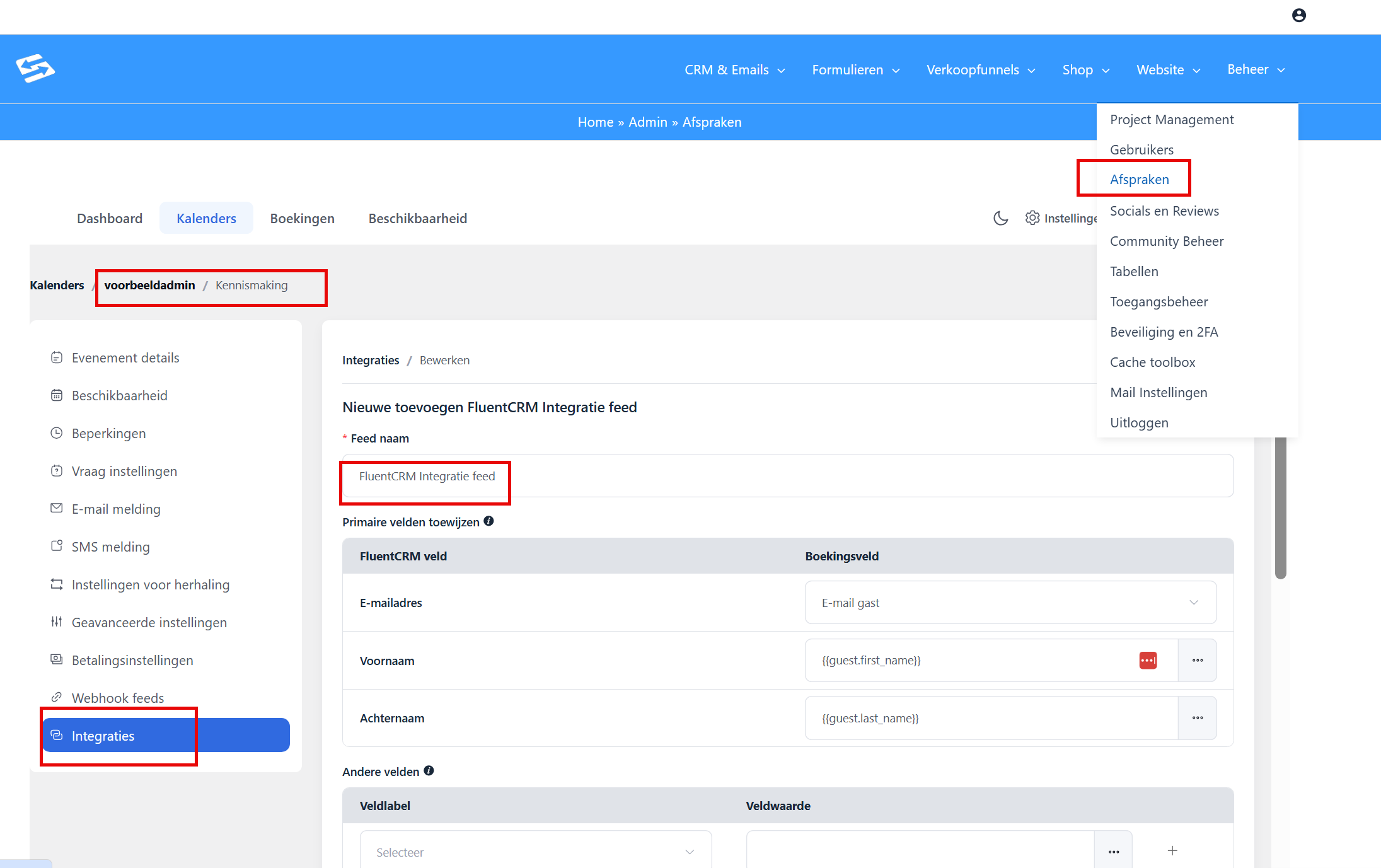
- Go to Manage → Appointments and open the calendar with the event concerned.
- Click Edit on the event.
- Go to Integrations in the left-hand menu.
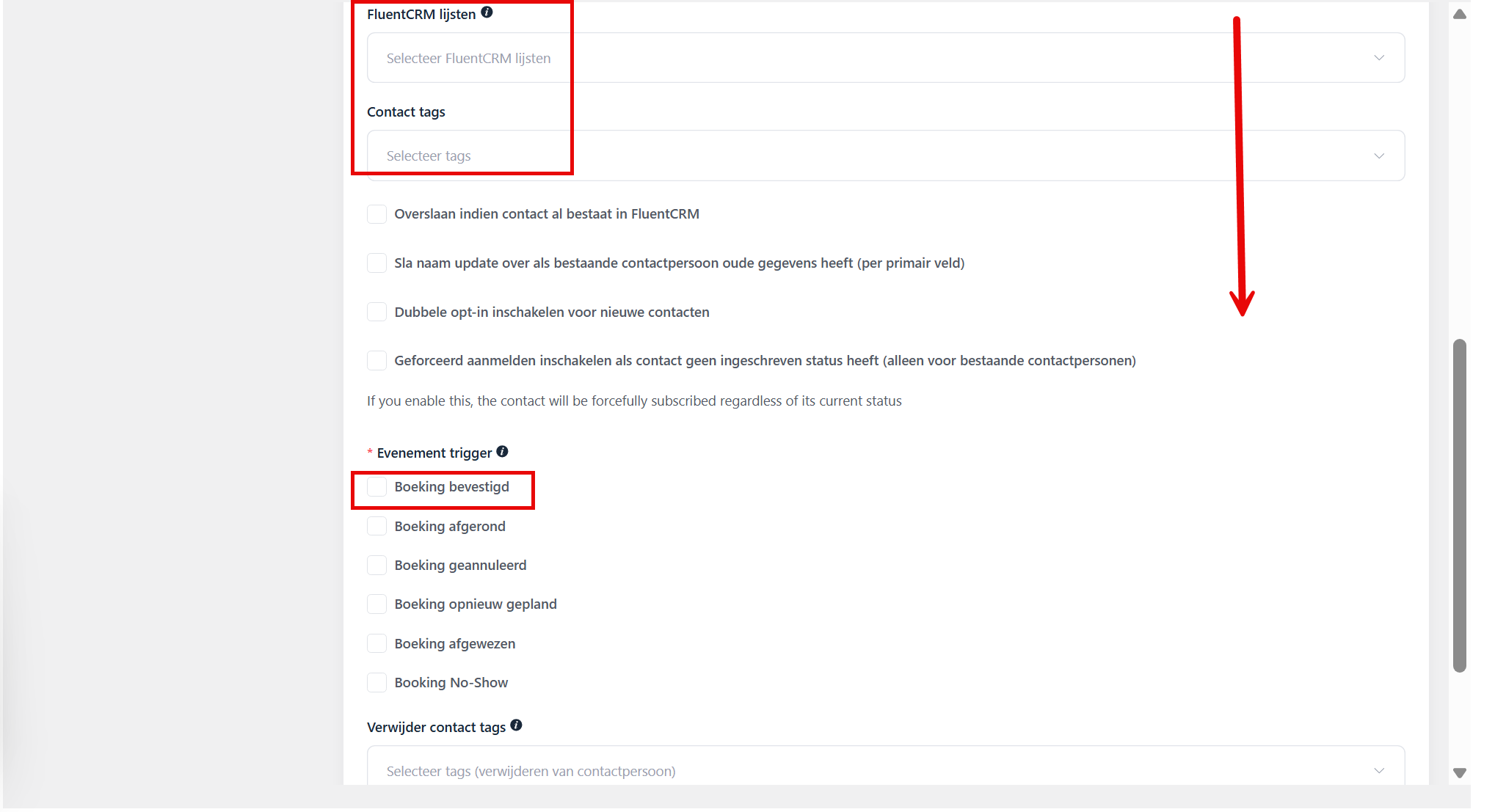
- Set up the CRM connection: choose whether you want to create a new contact or update an existing contact, and if you wish set a list or tag that is assigned automatically.
- In the integration settings you can determine which action triggers the integration. So you can create several integrations with the CRM if you want: one for when the appointment is scheduled and one for when the appointment is cancelled, for example
- Save the settings.
From that moment on, a contact is created or updated in the CRM automatically on every confirmed booking.
Option 2: Setting up the connection through an automation #
You can also create an automation that starts on the basis of a booking. This gives you more options, such as sending a welcome email, assigning tags based on the event type, or starting an email sequence.
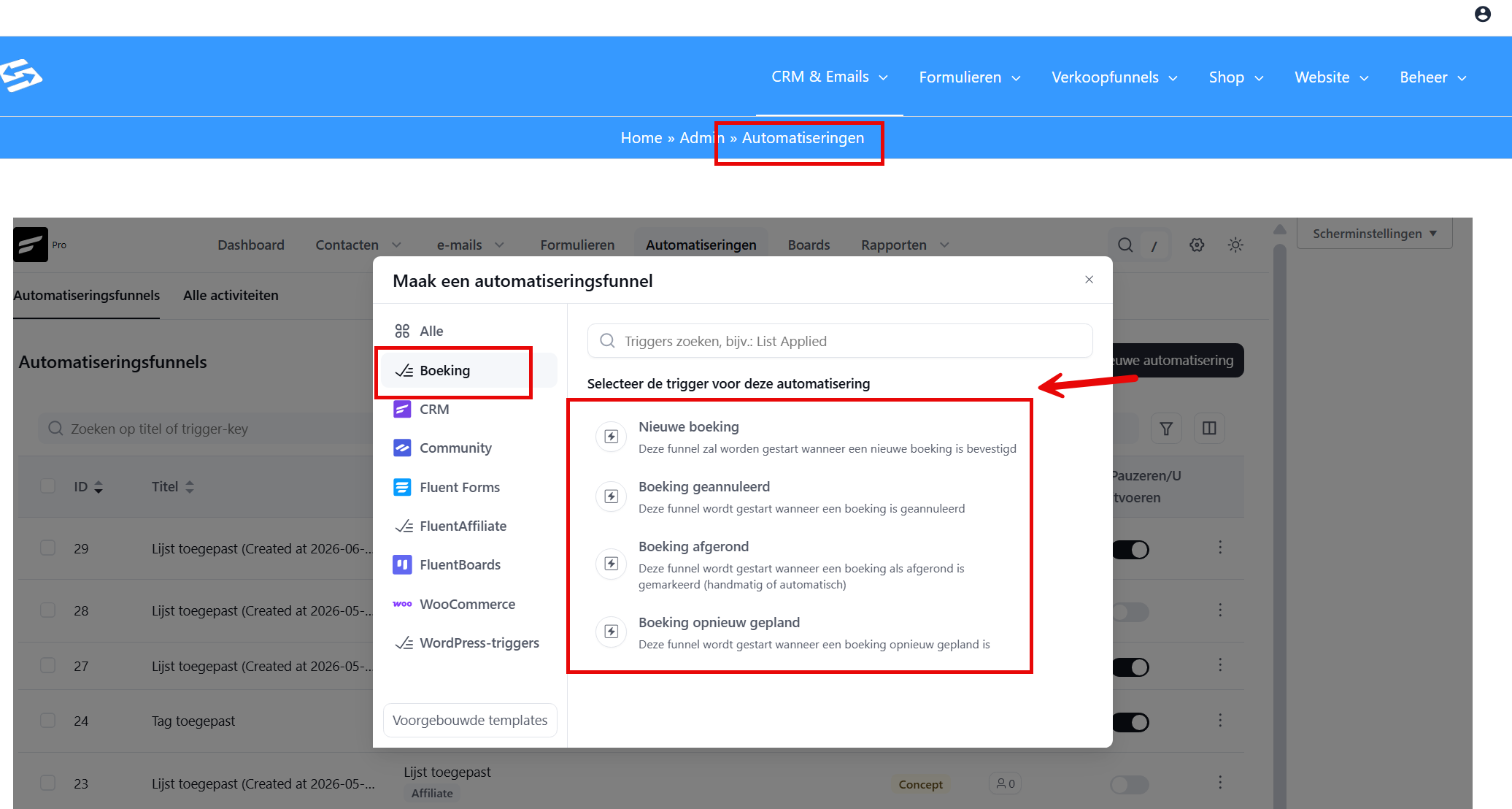
- Go to CRM & Emails → Automations and click New automation.
- Choose one of the following start triggers:
- New booking: the automation starts when a new booking has been confirmed.
- Booking cancelled: the automation starts when a booking has been cancelled.
- Booking completed: the automation starts when a booking has been marked as completed, manually or automatically.
- Booking rescheduled: the automation starts when a booking has been rescheduled.
After that, add the actions you want, such as adding a list or tag, creating a contact, or starting an email sequence.
Adding a contact manually #
If the connection was not yet set up at the time of a booking, you can add the contact manually. Go to CRM & Emails → Contacts and click Add contact. Fill in the details and save.
Frequently asked questions #
Why is a new person who books not in my CRM automatically? #
The Appointments module and the CRM are not connected to each other by default. You have to set up the integration yourself through the Integrations tab in the event settings, or through an automation with the trigger ‘New booking’.
What is the difference between the integration settings and an automation? #
The integration setting in the event only handles creating or updating a contact. An automation gives you more options, such as sending an email, assigning a tag or starting an email sequence on the basis of the booking.
Can I set something up for when a booking is cancelled or rescheduled as well? #
Yes. In the automation you can choose from four triggers: new booking, booking cancelled, booking completed and booking rescheduled. That way you can set a different action for each situation.


