Has someone asked which of their data you have recorded, or do they want you to change or delete that data? That is a GDPR request, and you are expected to respond within one month. In this article you can read how to export all the data of one person with a single button, what that file contains, and how to correct or delete data.
The GDPR access button is Autorespond’s own extension to the CRM (FluentCRM) and is included in your package as standard. Only administrators see the button. The button and the exported files currently have Dutch labels; below, the English meaning is given in brackets.
Access: exporting all the data of one person #
First check that the requester really is the person concerned. If the request comes from a different email address than the one you know, ask for confirmation from the known address.
Then open the contact in the CRM:
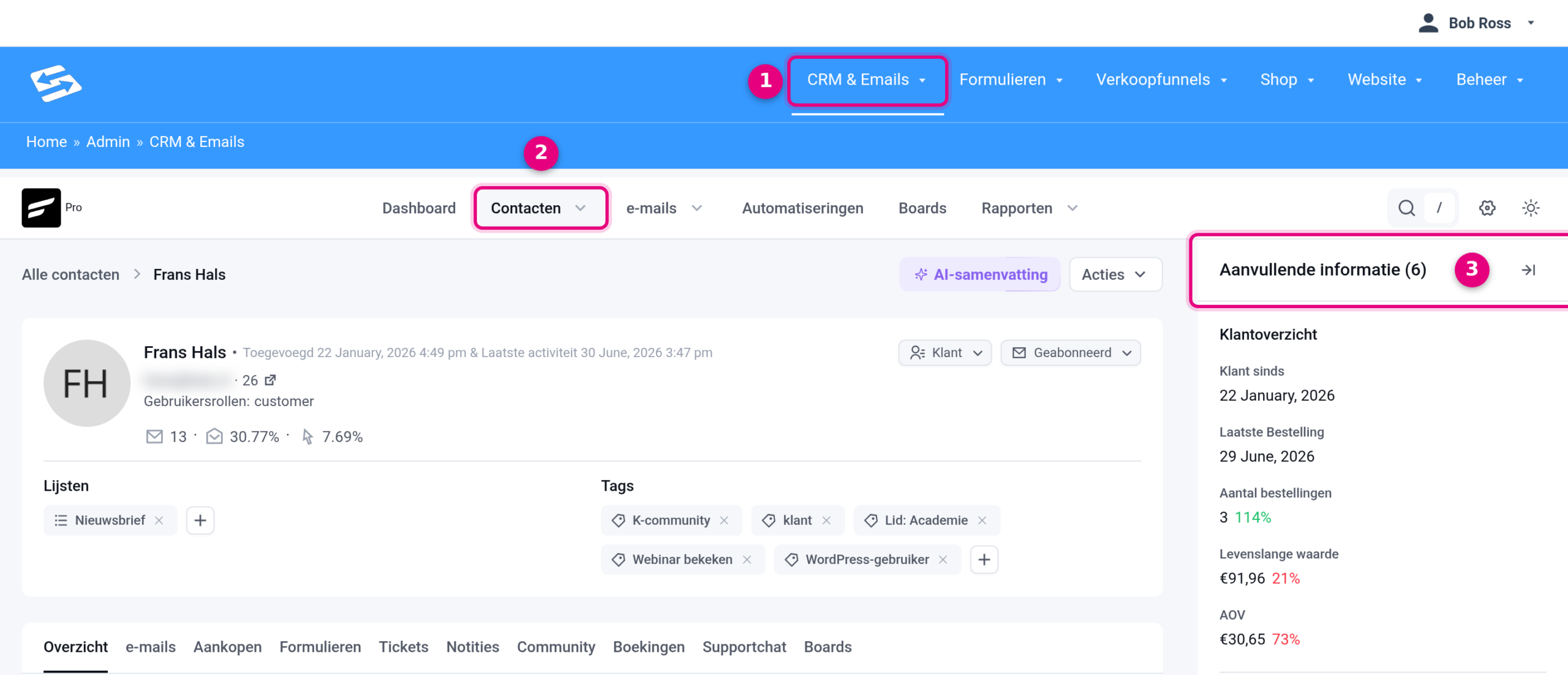
- In the menu, go to CRM & Emails.
- Click Contacts, look up the person and click their name. You land on the contact page.
- On the right is the Additional information column. Scroll down in that column to the AVG-inzage block (GDPR access).
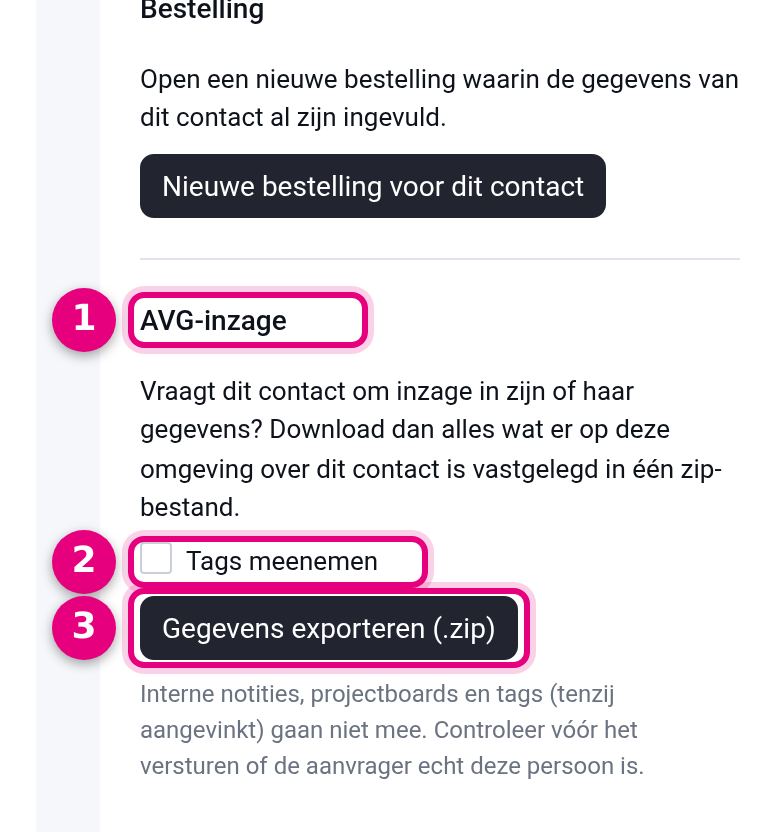
- AVG-inzage (GDPR access): the block is at the bottom of the column, below the other blocks.
- Tags meenemen (include tags): off by default. Tags are often internal labels, for example for your own segmentation. Only tick this if you want the tags to appear in the overview.
- Gegevens exporteren (.zip) (export data): click this and your browser immediately downloads one zip file with all the data of this contact.
Don’t see the block? Then you are logged in with an account without administrator rights. Only administrators can export data.
What is in the zip file? #
- overzicht.html (overview): a readable overview with a table of contents. This is the file you send to the requester; it opens in any browser.
- gegevens.json (data): the same data in a format another system can read. Send this along if someone wants their data transferred.
- The bijlagen folder (attachments): invoices and files the person uploaded themselves, for example through a form.
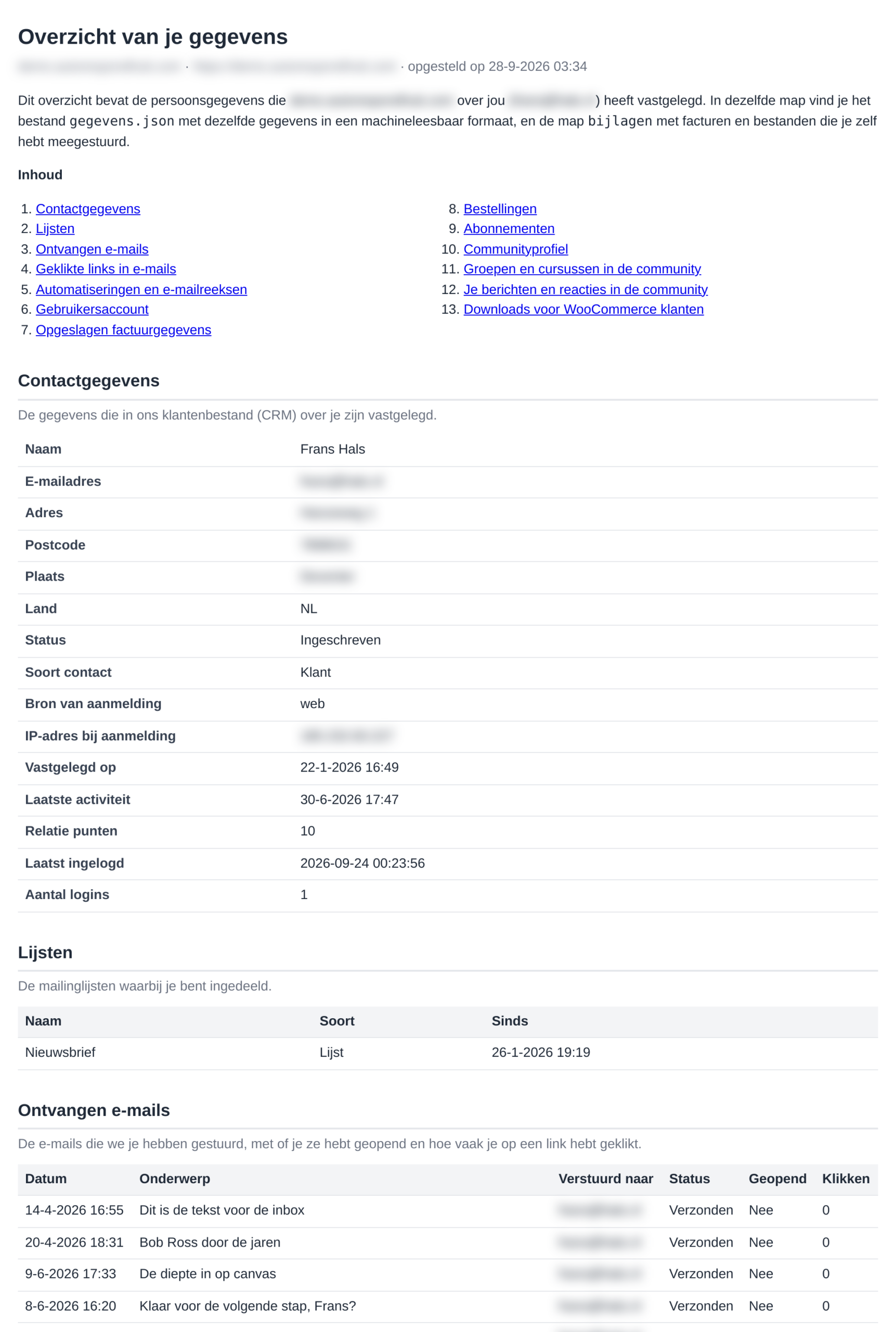
The overview contains the data from all the parts you use: contact details, lists, emails received and links clicked, automations and email sequences, the user account, orders, subscriptions, form submissions, appointments, support tickets, community, courses and affiliate data. Parts in which nothing has been recorded about the person are left out of the overview.
The following are deliberately not included, because they are your internal notes and not data the person supplied themselves:
- notes on the contact in the CRM;
- tasks and boards from project management;
- internal notes on orders, tickets and form submissions;
- tags, unless you tick the include tags box;
- the full text of emails sent: for each email you see the subject, the date and whether it was opened.
Read through the overview yourself before you send it, and only send it to the person’s own email address.
Showing that you have handled the request #
After every export the system automatically adds a note to the contact. It states when the data was exported and by whom. So you don’t need to keep track of this separately.
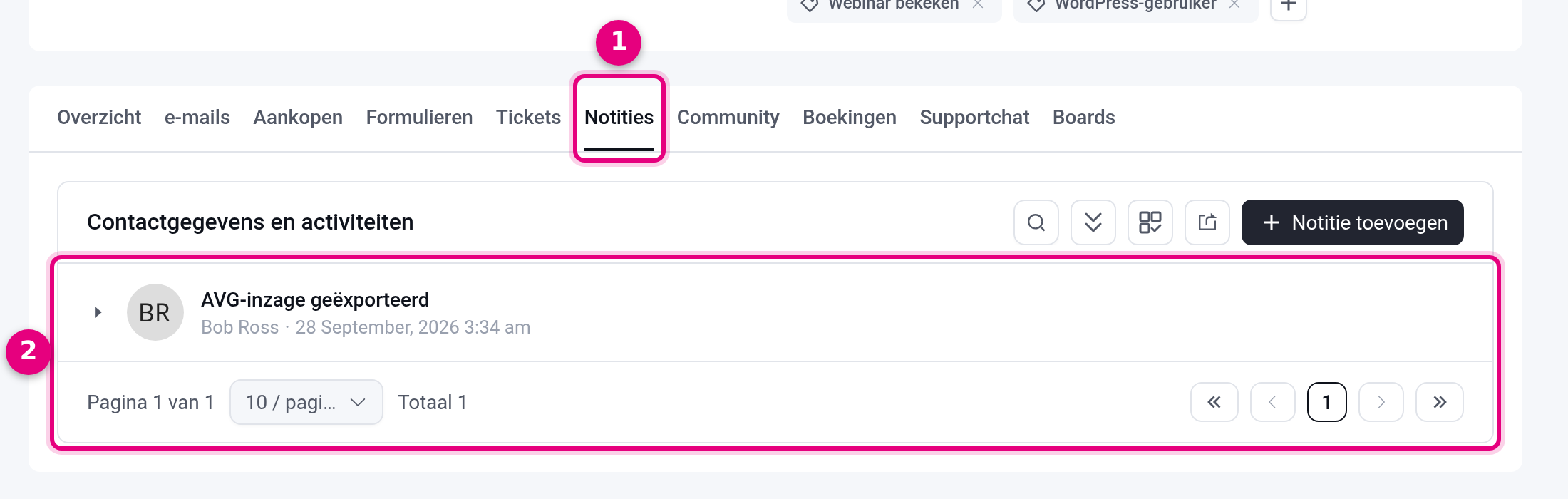
- On the contact page, open the Notes tab.
- The note AVG-inzage geëxporteerd (GDPR access exported) shows the date, the time and the name of the administrator. Click the arrow in front of it to read the full text.
Correction: changing data #
If the data is not correct, change it where it is stored:
- Name, address and phone number: on the contact page, Overview tab.
- Email address of a customer with orders: follow the steps in Changing a customer’s email address while keeping account, orders and subscriptions, so the orders stay visible on the contact.
- Details on an order: through Shop → Orders. You don’t change an invoice that has already been sent; for that you create a credit note and a new invoice.
Deletion: what is and isn’t possible #
If someone just doesn’t want to receive email any more, unsubscribing is enough: set the contact’s status to Unsubscribed. Nothing is sent to them any more and the history is kept. Only delete if someone explicitly asks for it, because it cannot be undone.
- First make an export with the Gegevens exporteren (.zip) button and keep it with your own records of the request.
- Open the contact page and click Actions at the top right.
- Choose Delete contact and confirm.
This removes the contact from the CRM, along with their lists, tags and email history. Orders and invoices remain: they are part of your accounts and a legal retention period applies to them. You can tell the requester exactly that.
Does the person have a user account with orders or an active subscription, and does that account need to go as well? Then forward the request to support. We handle it without damaging your orders, invoices or subscriptions.
Frequently asked questions #
Can my assistant make the export? #
Only if they have an administrator account. Users with a restricted role don’t see the GDPR access block.
The person ordered with two email addresses. Is everything included? #
The export searches on the contact, on the linked user account and on all the email addresses known for them, including the billing address. If the person is in your CRM as a separate contact with a second address, make an export of that contact too.
Does the zip file stay on the server anywhere? #
No. The file is created at the moment you click, sent to your browser and deleted straight afterwards. Keep your own download in a safe place and delete it once the request has been handled.


