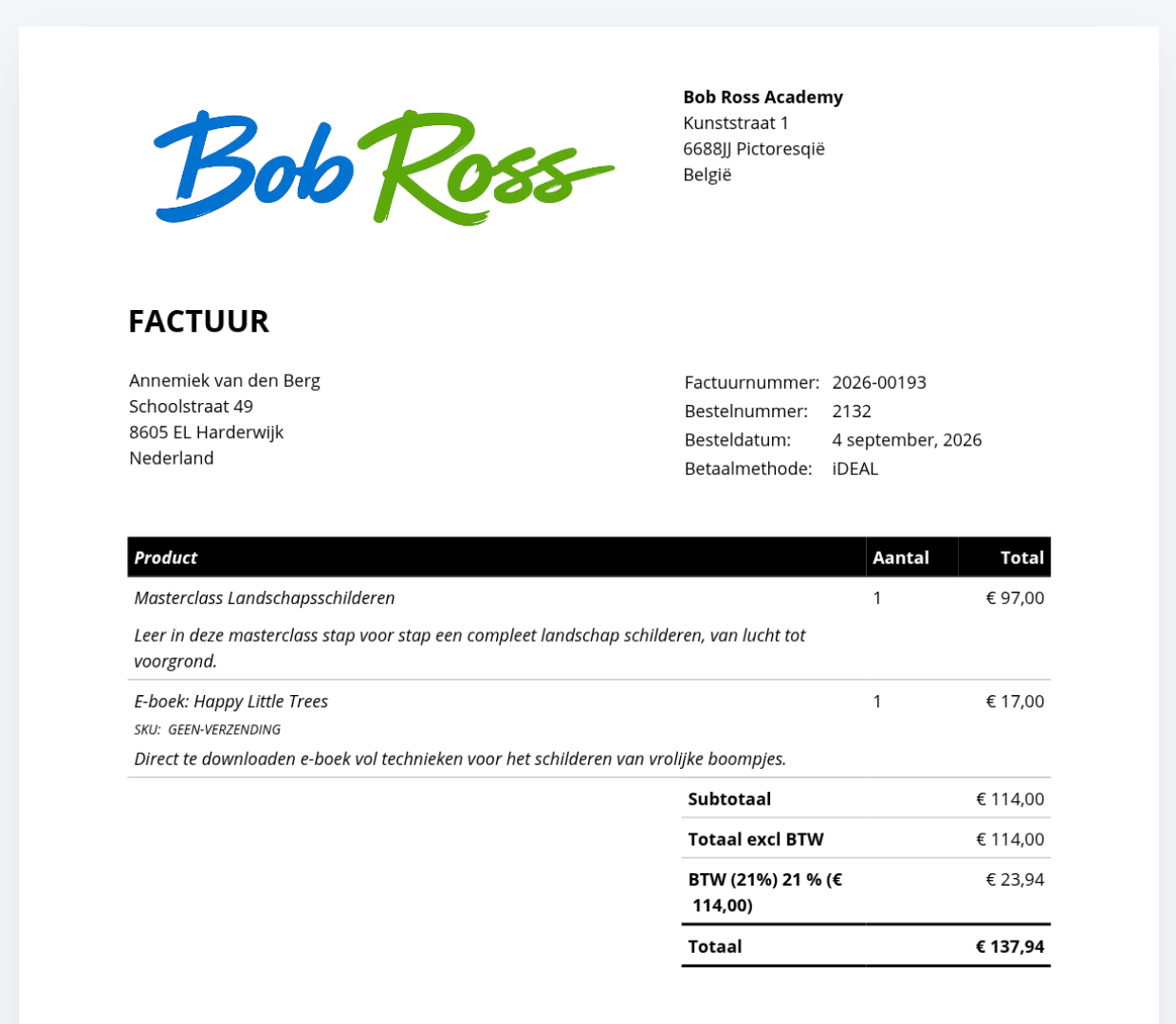
When you open a product, the product overview or a sample invoice, you sometimes see the line “SKU: GEEN-VERZENDING” on trainings, services and online products. That is not an error and you do not have to do anything about it. This article explains where that SKU comes from, what it is for, and how to remove it from the product overview and from the invoice if you would rather not see it.
The shop in Autorespond is based on WooCommerce and invoice management on WP Overnight PDF Invoices & Packing Slips Pro, both included in your package. Read the WP Overnight documentation about the Customizer
1. Where does the SKU GEEN-VERZENDING come from? #
A SKU (stock keeping unit) is a code that integrations and warehouse systems use to recognise a product. Products that do not need to be shipped, such as a training, a service or a download, sit in your shop as a virtual product. Your environment automatically gives every virtual product without its own SKU the fixed marker GEEN-VERZENDING, which is Dutch for “no shipping”. This happens when the product is saved, including for products that were moved over from the old Autorespond.
The purpose is practical: integrations with a shipping or stock system (LyraWMS, for example) can use a single rule to exclude all products that do not need to be sent. For your customers and your administration the marker has no effect at all:
- Ordering, paying and the order confirmation to your customer do not change because of it. No SKU is shown in the order emails to customers; only the administrator email for a new order shows it.
- Products that are shipped (physical products) do not get this marker.
- If you enter a SKU yourself on a virtual product, that own number simply stays in place.
You see the marker in two places: as the SKU column in the product overview and, because the invoice shows the SKU under the product name by default, on the invoice and the credit note. You can switch both off in a few clicks.
2. Hiding the SKU column in the product overview #
Go to Shop → Products. The overview shows a SKU column by default; you switch it off per user through the screen options.
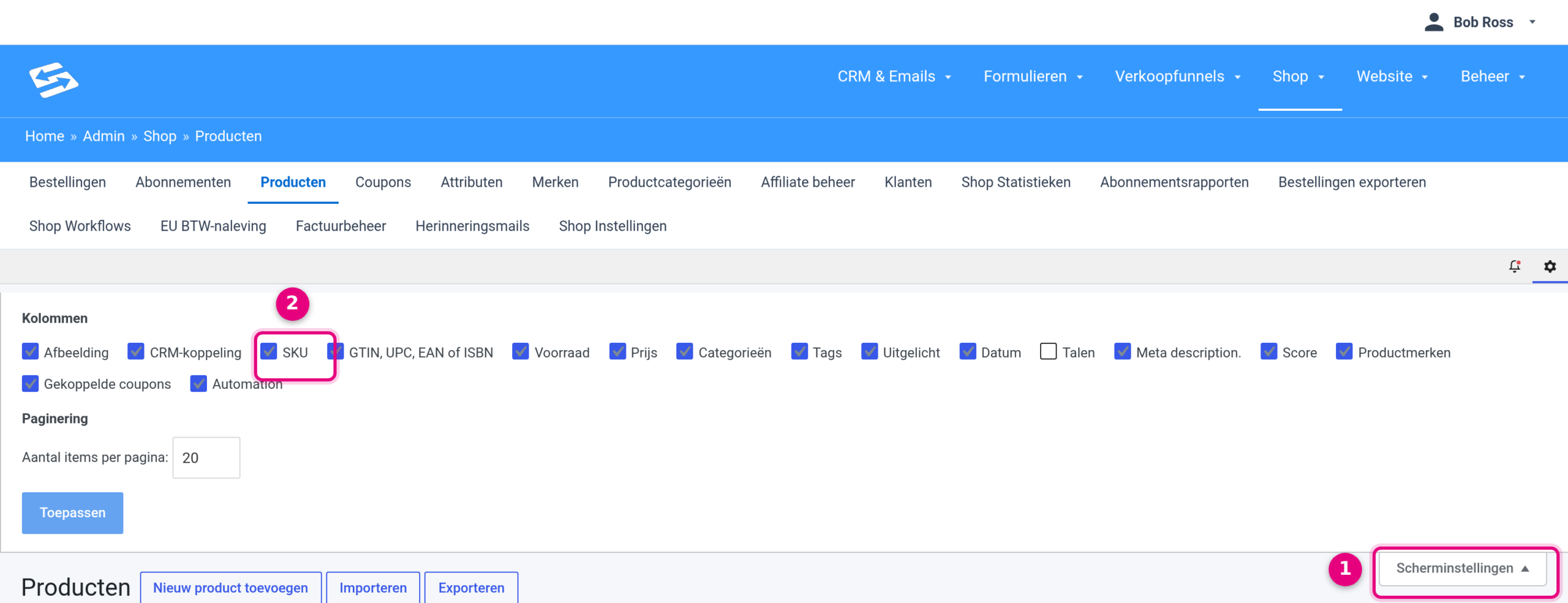
- Click Screen options in the top right. A panel opens with all the columns of the overview.
- Untick the SKU column and click Apply. The column disappears from the overview straight away.
This setting applies only to your own administrator account. If colleagues work in the same environment, they do this once themselves too.
3. Removing the SKU from the invoice and credit note #
By default the invoice shows the SKU under every product name. You control that per document in the Customizer of invoice management. Go to Shop → Invoice management and click the Customizer tab.
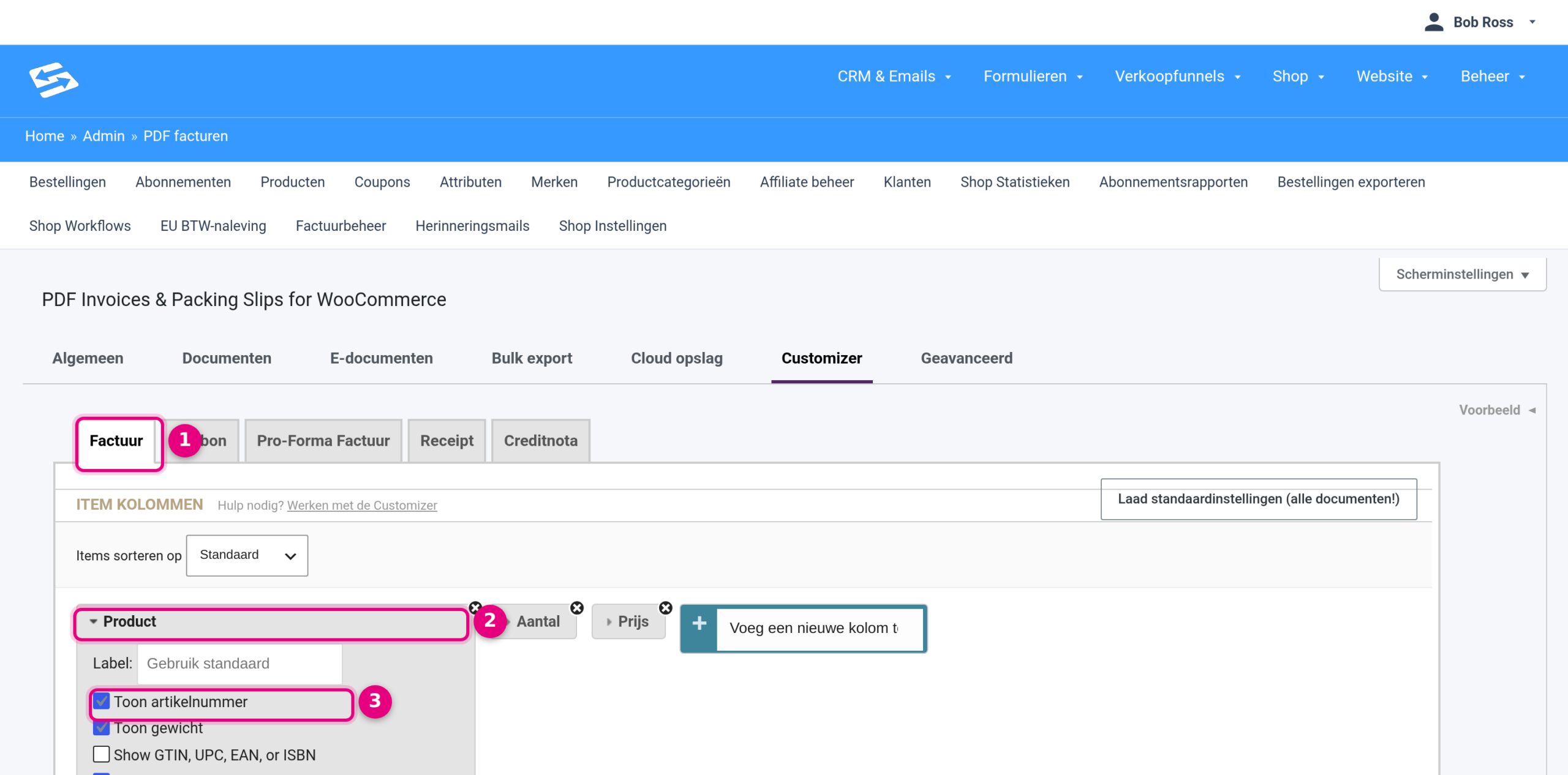
- Choose the document Invoice at the top.
- Under Item columns, click the Product column; the settings of that column open up.
- Untick Show SKU.
- Click Credit note at the top and repeat steps 2 and 3, so that the SKU disappears from the credit note as well. If you use packing slips or pro forma invoices, do the same on those tabs.
- Click Save changes at the bottom. The Preview button on the right shows you the result on the most recent order straight away.
Existing invoices that you have already sent do not change; the setting applies to documents you create or regenerate from now on.
Good to know #
- Removing the marker from the product SKU field is pointless: the next time you save a virtual product without its own SKU, it is filled in again.
- Do you want to use your own SKUs, for example for your bookkeeping? Then enter them per product; your own SKUs have to be unique, whereas the marker GEEN-VERZENDING may sit on several products at once.
- If you sell books through Managementboek or use a warehouse integration, leave the marker in place: those integrations use it to determine which products are shipped and which are not.
Related articles #
- Adjusting the layout of invoices and credit notes through the PDF customizer
- Your own text or separate terms on the invoice per product
- Connecting LyraWMS for automatic stock management
- Connecting your webshop to Managementboek
Frequently asked questions #
Do my customers see the SKU GEEN-VERZENDING? #
Not in the order confirmation or other customer emails. Only on the invoice and the credit note, for as long as Show SKU is ticked on the Product column in the Customizer. Untick that box and it disappears.
Can I switch the marker off completely for my environment? #
The marker exists to make shipping and stock integrations work properly and has no other effect. If you still want it gone entirely, contact support.
Why is the marker in lower case (geen-verzending) on some products? #
On products that were moved over from the old Autorespond the marker can be in lower case. That makes no difference to how it works.


