Positioning order bumps in FunnelKit checkout pages #
When you design a sales funnel you may want to place the order bumps higher up in the checkout flow, for example before the order summary. This article explains what is possible and where the limits are.
Sales funnels in Autorespond are based on FunnelKit Pro, included in your package.
The standard FunnelKit checkout layout #
FunnelKit checkout pages have a fixed structure:
- Contact information (name, email, address)
- Order summary (products and total)
- Payment section (including order bumps)
You can set the order bumps themselves to appear at specific points within that structure.
Positioning order bumps in the checkout screen #
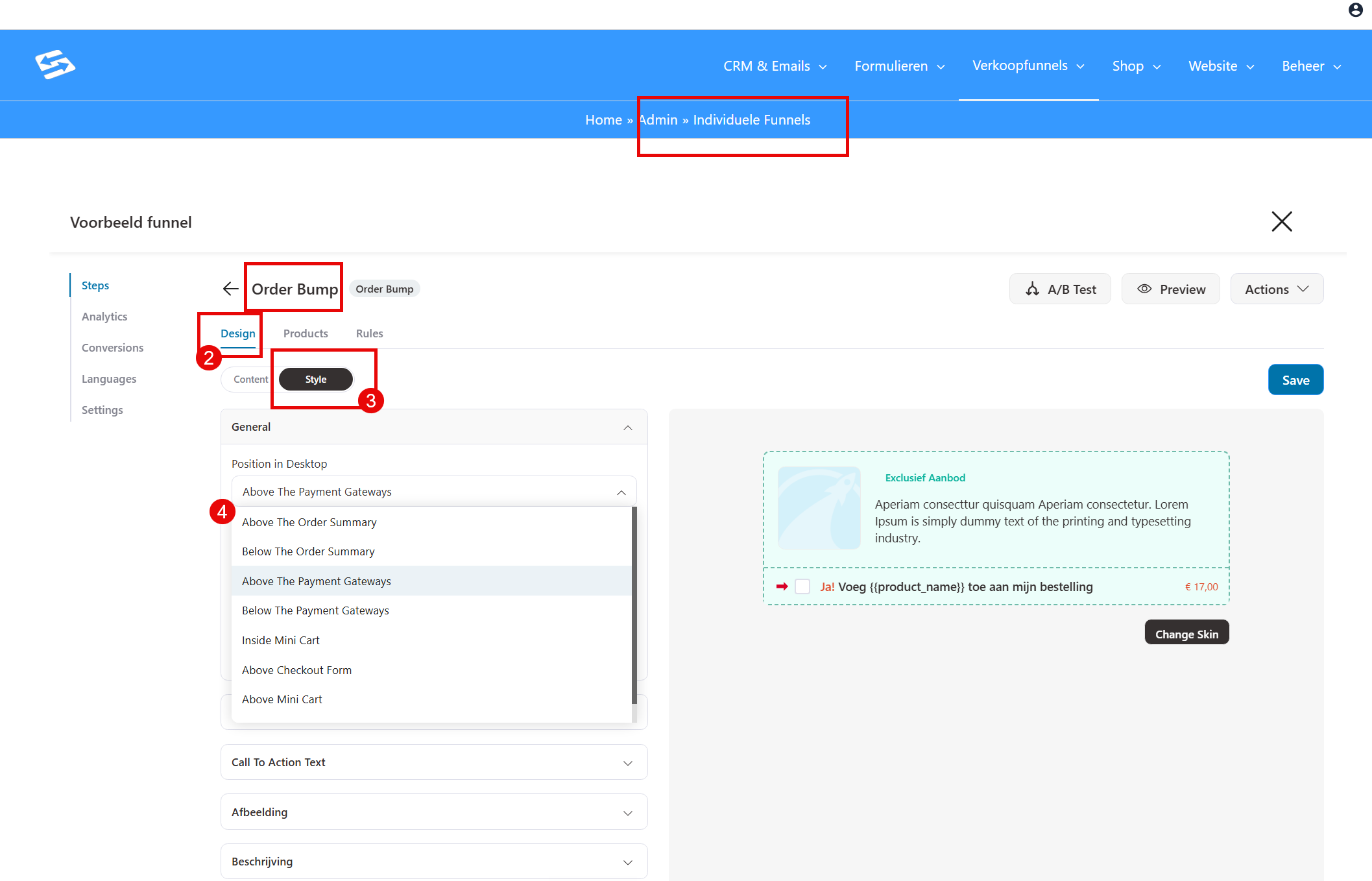
You can change the position of order bumps within the payment section:
- Go to Sales funnels → Funnels
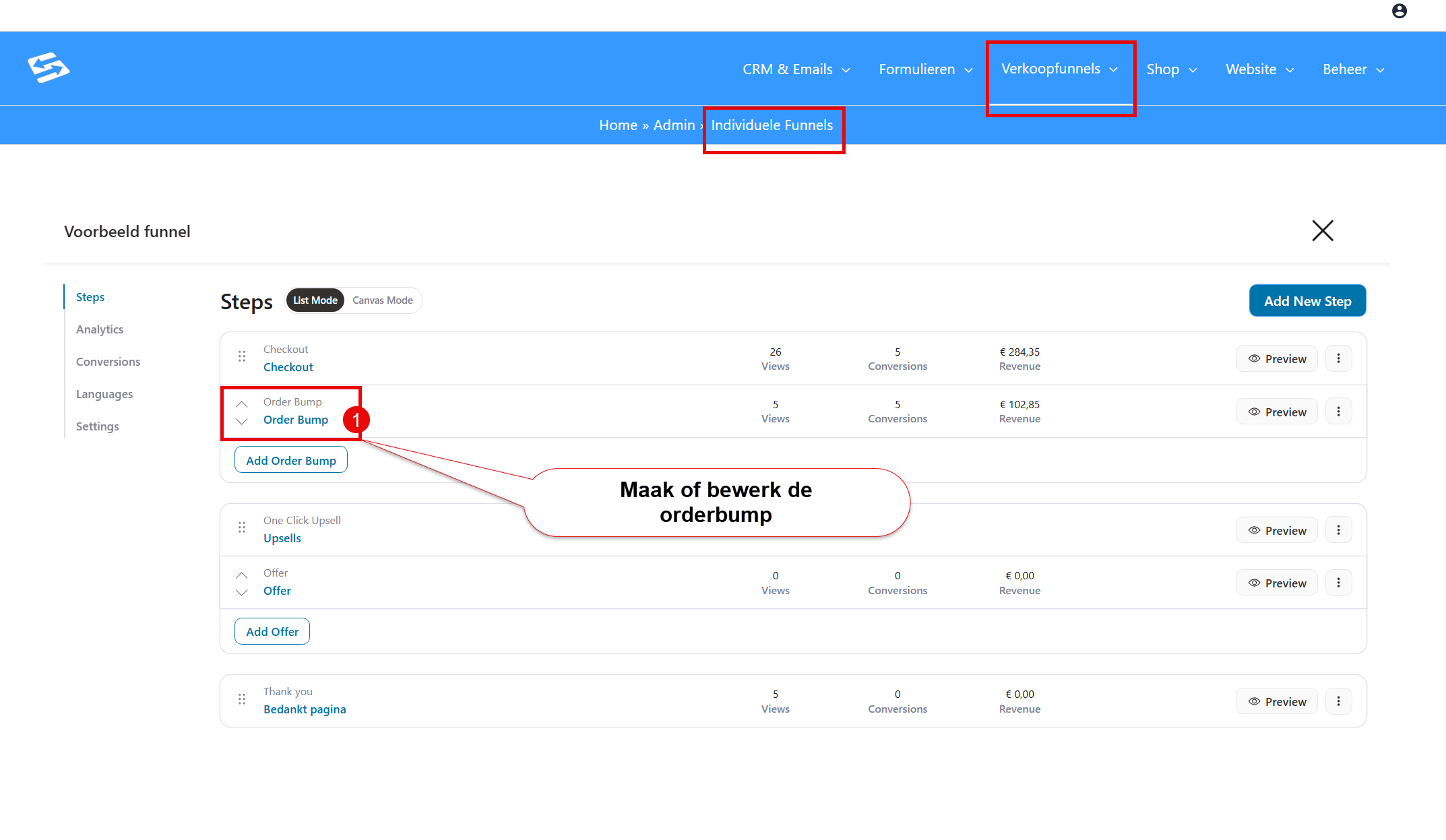
- Open your funnel, open the checkout and click the Order Bump on the checkout to open it
- In the editor, under the Design tab, click the ‘Style’ sub-tab, where you can select the various positions for the order bump:
- Save your changes
Changing the position on mobile #
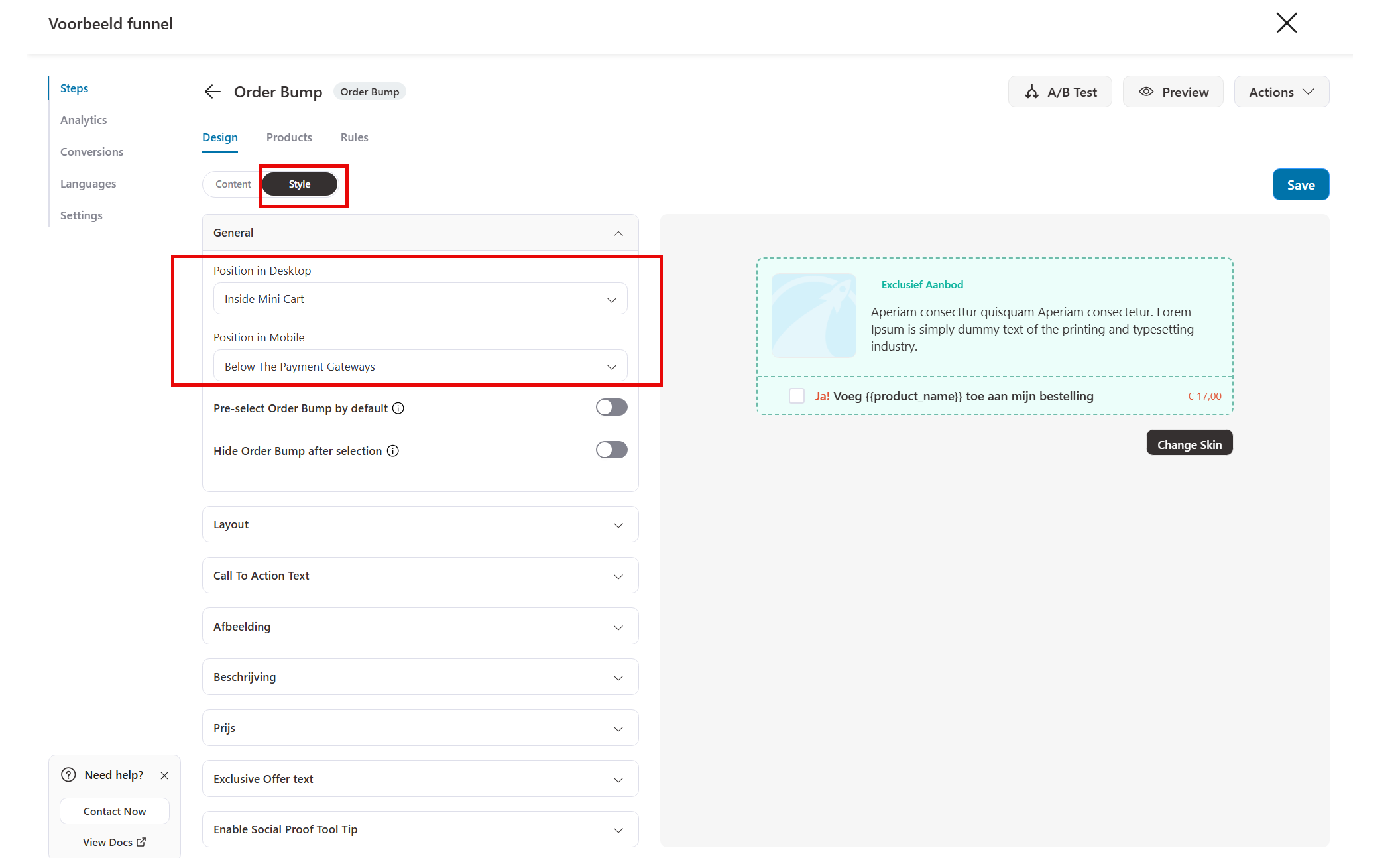
You can also give the order bump a different position for desktop and for mobile:
A short summary: #
Step 1 — Open the checkout #
- Open the funnel in question
- Click the Checkout step (Order Bump)
Step 2 — Edit the order bump #
- Open the Order Bumps tab or section
- Choose the order bump in question
- Open the settings of the bump
Step 3 — Change the position #
Depending on the FunnelKit checkout layout you use, you will see options such as:
- Before Payment Gateway
- After Payment Gateway
- Before Order Summary
- After Order Summary
Select the position you want there.
Check your change in the checkout #
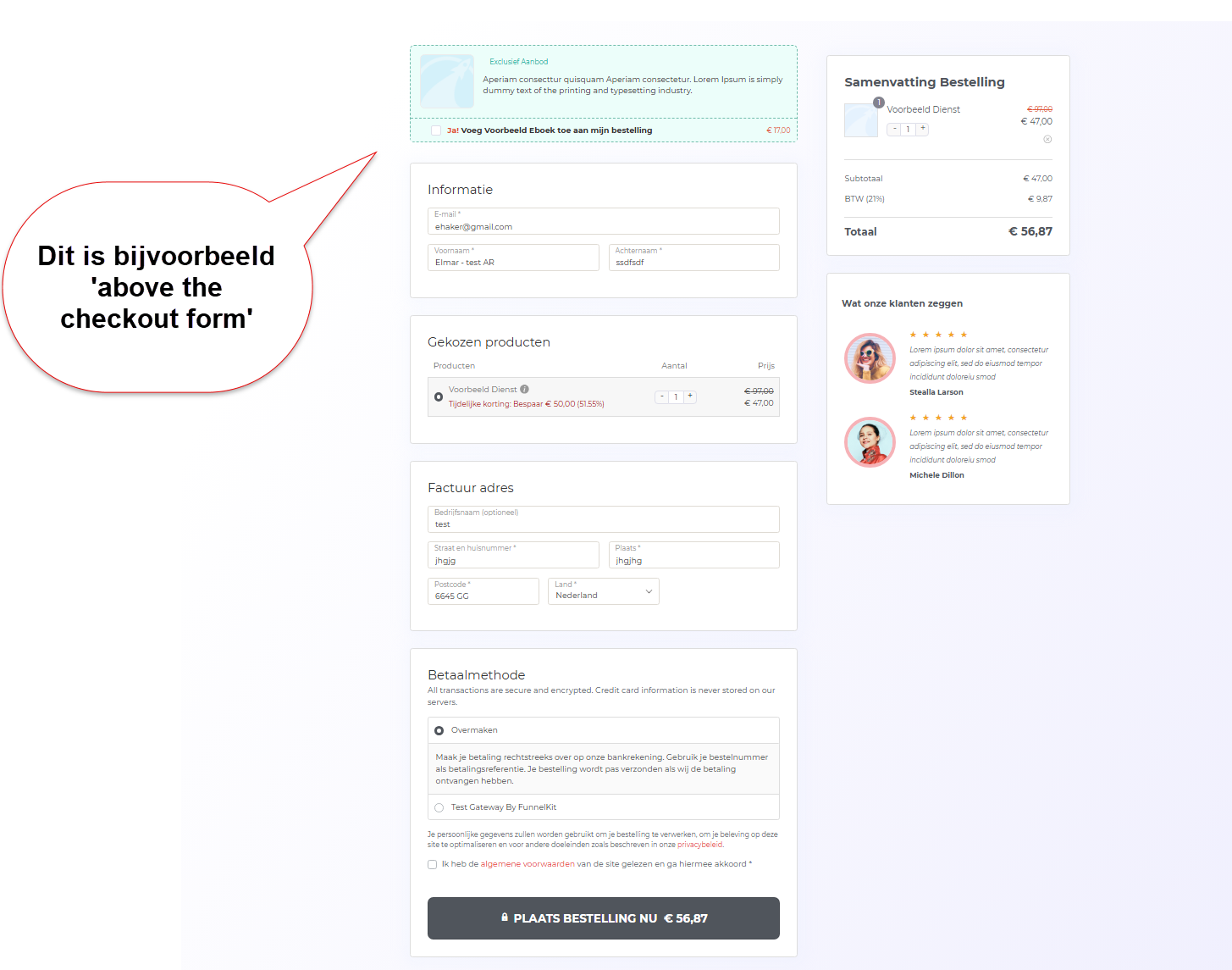
After changing the position of the order bump you can view the result straight away:
An alternative to using an order bump #
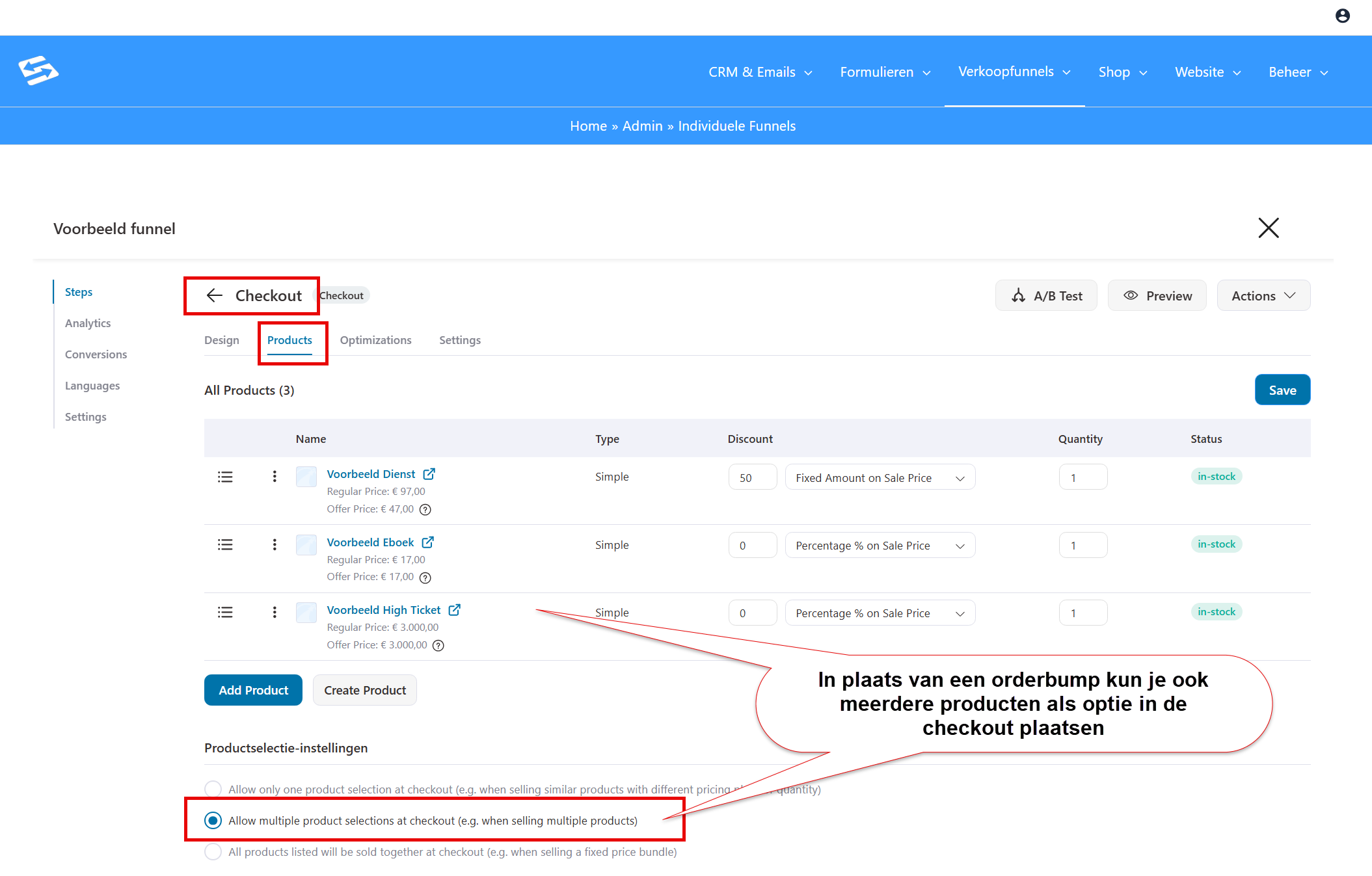
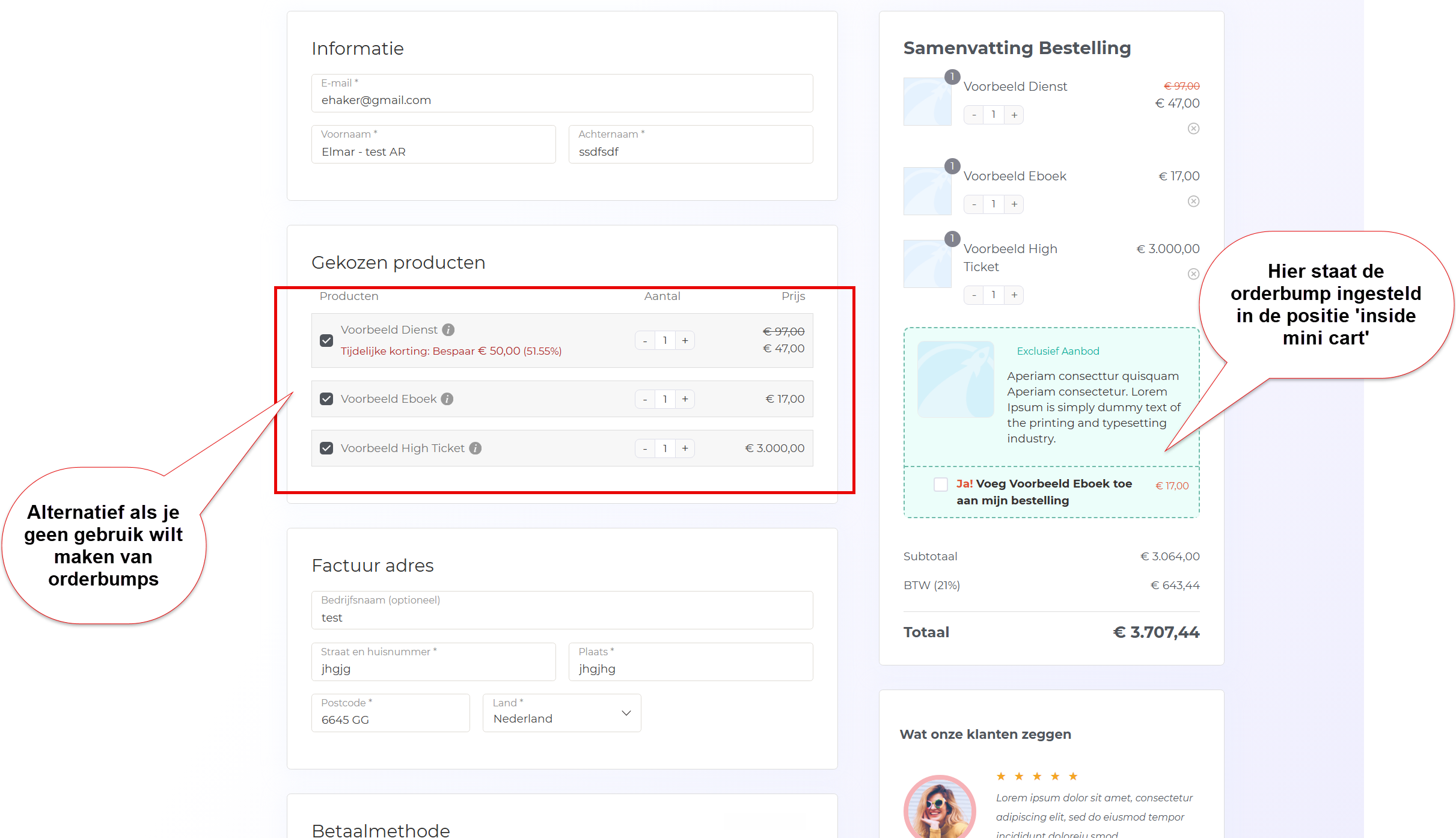
Instead of using order bumps you can also set up several products in a single sales funnel and let the customer choose, or offer upsells.
- Separate product page: offer the extra products on a separate page before the checkout
- Upsell page: use an upsell page after payment for additional offers
Keeping the order summary visible #
On mobile devices the order summary can be less prominent. Make sure customers can always see what they are ordering by testing the checkout layout at different screen sizes.
Frequently asked questions #
Can I change the order of the checkout sections completely? #
Yes, you have a lot of flexibility in where you place the order bump. See the screenshots in this article
Are there alternatives to using an order bump? #
Yes, you can set up several products in the sales funnel for the customer to select. You can also use an upsell that is shown after payment
Can I show order bumps in a different place on mobile? #
Yes, you can place the order bumps in a different position for the mobile view than for the desktop view.


