If you let customers pay by bank transfer, you will want the payment instruction with your IBAN right on the invoice. With a bank transfer order the invoice is automatically attached to the “Order on-hold” email, so your customer has the payment details to hand immediately. In this article you set up a conditional text block for this that only appears for as long as payment is still outstanding.
Invoice management in Autorespond is based on PDF Invoices & Packing Slips for WooCommerce, included in your package. Read the PDF Invoices & Packing Slips documentation
Step 1: open the Customizer and add a block #
Go to Shop → Invoice management and click the Customizer tab. Choose the document tab Invoice at the top and scroll to the Custom blocks section.
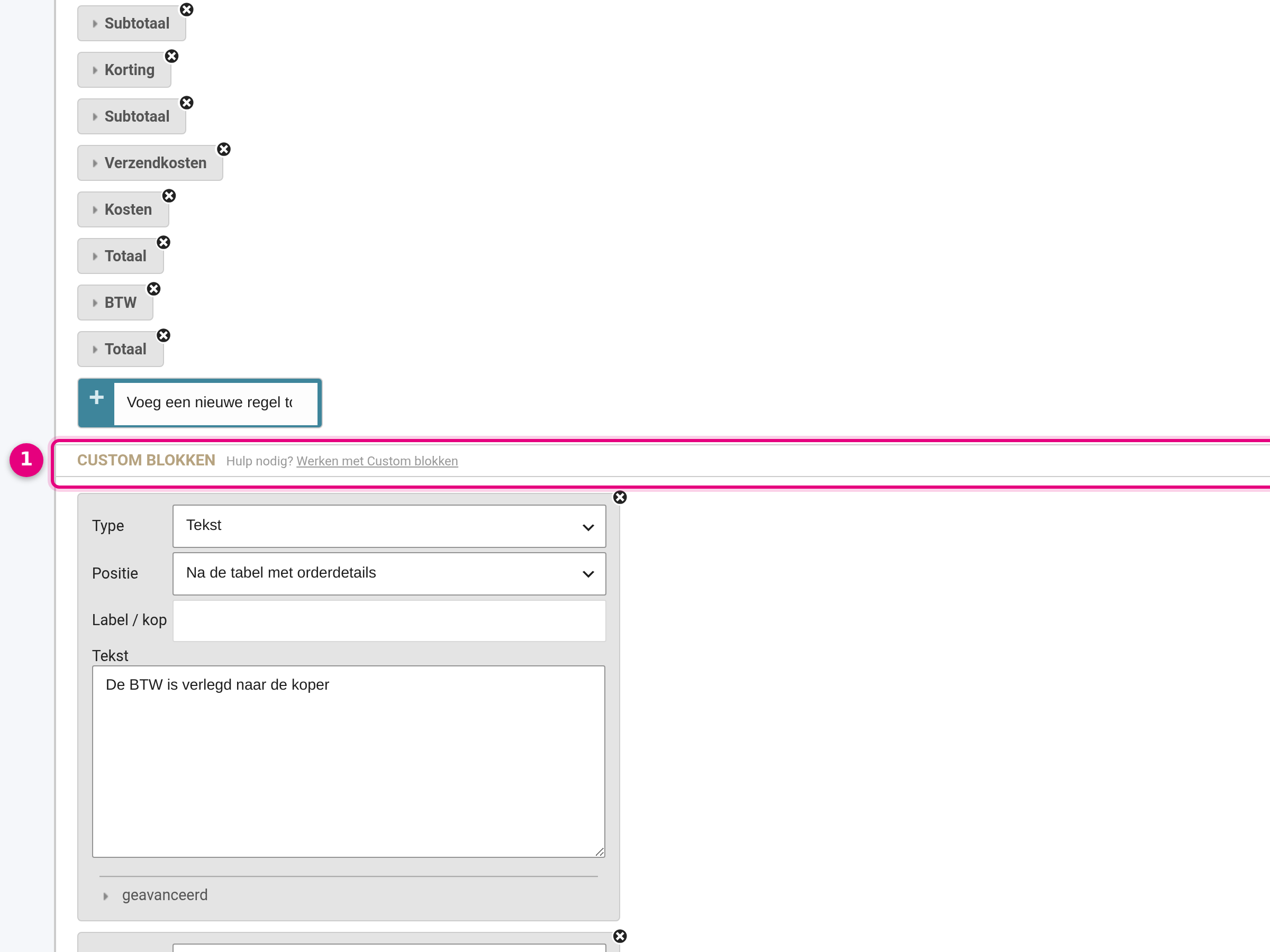
- The Custom blocks section: this is where all your own text blocks for the invoice are listed. Below the last block you will find the Add block button, which creates a new, empty block.
Step 2: set up the text block with the payment instruction #
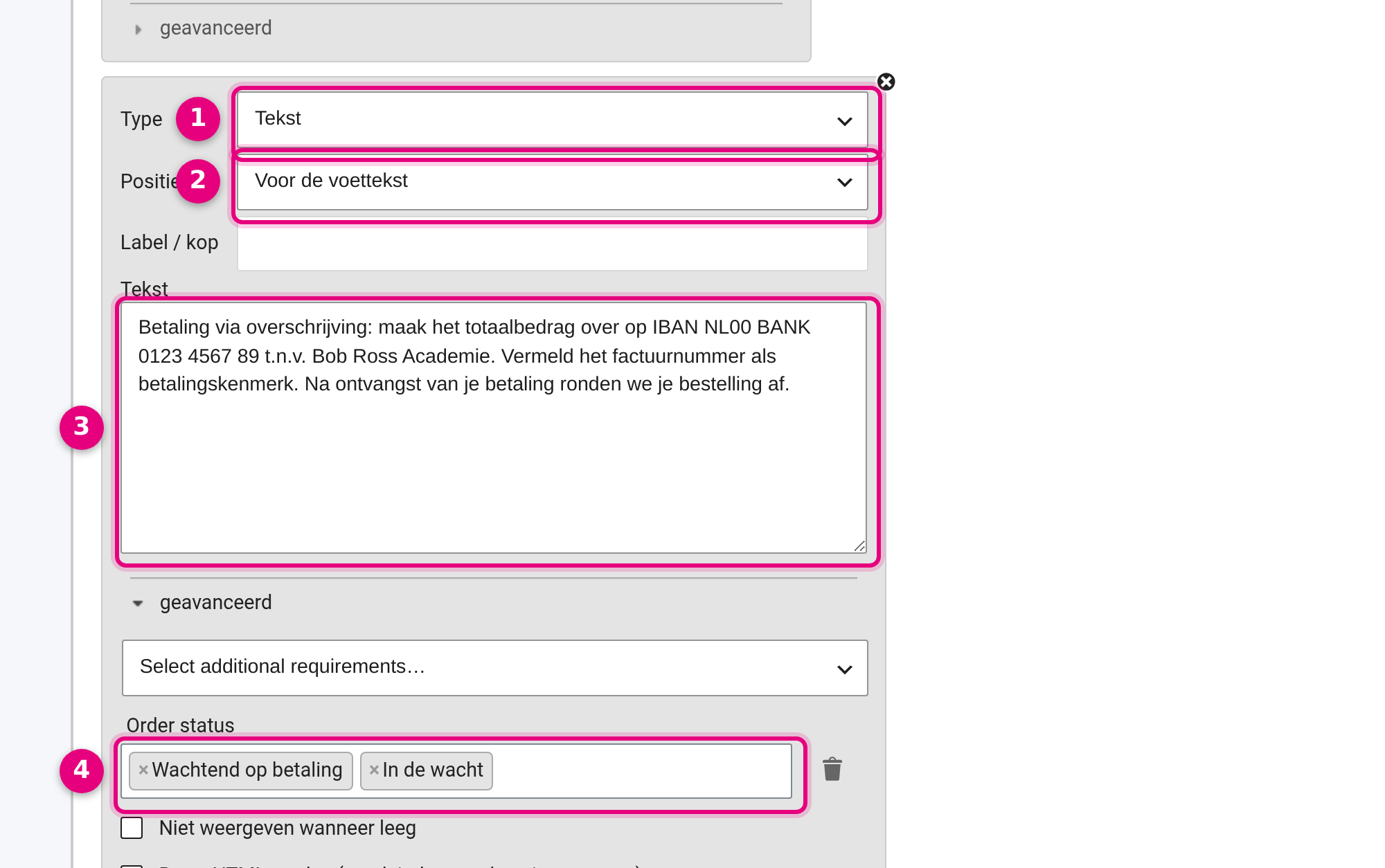
- Type: choose Text.
- Position: choose where the text goes on the invoice, for example “Before the footer” (at the bottom of the invoice) or “After the order details table” (directly below the totals).
- Text: type your payment instruction here, for example: “Payment by bank transfer: please transfer the total amount to IBAN NL00 BANK 0123 4567 89 in the name of [your company name]. State the invoice number as the payment reference.”
- Open advanced and choose the status On hold at Order status. You may also select Pending payment; the block then covers unfinished online payments as well.
Click Save changes at the bottom of the page.
Please note: bank transfer orders are On hold, not Pending payment #
The name “Pending payment” sounds logical for a bank transfer, but that is not quite how it works. An order placed by bank transfer immediately gets the status On hold in the shop; Pending payment is the status of an online payment (such as iDEAL) that has not been finished. So if you set the condition of this block to Pending payment only, the payment instruction will never appear on bank transfer invoices. Always choose On hold (as well).
If you want to narrow it down further, you can use the “Select additional requirements” dropdown to add the Payment method condition and choose Bank transfer there. The text then appears exclusively on invoices for bank transfer orders.
The result on the invoice #
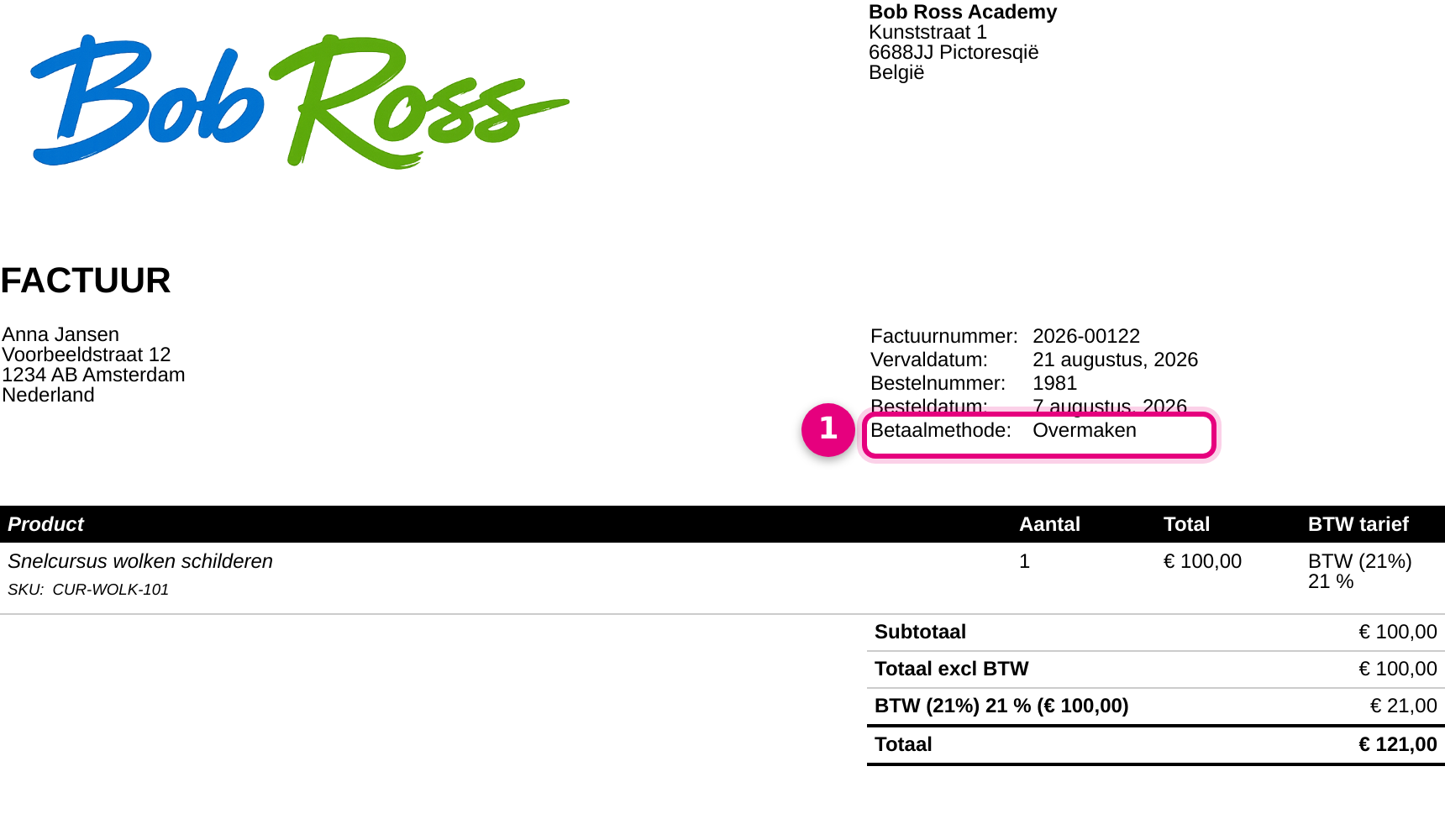
- At Payment method you see Bank transfer. On invoices for bank transfer orders that are On hold, the platform also shows a due date automatically (14 days after the order date by default).
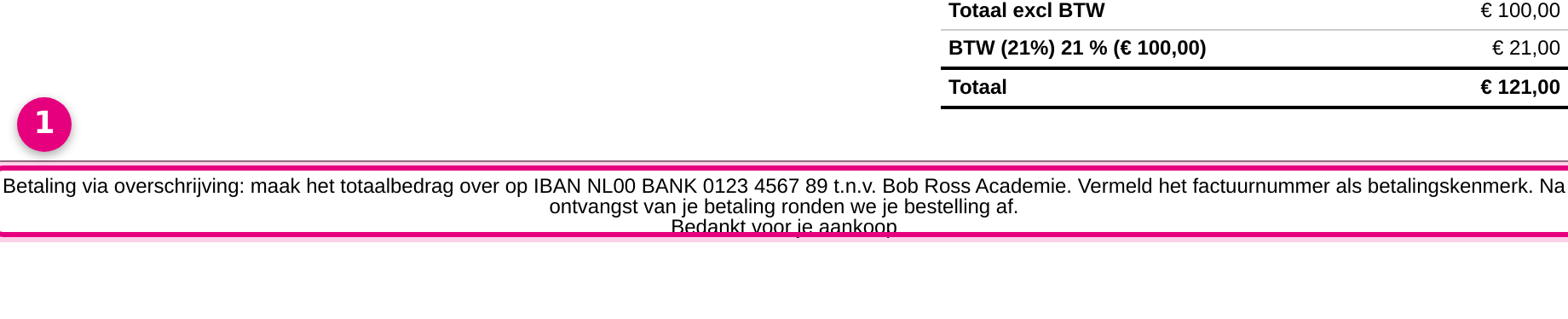
- The payment instruction from your text block, here in the position “Before the footer”.
Good to know #
- The block looks at the current status of the order. If you download the invoice again after setting the order to paid, the payment instruction is no longer on it. That is exactly the intention: the instruction only belongs with an outstanding payment.
- Test the result by placing a test order with Bank transfer yourself and opening the invoice through Shop → Orders → the order → PDF document details, or through the attachment of the on-hold email.
- What each order status means exactly and which emails belong to it is explained in The order statuses of your shop explained.


