Setting up admin notifications for forms #
Forms in Autorespond are based on FluentForms Pro, included in your package. Read the English documentation
Admin notifications make sure you automatically receive an email as soon as someone has filled in a form. This prevents you from overlooking submissions and helps you respond quickly to new sign-ups, contact requests or orders.
The notification is sent to an email address you specify and contains all the data entered in the form. You can set up several notification recipients and adjust the content entirely to your needs.
How to set up admin notifications #
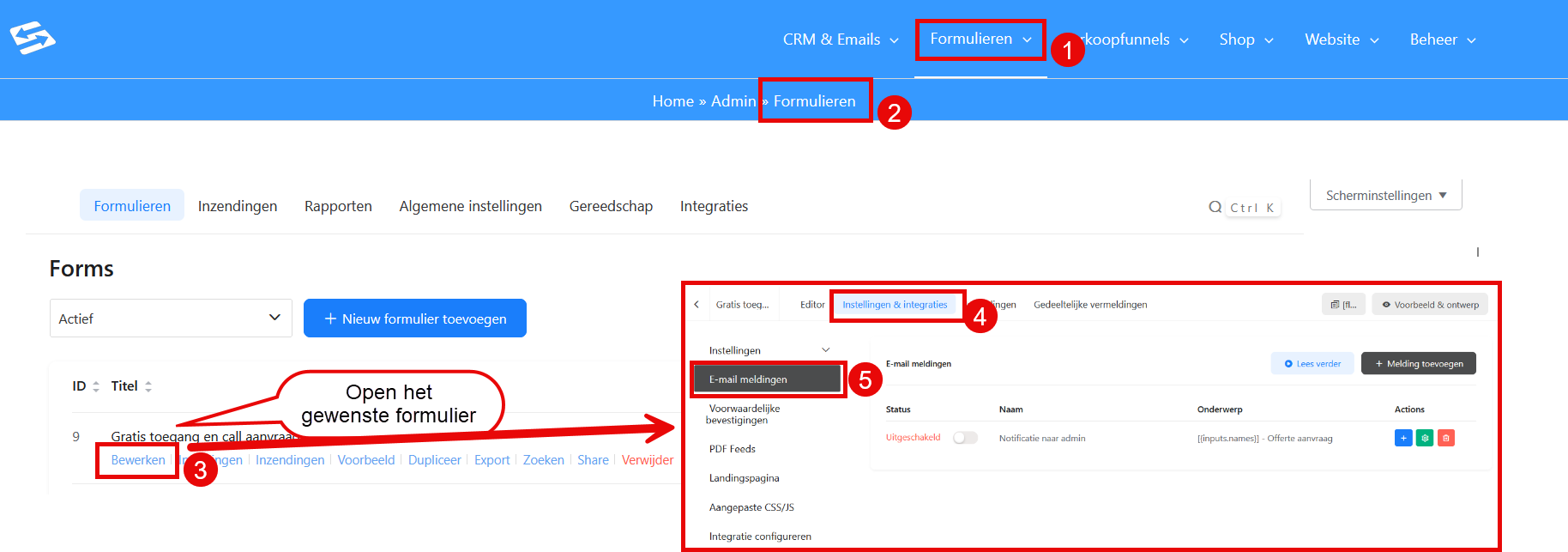
In your Autorespond administration go to Forms (1) → Forms (2) and open the form you want to set up notifications for (3). Click the ‘Settings & Integrations’ tab at the top of the form editor (4).
In the left-hand overview you see ‘Email notifications’ (5). Here you can create new notifications or edit existing ones. By default one admin notification is already created for every new form.
- Click ‘Add notification’ to create a new notification
- Give the notification a recognisable name such as ‘Admin notification contact’ or ‘Alert new sign-up’
- Under ‘Send to’, enter the email address the notification should be sent to
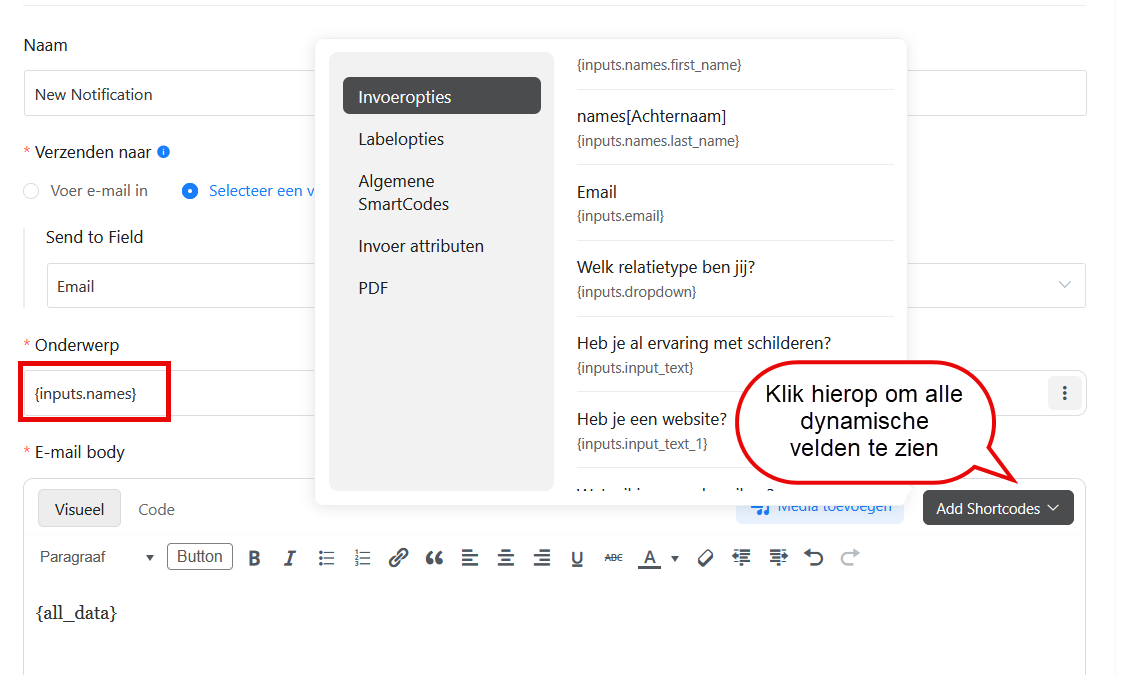
- Adjust the subject: use {inputs.names} to add the name of the person filling in the form dynamically
- Write the email content with the information and formatting you want
- Save the notification
Setting up several recipients #
You can enter several email addresses by separating them with commas. For example: [email protected], [email protected], [email protected]
You can also set up different recipients for different types of forms. A contact form can go to the general info address, while a technical support question is sent straight to the IT department.
Using dynamic content in notifications #
You can use dynamic fields in both the subject and the content of the notification. These are filled automatically with the data from the form:
- {inputs.fieldname}: shows the value of a specific form field
- {submission.id}: unique ID of the submission
- {submission.created_at}: date and time of the submission
- {wp.admin_email}: main administrator email address of WordPress
- {wp.site_title}: name of your website
- {all_data}: all the data entered in the form
For example, use as a subject: “New sign-up from {inputs.name.firstname} {inputs.name.lastname}” to see at a glance who filled in the form.
Setting up conditional notifications #
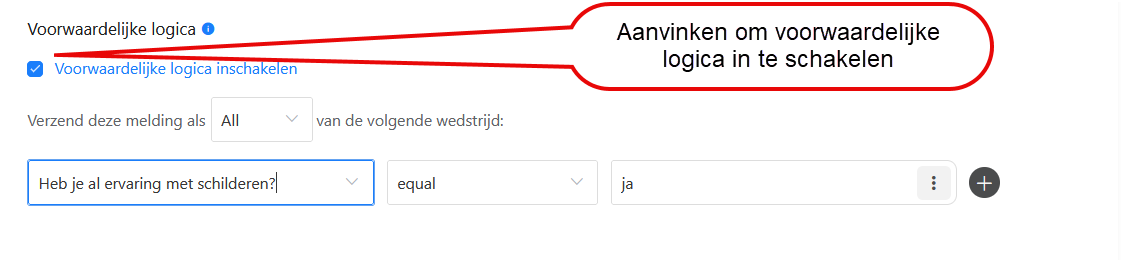
You can arrange for notifications to be sent only under certain conditions. This is useful if you want different handling for different types of submissions.
In the notification settings, scroll down to ‘Conditional logic’. Here you can set your own rules, such as:
- Send only if a particular field has a certain value
- Send only if the first name of the person filling in the form is ‘John’
For more information about linking form submissions to your CRM, see also how to link form sign-ups to the CRM.
Adjusting the email formatting #
The default notification is formatted as plain text, but you can also use HTML for a more professional look. To do so, switch on ‘HTML mode’ in the email settings of the notification.
In HTML mode you can use:
- Tables to present data in a structured way
- Colours and fonts for better readability
- Links to relevant pages or action items
- Your house style and logo
Solving problems with notifications #
If you are not receiving any notifications, check the following:
- Whether the email address has been entered correctly, without spaces
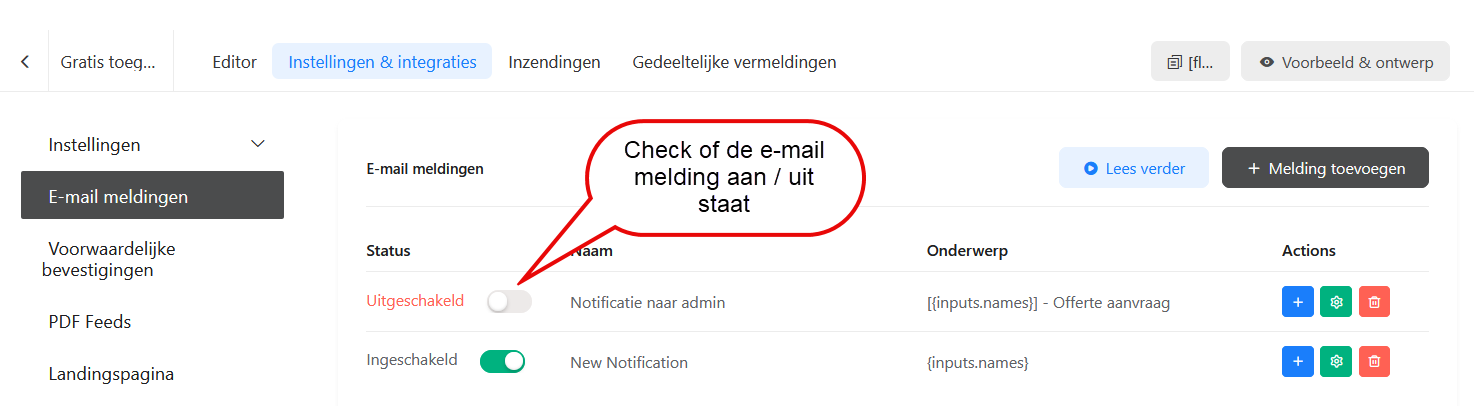
- Whether the notification is switched on, with the tick box enabled
- Your spam or junk mail folder
- Whether conditional logic has been set up that blocks the notification
Always test a form after setting it up, to check that the notifications arrive correctly. Fill in the form yourself with test data and check that you receive the notification.
Frequently asked questions #
Can I set up different notifications for the same form? #
Yes, you can create several notifications for one form. Each notification can be sent to different recipients and have different content, for example one for the administrator and one for the sales department.
Why am I no longer receiving notifications? #
Check whether the notification is still switched on and whether the email address is correct, and look in your spam folder. Also check whether conditional logic has been set up that may be blocking the notifications.
Can I add attachments to admin notifications? #
Yes, if the form contains a file upload field, uploaded files are automatically sent along as attachments in the notification email to the administrator.


