Campaign labels in Autorespond are based on FluentCRM Pro, which is included in your package. Read the English documentation
Adding labels to campaigns #
A label (or category) helps you organise your email campaigns and find them again quickly. You can use labels to group campaigns by subject, audience or campaign type, for example ‘Welcome series’, ‘Product launch’ or ‘Newsletter’.
This is particularly useful when you send a lot of campaigns. Instead of scrolling through a long list, you filter on the right label and go straight to the campaign you are looking for.
You can select existing labels as well as create new ones. Autorespond saves new labels automatically so you can reuse them for other campaigns.
Creating and assigning labels #
You add labels while creating a new campaign or while editing an existing one.
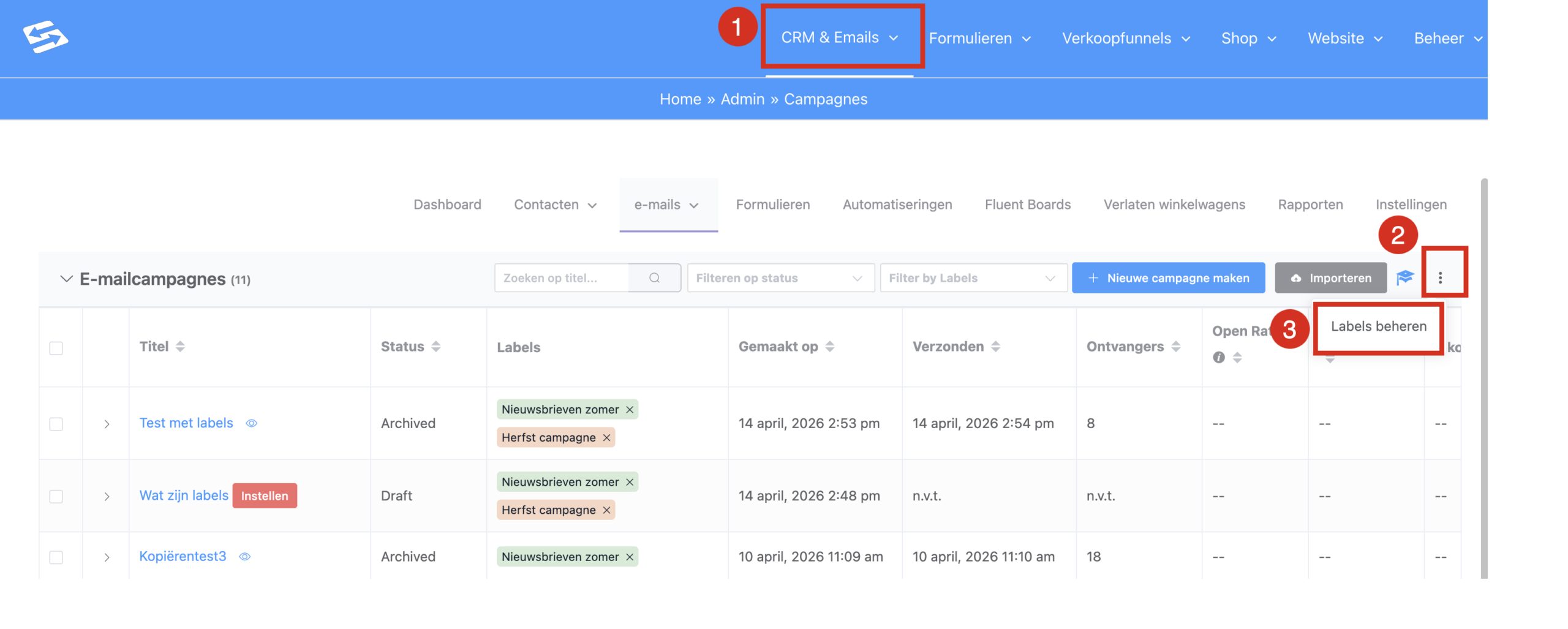
- Go to CRM & Emails → Campaigns (1)
- Click the three dots on the far right of the subtitle bar so that the ‘Manage labels’ option appears. Click that option. (2 and 3)
- Type the name of your label and press Enter.
- Add more labels if you want to, by typing again and pressing Enter.
- Save the campaign.
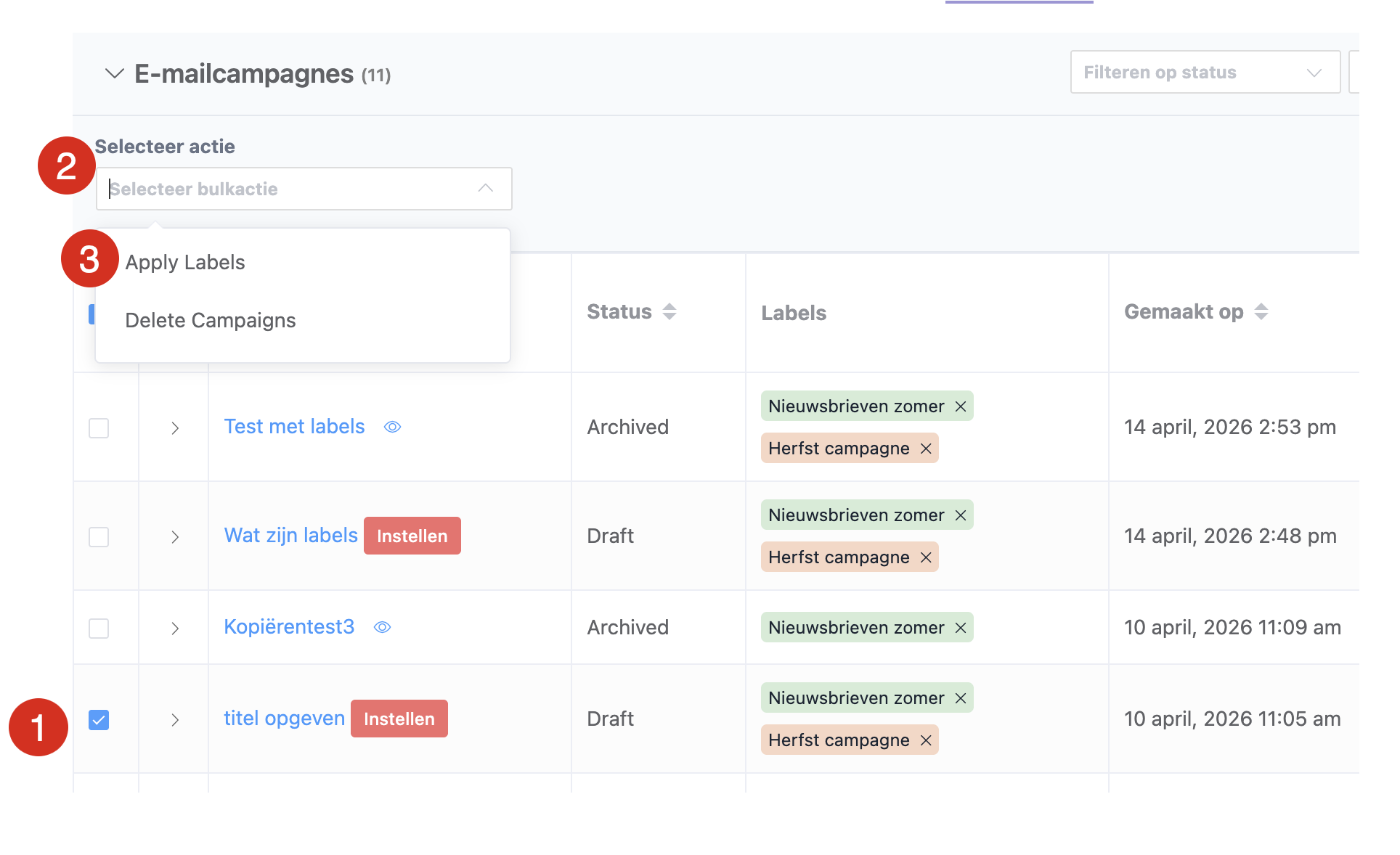
- You can now assign a label to a campaign by ticking the box in the far left column of that campaign. (1)
- ‘Select action’ appears above the title column. Choose ‘Select bulk action’ and ‘Apply Labels’. Select the label you want to assign and click the green Apply button. (2 and 3)
- You can remove a label by clicking the cross in the Labels column.
Filtering campaigns by label #
Once you have assigned labels, you can filter your campaign list:
- Go to CRM & Emails → Campaigns
- Click the dropdown menu next to Filter at the top of the list
- Select the label you want from the list
- The campaign list now shows only campaigns with that label
That makes it easy to review all campaigns for one product, or all welcome emails, without scrolling through the full list.
Managing and organising labels #
Keep your labels manageable by using consistent naming. A few tips:
- Use categories: ‘Product-‘ for product related campaigns, ‘Event-‘ for events
- Use short names: ‘Newsletter’ instead of ‘Monthly newsletter for customers’
- Think about colours: labels are assigned colours automatically for visual recognition
Labels you no longer use disappear from the filter list automatically once no campaign uses them.
Labels on recurring campaigns #
You can use labels on recurring campaigns too. The label is then applied to every send within that recurring series. Go to CRM & Emails → Recurring Campaigns and add the label the same way you would for a regular campaign.
For more advanced organisation of your email marketing, see also conditional sections in emails to personalise your messages further.
Frequently asked questions #
Can I change a label after I have added it? #
Yes, you can change labels by editing the campaign and adjusting the label field. Note that if you rename an existing label, the old label stays in place on other campaigns.
How many labels can I assign to one campaign? #
There is no limit to the number of labels per campaign. You can add as many as are useful for your organisation, but keep it workable by not using too many labels per campaign.
Are labels used for automations and email sequences as well? #
Labels are specific to campaigns. Automations and email sequences have their own organisation options within their own sections of the CRM menu.


