Preventing emails from landing in spam or bouncing #
If a contact says they are not receiving your emails, or that your emails end up in spam, the best first step is to ask them to mark your sender address as a safe sender. For the best possible deliverability, though, it matters even more to take the right measures from the start.
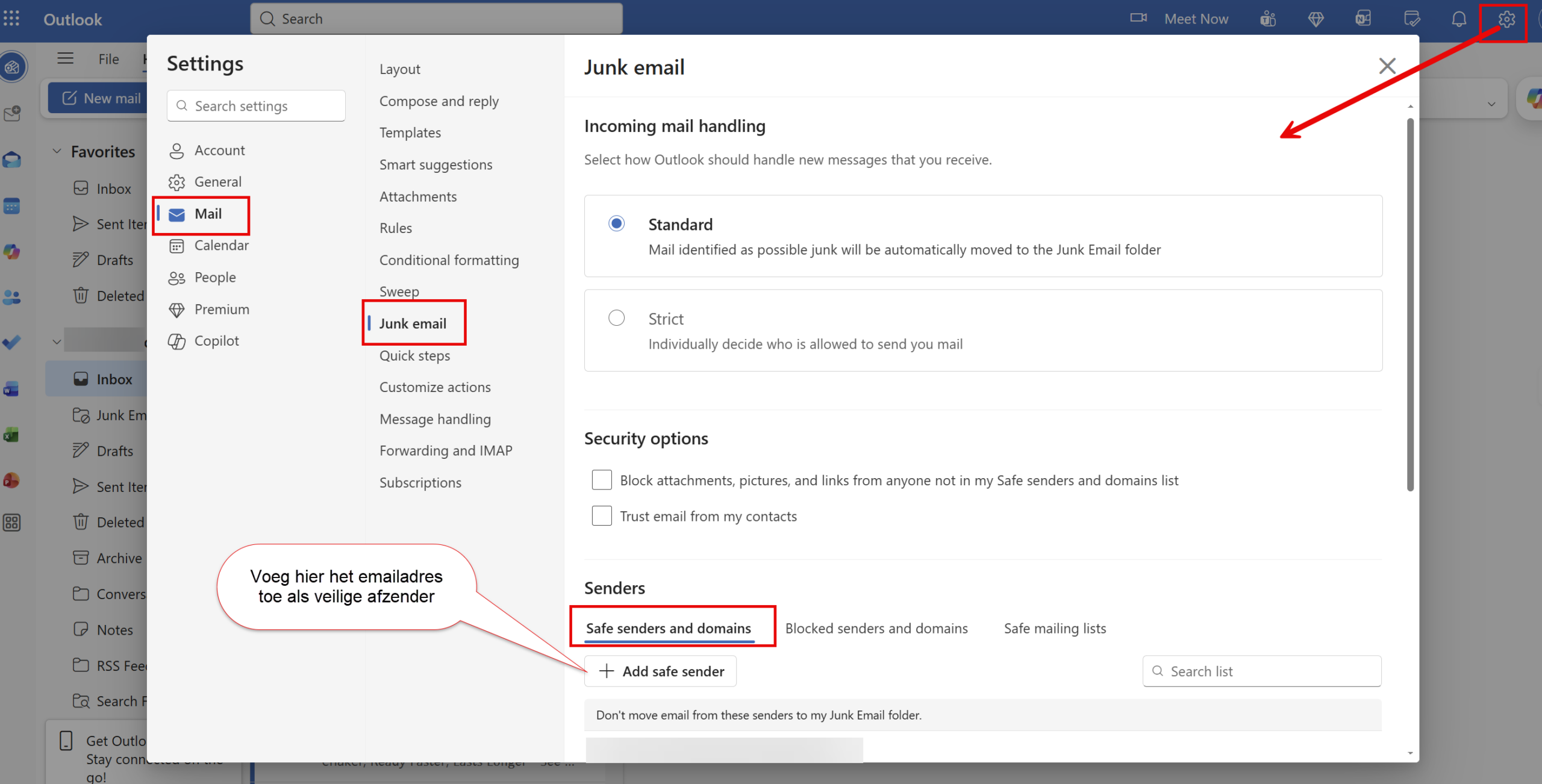
For your contacts: marking the sender address as safe #
In Outlook and Hotmail this can be set up as follows (you can forward the screenshot below to your contacts if you want):
For you as the sender: safeguarding email quality #
To avoid spam and bounce problems, mailbox providers look closely at the content of emails and at how you handle email addresses. For the best possible deliverability (no bounces, no messages in the spam folder) it is important to pay extra attention to the following points:
1. Correct email content #
Pay particular attention to the links you use:
- Make sure every link starts with http:, https: or mailto:
- Check that the URLs you use are correct (watch for typos and do not use spaces in a URL)
- Avoid local links (the ones starting with a ‘#’)
- Do not use URLs pointing to genndi.com, because that domain is seen as a spam risk
- Do not use link shorteners such as bit.ly and tinyurl.com
2. The balance between text and images #
Using images is fine, but avoid overloading the email with them and always make sure there is enough text as well. Always switch the option “Send images with the message (‘inline images’)” OFF in your email settings.
3. Avoiding spam-sensitive words and style #
In promotional emails it is important that the content does not come across as too much like advertising:
- Avoid too many capital letters in the subject line
- Do not use too many exclamation marks
- Be careful with words such as “discount”, “free” and “offer” in the subject line
- Test different subject lines if emails end up in spam
One example: a customer used ‘1st’ in the subject line and her own mail programme marked the message as spam. After changing the subject line, the email was delivered correctly.
4. Cleaning your lists regularly #
Many email providers insist on a ‘clean list’ to prevent spam. Check and clean your list regularly by:
- Removing people who have not opened an email for three to six months
- Taking blocked and rejected email addresses out of your list
- Checking bounces and unsubscribes regularly through CRM & Emails → CRM Settings → Bounces and unsubscribes
5. Helping new subscribers with whitelisting #
An effective measure is to ask new subscribers straight away to add your email address to their address book. That considerably reduces the chance of future emails ending up in the spam filter.
You can do this in your confirmation email after a sign-up, for example, or in the first welcome email of a sequence.
6. Using consistent sender details #
Always use the same sender name and the same sender address for your marketing emails. Do not switch between different addresses or names, because that can confuse spam filters.
7. Checking your authentication settings #
Make sure your SPF, DKIM and DMARC records are set up correctly. These authentication protocols help email providers verify that you really are the sender of the message.
For more information about deliverability and CRM settings, see also setting up email preferences for your contacts.
Frequently asked questions #
Why do my emails end up in spam? #
Emails land in spam for a range of reasons: spam-sensitive words in the subject line, a poor sender reputation, incorrect links, or because the recipient has not marked your sender address as safe.
How often should I clean my email list? #
Clean your list at least every three to six months by removing inactive contacts (no opens for three to six months). This improves your sender reputation and your deliverability.
Can I use link shorteners such as bit.ly? #
No, avoid link shorteners such as bit.ly and tinyurl.com. Spam filters treat them as suspicious because they hide the real destination of the link. Always use the full, original URL.
What should I do if customers say they are not receiving emails? #
Ask them to add your sender address to their address book or safe senders list. Also check that their email address is correct and is not marked as bounced in your CRM.


