Would you like to thank customers automatically after a purchase with a discount code for their next order? That can be done fully automatically: you link a gift coupon to a product once, and every buyer then receives a personal, unique code by themselves. You never have to send codes manually again, and because every code is unique and tied to a person, codes cannot be passed on or reused.
This works differently from an ordinary promotional code that you send round yourself: here your environment automatically creates a separate copy of your sample coupon for every buyer. Your shared promotional codes therefore keep working untouched.
Coupons in Autorespond are based on WooCommerce Smart Coupons – included in your package. Read the WooCommerce Smart Coupons documentation
Step 1: Create the gift coupon #
Go to Shop → Coupons and click Add new coupon. Give the coupon a recognisable code (for example thank-you-gift) and under Coupon data set the discount type and the amount, for example a percentage discount of 10%. This coupon is only your sample: customers will each get their own unique copy of it.
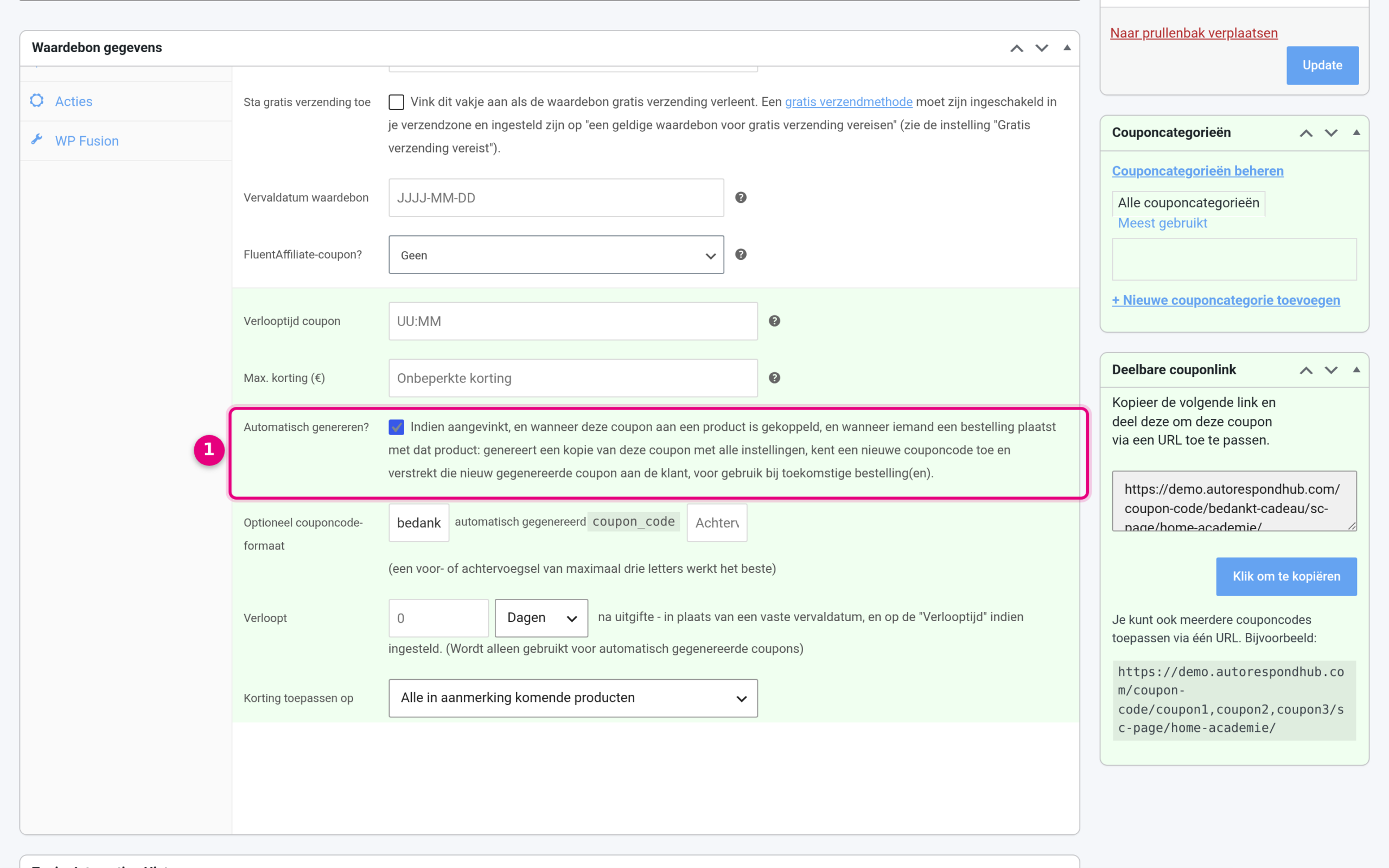
- Auto generate? tick this box. As the explanation next to it says: as soon as this coupon is linked to a product and someone orders that product, a copy of this coupon is made with a new, unique coupon code, and that is issued to the customer for a next order. The fields below it are useful too: under Optional coupon code format you give the generated codes a recognisable prefix or suffix (for example thanks-), and under Expires … days after issue you set how long each personal code stays valid.
Click Publish. If you want to limit the discount to certain products, simply set that under Usage restriction. The generated copies take over all the settings.
Step 2: Link the coupon to your product #
Open the product whose buyers should receive the gift coupon and scroll to Product data. On the General tab you will find the Coupons field (recognisable by the green background):
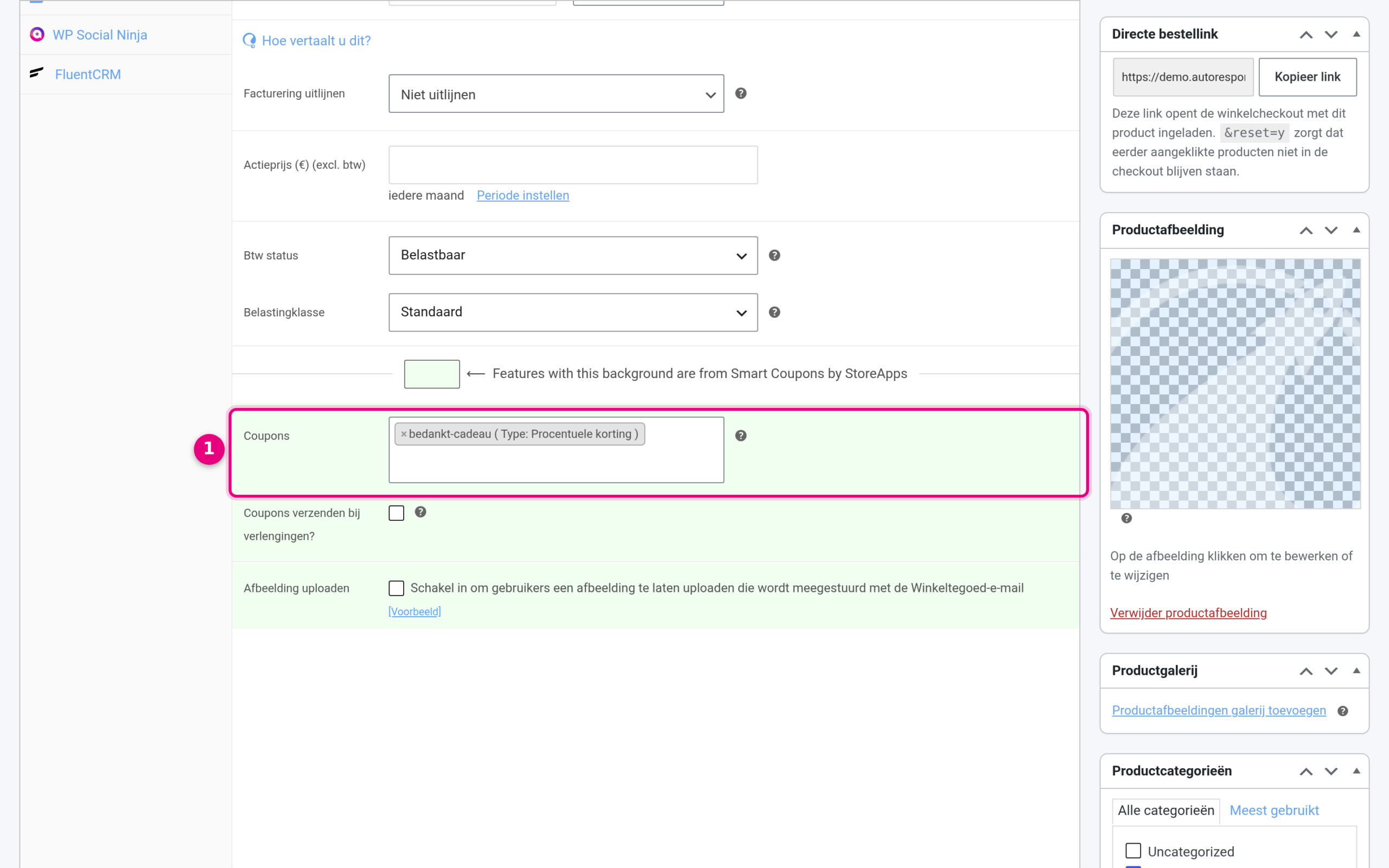
- Coupons look up your gift coupon here and select it. Then click Update to save the product. From now on every buyer of this product automatically gets their own unique code. You can link several coupons, and for a variable product it can also be done per variation.
Step 3: How your customer receives the code #
As soon as an order containing the product has been completed, everything happens by itself:
- Your environment generates a unique copy of your gift coupon, for example thanks-k7x2m.
- The customer sees the code in the order confirmation and receives it by email.
- The code is tied to a person (linked to the buyer’s email address) and works on a next order.
- You will find all generated codes under Shop → Coupons, so you can always see who received which code.
You test this by placing and completing a test order yourself: you then receive your own personal code straight away and see exactly what your customers see.
Important: never use an existing promotional code for this #
In the Coupons field on the product, only link a coupon for which “Auto generate?” is ticked. If you link an ordinary, shared promotional code (without that box ticked), it is not a copy but that code itself that is given to every buyer. Your environment then ties the code to a person by adding every buyer’s email address to the coupon’s email restriction (visible under Usage restriction → Allowed emails). The result: your shared promotional code then only works for those buyers, and all other customers get an error message when entering the code.
So if you unexpectedly see email addresses in the email restriction of a promotional code, check whether that coupon has been linked to a product by accident through the Coupons field, remove the link and delete the email addresses from the coupon.
Frequently asked questions #
Can the personal code expire? #
Yes, set the field “Expires … days after issue” on the gift coupon. Every generated code then expires that number of days after the customer received it. That way you build in urgency by itself.
Can someone else use the code? #
No. Every generated code is linked to the buyer’s email address and can therefore only be used by that customer.
Can I make the value of the gift coupon equal to the product price? #
Yes, that is what the box “Coupon amount equal to the price of the product?” on the coupon is for, which is useful if you want to give back the purchase amount as credit, for example.
What kinds of discount can a coupon give? #
Under Coupon data you choose from three discount types:
- Percentage discount: a percentage of the order amount (for example 10%).
- Fixed cart discount: a fixed amount off the whole order (for example €10).
- Fixed product discount: a fixed amount off each product to which the coupon applies.
With or without VAT? The discount amount works in the same ‘mode’ as your product prices. If you enter your prices excluding VAT (the default setting), the coupon amount is also excluding VAT: the discount is taken off the amount before the VAT is calculated, and the VAT is then charged on the reduced amount.
How often and for what is a code valid? #
On the coupon you set exactly where and how often the code works under Usage restriction and Usage limits; the personal codes your environment generates take over these settings from your sample coupon:
- Usage limit per coupon: set this to 2, for example, and the code can be used for a maximum of two orders, which is useful if the discount may apply to the next two purchases.
- Products or categories (under Usage restriction): limit the discount to certain products or a whole category, for example only your webinars.
- Validity period: you set a fixed expiry date on the coupon itself, but for personal codes the field Expires … days after issue (see step 1 above) is usually more practical: every customer then gets a code that is valid for 60 days from the moment of issue, for example, regardless of when it was created.


