Every contact in your CRM has a status that determines how active and engaged that person is. By setting up and using statuses properly, you can target your email campaigns better and keep your list clean.
Contact statuses help you distinguish between active customers, prospects, unsubscribed contacts and bounces.
Contact status management in Autorespond is based on FluentCRM Pro, included in your package. Read the FluentCRM documentation
Why contact statuses matter #
Contact statuses give you insight into the quality and engagement of your contact database. They help you segment campaigns and prevent you from sending emails to unsubscribed contacts or invalid email addresses.
This improves your deliverability and helps prevent spam complaints. Autorespond has seven standard contact statuses that are assigned automatically based on the behaviour of your contacts.
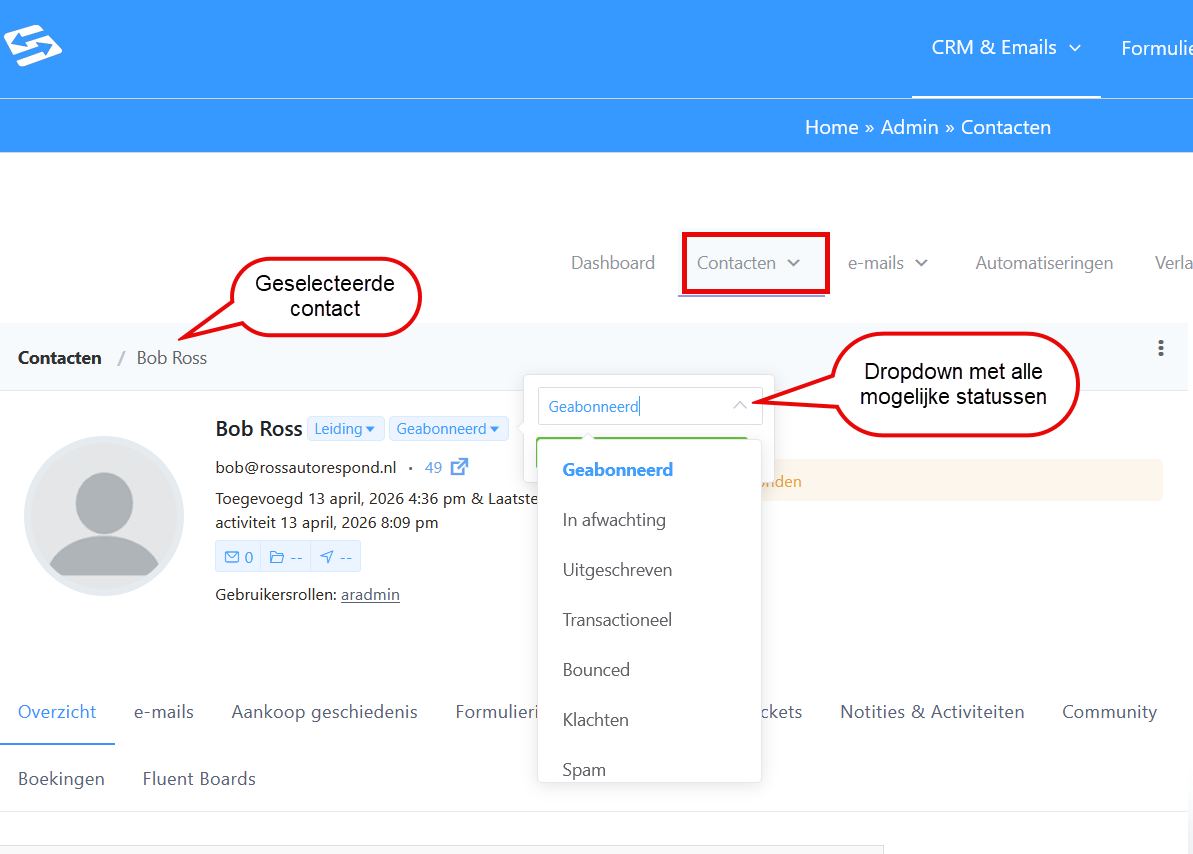
The seven contact statuses explained #
Subscribed #
These are active contacts who have given permission to receive emails. They signed up successfully through a form or were added manually. This is the default status for new contacts who have completed opt-in.
Unsubscribed #
Contacts who have opted out of your emails. This happens automatically when someone clicks the unsubscribe link in an email. You can also set contacts to ‘unsubscribed’ manually. Emails to this status are blocked automatically.
Pending (not used within Autorespond) #
New sign-ups who still have to confirm their email address through double opt-in. They receive no regular campaigns until they confirm their sign-up. After confirmation the status changes automatically to ‘Subscribed’.
This status is not used within Autorespond, because double opt-in runs through the form settings. The general CRM double opt-in handling is therefore never called, so contacts are only added to your CRM once we are certain they have confirmed the double opt-in through the opt-in settings in the form.
Transactional (not used within Autorespond) #
Contacts who receive only transactional emails (such as order confirmations and invoices) but no marketing emails. This status is often used for customers who have opted out of marketing but still need to receive administrative emails.
We do not use this status within Autorespond, because we already send transactional emails through a different mail server.
Bounced #
Email addresses that cannot be reached because they do not exist or are temporarily unavailable. The system marks addresses as a bounce automatically after several failed deliveries. Emails to bounced addresses are stopped to protect your reputation.
Complaints #
Contacts who have marked your email as spam with their email provider. This status is assigned automatically through feedback loops from large email providers such as Gmail and Outlook. Emails to this status are blocked.
Spam #
Email addresses that have been marked as spam or are suspected of abuse. This status is assigned manually, or automatically when an email address causes repeated problems.
Viewing and managing contact statuses #
Go to CRM & Emails → Contacts to view your complete contact database. The contact list shows the current status for every contact.
You can filter the list by status by clicking the ‘All statuses’ dropdown menu at the top and selecting a specific status. This is useful for reviewing all unsubscribed contacts or cleaning up bounces, for example.
Changing the status of individual contacts #
Open a contact by clicking the name. The contact overview shows the current status in the top right. Click the status to change it to another option from the dropdown menu.
Please note: setting unsubscribed contacts back to ‘Subscribed’ without their explicit permission is not recommended. This can lead to spam complaints.
Bulk status changes (not advised for unsubscribes and bounces) #
You can change the status of several contacts at once, but we strongly advise against this for the contact status in the CRM. You run a high risk of seriously damaging your email reputation if you mail again to contacts who have unsubscribed or have already marked your email as spam.
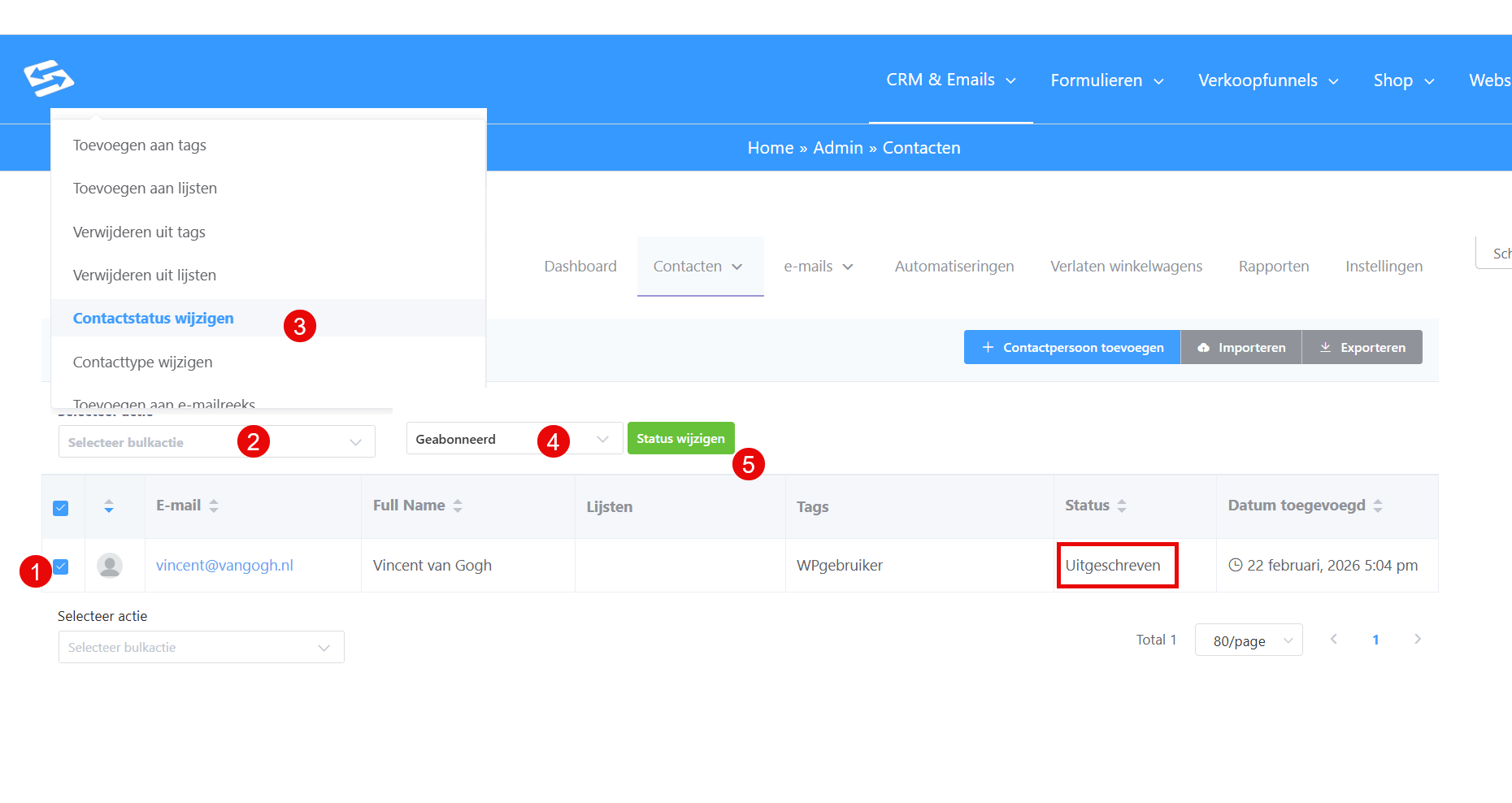
We still explain it here so you know it is possible: go to CRM & Emails → Contacts to view your complete contact database. Select the contacts you want by ticking the checkboxes and choose ‘Bulk actions’ at the top of the list.
Select ‘Change status’ and choose the new status. This is mainly useful for cleaning up your list, for example marking old inactive contacts as unsubscribed or correcting incorrect statuses after an import.
Automatic status changes #
The system changes contact statuses automatically in several situations:
- New sign-up through a form → Subscribed (after they have passed the opt-in settings of the form)
- Click on the unsubscribe link → Unsubscribed
- Email bounce → Bounced (after several attempts)
- Spam complaint → Complaints
Resolving bounce and spam statuses #
If an email address has a bounce status and you are 100% certain that the contact does exist and has told you personally (through your own mailbox, for example) that they want to keep receiving emails, always start by checking this doc: https://autorespondhub.com/docs/preventing-emails-from-landing-in-spam-or-bouncing/ and by asking them to add your sender email address as a safe sender:
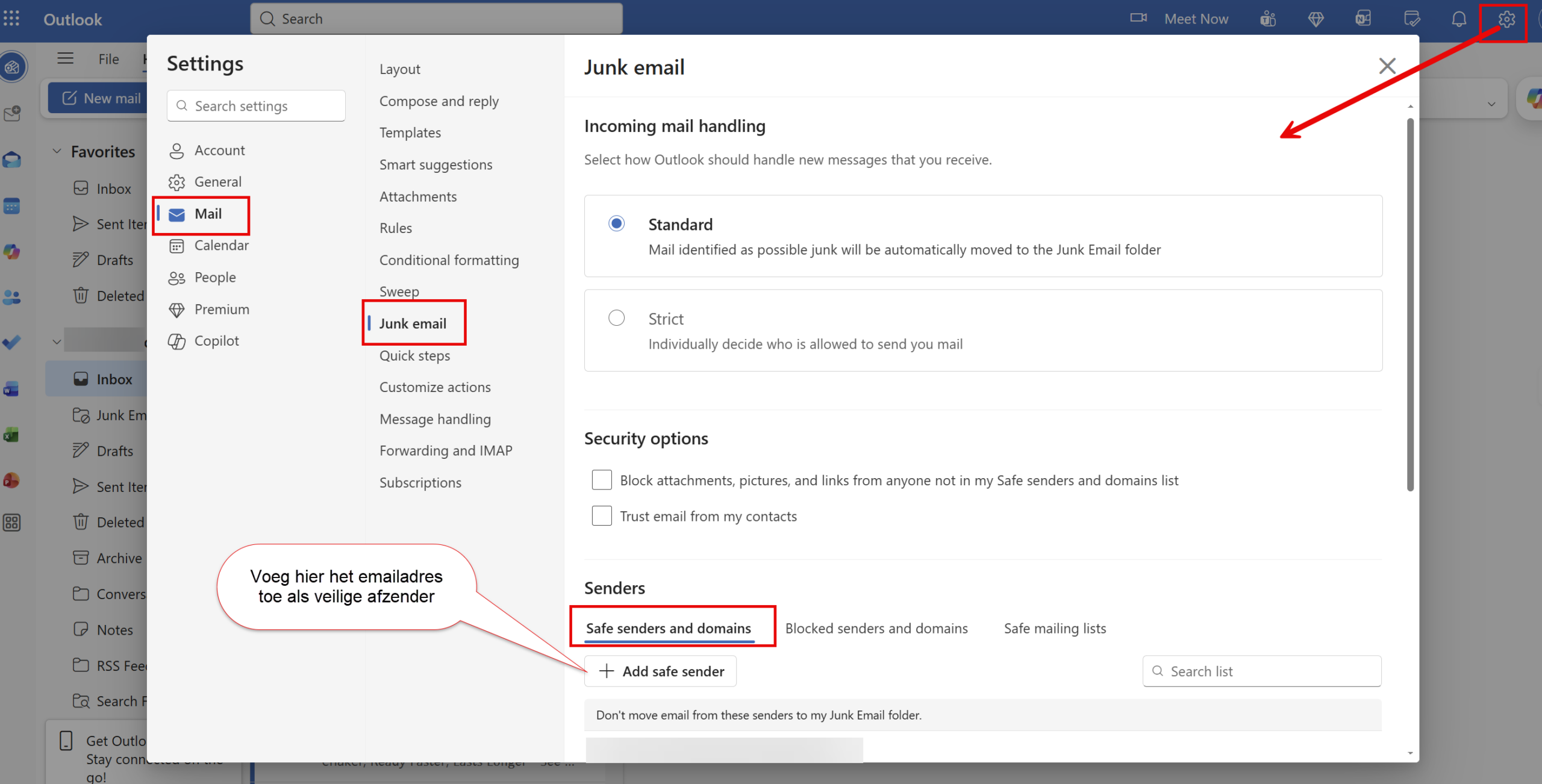
Once that is done, you can change the bounce status to subscribed once and try mailing again.
First make sure that the contact has added you as a safe sender. If it still does not work, contact support and state which email address is involved and which email you are sending.
A contact with the status ‘spam’ is placed on the spam list of our mail server so that your email reputation stays protected. If the contact does indicate that they want to receive emails AND they have added your email address as a safe sender, contact support and we can remove the contact from the spam list on our mail server. This is no guarantee that their own mail software or mail server will let the email through, but we can try it once.
Campaigns are only sent to contacts with the status ‘subscribed’ #
By default, only contacts with the status ‘Subscribed’ are selected for marketing campaigns. All contacts with a different contact status are excluded from the campaign automatically. Email sequences and emails set up in automations also cannot be sent to contacts that do not have the ‘Subscribed’ status.
For more information about creating campaigns, see sending a newsletter through campaigns.
Frequently asked questions #
Can I make unsubscribed contacts active again? #
Yes, but this is only recommended if you have explicit permission from the contact. Change the status to ‘Subscribed’ manually from the contact overview. Without permission this can lead to spam complaints.
What is the difference between ‘Bounced’ and ‘Spam’? #
‘Bounced’ means that the email address cannot be reached (because it does not exist, for example). ‘Spam’ is assigned to addresses that have been marked as spam or are suspected of abuse.
How do I clean inactive contacts out of my list? #
Filter your contact list on the status ‘Bounced’ and delete those contacts. For contacts that have been inactive for a long time, you can send a re-engagement campaign and then set the inactive contacts to ‘Unsubscribed’.


