On orders created manually through the Autorespond administration, the automatic VAT check works differently than on online orders. The EU VAT compliance module does check VAT numbers automatically through VIES when customers order themselves, but on manual orders you as the administrator have to take care of the correct VAT handling.
The reverse-charge functionality is based on WooCommerce EU/UK VAT Compliance, included in your Shop & Sales funnels extension.
When to use reverse-charge VAT #
Reverse-charge VAT applies to business sales to companies in other EU countries. If your business and your customer are in the same country, you charge domestic VAT in most cases. If you sell to a business in another EU country with a valid VAT number, the VAT is reverse charged and they pay it in their own country.
Steps for reverse-charge VAT on a manual order #
- Go to Shop → Orders → Add order
- Enter the billing details of the customer, including the correct EU country
- Enter the customer’s valid VAT number in the billing address
- Add the products to the order
- Important: do NOT click the ‘Recalculate’ button after adding products
- Save the order
If you keep to this order of steps, the system automatically calculates 0% VAT on the basis of the EU VAT number you entered. The PDF invoice then automatically shows the notice that the VAT has been reverse charged.
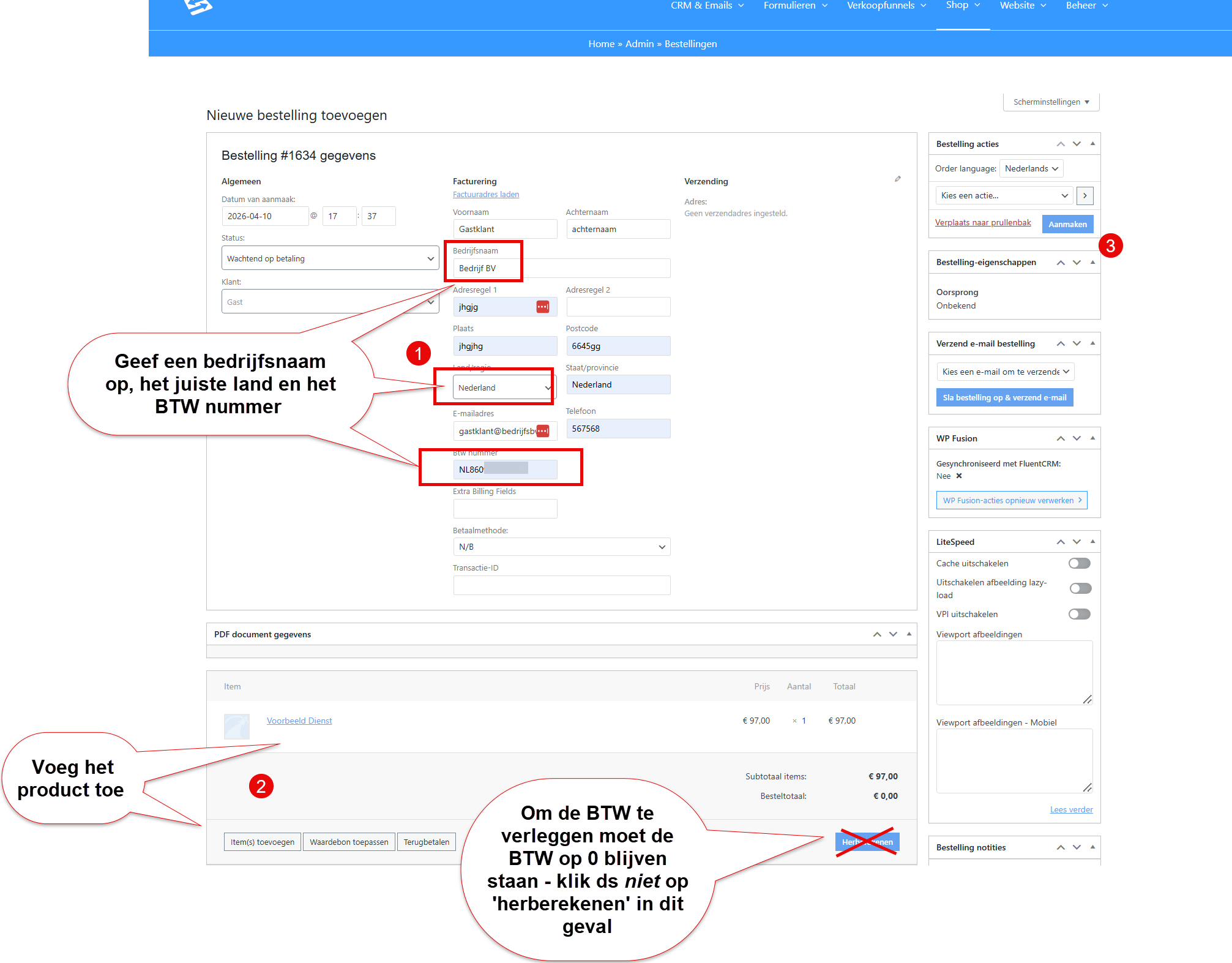
The invoice will then reverse the VAT automatically.
What to do if you clicked ‘Recalculate’ by accident #
If you do click ‘Recalculate’ after adding products, the system calculates the standard VAT, even though a valid VAT number has been entered. In that case you can correct this manually:
- Go to the order items in the order
- Hover over the VAT row at each product
- Remove the VAT line or set the VAT amount to €0.00
- Make sure the total VAT amount of the order is €0.00
As long as the order contains no VAT and a valid VAT number has been entered, invoice management automatically recognises this as reverse-charge VAT.
Reversing VAT automatically through an existing customer #
If you want the VAT to be reverse charged automatically without correcting anything by hand, there is one reliable route: work with an existing customer who already has a valid VAT number on the account. This is the only way in which the order screen actually uses the VAT number to remove the VAT.
Condition: the customer already exists as a user and the valid VAT number is stored in the billing profile of that account.
- Check that the valid VAT number is stored in the customer’s billing profile.
- Go to Shop → Orders → Add order and link the customer to the order.
- Click ‘Load billing address’ to load the account details. The stored VAT number is then carried over automatically.
- Add the products to the order.
- Save the order the first time with the save button in the top right. At that moment the stored VAT number is used to remove the VAT from the order.
Tip: if you sell to the same business customer regularly, this is the most convenient way of working. You record the VAT number once on the customer account and no longer have to arrange it per order. If you create an order for a customer without an account, use the manual method above.
Set the reverse-charge text on the invoice #
On orders with reverse-charge VAT set up correctly, the PDF invoice shows a notice that the VAT has been reverse charged. You can adjust that text as you wish through the menu Shop > Invoice management, Customizer tab:
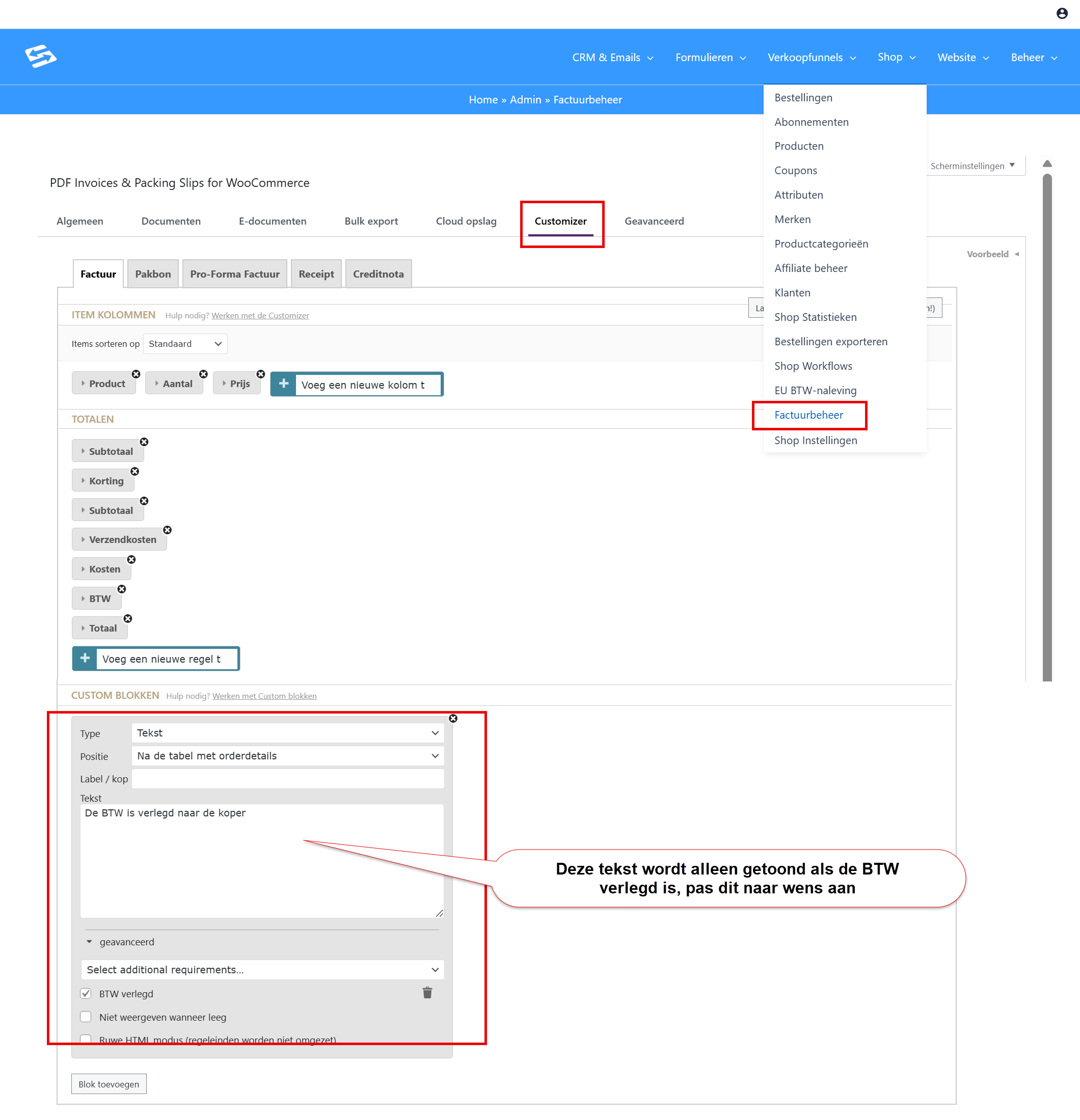
This notice is added automatically by invoice management when both conditions are met: no VAT and a valid VAT number.
For more information about creating manual orders, see also how to create a new order.


