Connecting form sign-ups to the CRM #
Forms in Autorespond are not connected to the CRM by default. That is deliberate, because you can also use forms for other purposes such as contact forms or surveys, where you do not always want the information to go to your CRM.
There are two ways to set up a connection so that new sign-ups through a form end up in your CRM automatically.
Method 1: Direct CRM integration #
This method is the simplest and works best for ordinary sign-up forms.
- Go to Forms → Forms
- Open the form you want to connect
- Click the ‘Settings & Integrations’ tab
- Click ‘Add New Integration’
- Select ‘CRM integration’
- Choose the list that new sign-ups should be added to
- Map the form fields to the right CRM fields (including custom fields)
- Save the integration
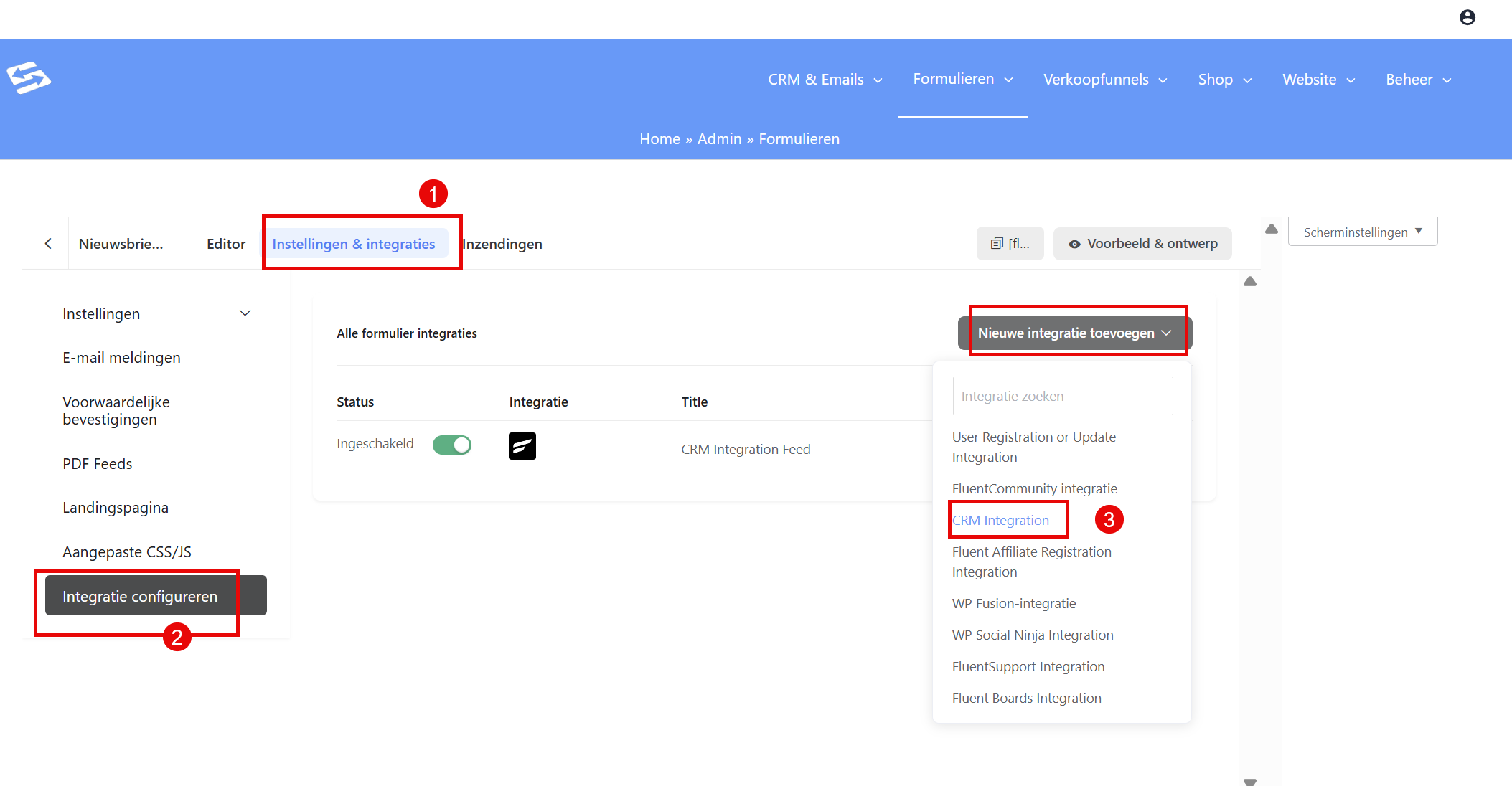
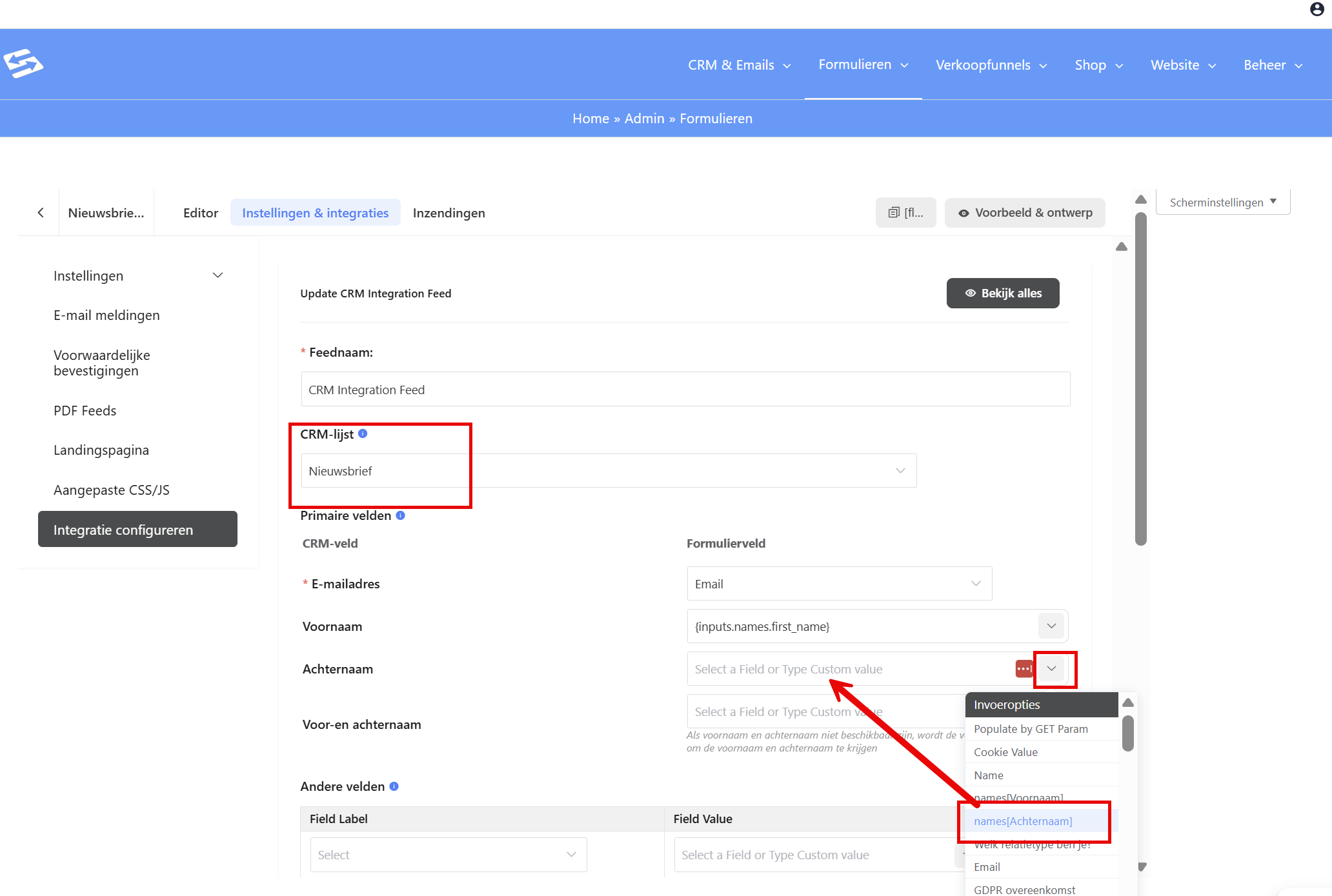
With this method, new sign-ups are added straight to your contact list in the CRM.
Method 2: Through an automation #
This method offers more options and is particularly useful if you want to send follow-up emails automatically after someone signs up.
- Go to CRM & Emails → Automations
- Click ‘New automation’
- Choose ‘Form submission’ as the start trigger
- Select the right form
- Add actions such as:
- Add to list
- Apply tags
- Start an email sequence
- Wait actions
- Save the automation and activate it
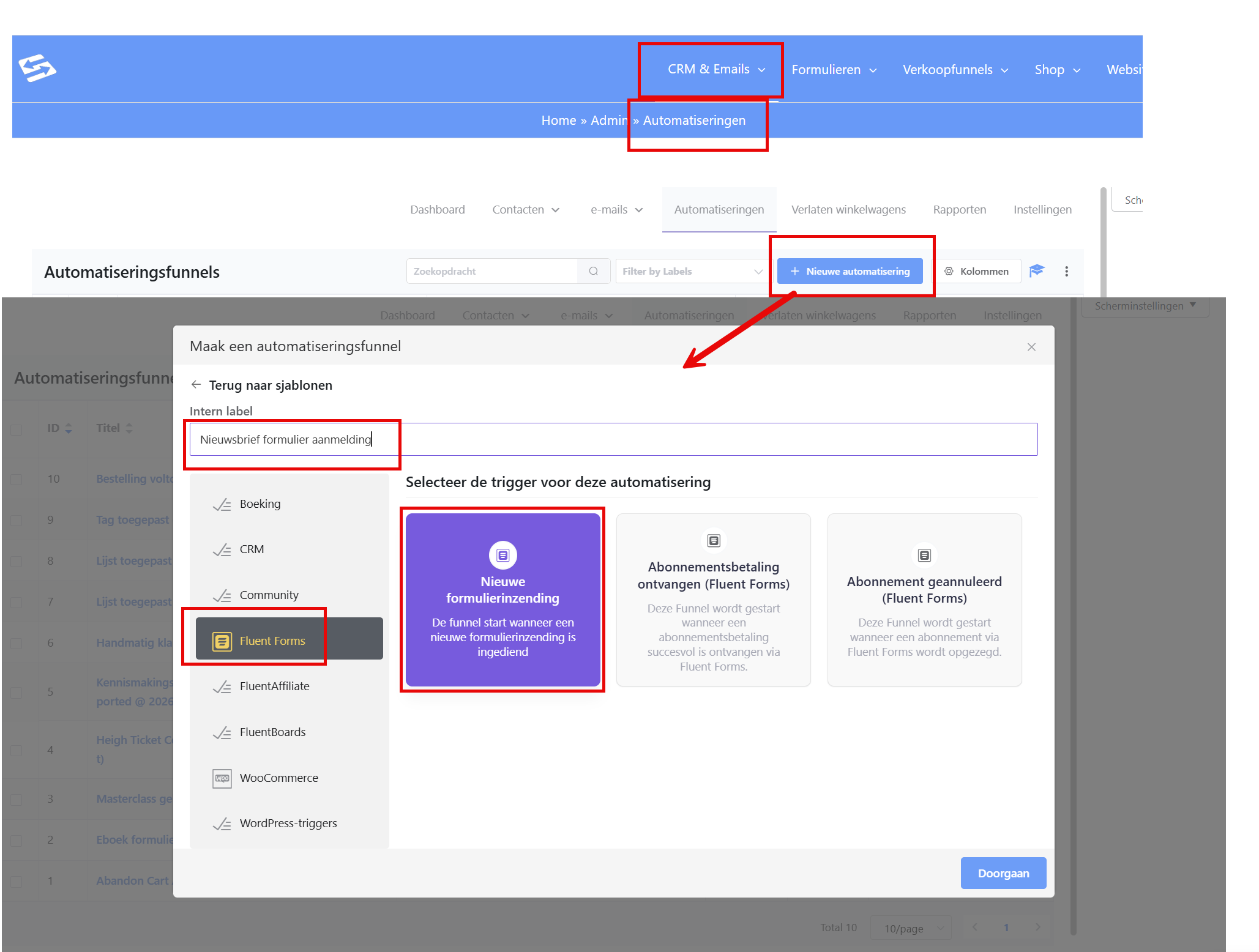
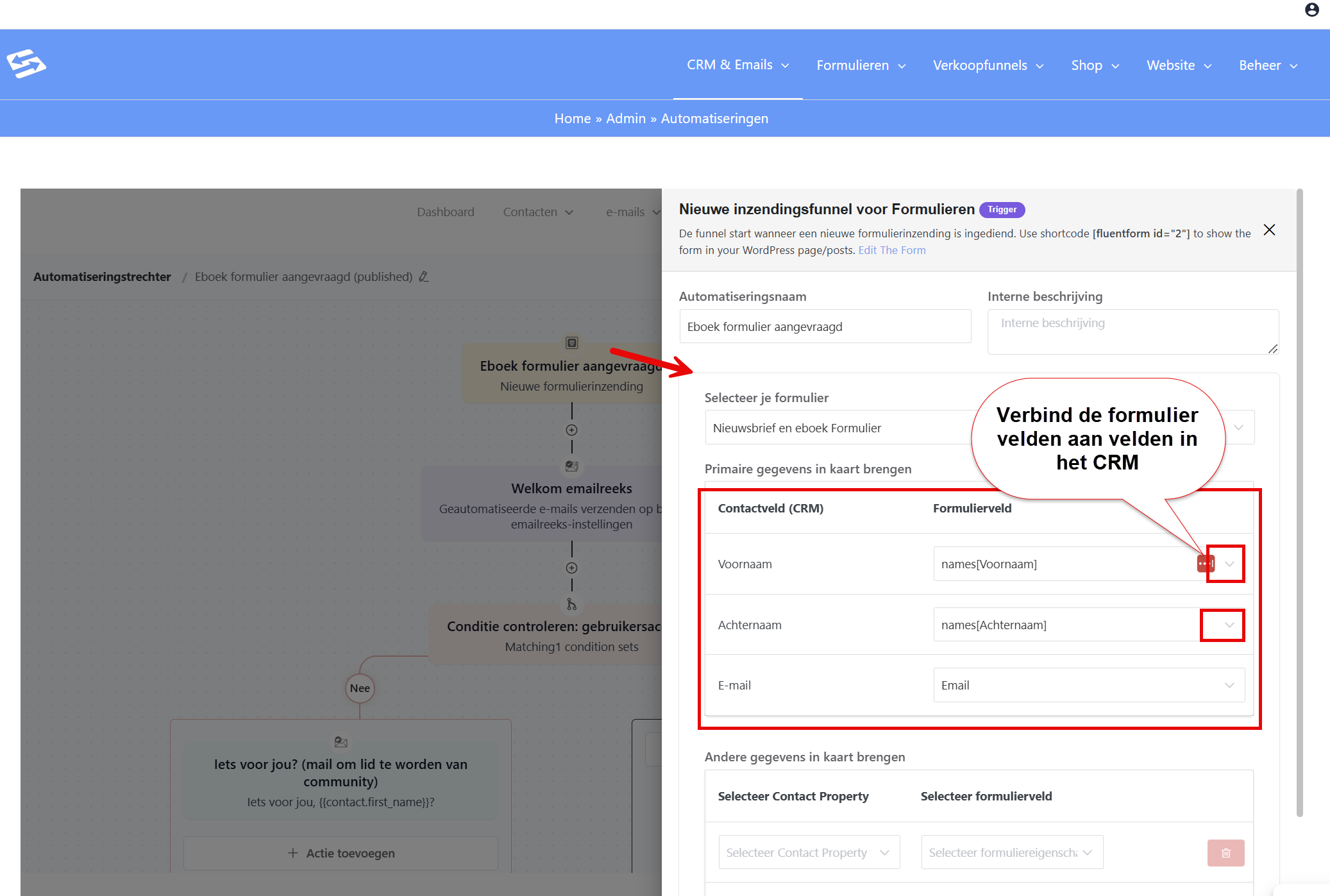
Which method should you choose? #
Choose method 1 (CRM integration) if you only want to collect new sign-ups without any follow-up actions.
Choose method 2 (automation) if you want to send welcome emails automatically, tag new sign-ups, or set up more involved follow-up actions.
Finding sign-ups again #
Once you have set up either connection, new sign-ups through that form appear automatically under CRM & Emails → Contacts. They are added to the list you specified in the connection.
You can also view the entries per form under Forms → Form Entries, but for any further marketing work the CRM is where you manage your contacts.


