Creating standalone credit notes #
For invoices that were created in the old e-act Autorespond system, or in another system you switched over from, you do not have an original order with an invoice in Autorespond that you can refund. That means you cannot generate a credit note. In this documentation we explain a work-around.
Please note: it is not possible to create an invoice with a negative amount. The statistics in WooCommerce will no longer be correct.
Option 1: Manual credit note outside the system #
The easiest approach is to create a credit note manually outside the system, in Word, Excel or another program:
- Use your company details and logo
- Refer to the original invoice number from the old system
- Make sure the document meets the legal requirements for credit notes
- Enter the next credit note number and increase the next credit note number by 1, so that you do not get duplicates in your invoice number sequence.
If you use the standard credit note settings in Autorespond, your credit note numbering uses a separate sequence from your normal invoice numbering. See this documentation about that: https://autorespondhub.com/docs/creating-and-sending-credit-notes-in-autorespond/
If you create a credit note manually outside the system, you have to make sure that credit note gets the correct number in your credit note sequence. You also have to set that credit note manually in Autorespond, so that the next number is 1 higher.
Within Autorespond you will effectively have a one-off gap in your credit note sequence, but that number has been created outside Autorespond.
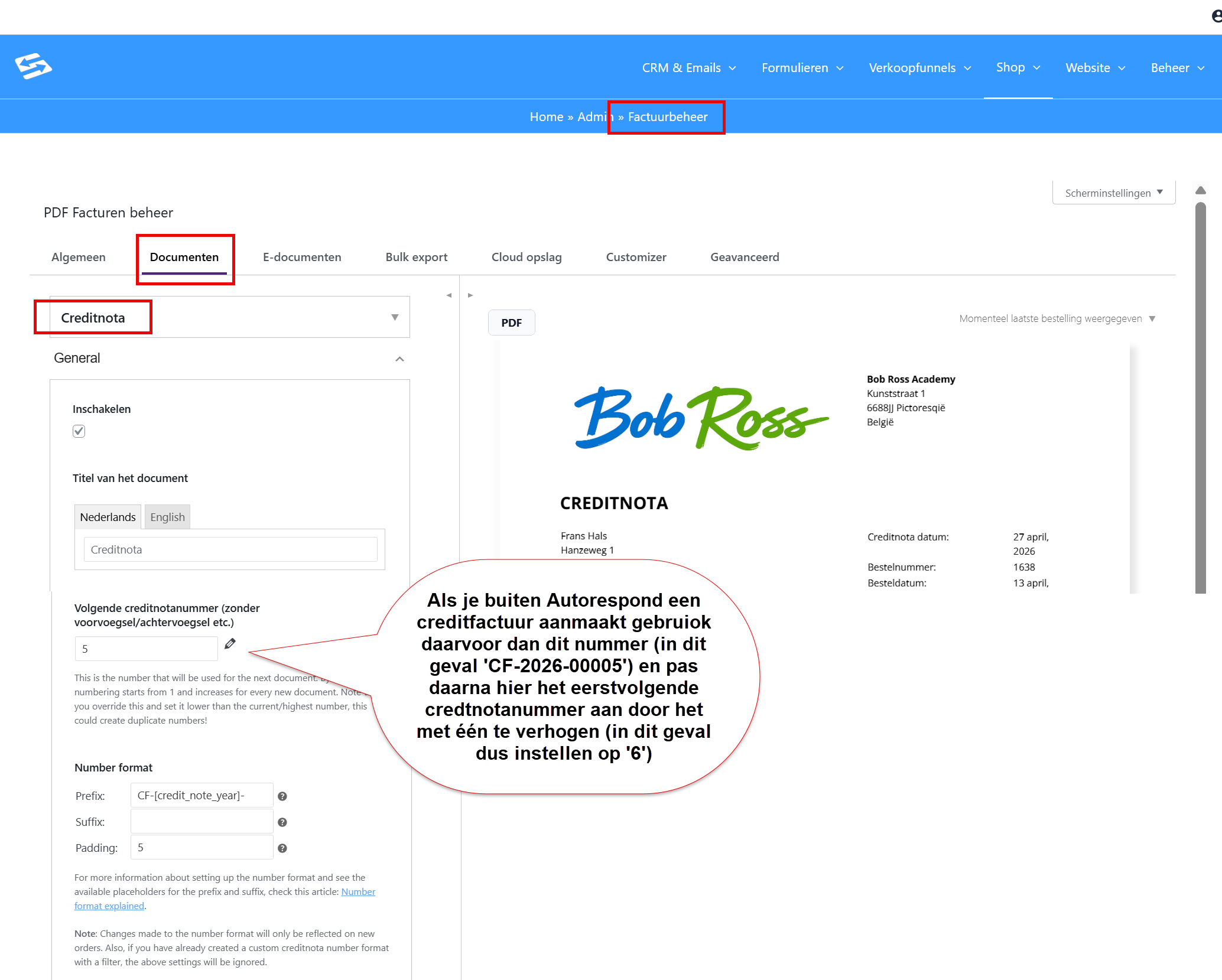
Once you have done this you can continue with the next credit note without duplicate numbers arising.
Option 2: Create a new order with a positive amount and refund it #
It is also possible to get a credit note the ‘normal’ way, but then an order first has to be created with the product and the amount you want to create a credit note for. You refund that order, after which a credit note is generated, and only then do you change the original invoice back to 0 euro.
⚠️ Please note: risks when changing the order manually after the refund
If, after creating the credit note, you manually set the order back to “Pending payment” and change the amount to €0, the following problems can occur:
1. Unwanted emails and automations Setting the order back to “Pending payment” can automatically trigger emails or workflows linked to that status, such as payment reminders or marketing automations. This only happens if you have set this up yourself. Check this beforehand and switch those off temporarily if needed
2. Risk of incorrect information reaching your accounting package: If you have set up a direct connection with your accounting package, invoices are sent through immediately at the moment they are created. If you then change the invoice at a later moment (as in this document), that is not corrected in your accounting package. Do you have a connection with your accounting package? Then do not use this method.
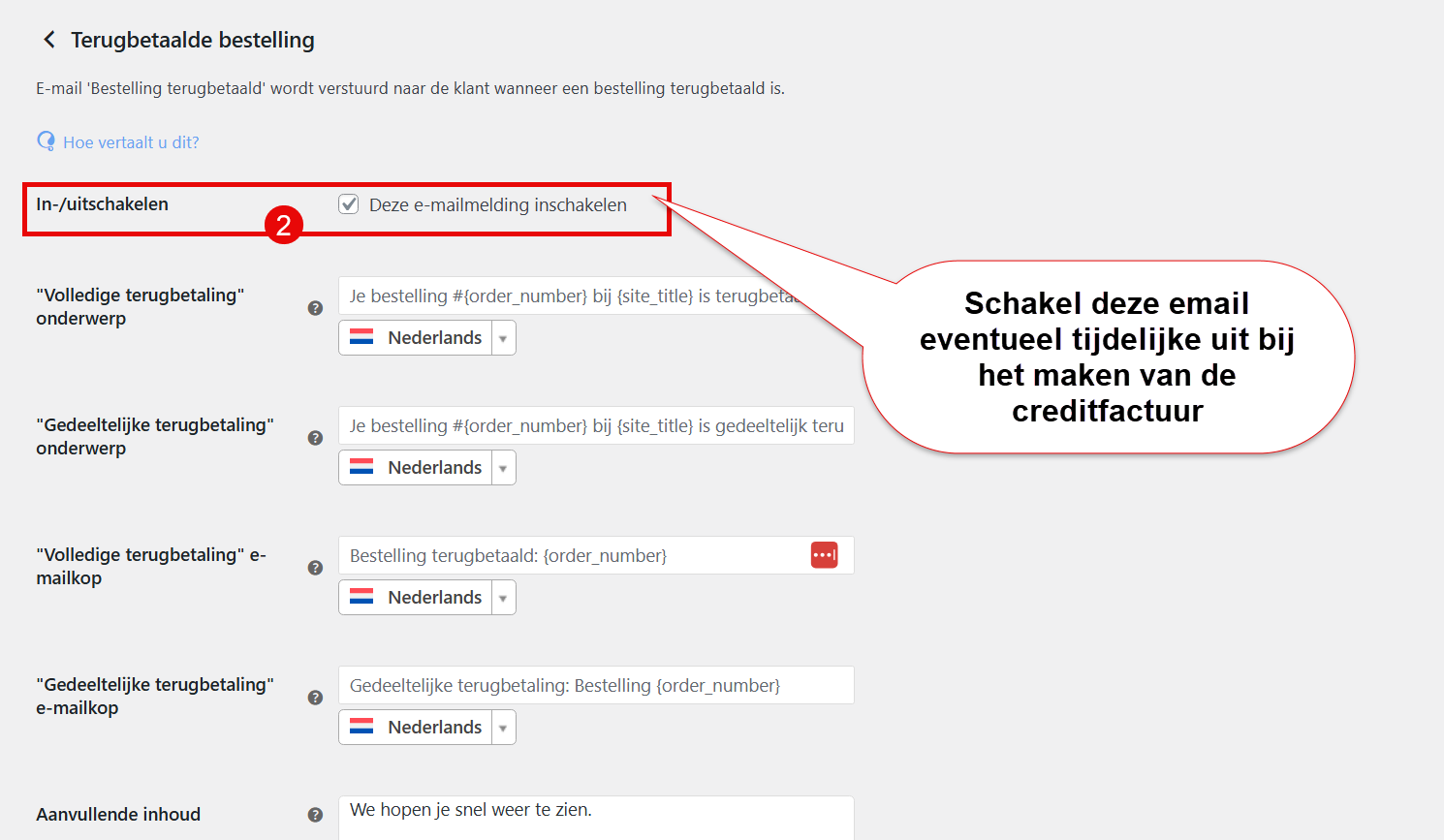
3. Automatic “Refunded” email to the customer WooCommerce sends the refund confirmation both on the actual refund and when you set the status “Refunded” manually. The customer then receives the email twice, unless you switch the email off in between. Advice: switch this email off temporarily (see the explanation below)
Have you read the warning above and do you still want to do it this way? Then follow the steps below:
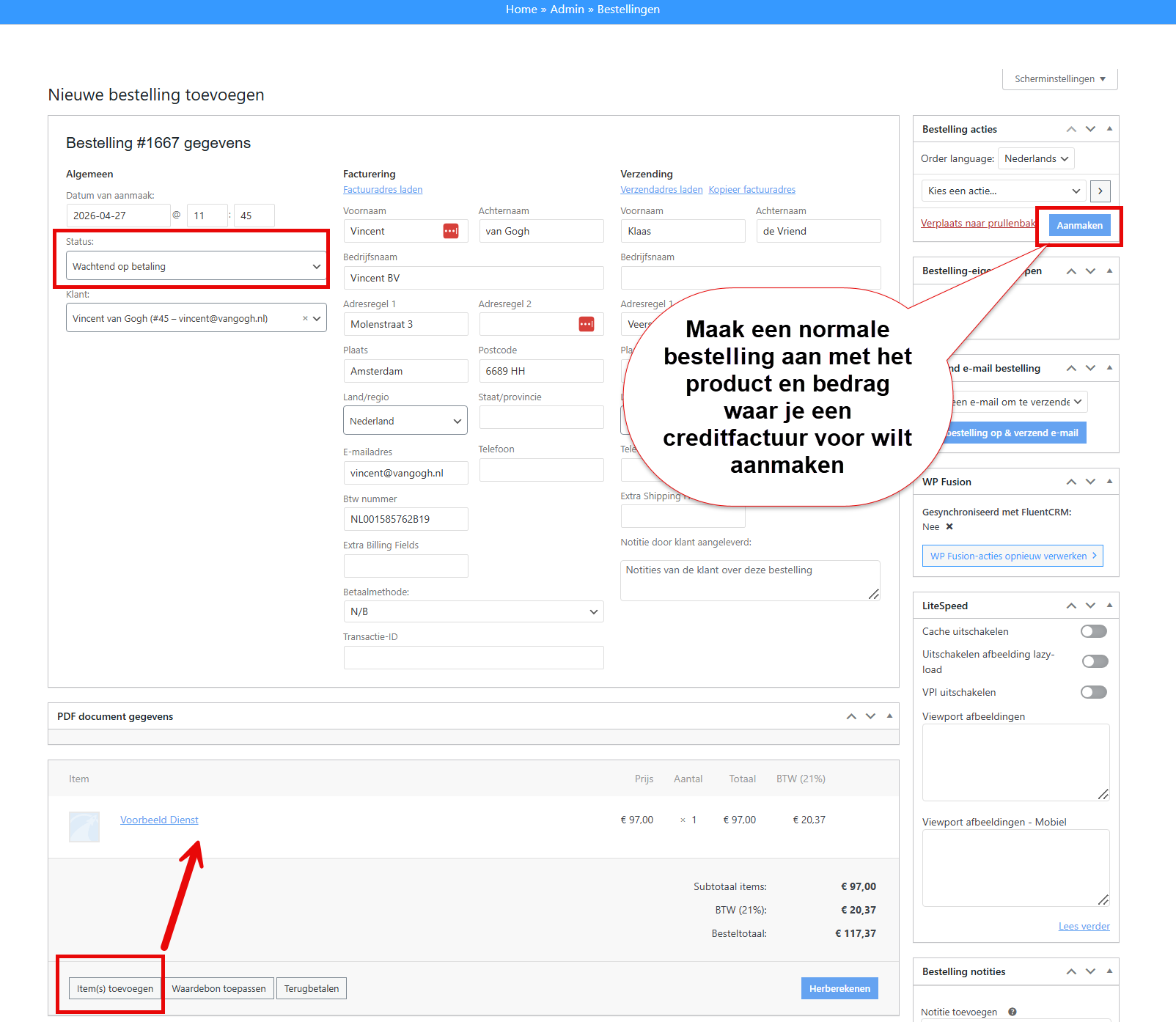
Step 1: create a normal order with the product and the price you want to create a credit note for:
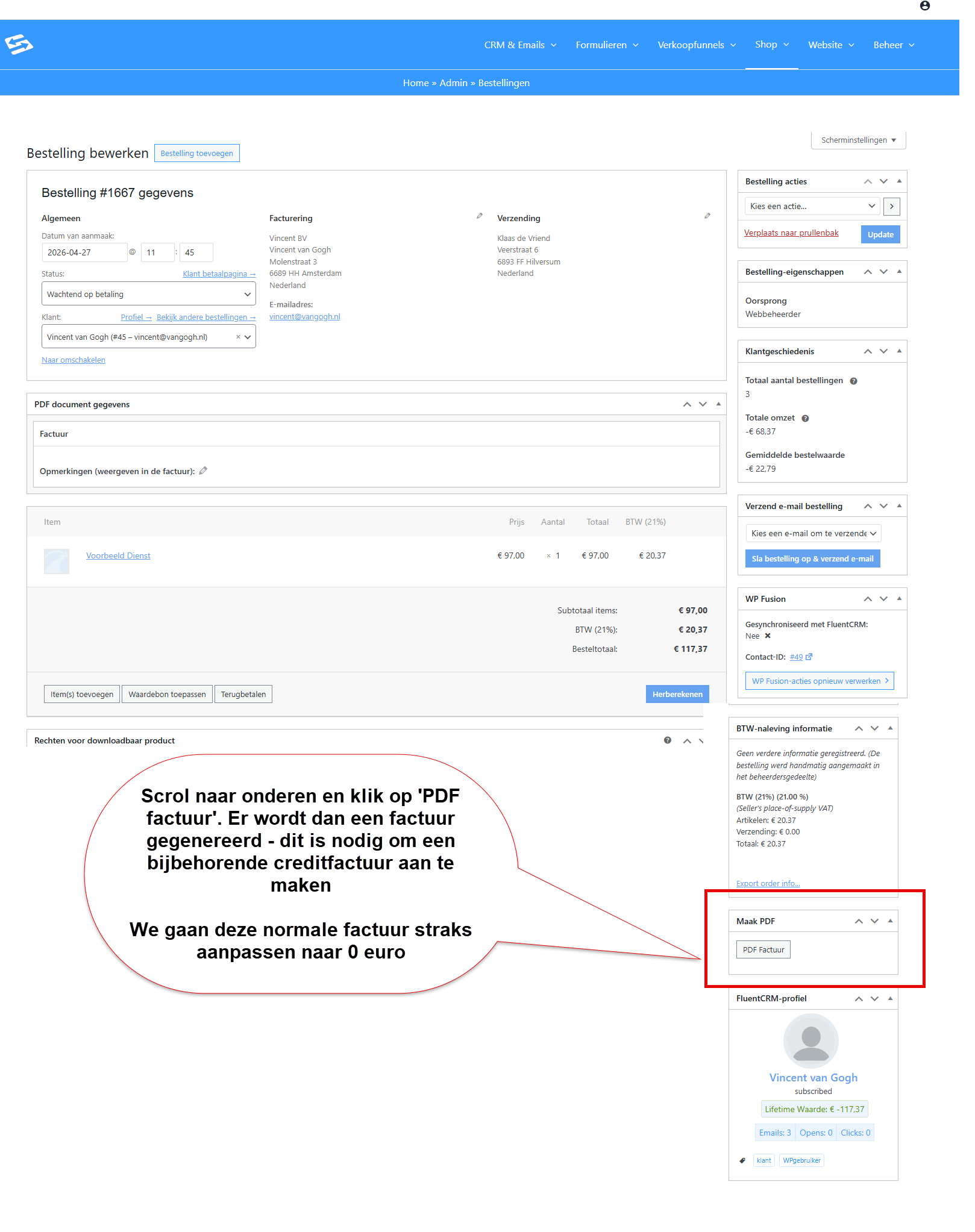
Step 2: generate the normal invoice (we will change it to 0 euro later)
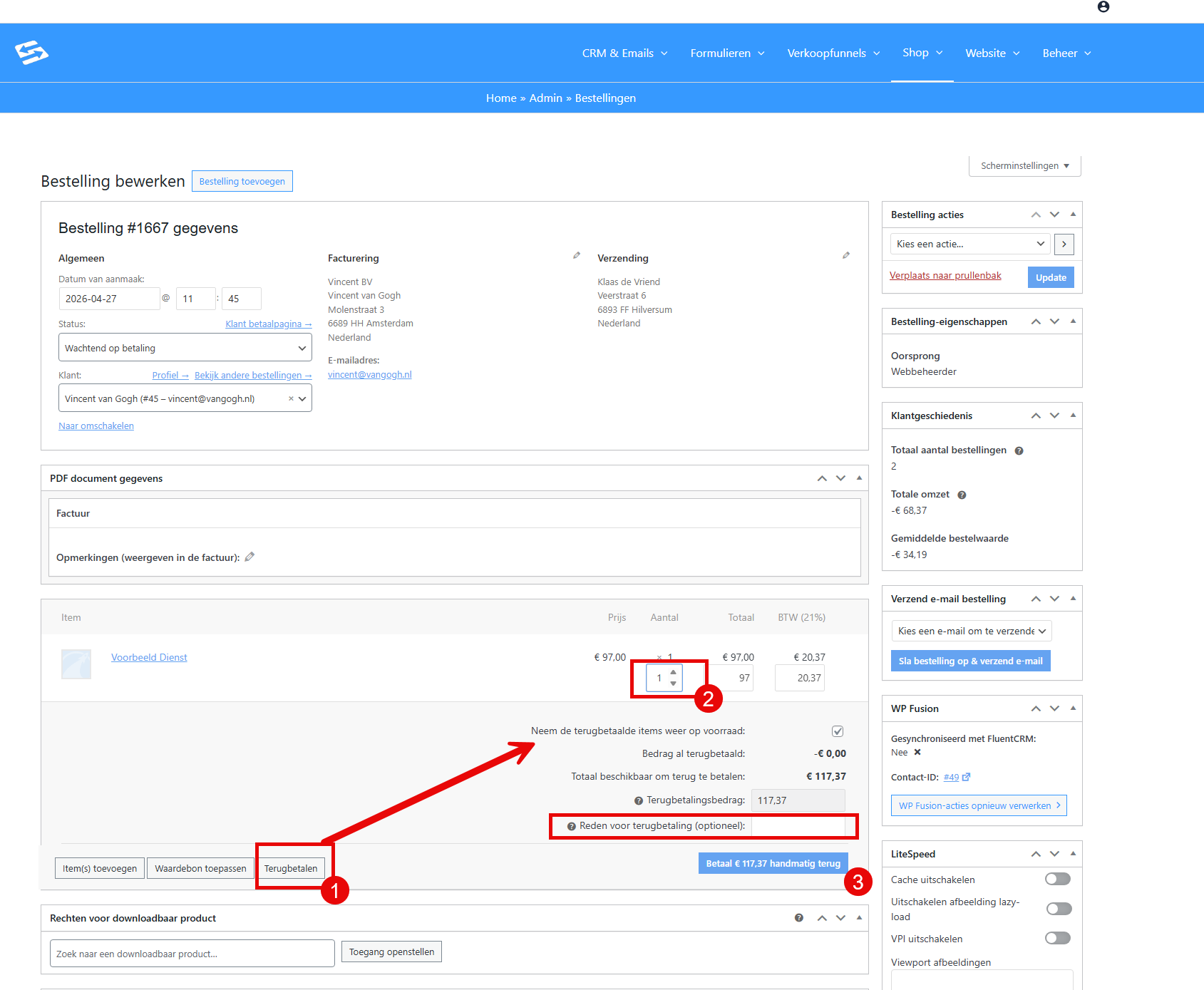
Step 3: Click on ‘refund’ and create a normal credit note (please note: the standard refund email is sent now, unless it is switched off)
Please note: the status of the order changes to ‘Refunded’ and at that moment the standard ‘Refunded order’ email is sent by WooCommerce with this credit note attached. You can switch that email off separately beforehand and download the credit note separately instead, then send it to the customer manually.
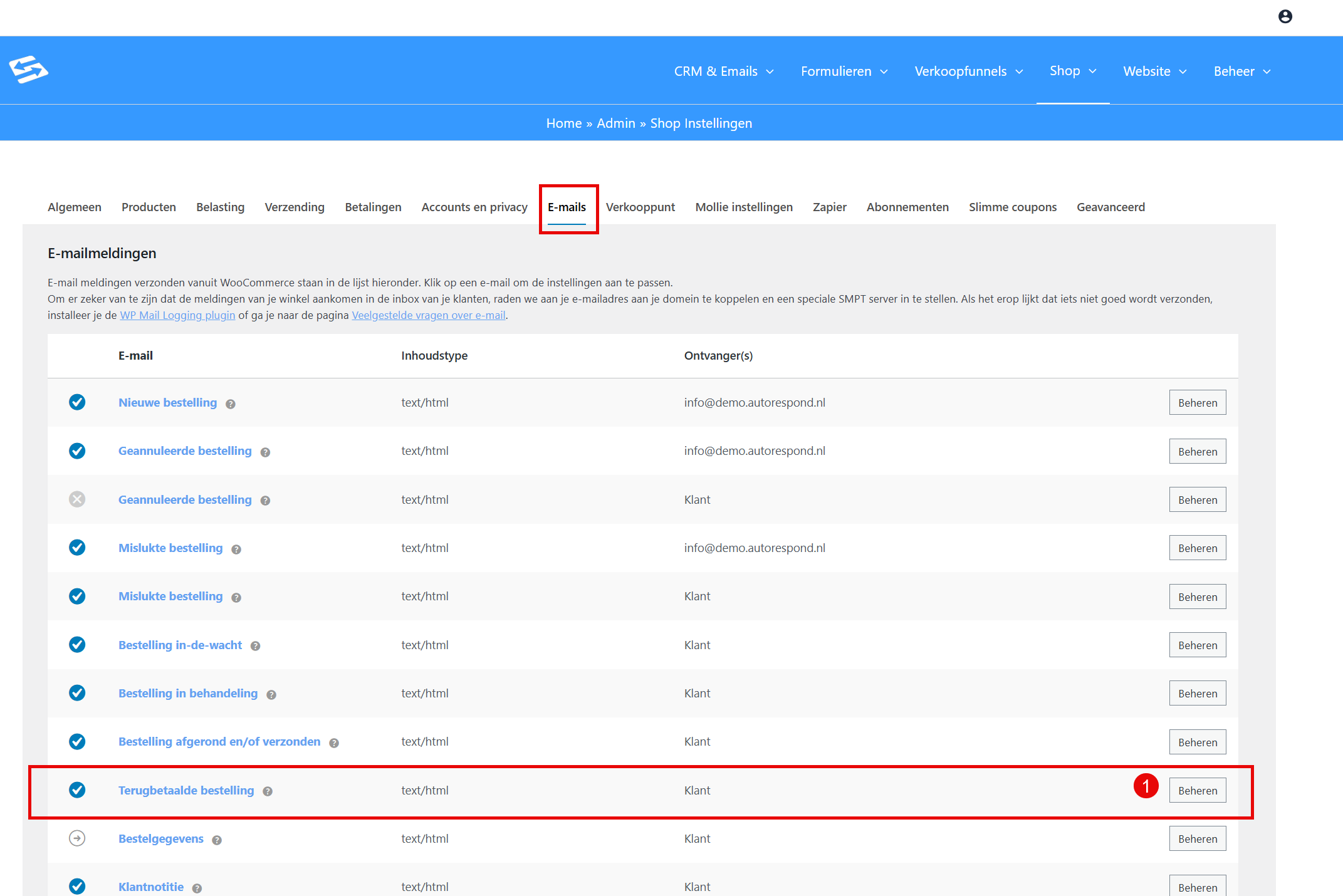
If you want to switch the standard ‘Refunded’ email from WooCommerce off temporarily, you can do so via the menu Shop > Shop settings, Email tab:
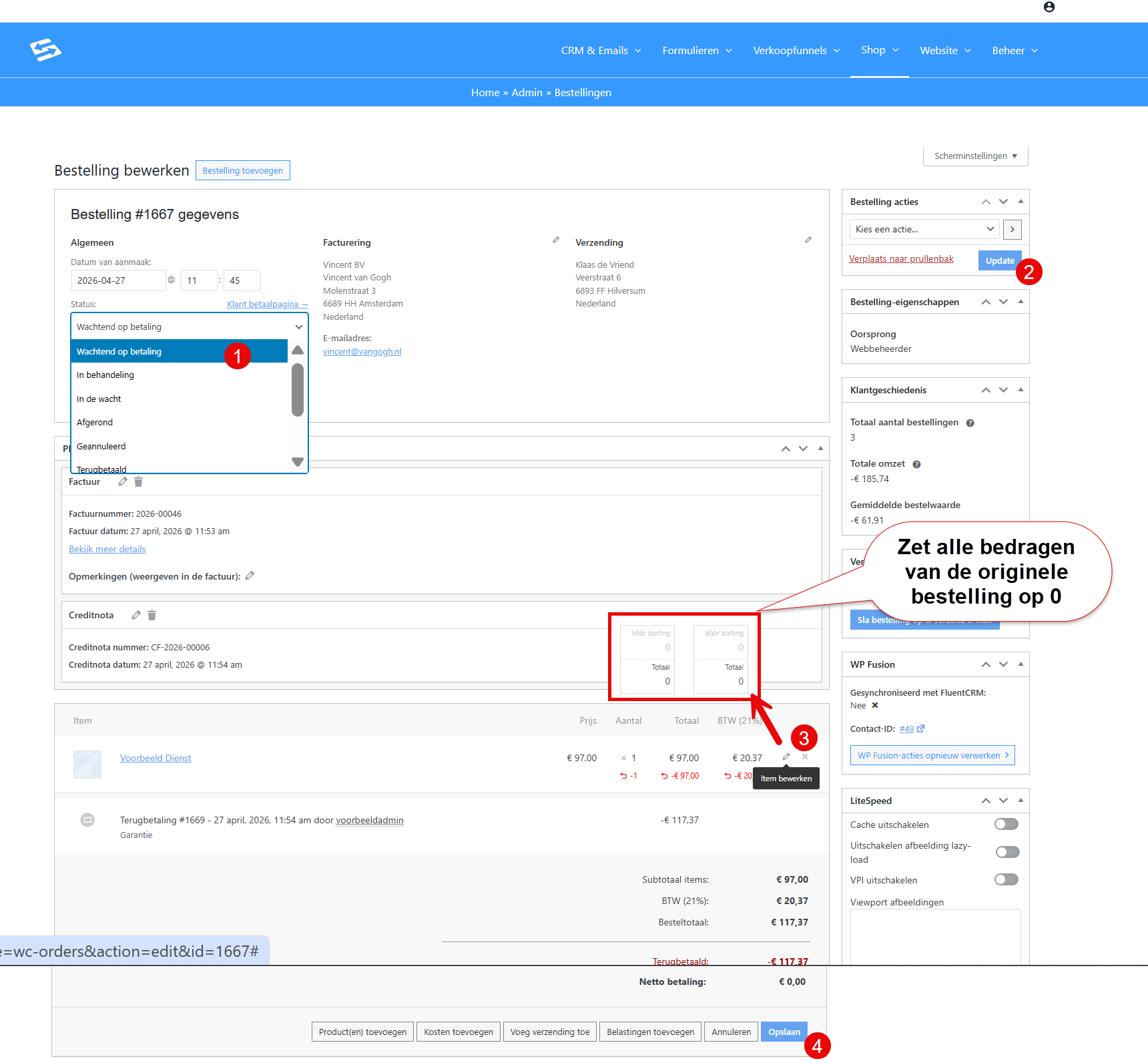
Step 4: Change the order status from ‘Refunded’ to ‘Pending payment’ and set the original amount to 0
Step 5: Then set the order status back to ‘Refunded’ and click the PDF invoice button again to regenerate the invoice at 0 euro
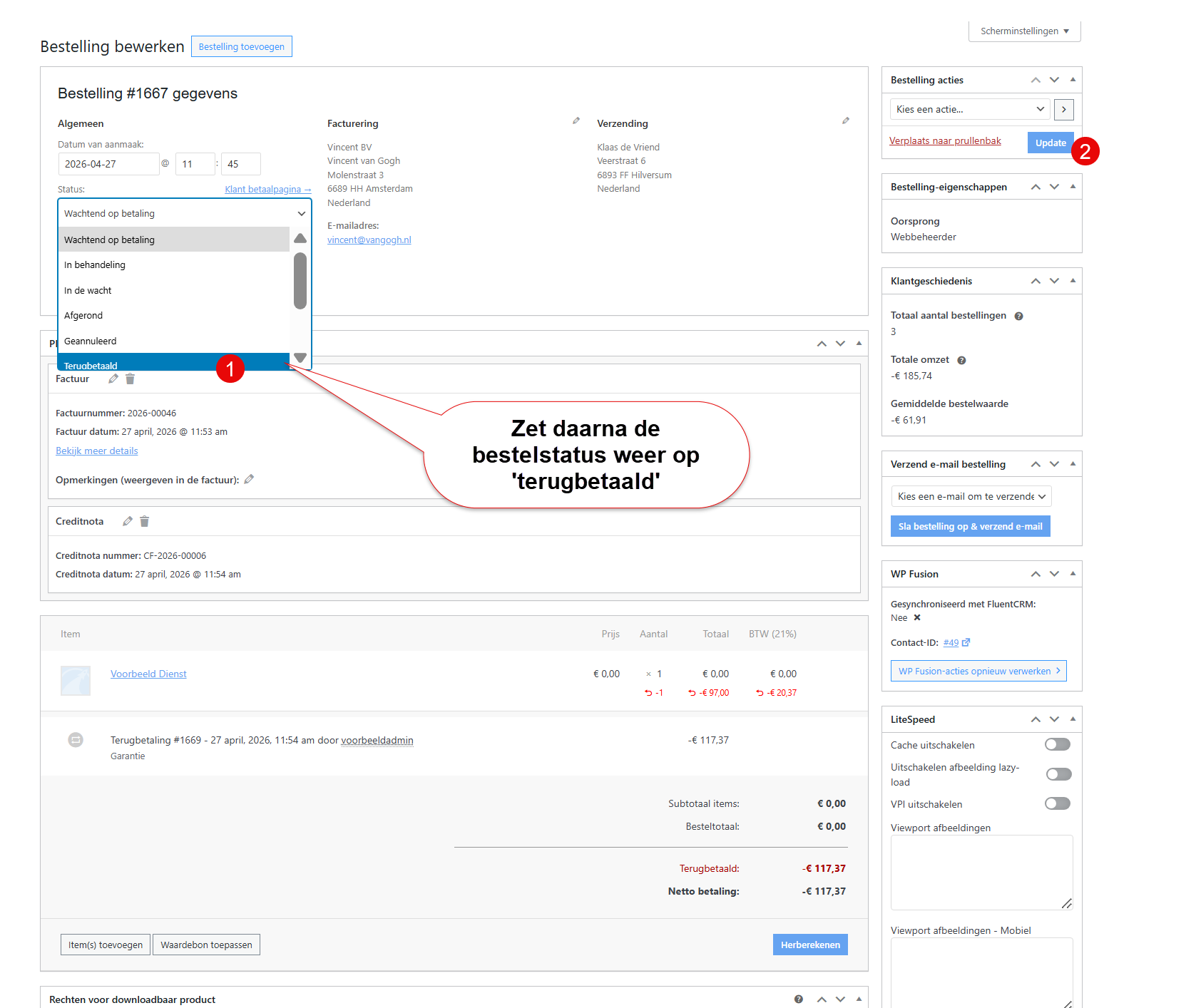
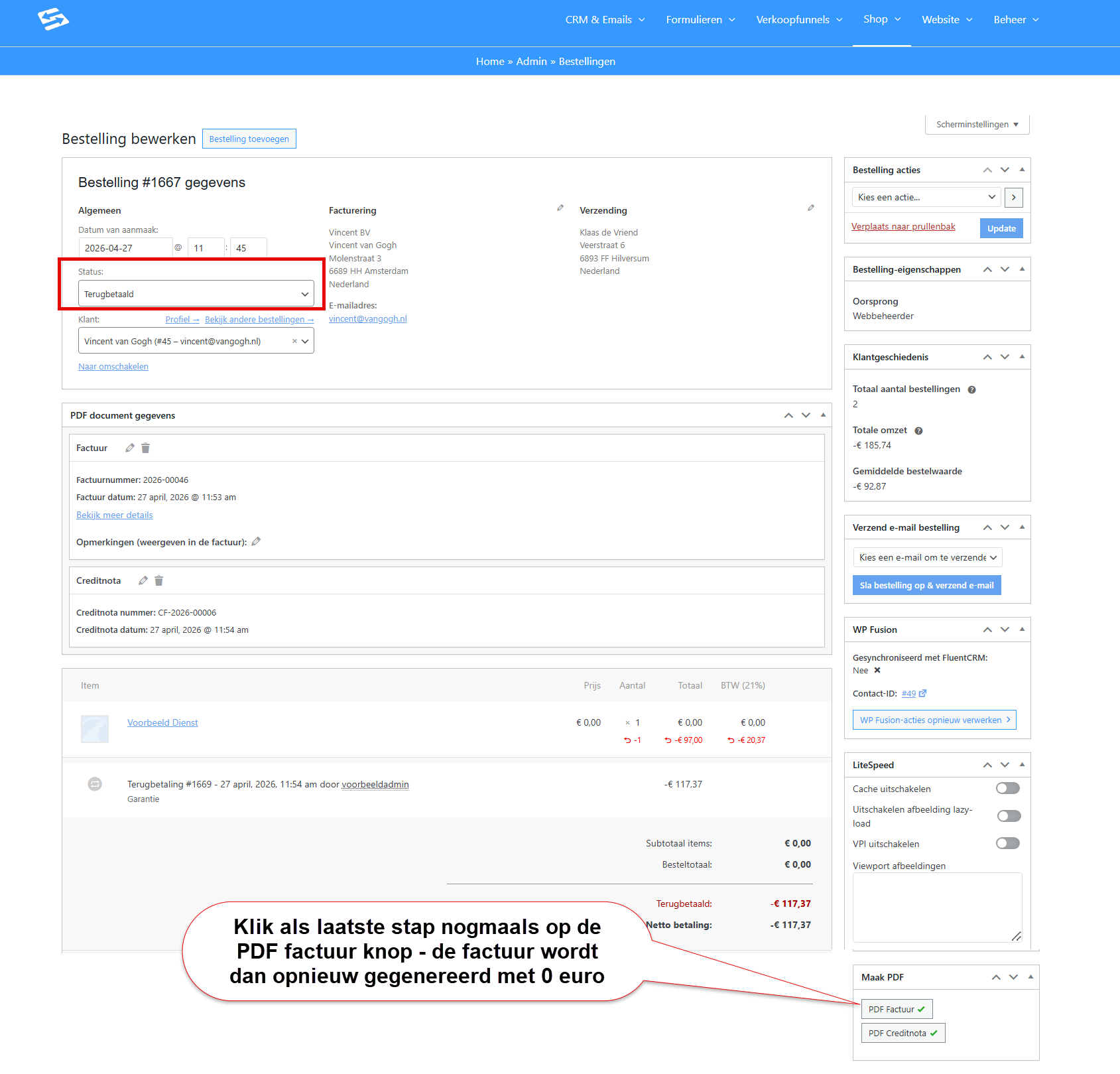
You can now also download the credit note and send it to the customer if you wish.
Frequently asked questions #
Can I link old invoices from e-act to the new system? #
No, the old e-act system and the new Autorespond are not connected. Old invoices and orders have not been transferred and cannot be credited directly via the new system.
Is a manual order with a negative amount a good solution? #
No, this causes problems with the shop statistics. It is not designed for that.
Can I create a manual credit note in WooCommerce? #
Yes, but only through a work-around: first create the original order, then issue a refund and afterwards change the original order so that it comes to 0 euro.


