Every order in your shop has a status: from Pending payment to Completed. That status decides which emails automatically go out to you and your customer, and it is the starting point for automations such as access to a course after payment. In this article you can read what every status means, when an order gets that status and which emails go with it. Handy as a reference, and essential if you let customers pay by bank transfer.
The shop in Autorespond is based on WooCommerce, included in your package. Read the WooCommerce documentation
Where do you see the status of an order? #
Go to Shop → Orders. In the overview you see the current status of each order as a coloured label.
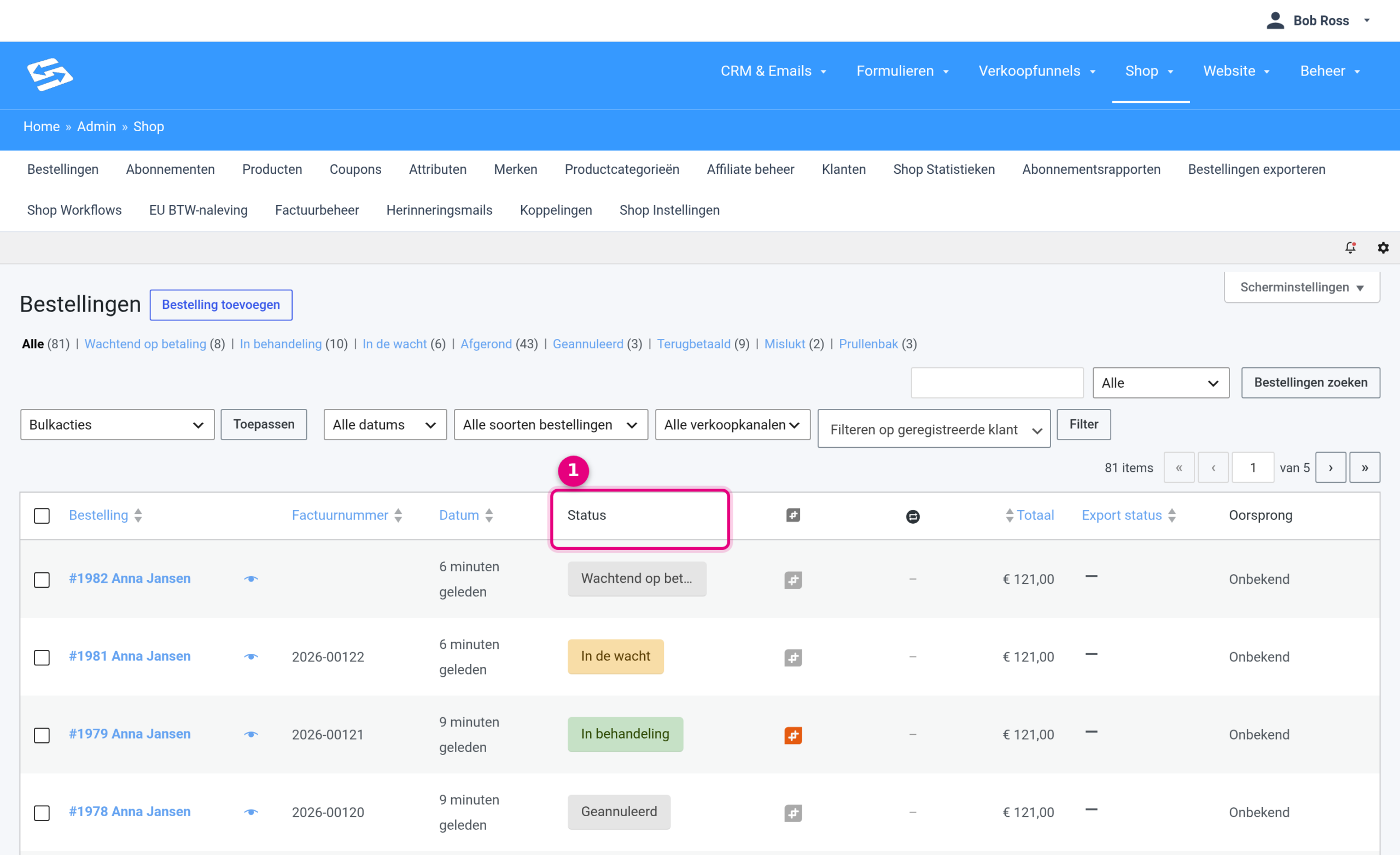
- The Status column shows the current status of each order as a coloured label. Above the list are filter links per status (Pending payment, Processing, On hold, Completed, Cancelled, Refunded, Failed) with the number of orders behind each one, so you can see all outstanding bank transfer orders in one click, for example.
The statuses at a glance #
- Pending payment: the order has been created, but the online payment has not been completed yet. You see this when a customer drops out of iDEAL or closes the payment page, for example. No emails go out in this status, not even to you.
- On hold: a manual payment is being awaited. If your customer chooses Direct bank transfer at the checkout, the order gets this status immediately. You receive the “New order” email and your customer the “Order on-hold” email, by default with the invoice attached so the payment details are with the customer straight away.
- Processing: the order has been paid. This status comes from the world of physical shops: there the owner still has to do something after the payment (pack and ship) and only sets the order to Completed on delivery. If you sell digital or virtual products, as most Autorespond users do, there is nothing left to handle after the payment. That is why the workflow “Order status ‘Completed’ after payment” is on by default in Autorespond (you find it under Shop → Shop Workflows): paid orders go straight through to Completed. You then see Processing pass by for a few seconds at most. During that run-through your customer gets two emails shortly after each other: first the “Processing order” email and immediately after that the “Completed order” email.
- Completed: the order has been handled in full. Your customer gets the “Completed order” email. Thanks to the default workflow above, this is the normal end status of every paid order on most Autorespond sites. Products that are both virtual and downloadable (such as an e-book) skip Processing anyway, even without a workflow.
- Cancelled: the order has been cancelled, by you or by the customer. Only you get an email about this by default; there is a customer email for cancellations, but it is off by default.
- Refunded: you have refunded the order. Your customer receives the “Refunded order” email and the credit note automatically alongside it.
- Failed: the online payment has definitively failed or been refused. Both you and your customer get an email about this. If a new payment attempt does succeed afterwards, the order simply moves to Processing and you receive a “New order” notification again.
Which emails go with which status? #
All order emails are together in Shop → Shop Settings → Emails tab. There you see per email whether it is on and who receives it. Below, the seven emails that hang on the order statuses are marked.
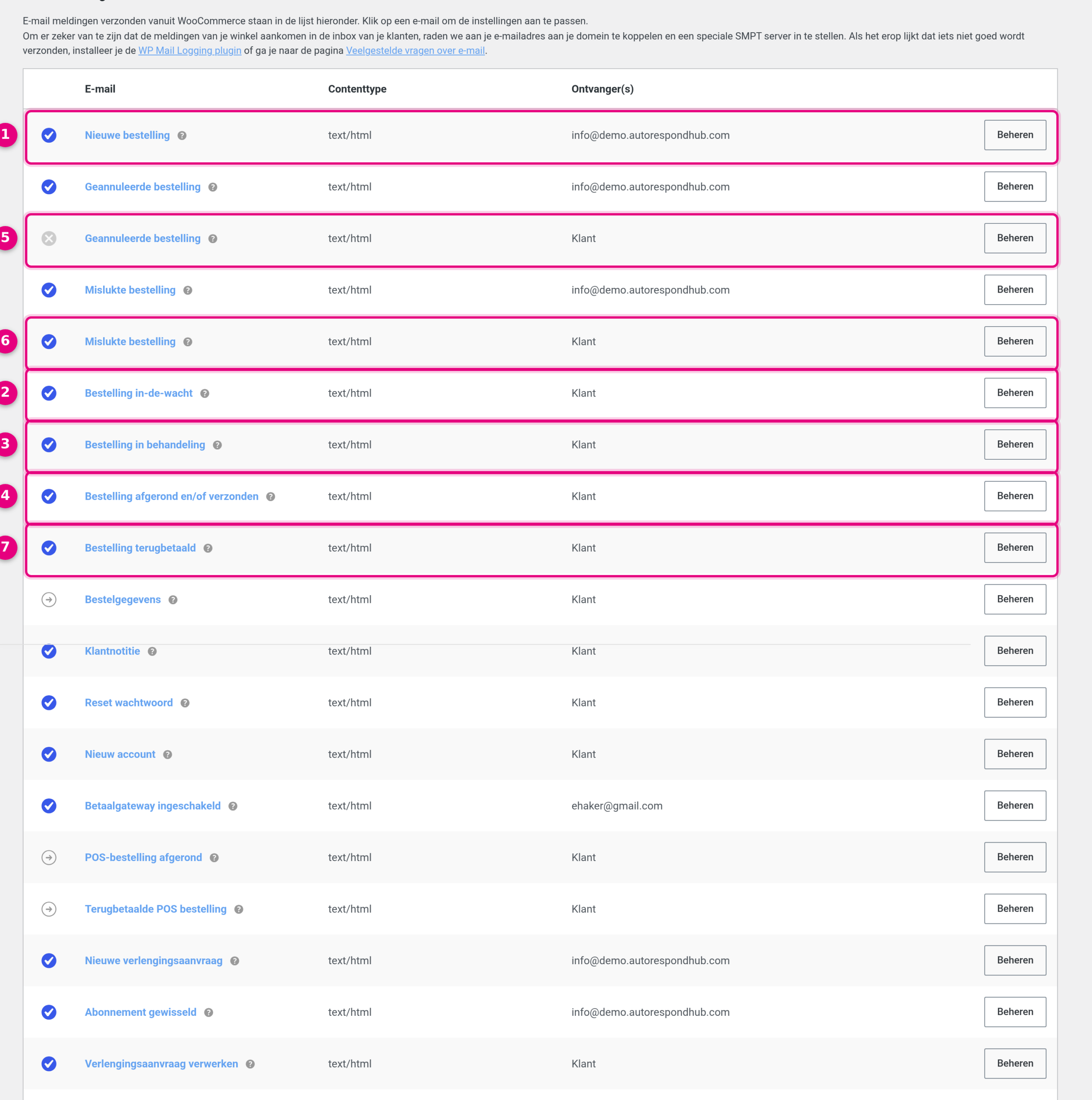
- New order (for you): goes out as soon as an order reaches On hold, Processing or Completed for the first time. So you do not get a notification yet for an order that stays on Pending payment. The first column shows per email whether it is on: a blue tick is on, a grey cross is off.
- Order on-hold (customer): on the move to On hold, so straight after a bank transfer order. The invoice is attached to this email by default.
- Processing order (customer): on the move to Processing, so as soon as payment has been made. Note: the subject line of this email and of the on-hold email are the same by default (“Your order at … has been received!”); the content does differ.
- Completed order (customer): on the move to Completed.
- Cancelled order (customer): off by default (grey cross). The admin version with the same name directly above it is on; names that appear twice are always the admin and the customer version of the same notification.
- Failed order (customer): on by default, just like the admin version above it.
- Refunded order (customer): on a refund, together with the credit note. With the Manage button behind each row you adjust the content, subject line and recipients of every email; the Recipient(s) column shows who gets the email now.
This table shows exactly which emails go out per status change:
| Status change | Email to you | Email to your customer |
|---|---|---|
| New → Pending payment | none | none |
| → On hold (bank transfer order) | New order | Order on-hold (with the invoice attached) |
| → Processing (payment succeeded, or marked as paid by you) | New order (first time only) | Processing order |
| Processing → Completed | none | Completed order |
| On hold → Completed (in one step) | none | only Completed order; the processing email is skipped |
| → Cancelled | Cancelled order | none by default (customer email is off) |
| → Failed | Failed order | Failed order |
| Failed → Processing | New order again | Processing order |
| → Refunded | none | Refunded order + credit note |
Good to know: with the default workflow “Order status ‘Completed’ after payment”, the moves to Processing and to Completed follow each other immediately. Your customer then receives the “Processing order” email and the “Completed order” email shortly after each other. That is normal behaviour; if you want the customer to get only one of the two, you can switch one of the emails off with the Manage button.
Changing the status yourself (with a bank transfer, for example) #
With a bank transfer order you change the status yourself as soon as the amount is in your account. Go to Shop → Orders, open the order, choose the new status and click Update.
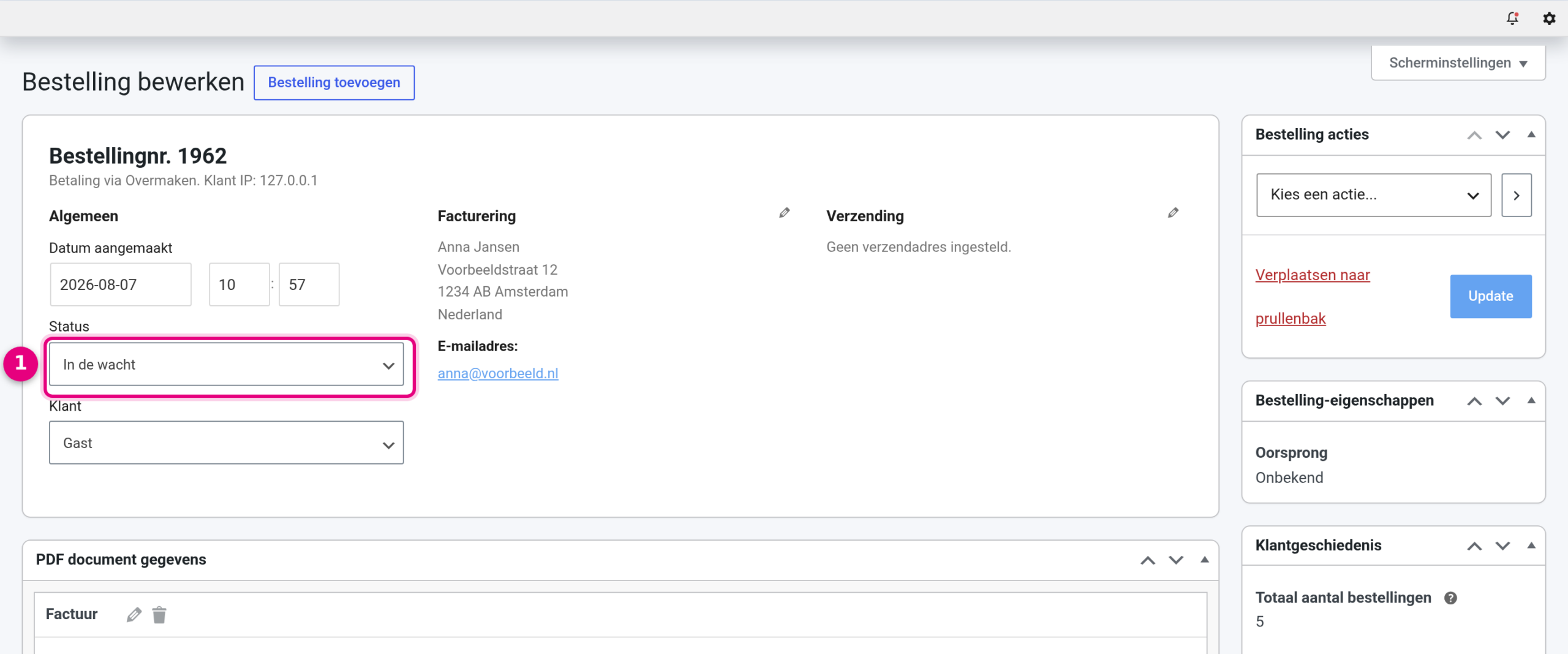
- The Status field: choose the new status here and confirm with the blue Update button at the top right. At the top of the order you also see the chosen payment method, so you know straight away whether it is a bank transfer order.
Resending an invoice or order notification from the order #
In the opened order screen you also find the “Order actions” block at the top right. With it you send two useful emails from the order itself:
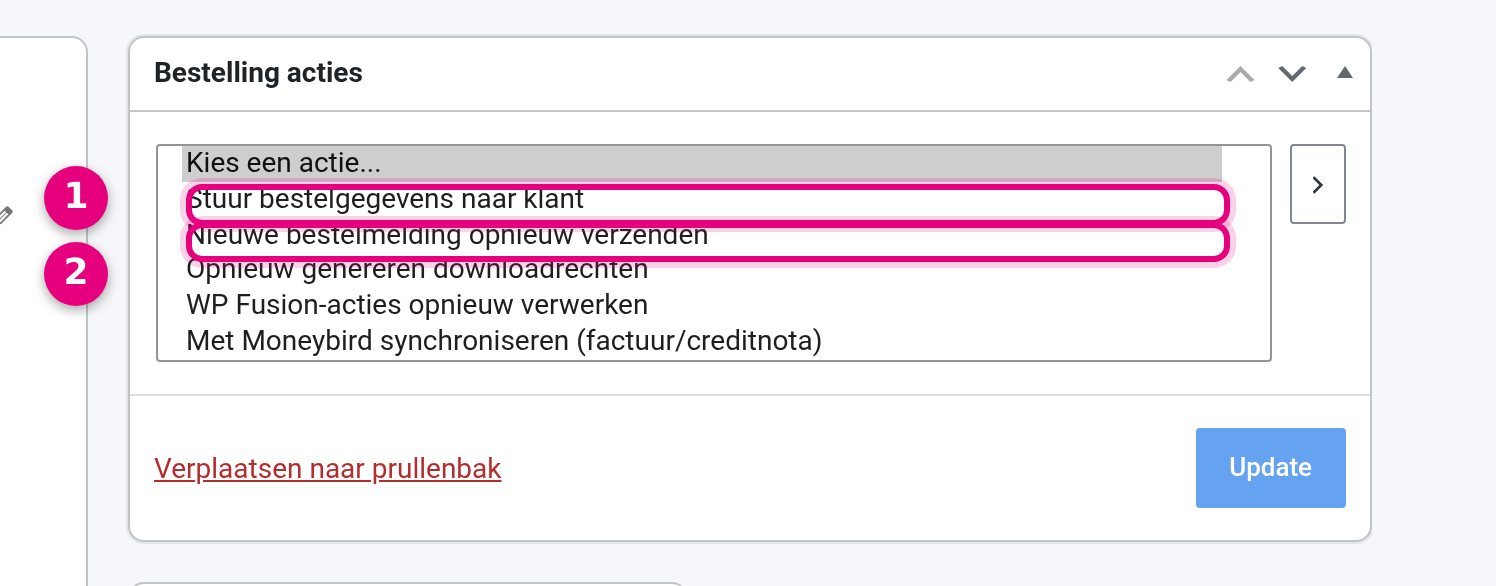
- Send order details to customer: sends the “Order details” email with the invoice and the order details to your customer. For an order that has not been paid yet, this email contains a payment link, handy if your customer has lost the original email or still wants to pay online. On some sites you see the (partly untranslated) English label “Email invoice / order details to customer” here; that is the same action.
- Resend new order notification: sends the admin email “New order” again to the shop email address you have set, for example if that notification ended up in spam or was deleted by accident.
Choose the action in the drop-down menu and click the arrow next to it to run it straight away. Everything this screen can do is described in What can you do from an order? Actions and emails explained.
Good to know when changing the status by hand #
- The standard route with a bank transfer: leave the order on On hold until the payment has come in and then set it to Processing. The customer then gets a proper payment confirmation, and automations that start on paid orders begin to run. If the default workflow “Order status ‘Completed’ after payment” is on, it moves the order on to Completed by itself afterwards; your customer therefore gets the processing email and immediately after that the completed email.
- Do not jump from On hold straight to Completed without knowing what happens then: your customer only gets the completed email, and the automation trigger “New order (processing)” only starts on Processing. If you work with the “Order completed” trigger, going straight to Completed is perfectly fine.
- You do not need to enter any further payment details: the payment method is already on the order and the date of the status change is recorded automatically in the order log.
- If you want customers to get access to a course or service only after payment, also read Only grant access after payment (including bank transfers).


