Your community portal does not have to stop at spaces and courses. With the page template FluentCommunity Frame, every WordPress page runs inside the portal, with the sidebar and the menu simply around it. That way you give members an appointments page, a form, a roadmap or even an offer page without them leaving the community. In this article you create such a page and add it to the portal menu.
The community and course features in Autorespond are based on FluentCommunity, included in your package. Read the English documentation
1. Creating a page in the portal #
- In your management area, go to Pages → New page and build the page as you are used to (blocks, a form, a calendar, anything is possible).
- In the page settings on the right, choose FluentCommunity Frame under Template. There is also a full-width variant (Full Width Frame) for wide content such as boards and tables.
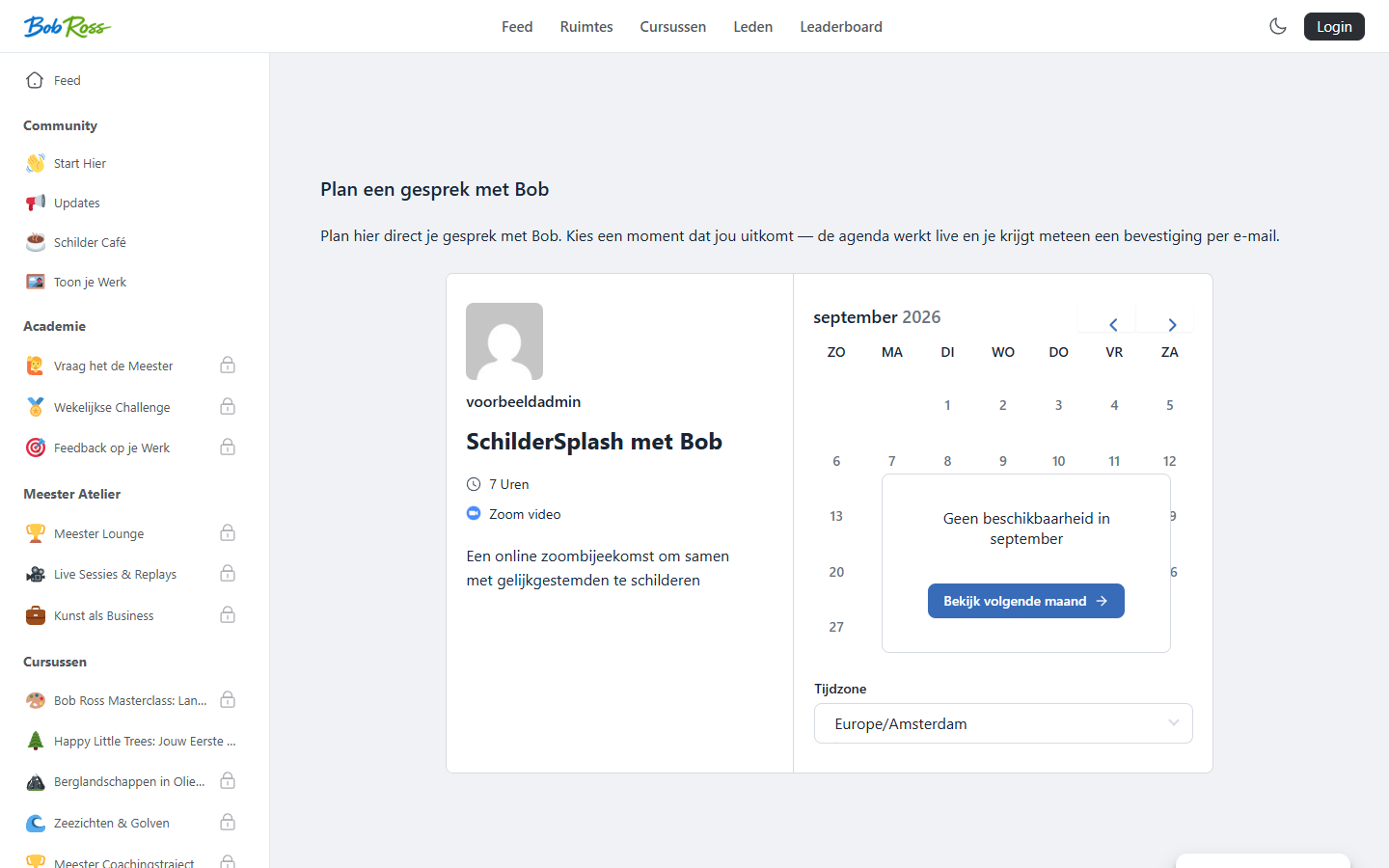
- Publish the page and open it: you see your page content with the portal sidebar around it. Members therefore stay in the familiar environment.
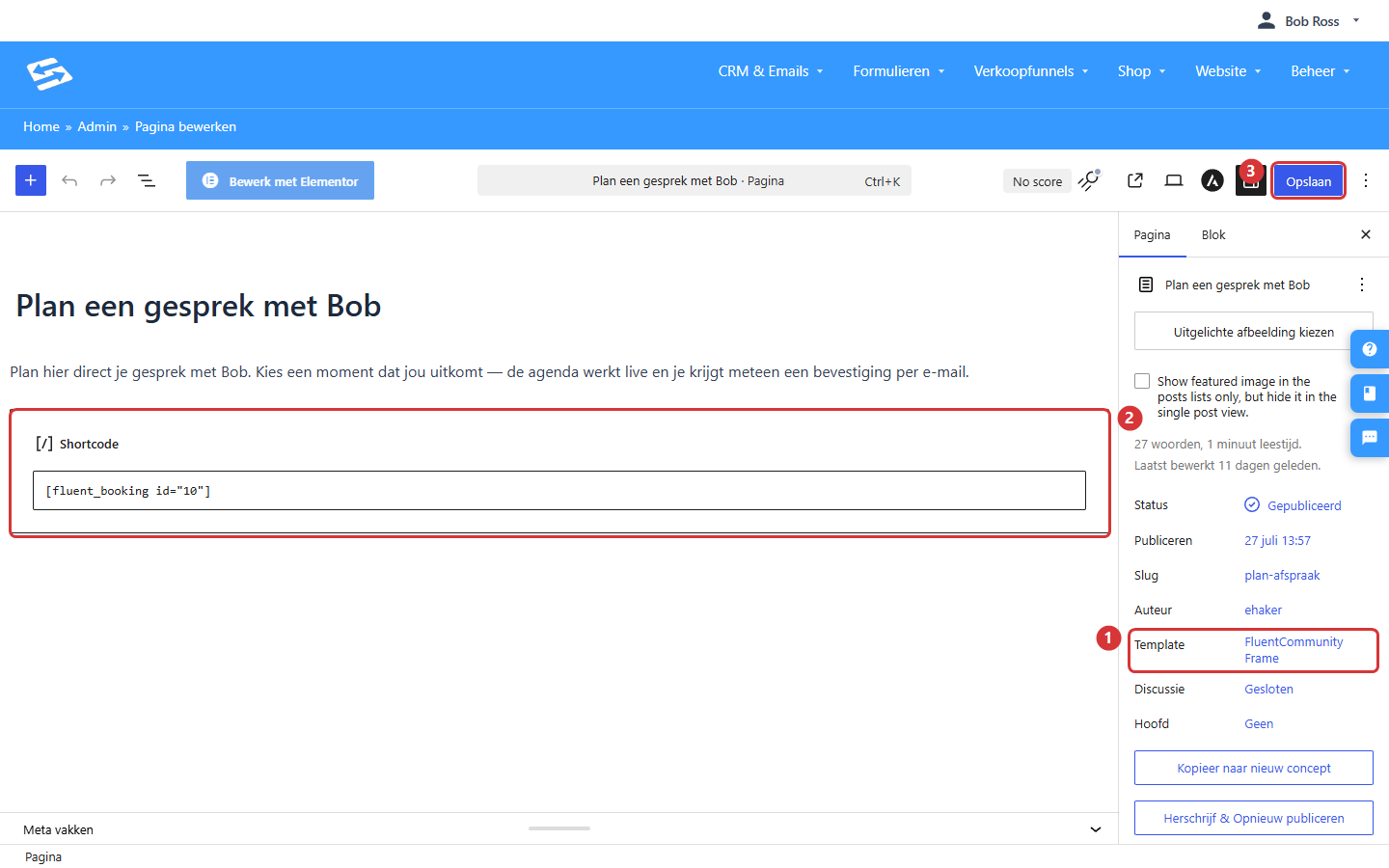
In the screenshot: 1) the template is set to FluentCommunity Frame · 2) the page content (here a booking form) · 3) saving.
2. Adding the page to the portal menu #
- Open the portal and go to Settings → Menu settings.
- Add a custom link at the bottom: a title (with an emoji as icon, for example “📅 Book a call”), the URL of your page and whether it opens in the same tab or a new one. For frame pages, choose the same tab, as that feels like one whole.
- Set the visibility: everyone, logged-in members only, or only members of specific spaces. With that last option you create exclusive pages, for example a coaching page that only your premium members see in their menu.
You can also show the same link per space instead of in the main menu: see the sidebar links in the article on setting up spaces.
3. Ideas that have proved themselves #
- Scheduling appointments, put your booking form or calendar on a frame page; members book a call without leaving the portal.
- Roadmap or idea board, let members contribute and vote on what you are going to build (see the roadmap article).
- Forms, an intake, a request or a survey as a page in the portal.
- Offer or upgrade page, a page about your higher membership, visible only to the levels below it.
- Help & frequently asked questions, a starting page explaining how the community works.
Frequently asked questions #
Does every page builder work inside the frame? #
Pages from the block editor work most predictably. Pages from a page builder work too, but check the result: some wide layouts fit better in the Full Width Frame variant.
Do non-members see the page as well? #
The page itself is an ordinary WordPress page; if you want to restrict it, use the visibility of the menu link and protect the page content with tags, see “Controlling access to pages and content with tags” below.
My change to the menu is not visible straight away. #
Refresh the portal with a hard refresh or clear the cache; see the cache article in the related links.


