If you create orders for customers manually from the admin, you often want to state your bank details on the invoice so that customers can pay by bank transfer. At the same time you do not want to show this information on invoices for orders that customers place themselves through the webshop checkout. With the PDF Customizer you can show payment details conditionally, based on the order status.
Invoice management in Autorespond is based on WP Overnight PDF Invoices & Packing Slips Pro, included in your package.
Why conditional payment details #
Manually created orders get the order status ‘Pending payment’ by default. This means the customer still has to pay, often by bank transfer. These are the invoices on which you want to state your IBAN details.
Orders that customers place themselves through the checkout usually have the status ‘Processing’ or ‘Completed’ because they pay immediately by iDEAL or another payment method. Bank details are not relevant on those invoices.
Creating a custom block with payment details #
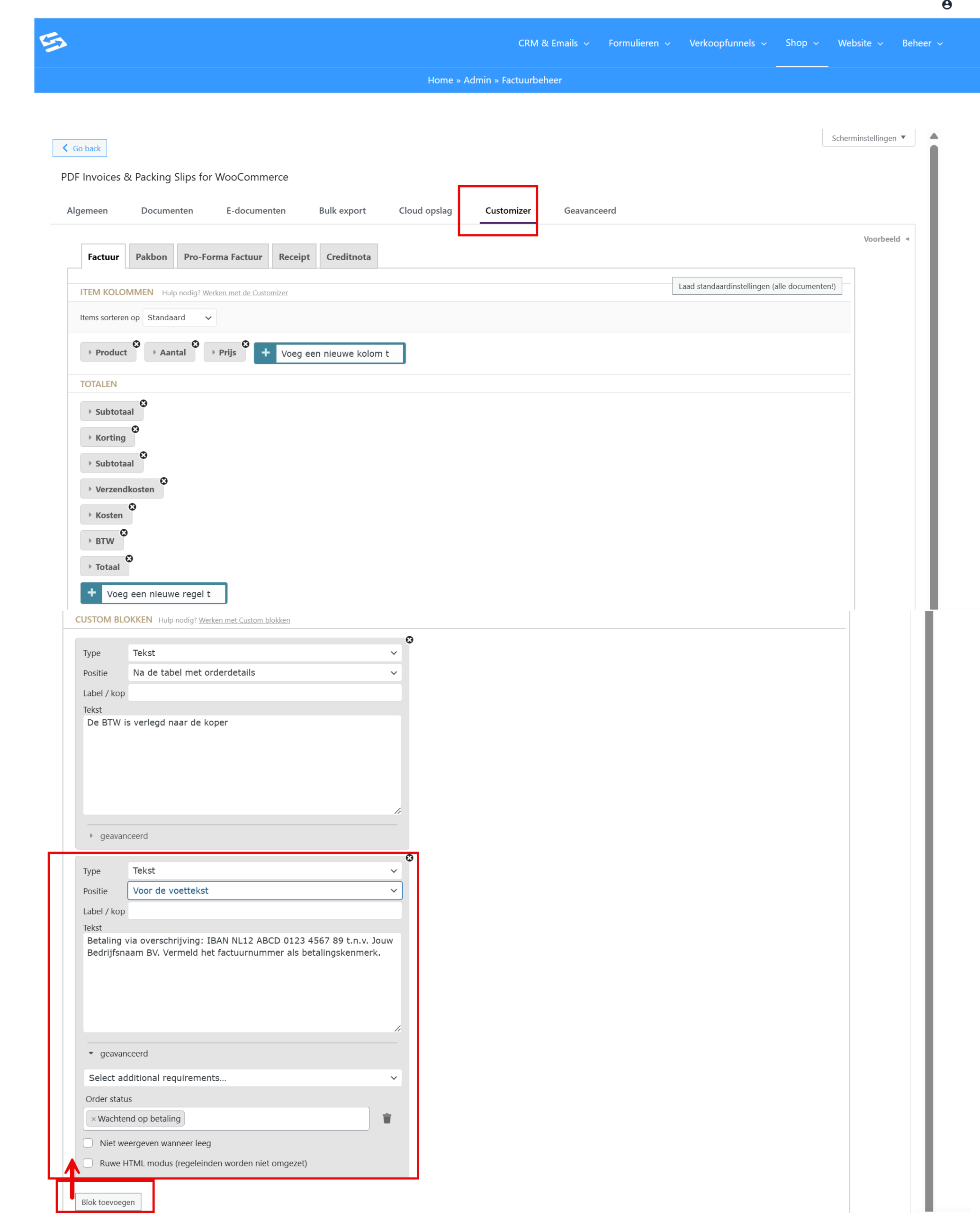
Go to Shop → Invoice management and open the ‘Customizer’ tab.
Click ‘Add block’ in the ‘Custom blocks’ section and set the following:
- Type: select ‘Text’
- Position: choose ‘After order details’ or ‘Before the footer’, for example
- Content: enter your payment details, for example:
Payment by bank transfer: IBAN NL12 ABCD 0123 4567 89 in the name of Your Company Ltd. Please quote the invoice number as the payment reference.
Change the IBAN details and the company name to match your own situation.
Setting up conditional logic #
Click ‘Advanced’ on the custom block you have just created. This is where you set the condition:
- Condition type: select ‘Order status’
- Condition: set it to ‘is equal to’
- Value: select ‘Pending payment’ (pending)
- Click ‘Save’ to store the setting
Result and how it works #
The custom block with the payment information now appears automatically on invoices for orders with the status ‘Pending payment’. Those are exactly the orders you create manually via Shop → Orders → Add order.
Invoices for orders that customers place themselves through the checkout do not show this block, because those orders have a different order status (usually ‘Processing’ or ‘Completed’).
Important points to watch #
- This functionality only works if the manual order has no payment method linked to it that changes the status automatically
- Always test with a trial order to check that the conditions work correctly
For more information about setting up PDF invoices, see also setting up PDF invoices and creating a new order and invoice manually.
Frequently asked questions #
Why do I not see payment details on my manually created invoice? #
Check whether the order has the status ‘Pending payment’. If you link a payment method when creating the order, the status changes automatically and the custom block is not shown.
Can I set several conditions for showing payment details? #
Yes, in the customizer you can combine several conditions with ‘AND’ or ‘OR’ logic to set more complex rules for when the block is shown.
What happens if I change the order status of an order manually? #
The custom block adjusts automatically on the basis of the current order status. If you change an order from ‘Pending payment’ to ‘Processing’, the payment details disappear from the invoice.


