Would you like your website to be found more easily in Google? One of the most important steps is setting up your titles and meta descriptions correctly. These are the texts users see in the Google search results.
In Autorespond you can easily manage these settings for your entire website, from your homepage to your blog articles. In this article we explain where to find these functions and how to set up the basics.
Where do I find the settings for titles and metas? #
To reach the right settings, navigate through the main menu as follows:
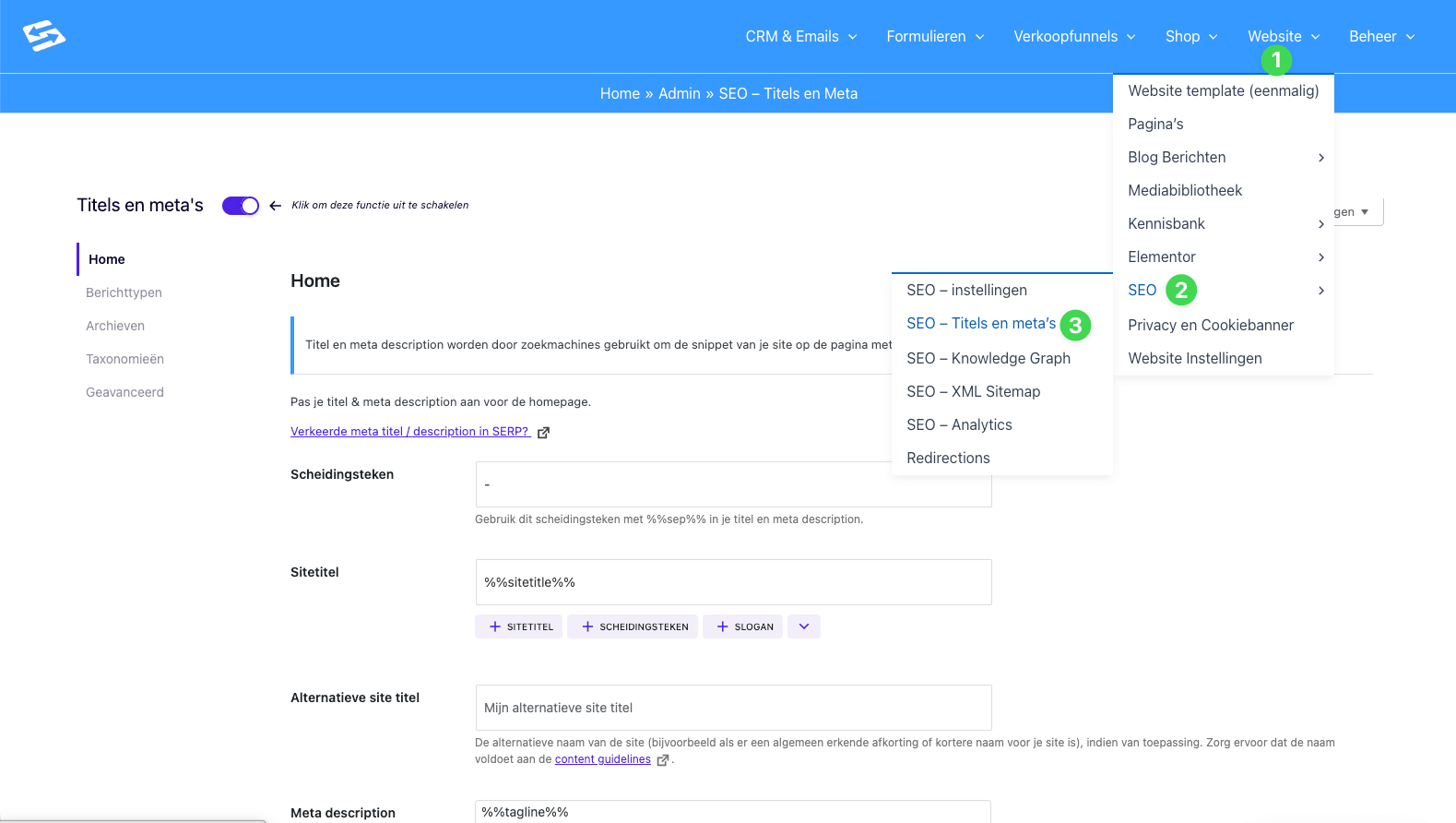
- In the blue menu bar, go to Website (1).
- In the drop-down menu, choose SEO (2).
- Then click SEO – Titles and metas (3).
You now reach the main screen where you can manage the global SEO settings for titles and descriptions.
The various sections explained #
The settings screen is divided into several tabs, so that you can set specific rules for each type of page. Below you see what each section does.
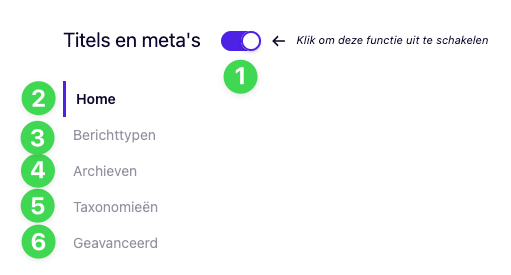
1. On/off toggle With this button (1) you switch the function for custom titles and metas on or off.
- Please note: Make sure this toggle points to the right (coloured purple) to activate your settings. If it is switched off, your site uses the default settings, which are often less than optimal for search engines.
2. Home This is the tab (2) you are on now. Here you arrange the title and description specifically for your homepage. This is often the most important page of your site.
3. Post types Here (3) you set the rules for your standard pages, blog posts and any other content types (such as products or events). You can, for example, set all blog posts to automatically get the structure “Title of blog – Name of website”.
4. Archives Under this tab (4) you manage the SEO settings for archive pages, such as author pages or date archives. Many users choose not to have these pages indexed (“noindex”) to avoid clutter in Google.
5. Taxonomies Here (5) you arrange the titles and metas for your categories and tags. If you have a blog with many categories, it is important to set good descriptions for them here.
6. Advanced In the Advanced tab (6) you find settings for specific situations, such as advanced meta robots settings or site-wide verifications. For most users the default settings are enough here.
Setting up the homepage (Home tab) #
When you are on the Home (2) tab (see the first image), you see a number of input fields. This is what you need to know:
- Separator: This character (for example a `-` or a `|`) is placed between the title of your page and the name of your site.
- Site title: Here you determine what appears as the title in Google. You can type fixed text here, but it is smarter to use variables such as `%%sitetitle%%`.
- Alternative site title: Use this if you have an abbreviation or shorter name that is also relevant.
- Meta description: This is the short text below the blue link in Google. Write something appealing that invites people to click.
Tip: Do you see buttons with a `+` sign? Click them to quickly add dynamic variables to your title or description.
Frequently asked questions (FAQ) #
I have changed my settings, but I do not see it in Google straight away. How is that possible?
Google needs time to “crawl” (read) your website again. This can take several days and sometimes weeks. You can speed up this process by submitting your sitemap again through Google Search Console.
What do the percentage signs mean (for example %%sitetitle%%)?
These are dynamic variables (placeholders). The system automatically replaces %%sitetitle%% with the real name of your website that you entered in the general settings. That way you do not have to type your company name manually on every page.
Do I have to fill something in separately for every blog post under ‘Post types’?
No, on this screen you set the default structure (the template). If you set %%post_title%% %%sep%% %%sitetitle%%, for example, this applies automatically to all your new blogs. Would you like a different title for one specific blog? Then you can change that in the editor of that specific post itself, at the bottom of the page.
What happens if I switch off the toggle (1)?
Autorespond then stops generating these optimised titles. Your website falls back on the standard WordPress generation, which can mean that you are found less easily or that your titles look less tidy in the search results.


