Payment management in the webshop: outstanding invoices and reminders #
As an entrepreneur you want an overview of outstanding payments and the option to send reminders where needed. Autorespond offers various ways to manage payments and automate the process.
Payment management in Autorespond is based on WooCommerce, included in your package with the Shop & Sales funnels extension.
Viewing outstanding invoices #
Go to Shop → Orders. Use the status filter in the top right to filter on ‘Processing’. These are all the orders that have been placed but not yet paid. In one overview you see:
- Order number and date
- Customer details
- Order amount
- How long the order has been outstanding
Click an order to view the details and send a reminder if you want to.
Processing payments #
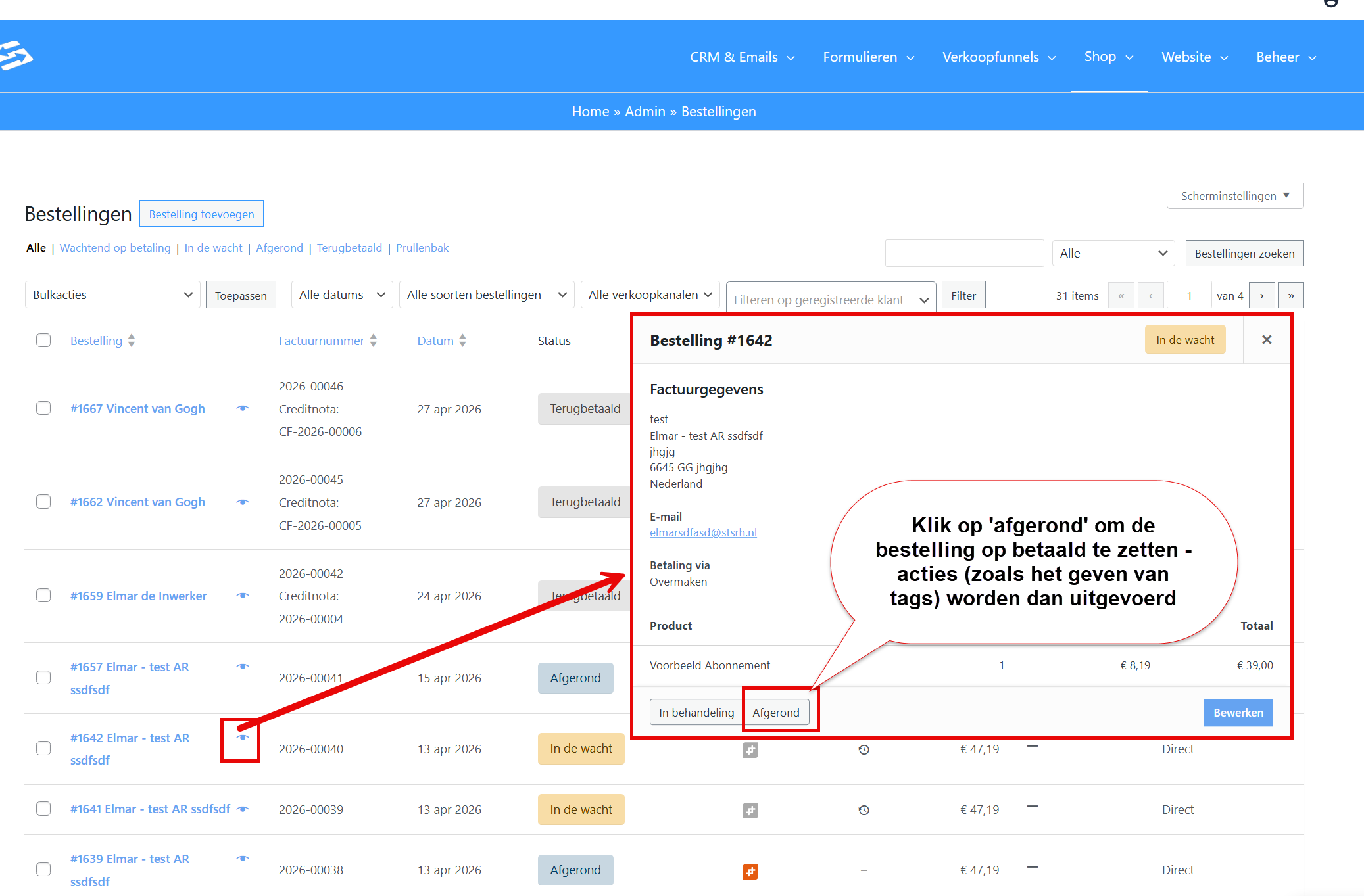
When a customer has paid (by bank transfer or after an automatic collection, for example), you change the order status by hand:
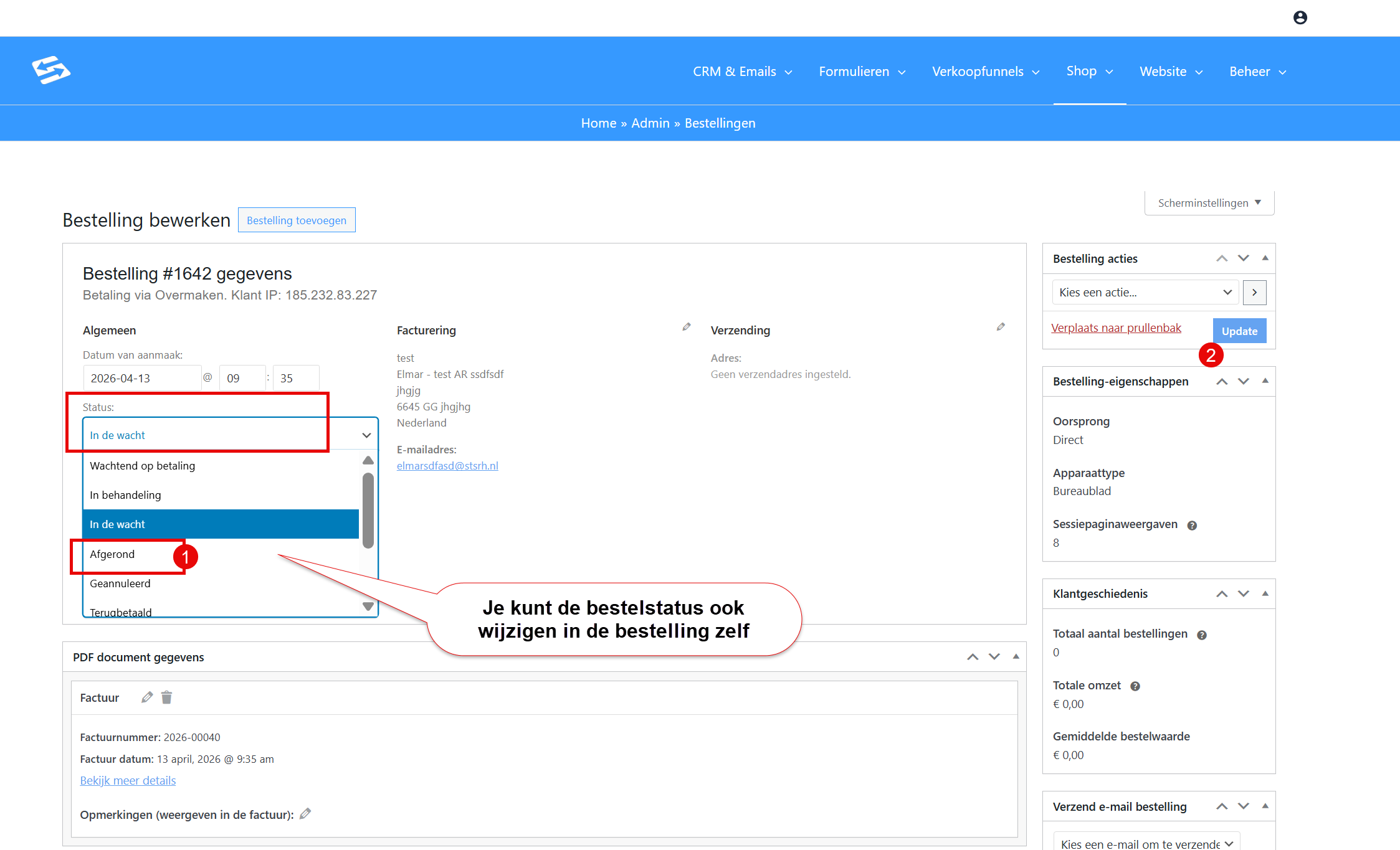
- Open the order through Shop → Orders
- Change the status from ‘Processing’ to ‘Completed’
- Click ‘Update’
The system automatically sends an order confirmation to the customer as soon as you change the status to ‘Completed’.
Automated reminder invoices #
You can automate reminders with an automation that starts on every new order:
- Go to CRM & Emails → Automations
- Click ‘Add new automation’
- Choose ‘WooCommerce Order Received’ as the start trigger
- Add a condition block: ‘If order status = Processing’
- Add a wait block (7 days, for example)
- Add a second condition block: ‘If order status is still = Processing’
- Add an email block with your reminder email
- Repeat for a second reminder after another 7 days, for example
This way only customers with unpaid orders receive reminders automatically, and the reminders stop as soon as they pay.
Sending a reminder manually #
For a one-off reminder:
- Open the order through Shop → Orders
- Scroll down to ‘Order notes’
- Select ‘Note to customer’ in the dropdown
- Type your reminder and tick ‘Notify customer’
- Click ‘Add’
The customer immediately receives an email with your message and the payment information.
Payment methods per order #
On every order you see which payment method the customer chose. For iDEAL orders that were not completed, a technical problem has usually occurred. For bank transfers you expect the payment within a few days.
Frequently asked questions #
How do I see which orders have not been paid yet? #
Go to Shop → Orders and filter on the status ‘Processing’. These are all the unpaid orders waiting for payment from the customer.
Do I have to change the order status by hand after payment? #
For iDEAL and credit card this happens automatically. For bank transfers and other manual payments you change the status from ‘Processing’ to ‘Completed’ once the payment has been received.
Can I set up automatic reminders? #
Yes, with an automation that starts on every new order and checks whether the status is still ‘Processing’ after a number of days.


