There are two ways to let customers pay by bank transfer in Autorespond: through the Mollie payment method Bank transfer, or through the standard WooCommerce payment method Bank transfer (also known as BACS or direct bank transfer). The two exist alongside each other. That is why Mollie shows a message while connecting that you had best switch off the standard BACS payment method: if both are switched on, customers see a transfer option twice at the checkout and that is confusing. This article explains the difference between the two options and how to set each one up.
The Mollie integration in Autorespond is based on Mollie Payments for WooCommerce, included in your package. Read the Mollie documentation
The difference between the two options #
Bank transfer through Mollie #
At the checkout the customer sees the IBAN of Mollie (recognisable on statements as Stichting Mollie Payments), together with a unique payment reference. The payment request is valid for 12 days by default. As soon as the amount reaches Mollie, the order in your shop is set to paid automatically and your follow-up emails and deliveries continue automatically as well. The amount is then paid out to you together with your other Mollie payments. The advantage: you do not have to keep an eye on it.
Bank transfer through WooCommerce (BACS) #
The customer sees your own IBAN on the thank-you page and in the confirmation email, and transfers the amount directly to you. The money therefore lands in your own account straight away, without an intermediate step through Mollie. In return, you keep an eye on whether the amount has come in yourself and then set the order to paid by hand. How to do that is explained in what you can do from an order.
Make a deliberate choice between the two. Both routes are set out below.
Option 1: handle bank transfers through Mollie #
First activate the Bank transfer payment method in your Mollie dashboard (on mollie.com under Settings → Website profiles → Payment methods). Then switch off the standard Bank transfer payment method in your shop. Go to Shop → Shop settings and open the Payments tab.
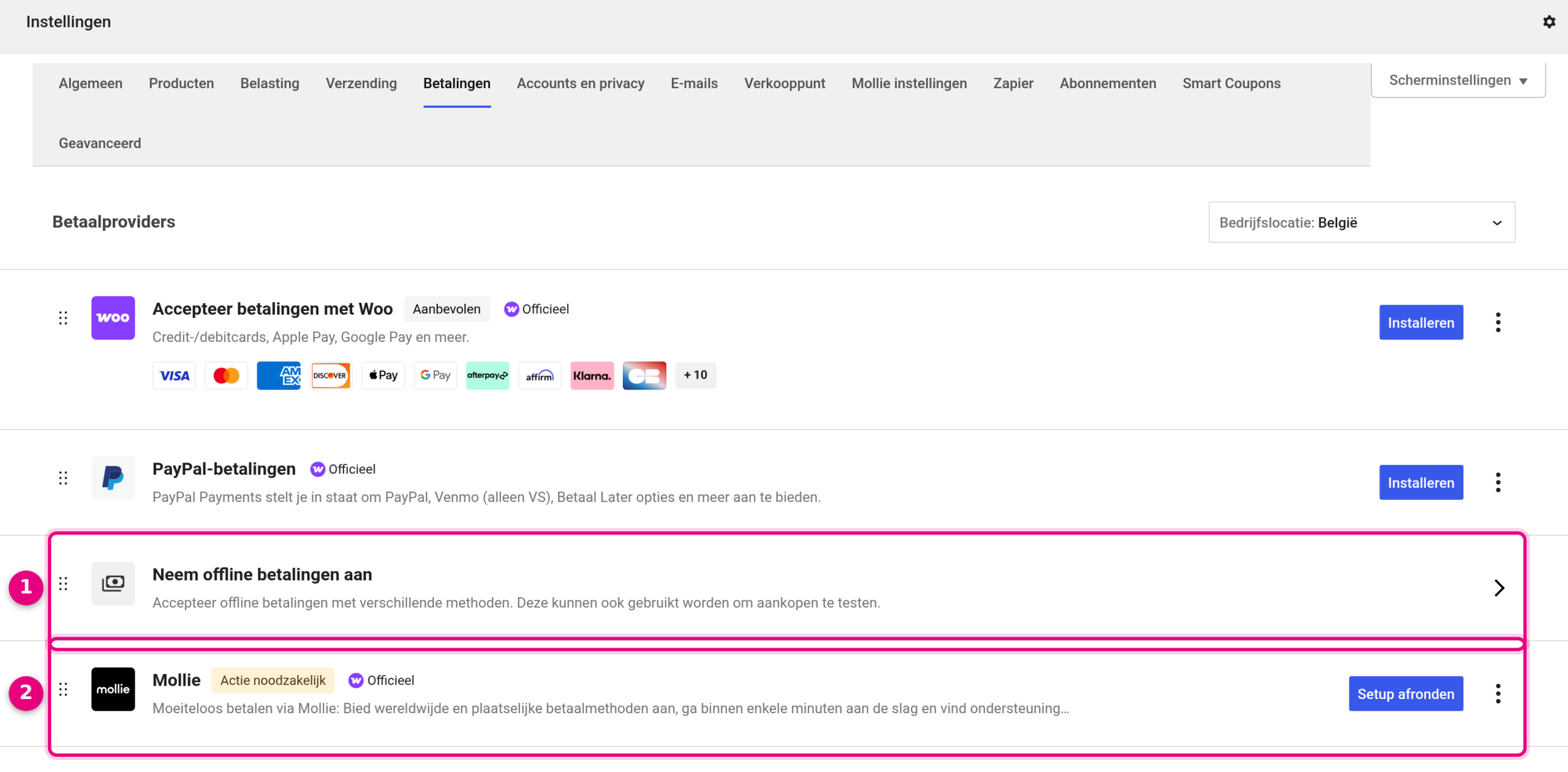
- Click the Take offline payments row. This covers the payment methods without an online payment, including Bank transfer.
- The Mollie integration is in this same screen. The button behind it takes you to the Mollie settings.
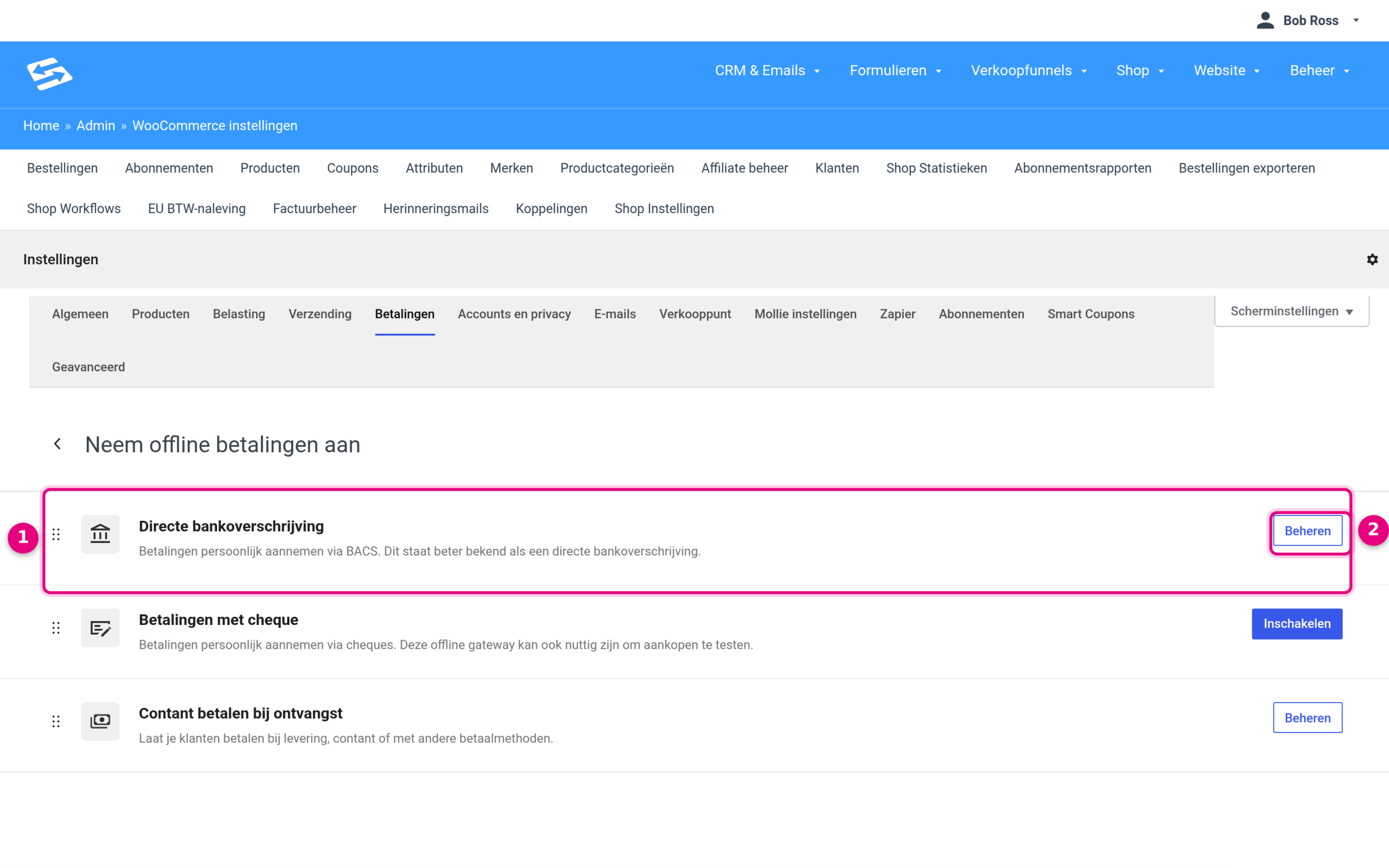
- The Direct bank transfer row: this is the standard WooCommerce method Bank transfer (BACS) that the Mollie message is about.
- Click Manage to open the settings.
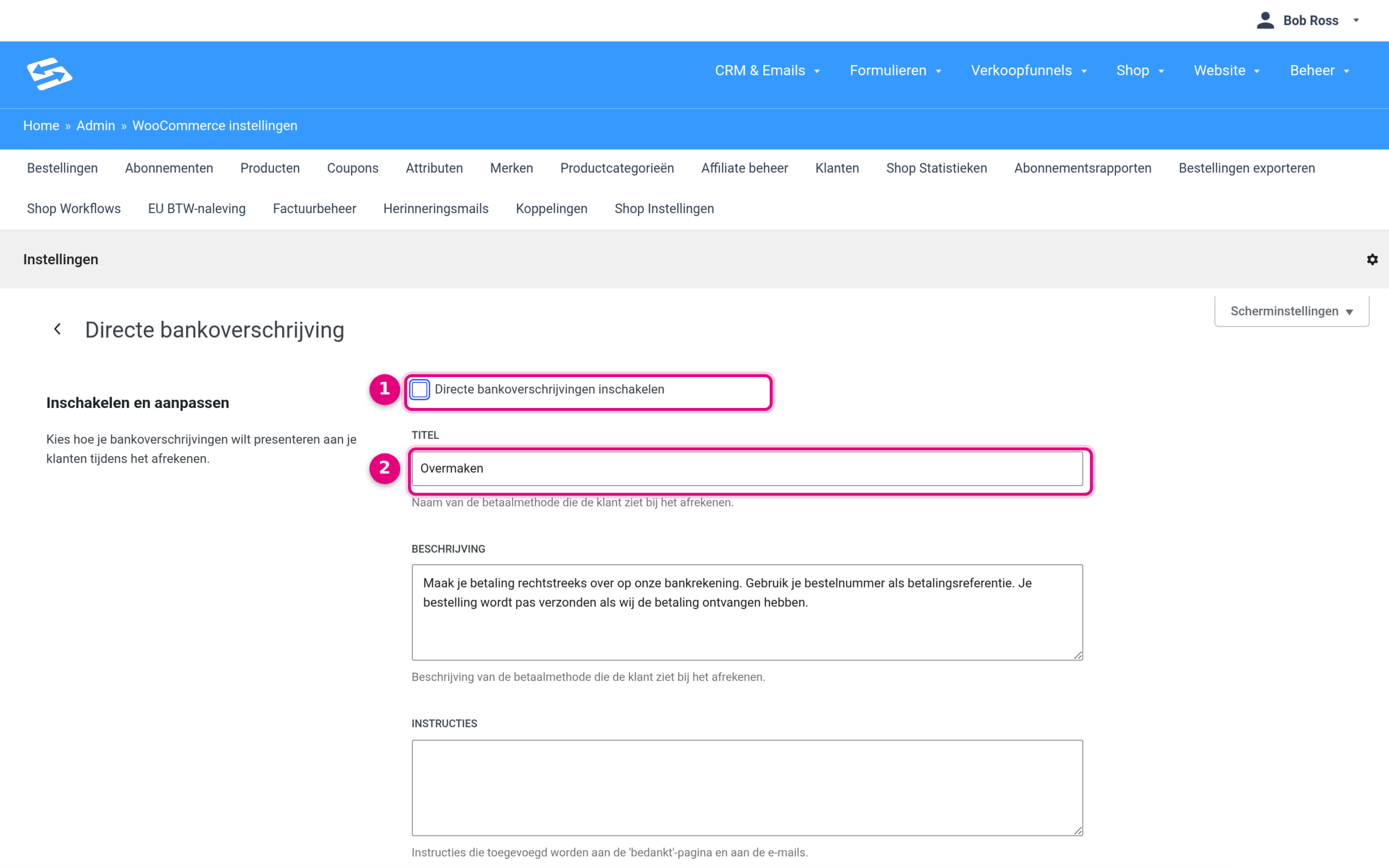
- Untick Enable direct bank transfers, as in the example.
- The Title field is the name customers see at the checkout (Bank transfer by default). You do not have to change this in order to switch the method off.
Click Save changes at the bottom of the page. Customers now only see the transfer option from Mollie.
Option 2: use Bank transfer with your own IBAN #
Would you rather have customers transfer money straight to your own account? Then leave Enable direct bank transfers ticked and fill in your account details. In that case, do not activate the Bank transfer payment method in your Mollie dashboard, so that customers see only one transfer option. Scroll down on the same management page of Direct bank transfer.
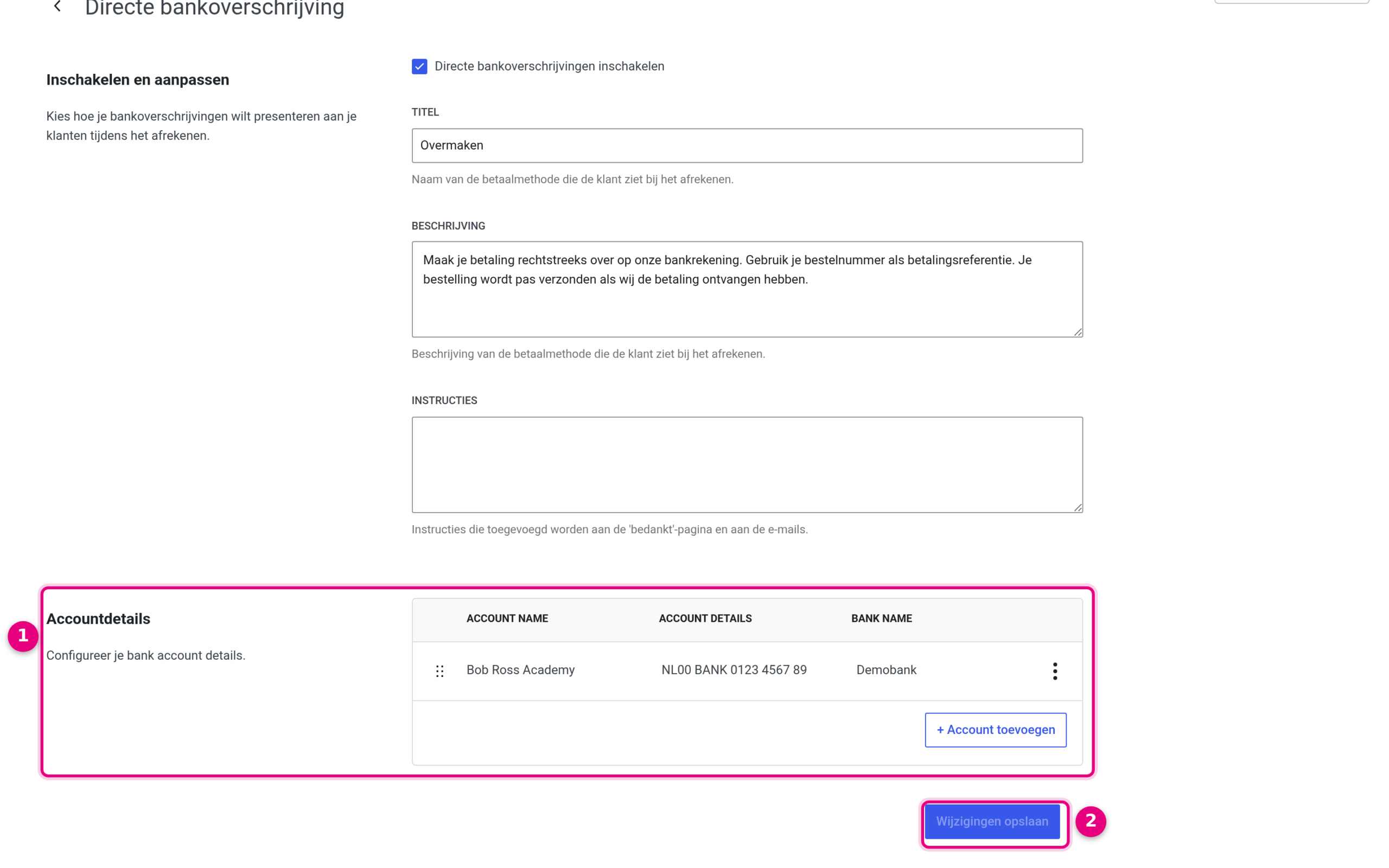
- At Account details, fill in your account holder name, your IBAN and your bank name. The customer sees these details on the thank-you page and in the confirmation email.
- Click Save changes.
Orders paid by Bank transfer get the status Pending until you set them to paid. Do you also want to show your IBAN on the invoice PDF for as long as payment is outstanding? You arrange that with a conditional block, see showing IBAN details conditionally on invoices.
Good to know #
- This choice is only about the transfer option. iDEAL and your other Mollie payment methods keep working as you are used to.
- A bank transfer payment request through Mollie is valid for 12 days by default. During that period the order stays on the status Pending until the payment comes in.
- If a customer does not pay the Mollie request, the payment expires by itself and you can cancel the order or send the customer a new payment link.


