By default, VAT numbers that customers enter with an order are shown on the invoice but not saved automatically in the customer profile in the CRM. By setting up a connection between the webshop and the CRM, you can make sure VAT numbers are saved on the contact automatically.
Step 1: Create a custom contact field #
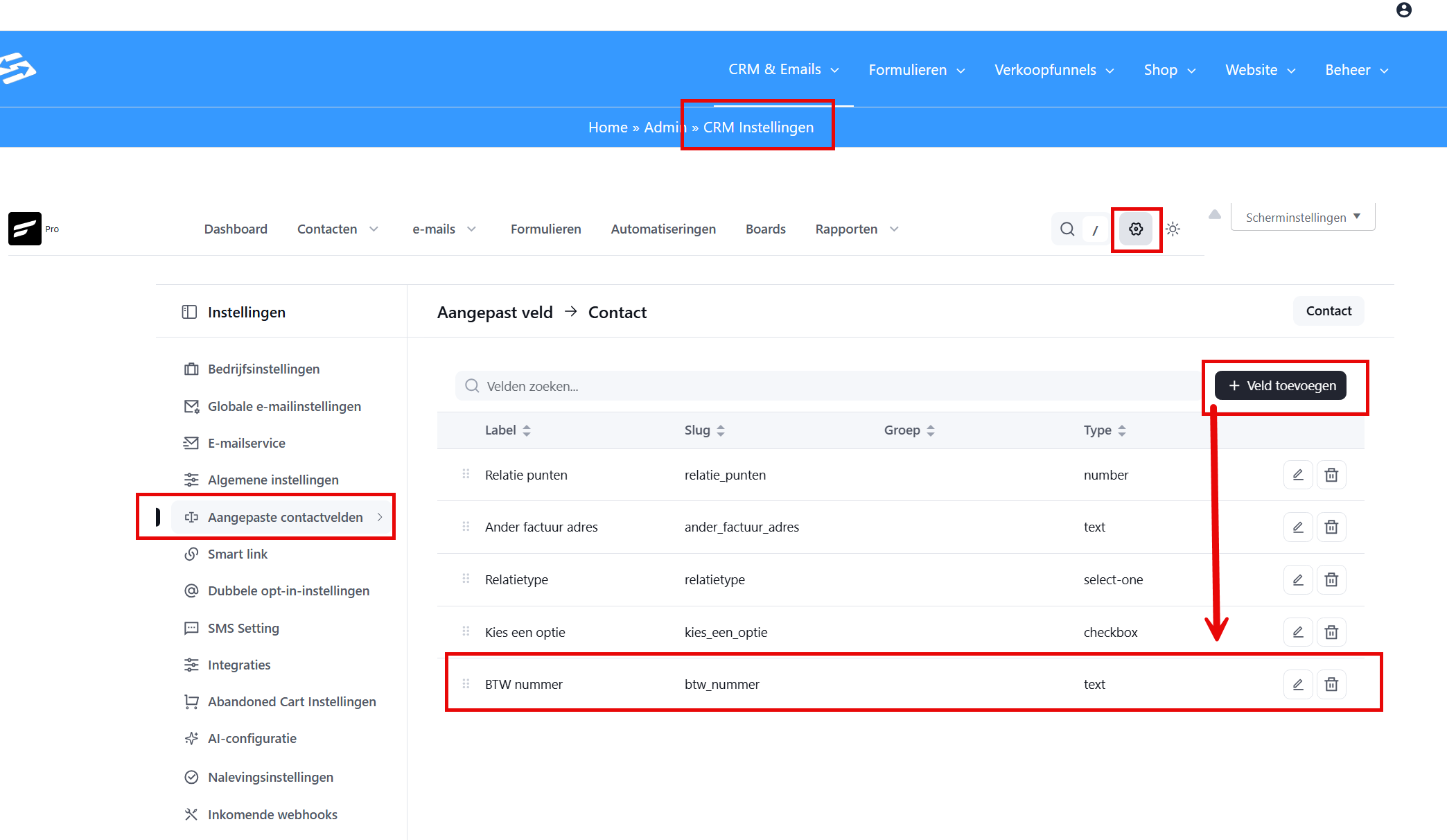
First create a custom contact field for the VAT number:
- Go to CRM & Emails → CRM settings → Custom contact fields
- Click Add new field
- Give the field the name VAT number
- Choose Text as the field type
- Save the field
Please note: If you migrated from the old Autorespond system, this custom contact field has already been created automatically.
Step 2: Set up the connection between webshop and CRM #
Now set up the connection so that VAT numbers from orders end up in the CRM contact field automatically:
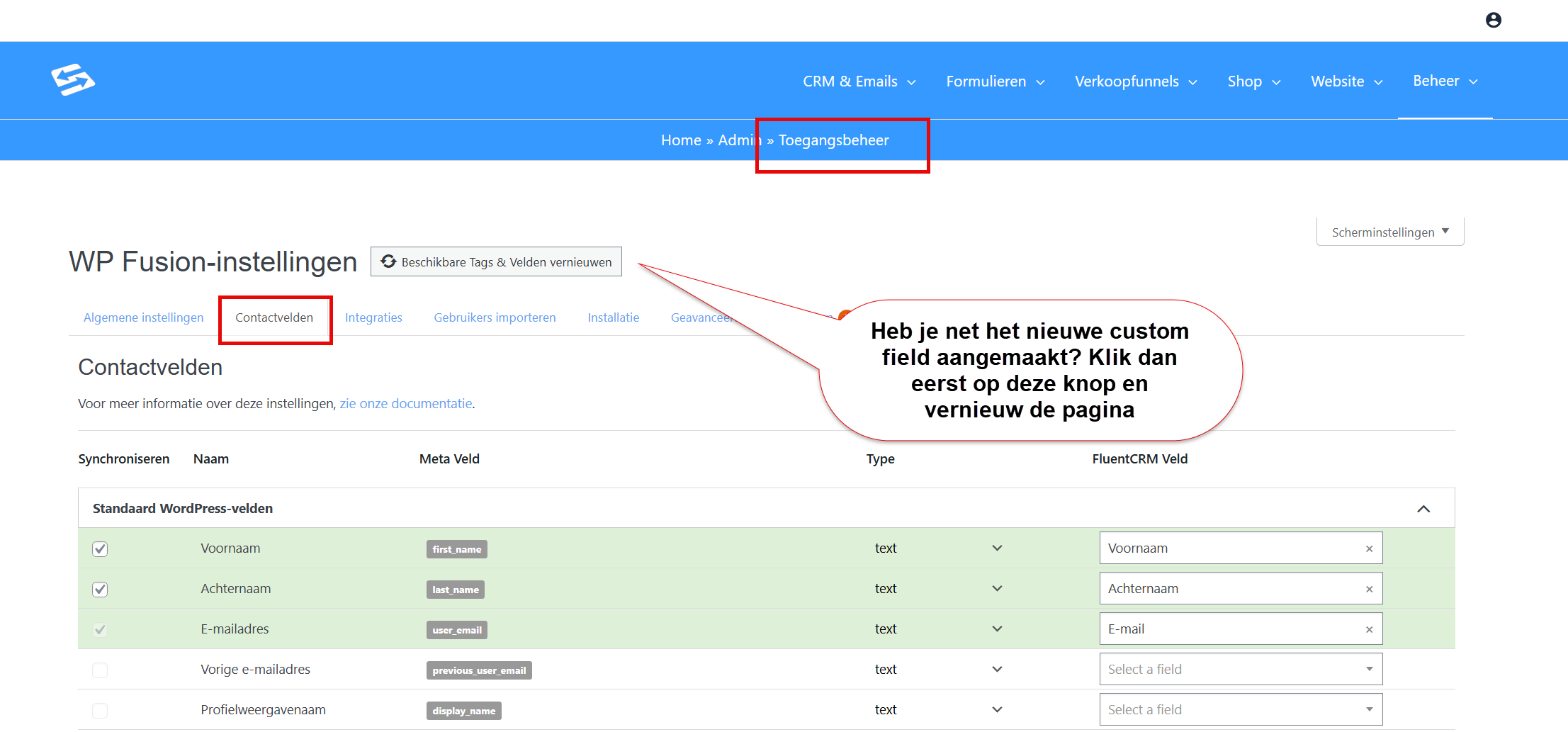
- Go to Administration → Access management
- Open the Contact fields tab
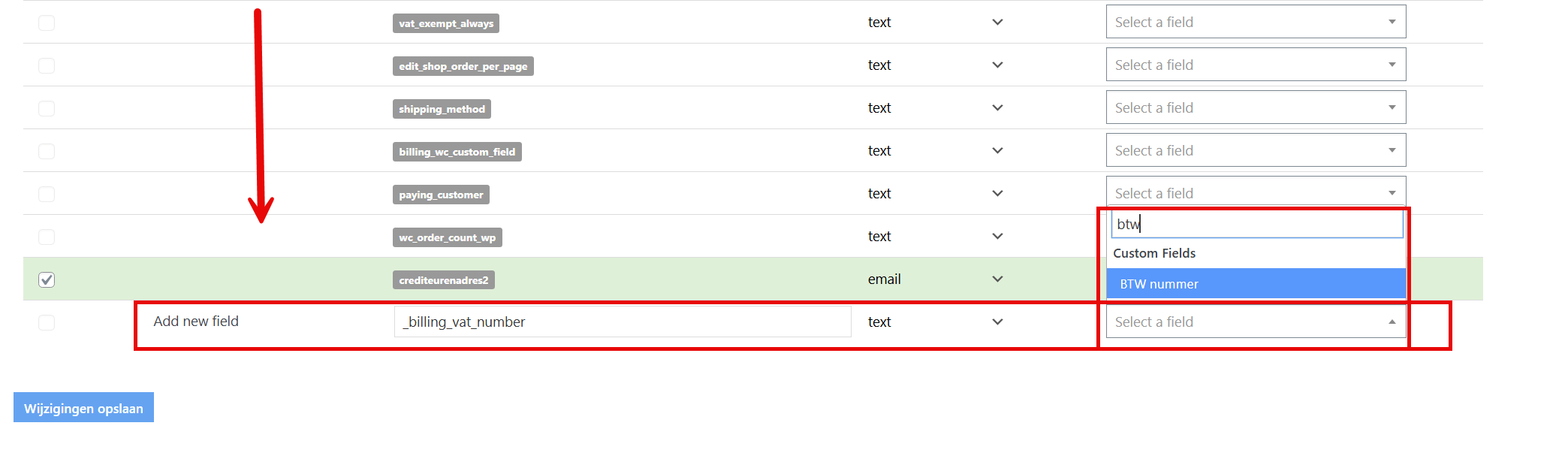
- Scroll all the way down to New field entry
- In the left-hand field, enter: _billing_vat_number
- In the right-hand dropdown menu, select the custom contact field VAT number
- If you do not see the custom contact field, first click Refresh Available Tags & Fields at the top
- Refresh the page and select the field again
- Save the settings

Result #
Once this connection is set up, the following happens:
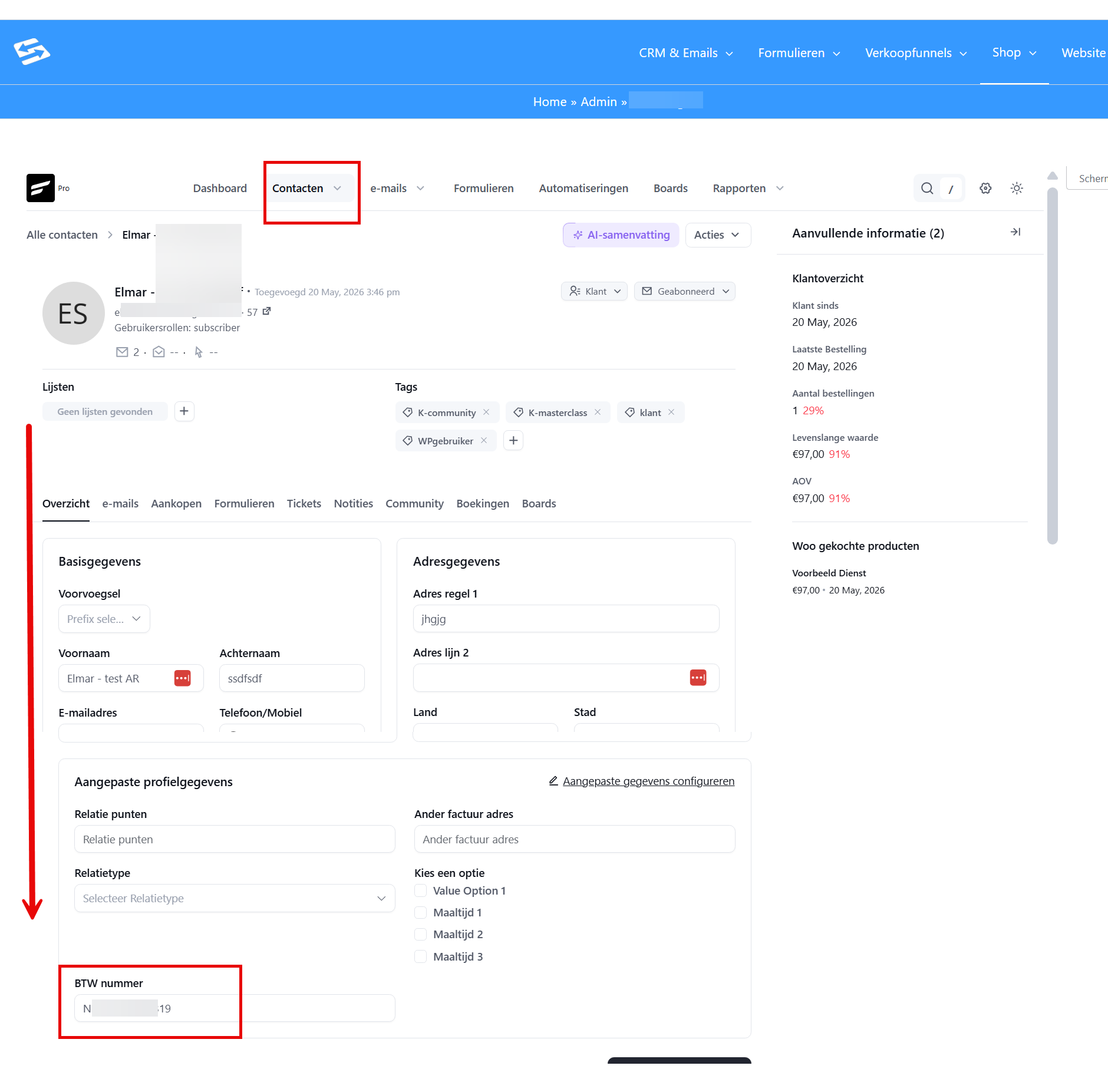
- Customers who enter a VAT number at checkout have that number saved automatically in their contact profile
- The VAT number is visible on the contact under Custom profile data
The other way around: passing the VAT number from the CRM to the customer profile #
The connection above runs from the order to the CRM. If you want it the other way around as well, so that users you create from the CRM (with an automation, for example) immediately have their VAT number in the shop customer profile, then also link the shop profile field to the same CRM field:
- Go to Administration → Access management, Contact fields tab, and scroll to New field entry.
- In the left-hand field, enter: vat_number
- On the right, choose the custom contact field VAT number, tick the box and save.
The field vat_number is the VAT number in the customer profile (Shop → Customers → Customer billing address) and is also used to pre-fill the number at checkout and when the billing address is loaded into a manual order. You link the company name in the same way: link the line Billing – Company (billing_company) in the WooCommerce Customer section to your CRM field for the organisation.
Linking other fields #
You can link other order details to contact fields in the CRM in the same way. Add more lines at New field entry for this, or, if the field is already visible among the existing contact fields, link the webshop fields you want to custom contact fields.
Existing customers #
For customers who placed an order before this setting was in place, you can add the VAT number manually, or run the action Reprocess WP Fusion actions on the order in question:
- Go to Shop > Orders
- Open the order in question
- At Order actions, choose Reprocess WP Fusion actions
- The details are now passed on to the correct custom fields of the contact after all.
Frequently asked questions #
Why do I not see the custom contact field in the dropdown menu? #
First click the ‘Refresh Available Tags & Fields’ button at the top of the page. Then refresh the browser page and the new contact field becomes visible in the dropdown menu.
Does this also work for other billing details such as the company name? #
Yes, you can link other webshop fields to contact fields in the same way. Find the contact field and link the matching webshop field (such as billing_company for the company name).
What happens to VAT numbers from orders placed before this setting? #
Those VAT numbers are only on the invoices and not in the contact profile. You have to add them to the contact profiles manually through CRM & Emails → Contacts.


