When a customer places an order, Autorespond automatically sends an order notification to the administrator. You can have a second person receive this email automatically as well, such as your bookkeeper or accountant, including the PDF invoice as an attachment.
Invoice management in Autorespond is based on PDF Invoices & Packing Slips, included in your package.
Step 1: Add an extra recipient to the order notification #
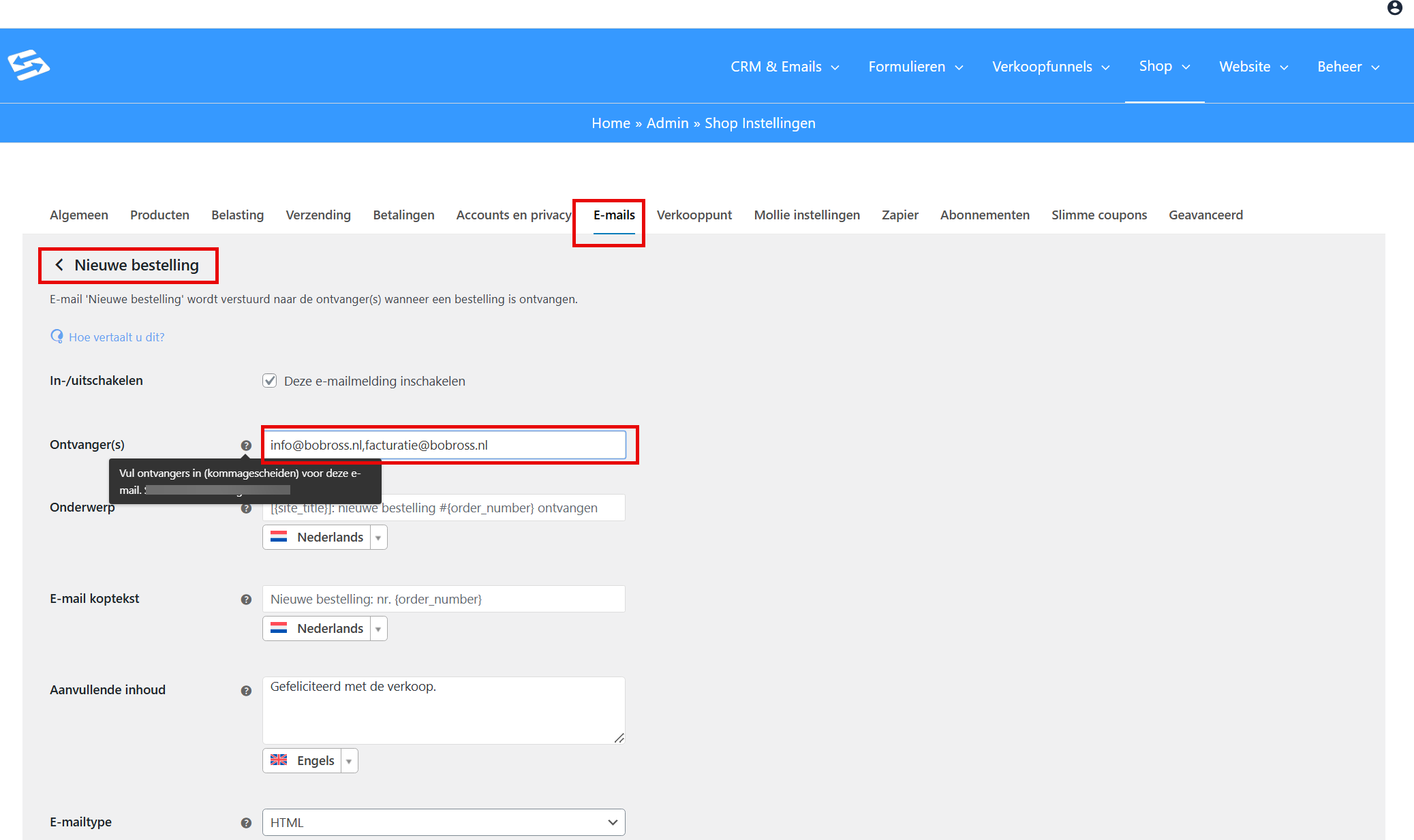
Go to Shop → Shop settings and open the ‘Emails’ tab. Here you see all the automatic emails the system sends for orders.
Click ‘Manage’ at the email ‘New order’. This is the notification that goes to the administrator by default with every new order.
The ‘Recipient(s)’ field normally holds the main email address of your shop. Add a comma directly after the existing email address (without a space) and then type the extra email address of your bookkeeper.
Example: [email protected],[email protected]
Save the settings. From that moment on, both email addresses receive the order notification with every new order.
Step 2: Send the PDF invoice along as an attachment #
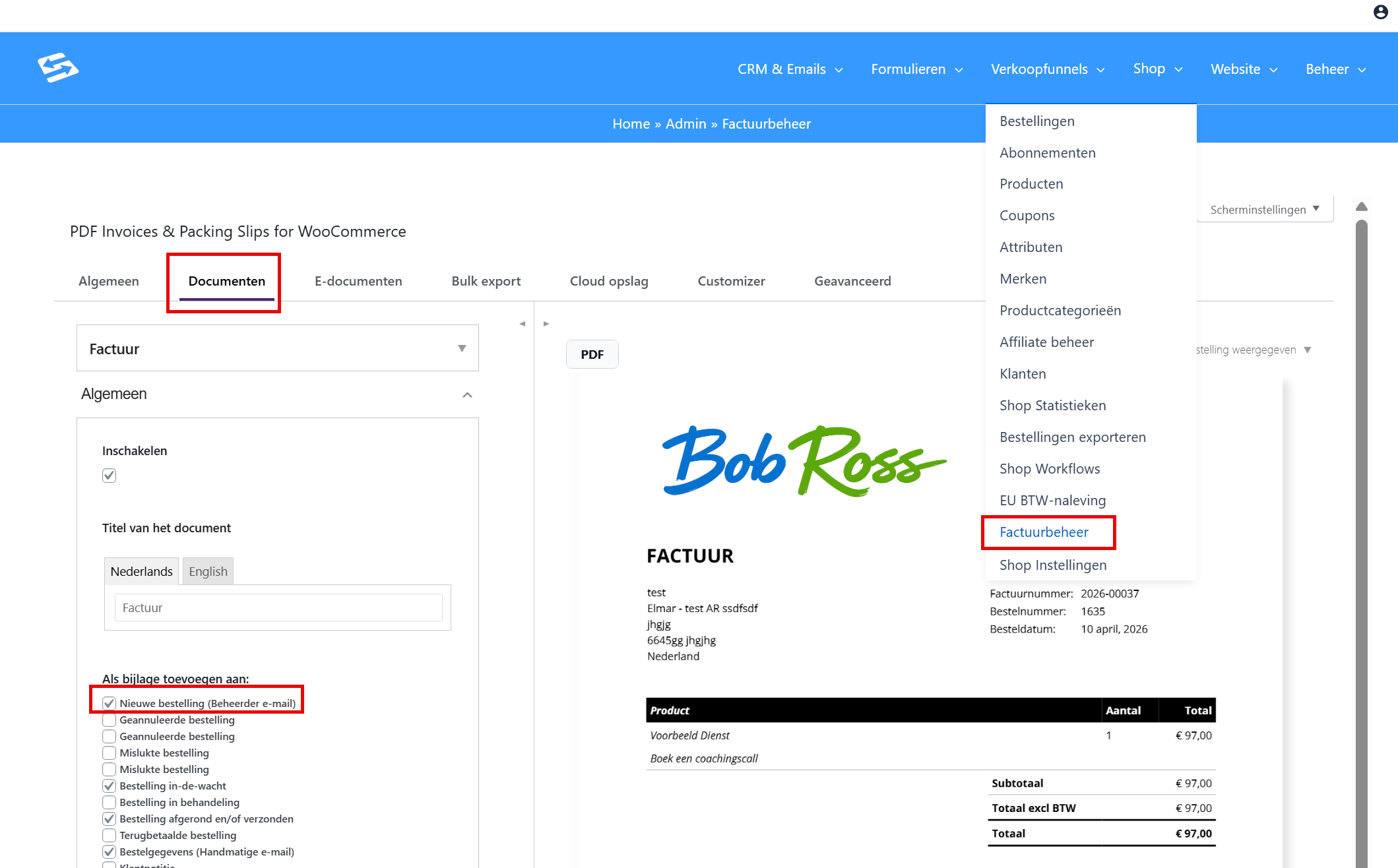
The order notification contains the PDF invoice as an attachment by default. This is set up as standard in the invoice management settings. But if that is not (or no longer) the case, you can set it up like this:
Go to Shop → Invoice management and open the ‘Documents’ tab. Click ‘Invoice’ to open the invoice settings.
Tick the email in question at ‘Attach to’ and tick the option at ‘New order (admin)’. Save the settings.
From that moment on, the PDF invoice is automatically sent along as an attachment with every order notification, to all the recipients you set up in step 1.
Important points of attention #
For all orders #
This setting works for all orders: both orders customers place themselves through the checkout and orders created manually. With manual orders the notification is only sent if you actively trigger it through the action ‘Send new order notification’ on the order page.
Difference from the customer confirmation #
The customer does not get this order notification; it goes only to the administrator and any extra recipients. The customer receives a separate order confirmation through the standard WooCommerce order workflow.
Invoice numbering #
Please note: if you enable the PDF invoice attachment for the ‘New order’ email, an invoice is created straight away for every new order and given an invoice number. If you would rather start the invoice numbering only at ‘Completed order’, it is better to add the attachment only to the ‘completed order’ email and add the bookkeeper to that one separately.
Not emailing the bookkeeper for free orders (€0) #
Do you offer something free through your shop, for example a giveaway that customers “order” through the checkout for €0? No invoice is created then, but the ‘New order’ notification does go to all recipients, including your bookkeeper. For the bookkeeping, such a notification is nothing but noise. That is why you can indicate per notification which recipients only need to receive the email when an amount is actually paid.
Go to Shop → Shop settings → ‘Emails’ tab and click ‘Manage’ at ‘New order’. Directly below the ‘Recipient(s)’ field is the field ‘Recipients only for orders with an amount’:
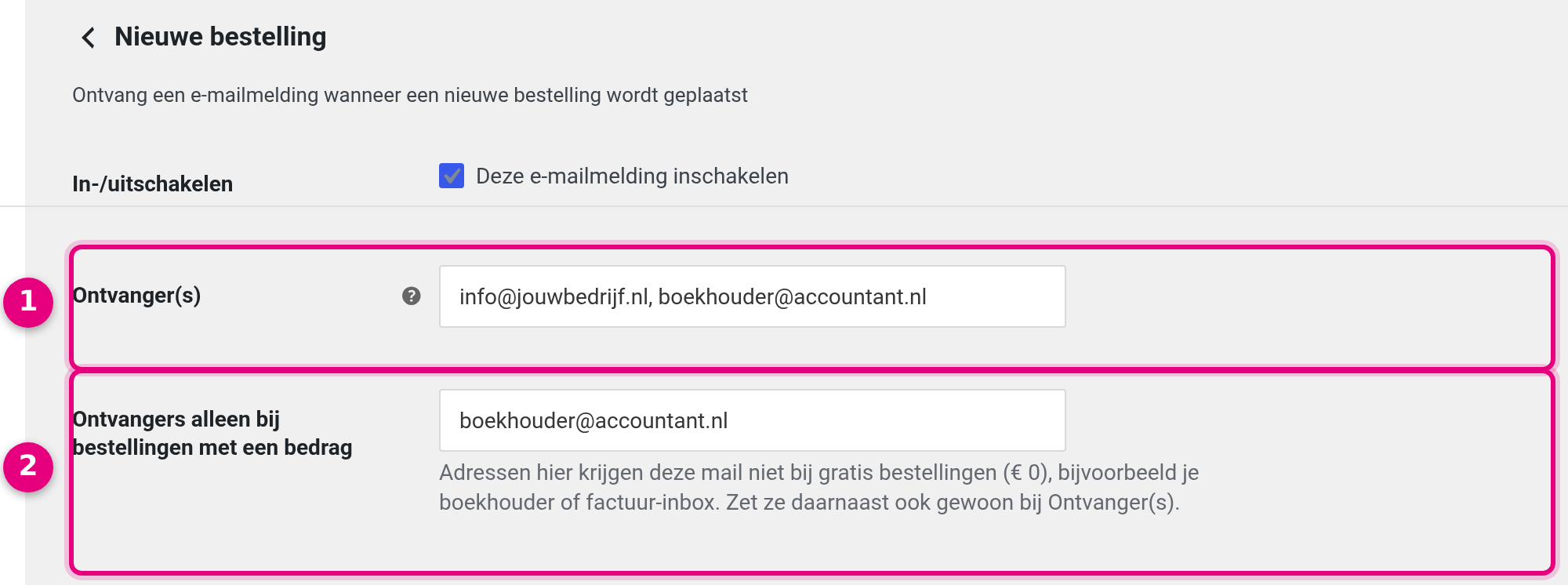
- Recipient(s): this holds all the addresses that receive the notification, so your own address as well as your bookkeeper’s. Leave this field as it is; the bookkeeper simply stays in it.
- Recipients only for orders with an amount: enter here the addresses that do not need to receive the notification for a free order, for example your bookkeeper’s address or the inbox of your accounting package. Separate several addresses with a comma. Only addresses that also appear at ‘Recipient(s)’ have any effect.
Click ‘Save changes’. From that moment on, the bookkeeper only receives the notification for orders with an amount; your own address receives it for every order. What counts is the total amount of the order, so after any discount and including shipping costs: an order that comes to €0 through a 100% discount code counts as free, a free product with shipping costs does not.
You will find the same field at the notifications ‘Cancelled order’ and ‘Failed order’, and for subscriptions at ‘New renewal order’ and ‘Subscription changed’. If you send those notifications to your bookkeeper as well, fill in the field there in the same way. A subscription with a free trial period then works exactly as you would expect: the first order of €0 does not go to the bookkeeper, the renewal order with an amount does.
Frequently asked questions #
Can I add several extra recipients? #
Yes, you can add several email addresses by separating them with commas. For example: [email protected],[email protected],[email protected]
Can the bookkeeper skip the notification for free orders? #
Yes. On the notification, also put the bookkeeper’s address in the field ‘Recipients only for orders with an amount’ (see above). With an order of €0 the notification then only goes to the other recipients.
Does the bookkeeper receive other automatic emails too? #
No, this setting applies only to the ‘New order’ notification. For other emails such as ‘Completed order’ you can add extra recipients separately using the same method.
What happens if the PDF invoice is not created? #
If there is a problem with the PDF generation, the order notification is still sent but without an attachment. Check the invoice management settings if invoices are not being created.


