By default, your customers’ VAT number appears automatically on the PDF invoice with the address details, provided this field was filled in during the order. If the VAT number is still not visible on your invoices, you can set this up manually through the invoice management settings.
PDF invoices in Autorespond are provided by PDF Invoices & Packing Slips, included in your package with Shop & Sales funnels.
When to use this setting #
This function is mainly useful for B2B sales where you invoice business customers who are liable for VAT. The VAT number then appears automatically on the invoice, which is required for a valid business invoice within the EU.
Adding the VAT number to the invoice format #
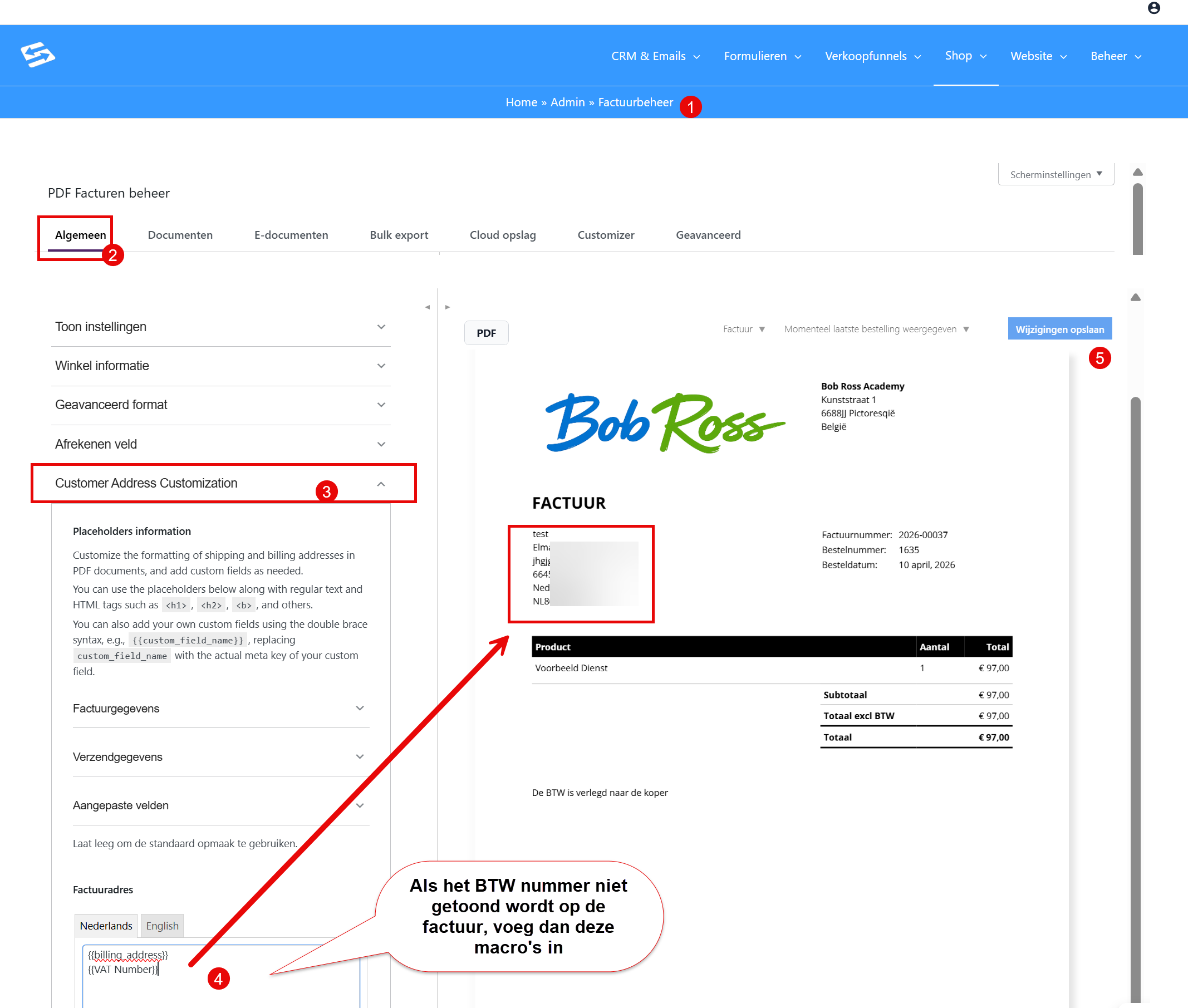
Follow these steps to add the VAT number to the invoice format manually:
- In the dashboard, go to Shop → Invoice management
- Open the ‘General’ tab
- Find the ‘Customer Address Customization’ field
- In the billing address, add this below the existing address format:
{{billing_address}}
{{VAT Number}} - Click ‘Save’ to apply the changes
The VAT number now appears automatically below the customer details (which are shown with ‘{{billing_address}}’) on every invoice, but only if the field was actually filled in during the order.
Why is this needed for manual orders? #
With an order placed through the checkout, the customer’s VAT number is validated; a validated number then ends up in the address block of the invoice by itself. With a manual order that validation does not take place, and the invoice only shows the number if you have put the line {{VAT Number}} in the invoice format as described above. Enter the VAT number in the billing details of the order (the pencil icon at Billing) before you generate the invoice; an invoice that has already been created is not updated by itself.
How the VAT number is filled in #
The VAT number can end up on the invoice in two ways:
- Automatically through the checkout: Customers enter their VAT number while paying, and it is carried over automatically
- Manual orders: When you create a manual order you can enter the VAT number yourself in the customer details
For more information about manual orders, see creating a new order and invoice manually.
Important details #
The field name {{VAT Number}} is specific to the EU VAT compliance module that is active by default in Autorespond. This module takes care of correct VAT handling within the European Union.
If the VAT number has not been filled in on an order, this field stays empty on the invoice and no empty line is shown. Only VAT numbers that have been filled in appear on the invoice.
Frequently asked questions #
Why do I not see the VAT number on my invoice? #
The VAT number only appears if it was filled in during the order and has been added correctly to the invoice format through Shop → Invoice management → General tab.
Can I add the VAT number to an existing invoice later? #
You can add the VAT number to the order through Shop → Orders by editing the order details, after which you can generate a new invoice with the updated details.
Does {{VAT Number}} work for manual orders too? #
Yes, the VAT number appears automatically on the invoice if you entered it in the customer details when creating the manual order.


