Autorespond offers various payment options, both for customers who order online themselves and for orders created manually by the administrator. This article explains both scenarios.
The shop in Autorespond is based on WooCommerce, included in your Shop & Sales funnels extension.
Payment methods in the public checkout #
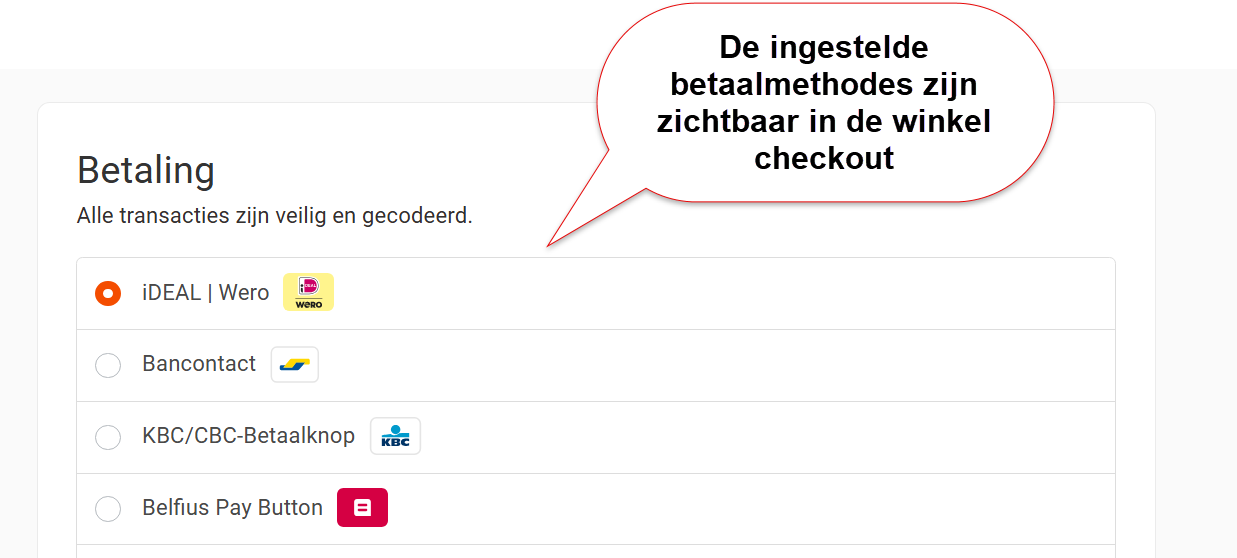
When customers place an order themselves through your webshop, they see all the payment methods that are active and set up through the menu Shop > Shop settings, ‘Payments’ tab. If you use Mollie as your payment provider, you see all the available payment methods you have activated in your Mollie account, for example:
- iDEAL (the Netherlands)
- Bancontact (Belgium)
These payment methods are set up automatically through the Mollie integration. Go to Shop → Shop settings and open the ‘Mollie settings’ tab to connect your account and check the settings (if you are migrating from the old e-act Autorespond system, we have often done this for you already).
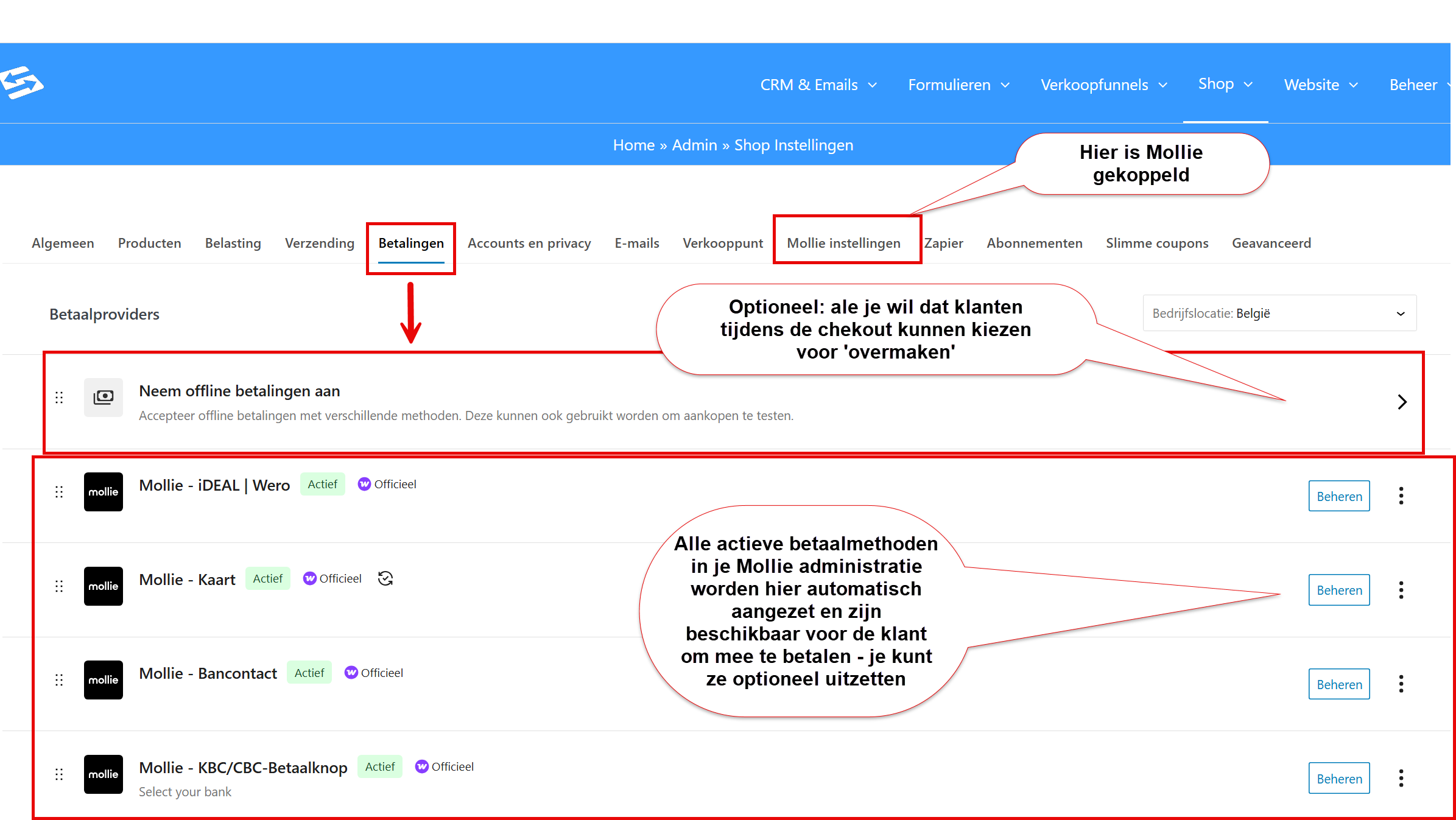
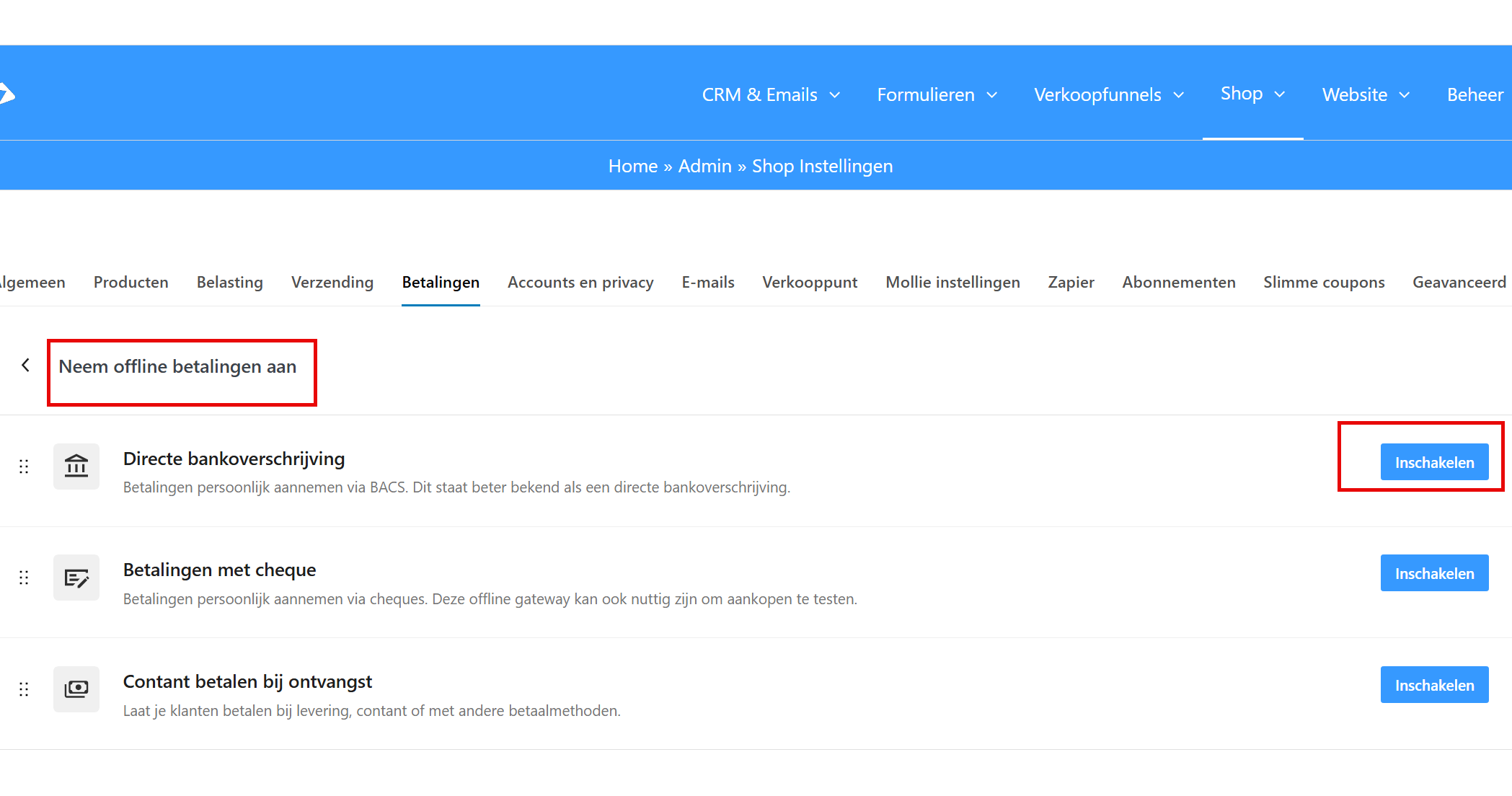
Optional: if you want customers to be able to choose ‘bank transfer’ during the checkout, you can switch on the ‘Direct bank transfer’ option under ‘Take offline payments’:
Payment on manually created orders #
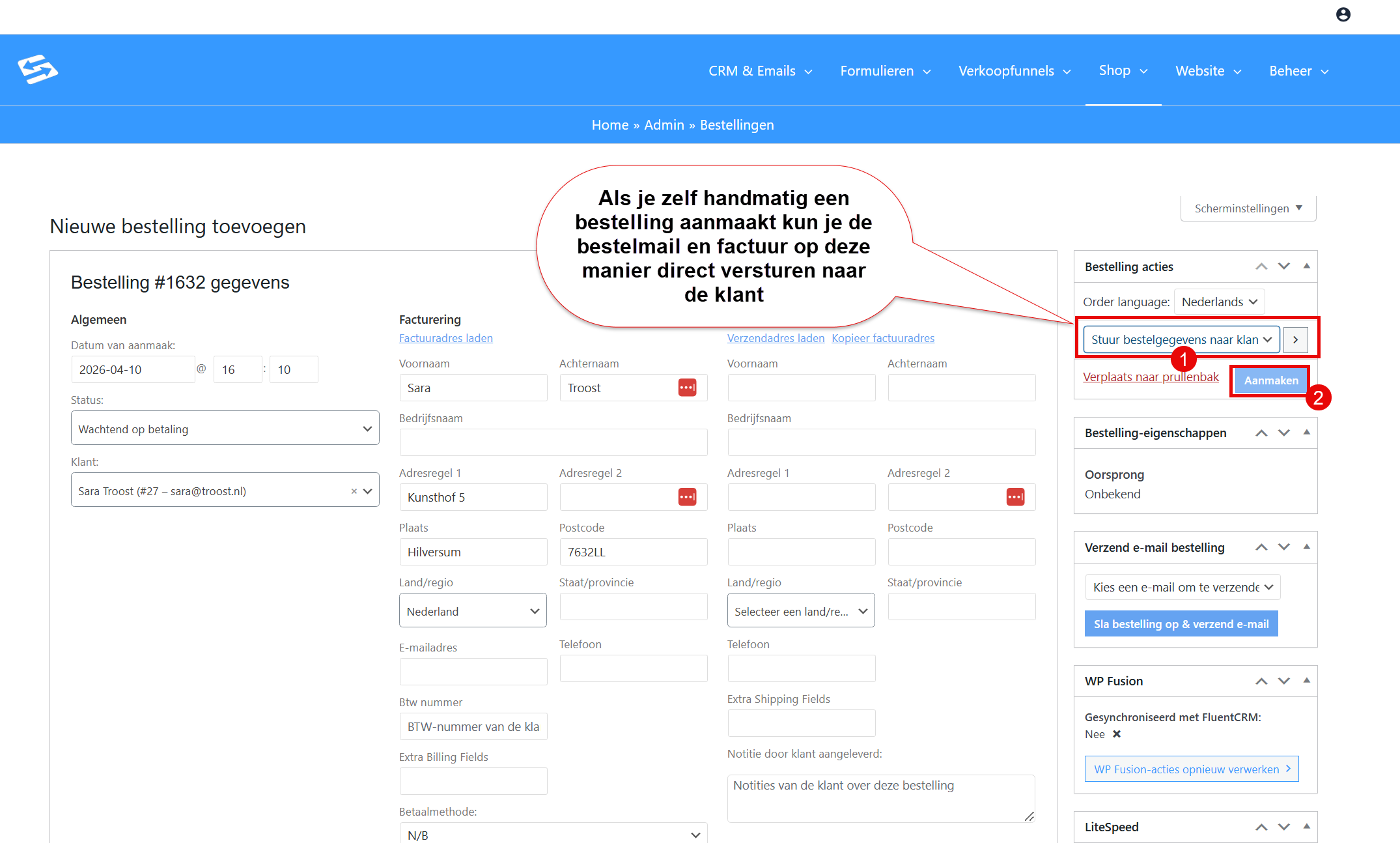
When you create an order yourself as the administrator through Shop → Orders → Add order, the payment process works differently. You do not have to choose a payment method while creating the order.
Sending a payment link through the customer invoice #
After saving the manual order you can send the customer an invoice email with a direct payment link:
- Open the created order through Shop → Orders
- Click the ‘Send invoice to customer’ button
- The customer receives an email with the invoice and a payment link
- Through the payment link they can pay online straight away with iDEAL or Bancontact
After a successful payment the order status is updated automatically to ‘Processing’ and you receive a confirmation.
Bank transfer as an alternative #
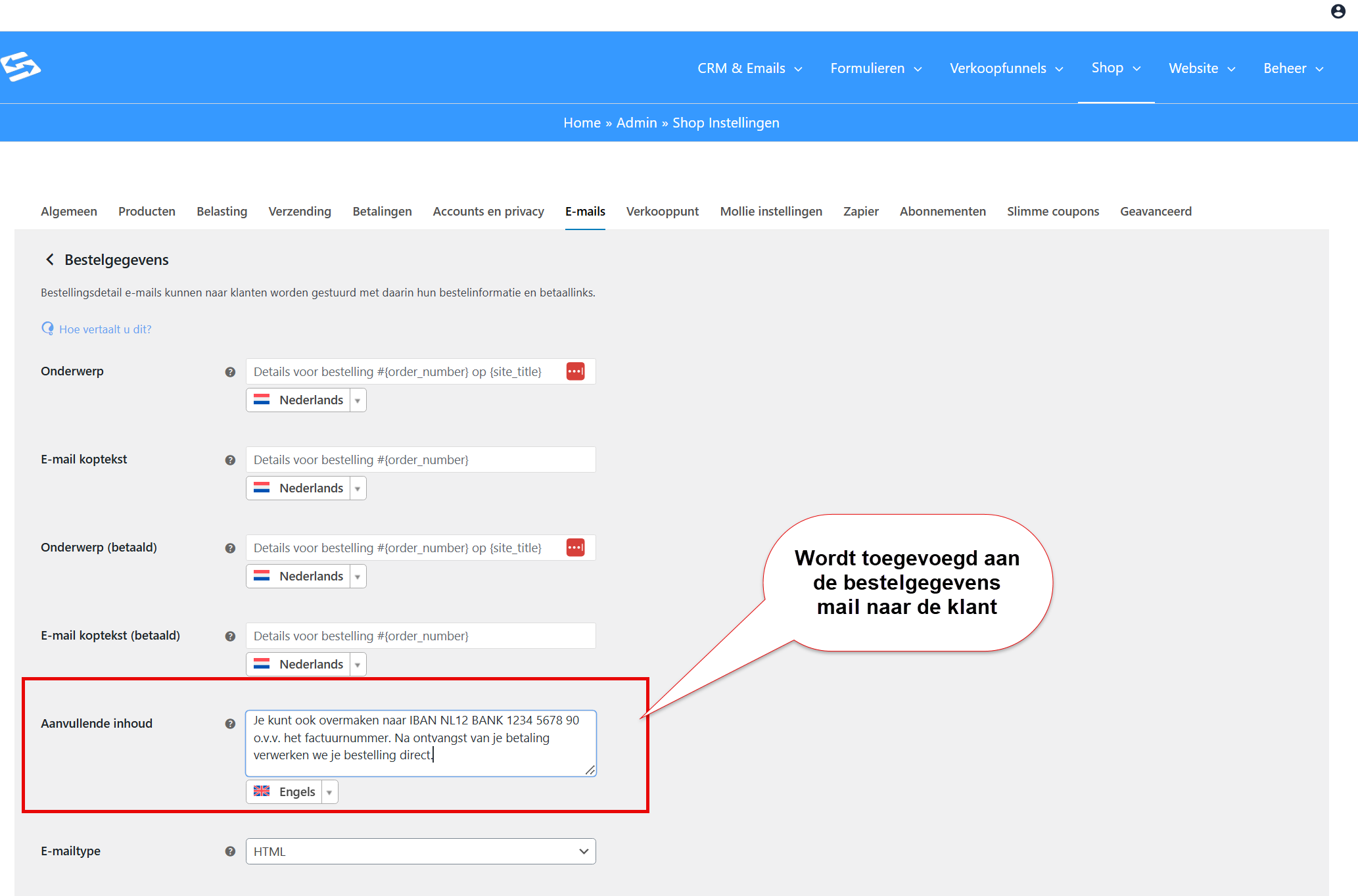
Do you also want to give customers the option of paying by bank transfer when you create an order manually? Then you only need to add your IBAN account number to the text of the customer invoice email. Go to Shop → Shop settings and open the ‘Emails’ tab. Find the ‘Customer invoice’ template and add your account details to the email text.
For example: “You can also transfer the amount to IBAN NL12 BANK 1234 5678 90, quoting the invoice number. We will process your order as soon as your payment comes in.”
The order email that is sent is the ‘Order details’ email, which you can manage through the menu Shop > Shop settings, ‘Emails’ tab:
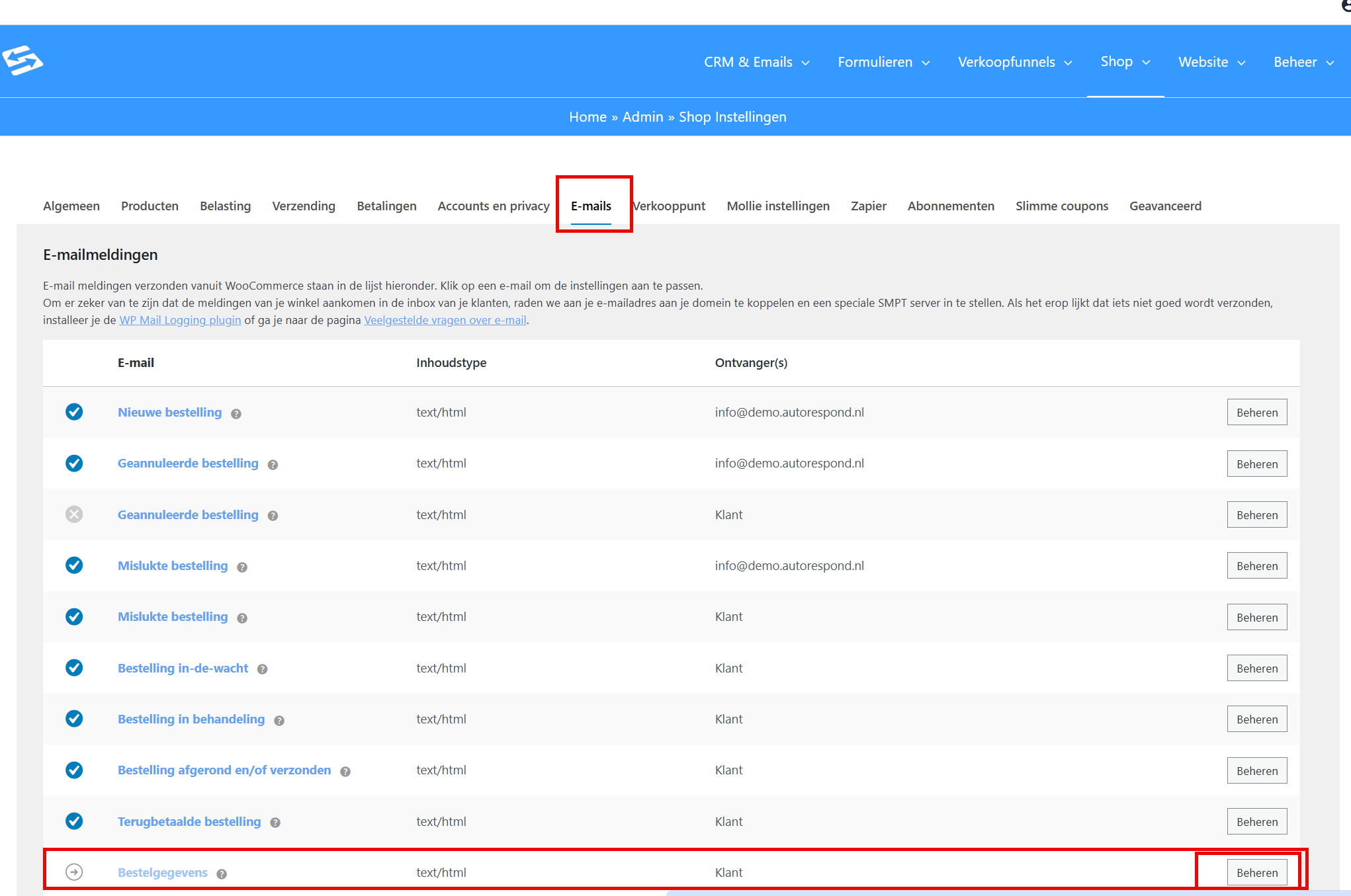
The order email with the invoice that is sent to the customer then contains a payment link, but also explains how they can transfer the amount themselves.
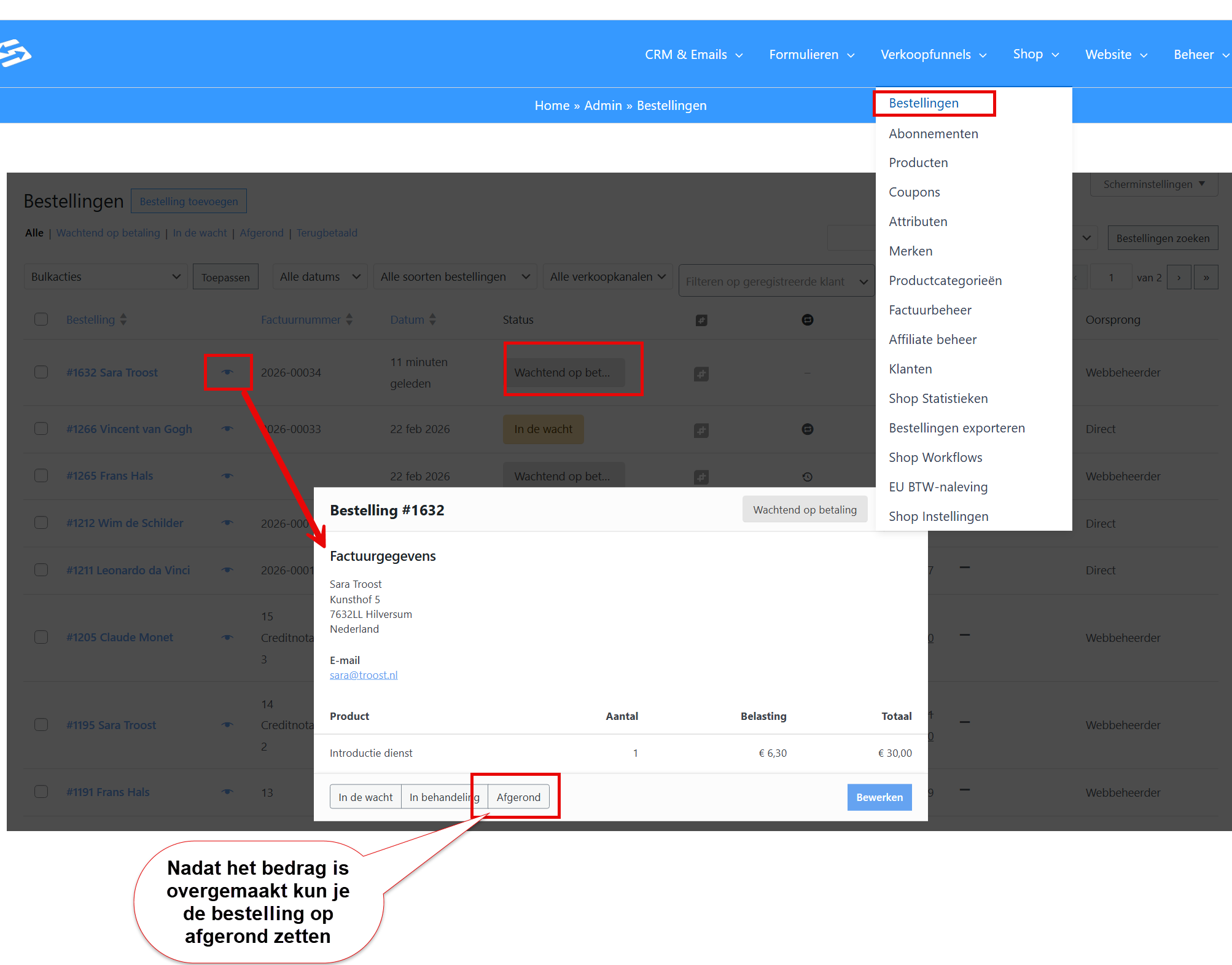
Once the transfer comes in, you set the order to paid manually by changing the order status on the order page to ‘Completed’.
For more information about creating manual orders, see also creating a new order and invoice manually.
Frequently asked questions #
Can customers in the public checkout pay afterwards as well? #
Yes, they can, but then you have to switch on the payment method ‘Direct bank transfer’ at ‘Take offline payments’ in the payment methods through the menu Shop > Shop settings, ‘Payments’ tab. If that is not switched on, customers can only pay with the payment methods you have active in Mollie.
Can I add more payment methods such as credit card? #
Yes, if you switch the payment method on in your Mollie account. The payment method then also becomes available in your shop. You can still manage them through the menu Shop > Shop settings, ‘Payments’ tab.
How do I know whether a transfer has come in? #
You have to check your bank account yourself and set the order to ‘Paid’ manually. There is no automatic connection between your bank account and Autorespond for bank transfers.


