Adding a public web version link to an email with a shortcode #
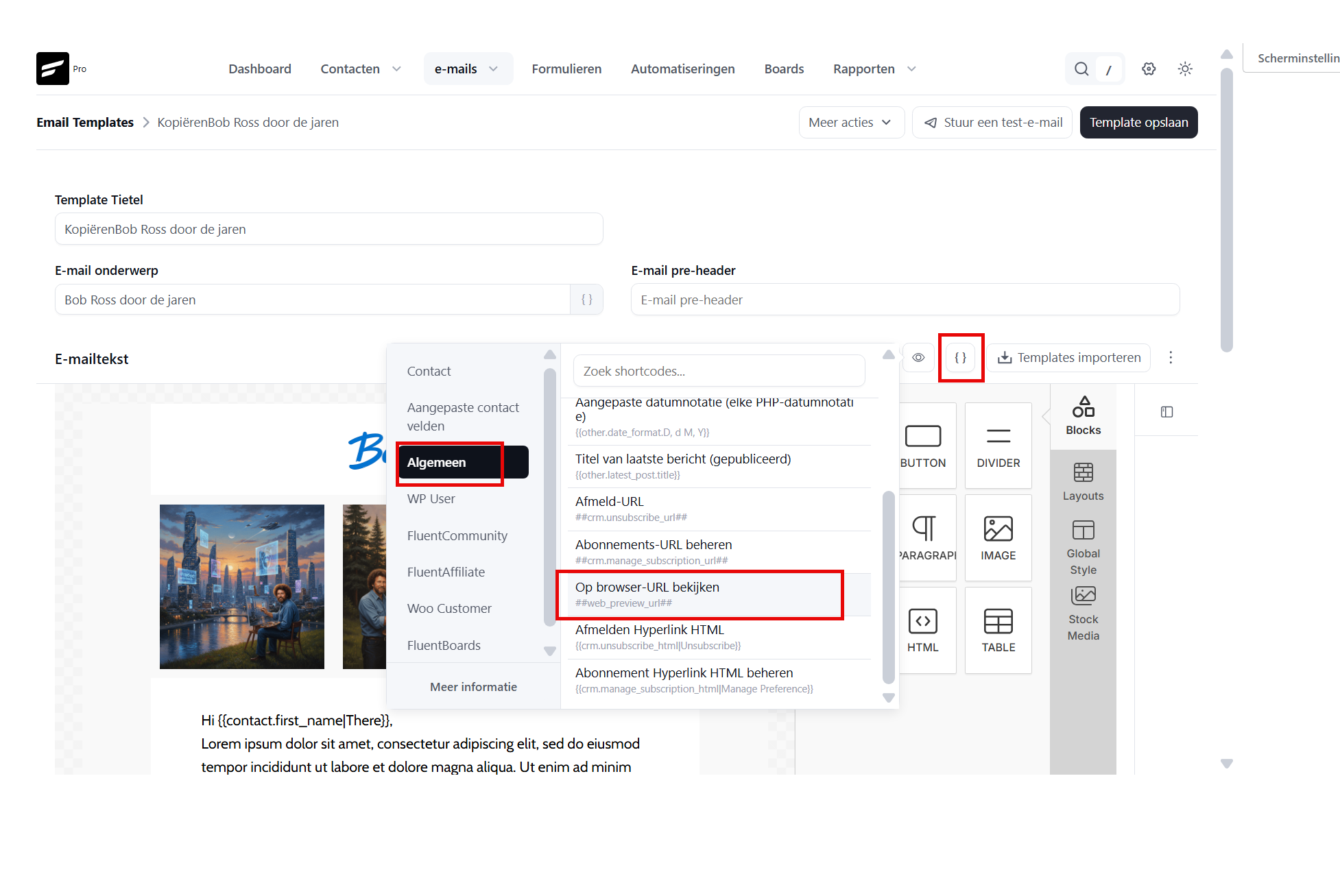
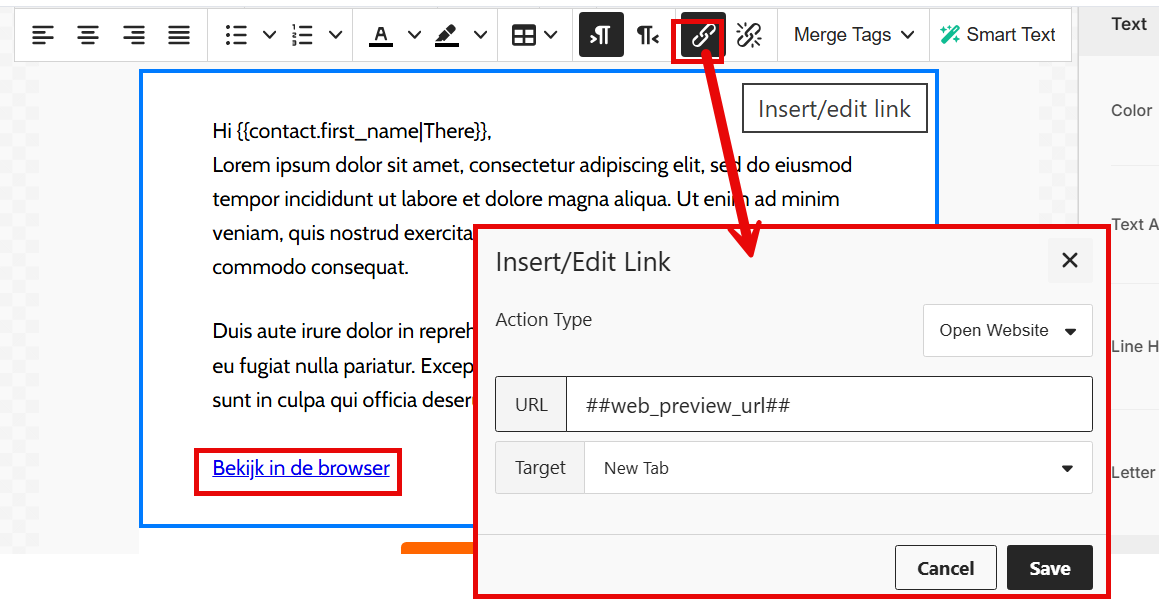
To place a link in the email to the public web version of that email (so recipients can view and share it), you can use this shortcode:
##web_preview_url##You can set it as a link:
Getting the public web version link of a campaign you have sent #
A campaign that has been sent has a unique web version URL. You can find it by clicking the campaign and then the share icon at the top. You can copy that link and share it on social media, for example.
Unfortunately it is not possible to include a link to the public web version inside the campaign itself. That public web version is only generated once the campaign has been sent in full and has been given the archived status.
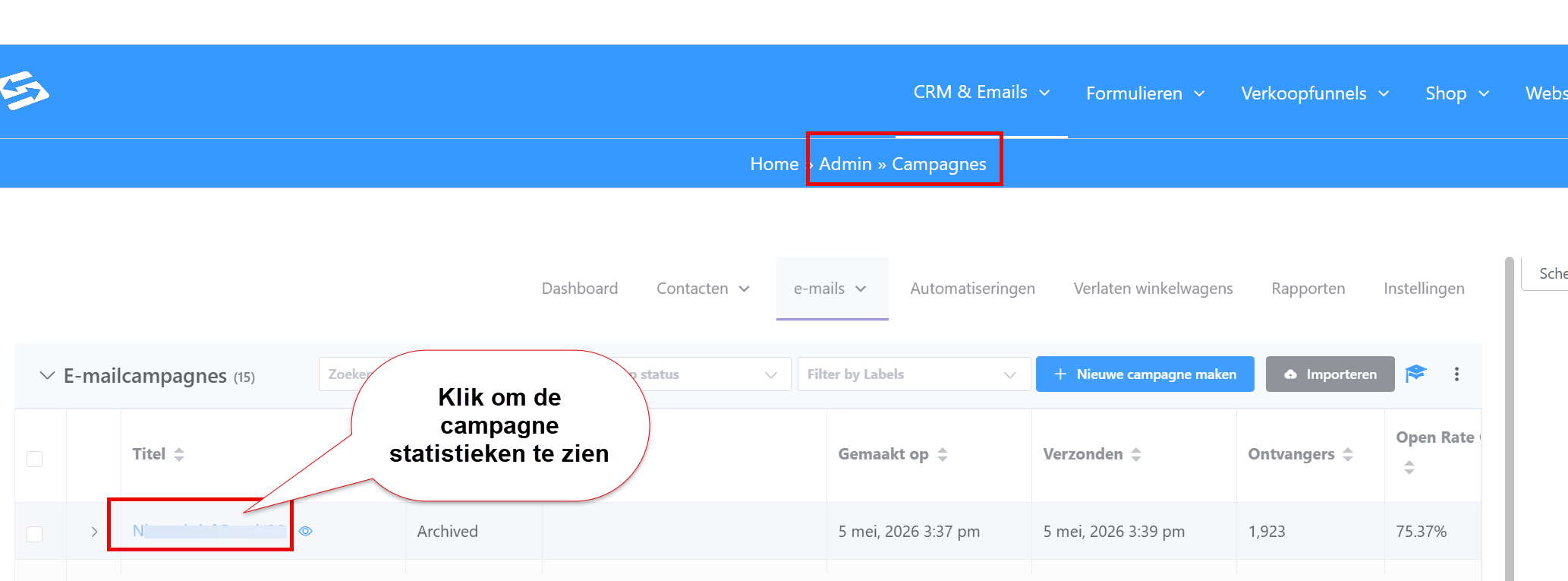
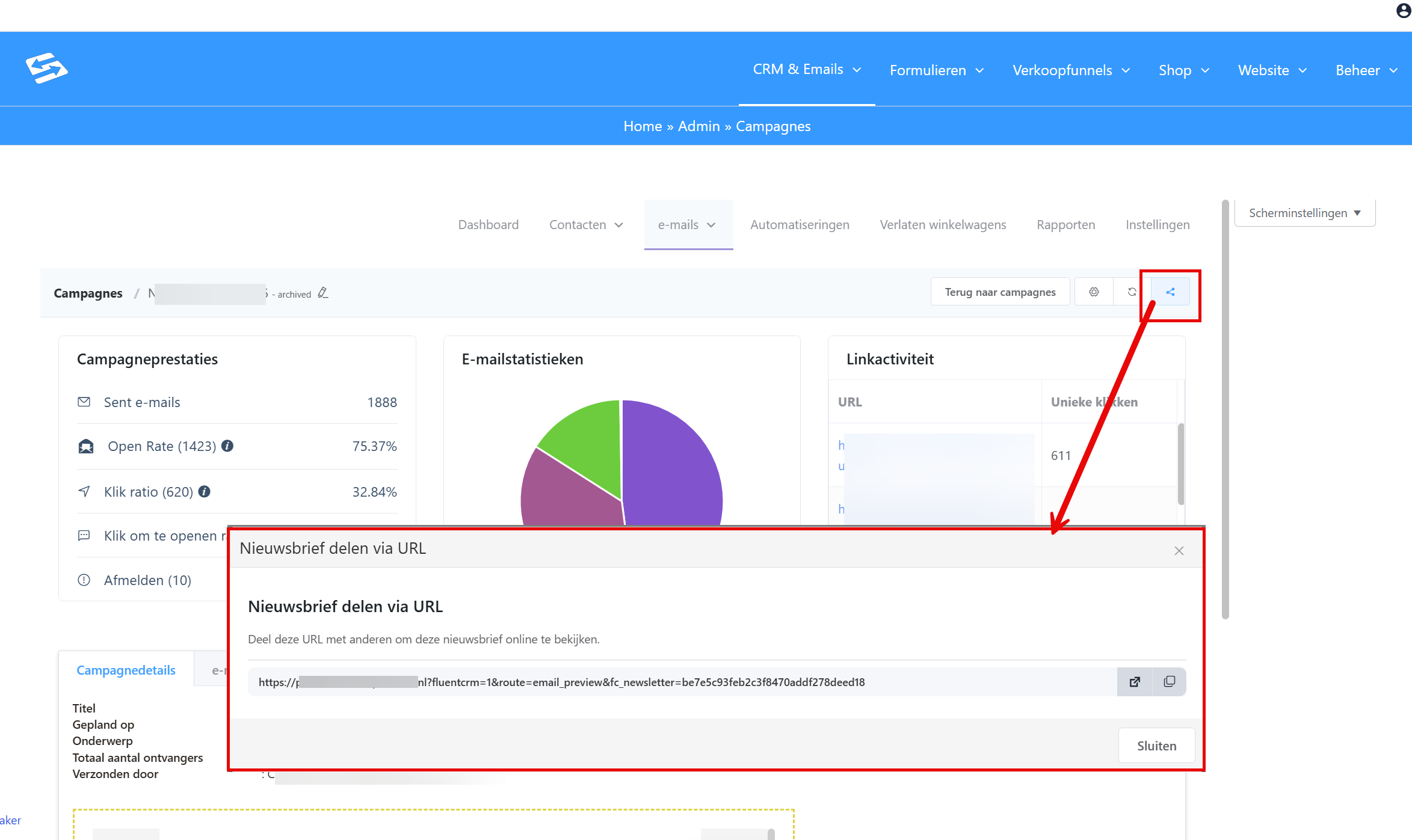
This is the quickest way to get a link to a campaign you have sent, and in the web version macros (such as the first name macro) are hidden automatically.
Setting up campaign archives for public newsletters #
You can also use the campaign archive function to create a separate page and make your newsletters publicly available there in a single overview (a sort of blog overview), so that non-subscribers can read them too, through social media or other channels. Every campaign automatically gets its own public link that you can share.
Switching on the campaign archive #
Go to CRM & Emails → CRM Settings → Configure advanced features.
Tick ‘Enable campaign archive front-end feature’ to activate it. Here you can also indicate which specific campaigns you want to show on your campaign archive page:
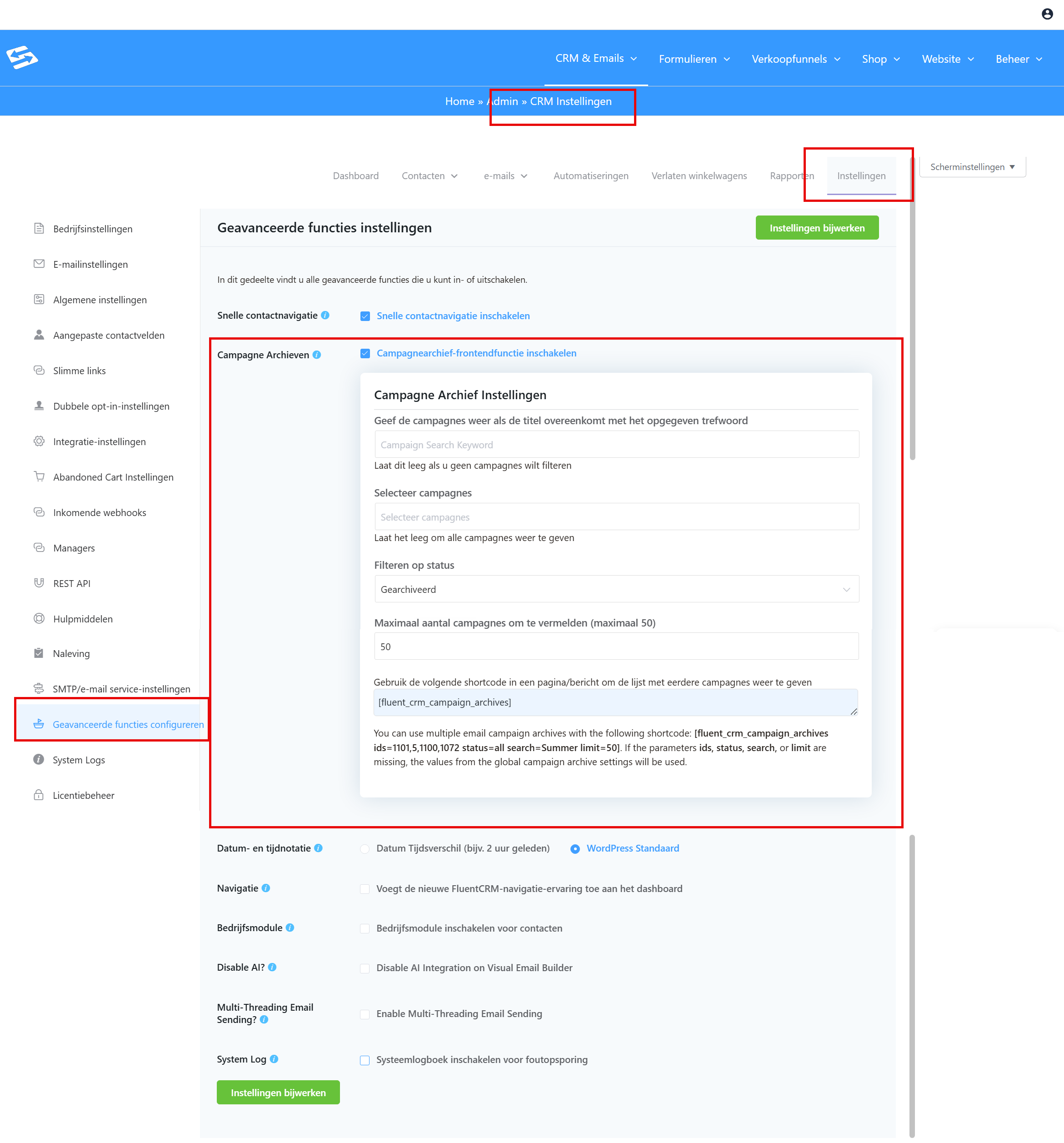
You can show several specific email campaign archives with the following shortcode: [fluent_crm_campaign_archives ids=1101,5,1100,1072 status=all search=Zomer limit=50].
If the parameters ids, status, search or limit are missing, the values from the global campaign archive settings are used.
Creating the archive page #
Create a new page through Website → Pages. Give the page a title such as ‘Newsletter archive’ or ‘Email archive’.
Add the shortcode [fluent_crm_campaigns] to the page (or the shortcode with more specific parameters) to show the campaign overview. Publish the page.
Smartcodes in public campaigns #
Take care when using smartcodes (such as {{contact.first_name}}) in campaigns that you share publicly through the archive function:
- Visitors who are not logged in see the raw smartcode text, for example “Hi {{contact.first_name}}”
- Contacts who are logged in see their own details filled in, for example “Hi John”
For public newsletters it is therefore better to use the individual web version link, as explained at the top of this article. The campaign archive is mainly useful if you run an online community and want logged-in users to read all newsletters on your site. Logged-in users see their own details in place of the macros.
Frequently asked questions #
Can people who are not subscribers read the newsletter through the public link? #
Yes, public campaign links are accessible to everyone, including people who are not subscribed to your newsletter. Ideal for sharing on social media.
How do I stop certain campaigns from being publicly visible? #
In the public campaign settings you can set a general restriction on which campaigns may be shown, or you can set this in the shortcode you place on the page.
What happens to smartcodes in public newsletters shown through the campaign archive function? #
Visitors who are not logged in see the raw smartcode text. Contacts who are logged in see their own details. For public campaigns you want to share on social media, it is better to use the campaign web version, which you can get from the campaign statistics overview page by clicking the share icon.


